Share


Stream Easily with Alive Studio: Connect YouTube & Twitch for Comments!

In live streaming, “comment display” is an essential element.
By reflecting the viewers’ reactions in real-time, a sense of unity in the broadcast is created, directly contributing to increased engagement and retention time.
Moreover, with comments remaining on screen during archived views, there is a significant advantage in being able to see “what happened at a glance.”
However, even if the importance is understood,
- The comment display settings in OBS are complex
- There is a need to prepare external comment acquisition tools separately
For these reasons, there are many streamers who feel “I want to do it, but I just can’t manage it.”


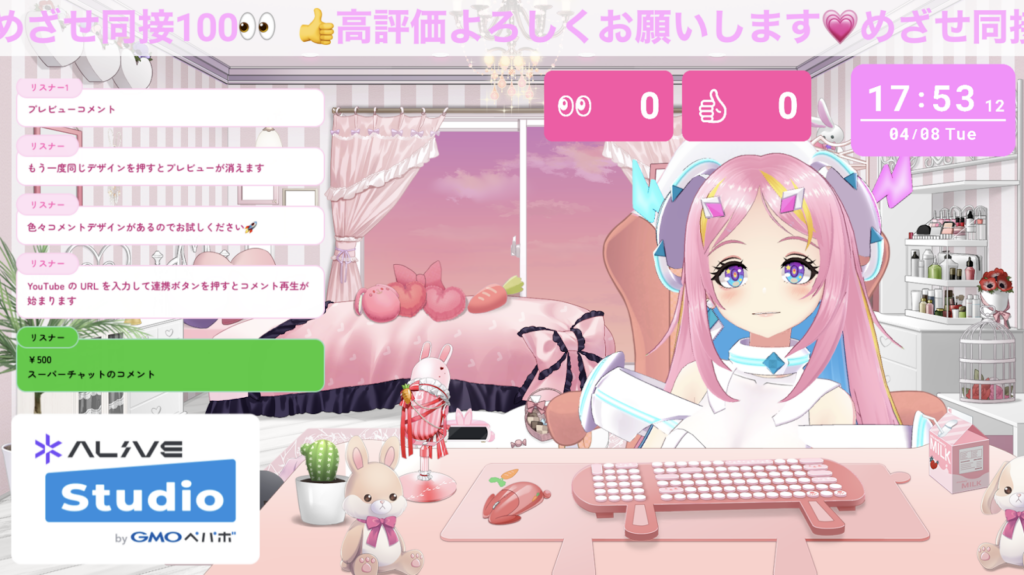
Alive Studio offers two options: a basic free “Free Plan” for those who want to try the streaming screen, and the “Premium Plan” that provides access to all features and resources without limitation.
The Free Plan is ideal for those who want to experiment with the streaming screen for free, providing access to image resources, basic gadget, and some effects. On the other hand, advanced link features and production settings, including comment integration, are only available in the Premium Plan.
The streaming connection introduced below is a feature exclusive to the Premium Plan. The features available in each plan are as follows.
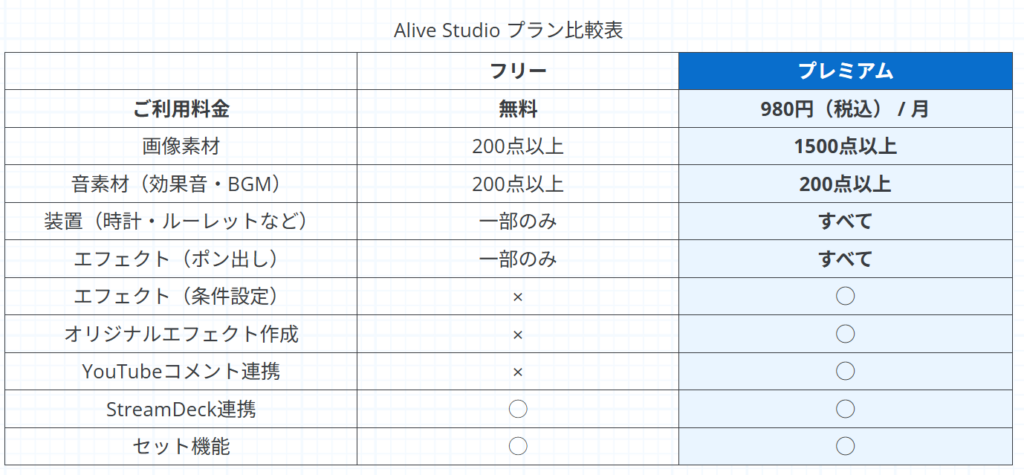
You can switch between the Free Plan and Premium Plan whenever your contract is updated (monthly).
For instance, you can go with the Premium Plan only for commemorative broadcasts or opt for the Free Plan during months of less activity, tailoring it to your streaming style.

The Appeal of Alive Studio’s “Stream Connection”
When connecting to platforms like YouTube and Twitch (Premium Plan), the possibilities increase significantly.
The key point is that you have a range of “collaborations suitable for projects” that exceed just “displaying comments on the screen.”
① Automatic Retrieval of YouTube and Twitch Comments
Simply choose from the prepared designs, with no knowledge of CSS needed for easy display of comments.
What’s even more attractive is the ability to freely mix and match comment designs and frames.
Comment frames can also be adjusted for “opacity.” By combining presets with different styles, you can easily create “almost infinite variations.”
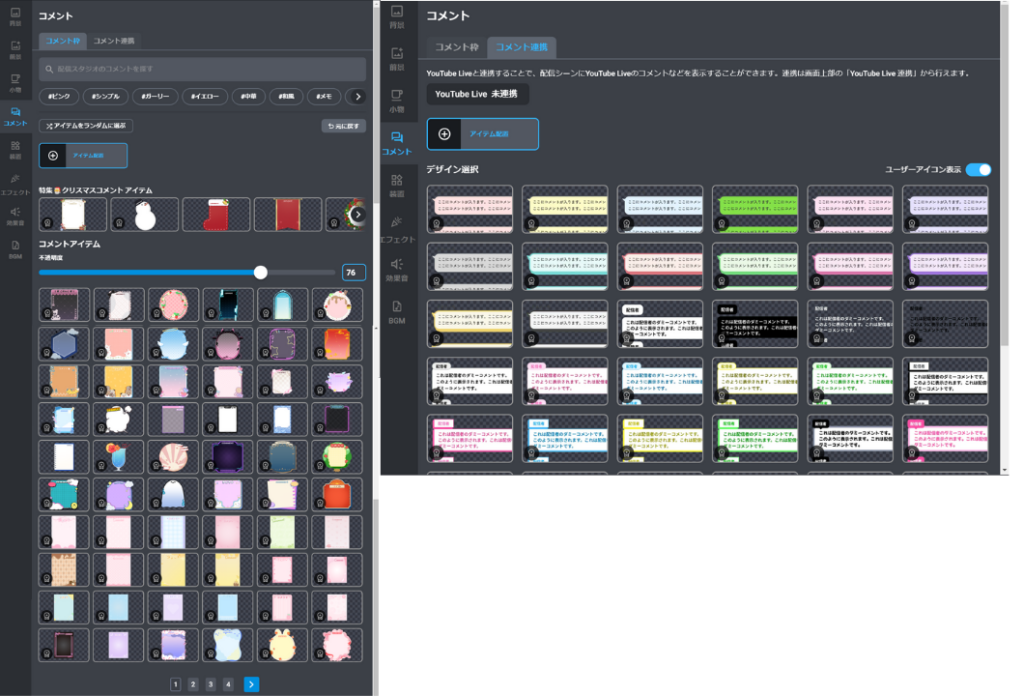
② Automatic Highlighting of Super Chats (YouTube only)! Toggle Icon Display with One Click!
Super Chats are displayed separately for visibility, making it easier to distinguish them from regular comments. Toggling the display of icons is also possible with just one click.
③ Trigger Effects Using Comments or Super Chats
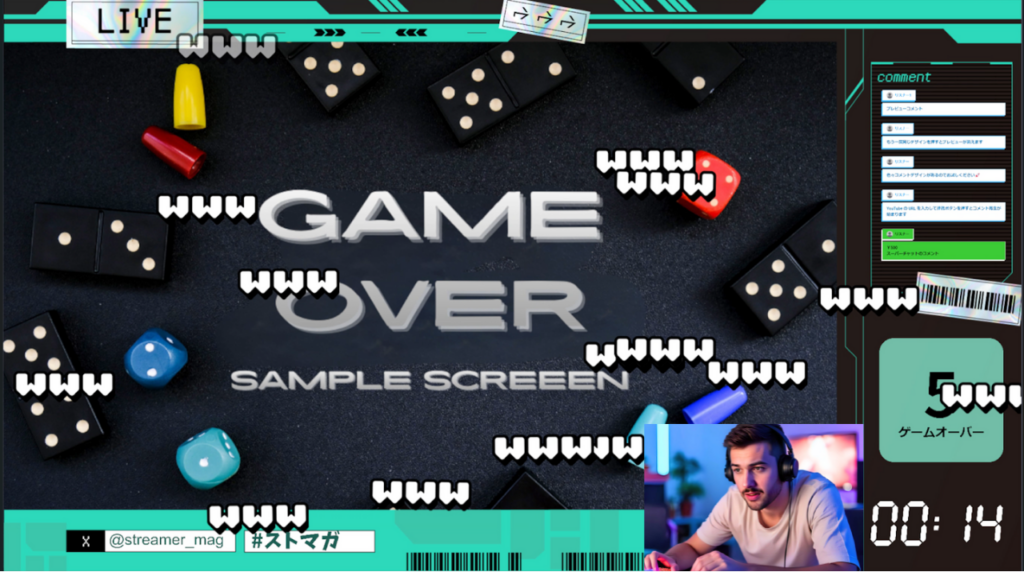
This is one of the main features of Alive Studio. You can easily activate effects for specific comments or Super Chats (YouTube only) that meet a configured amount, provided you have the connections set up.
If you preset keywords, an effect will automatically trigger when those keywords are commented.
Comments and Super Chats become “interactions,” elevating your project to the next level of “viewer participation.”
④ Comment Voting is Available
You can conduct real-time voting using comments, like “Which do you prefer?” or “Is there a restriction on the next boss fight?” The voting status can be displayed on screen, enhancing the production.
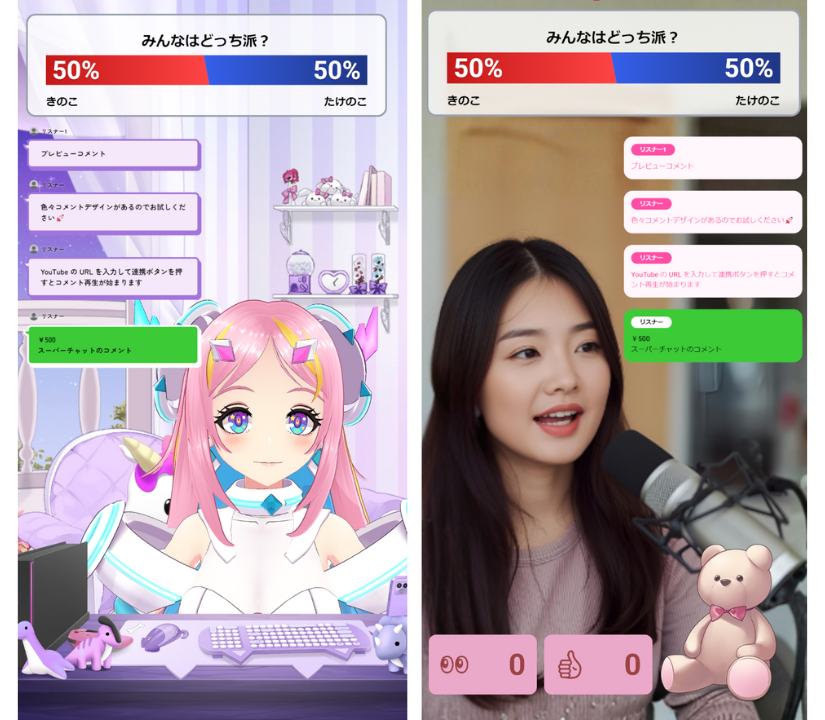
⑤ YouTube Automatically Displays “Concurrent Viewer Count” and “Likes” on Screen!
The “concurrent viewer count” and “like count” are gadget specifically for YouTube integration. When the numbers rise in real-time, the production effect is outstanding.
The enthusiasm of the participatory stream becomes visible, which can be used to motivate viewers to “Hit that like button!” It works particularly well with achievement-type projects (e.g., 100 likes for some reward).

Steps to Use Comment Display in Alive Studio
Register for Alive Studio (Contract the Premium Plan)
First, if you haven’t used Alive Studio yet, complete account registration (free) and follow the steps below for setup.
1. Download the dedicated script
2. Register in OBS
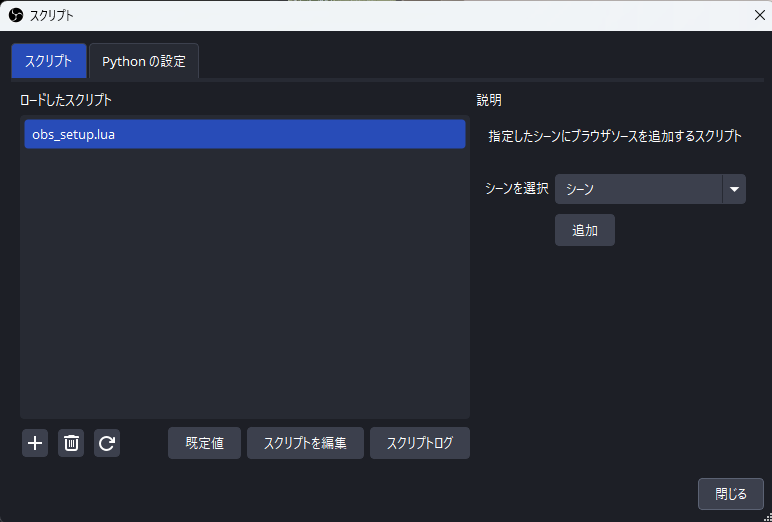
Launch OBS, click “Tools” > “Scripts.”
Press the “+” button and select the downloaded script.
Choose the scene where you want to add ‘Alive Studio’ and click the “Add” button.
3. Add a Custom Browser Dock
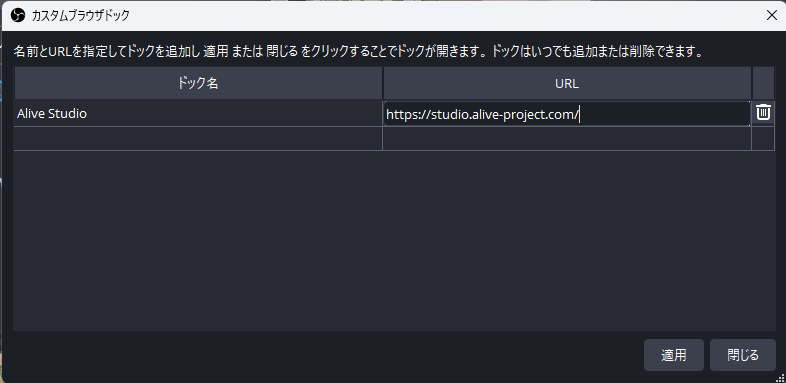
From the OBS menu, click “Dock” > “Custom Browser Dock.”
Enter the following URL and click “Apply.”
| Dock Name | URL |
|---|---|
| Alive Studio (optional) | https://studio.alive-project.com/ |
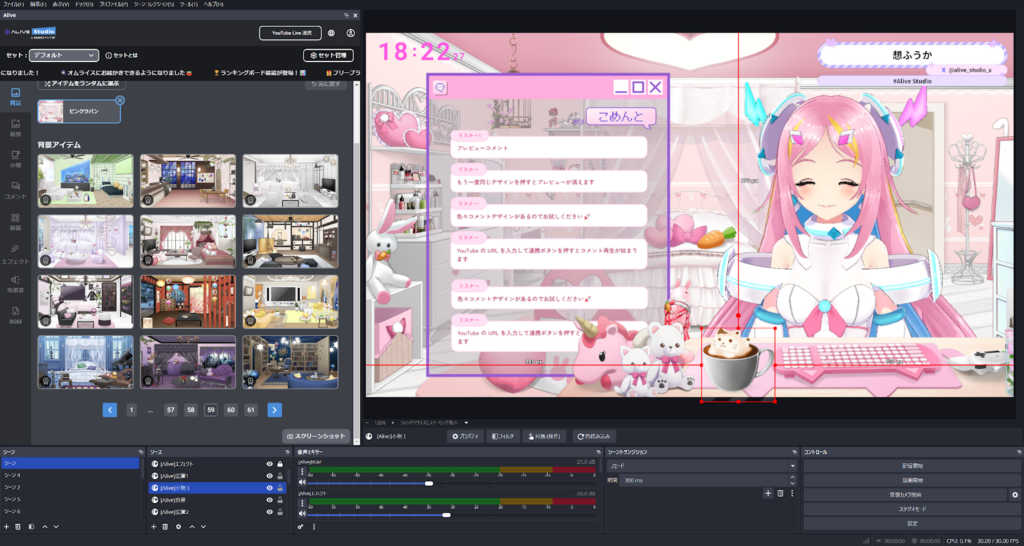
Once set up, the Alive Studio screen will be displayed on OBS.
How to Contract the Premium Plan
- Log in to Alive Studio (https://studio.alive-project.com/)
- Click the person icon in the top right corner
- Click “Payment Information”
- Click “Upgrade to Premium Plan”
- Register your payment information and make the payment
How to Display Comments (Stream Connection Method)
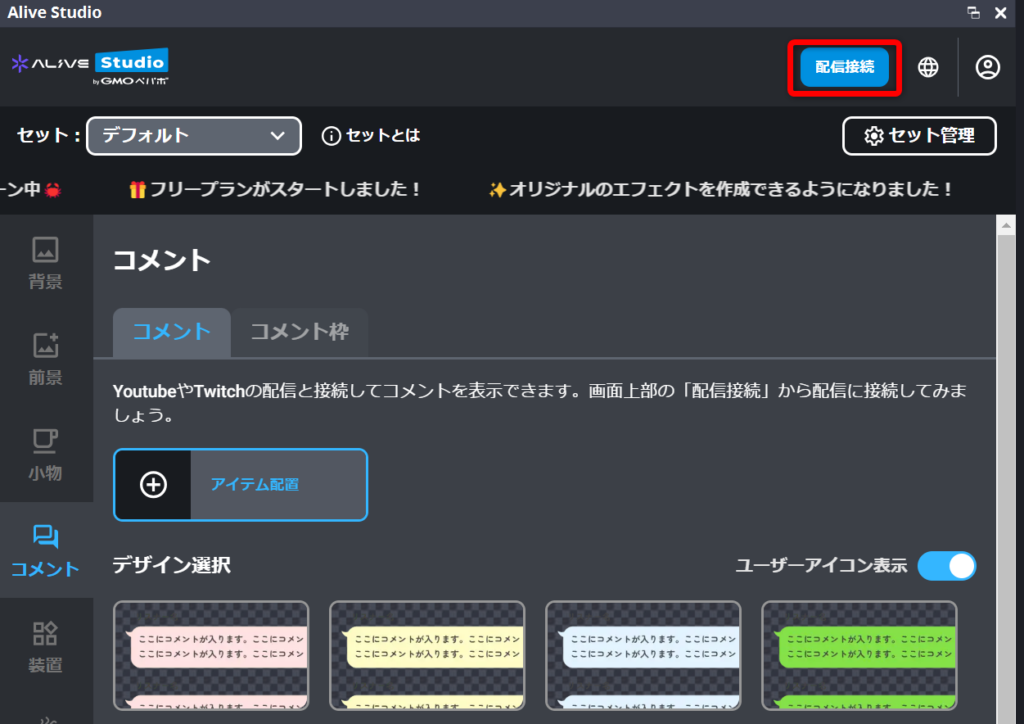
1. Click on “Stream Connection” at the top of Alive Studio
2. Connect to Different Platforms
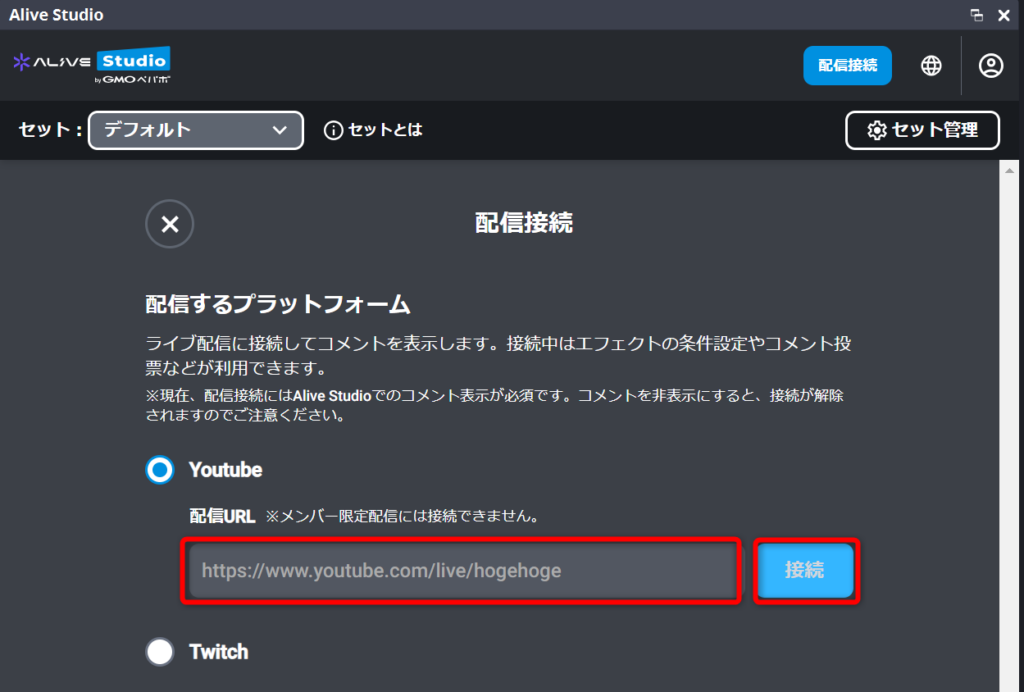
- For YouTube
Copy and paste the stream URL and click “Connect”
- For Twitch
Click “Connect”
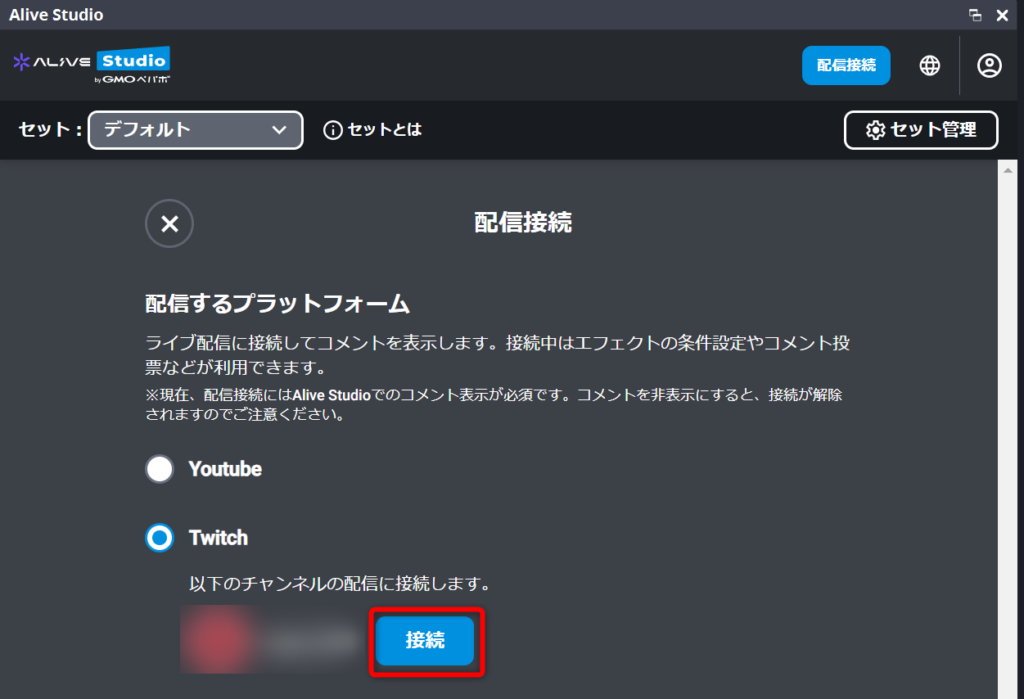
※If this is your first time connecting to Twitch or if you haven’t registered for Alive Studio with your Twitch account, you’ll need to enter login information for Twitch first. Please follow the on-screen instructions to log in.
3. From “Comments” > “Comment” tab, select your favorite comment design.
You can also toggle the display of user icons.
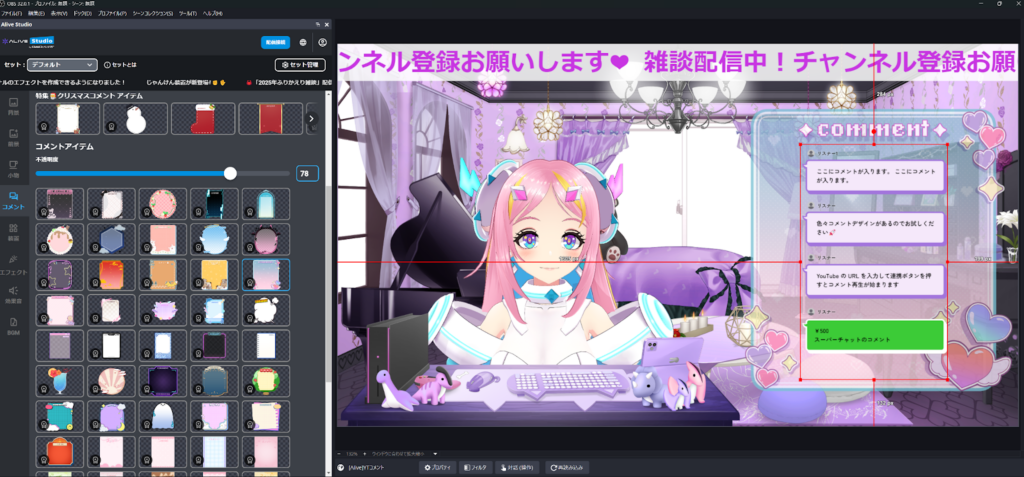
You can use the comment integration on its own or choose designs from the “Comment Frame” to layer. Moving positions on the streaming screen is easy.
How to Use Other Functions Available through Integration
By enabling stream connection, you can access additional features that visualize not just comment display but also the “intensity of the stream” and create viewer participation projects.
These features greatly expand your production options, so let’s introduce some use cases as well.
▼ About Stream Connection
To use YouTube or Twitch data in Alive Studio, you need to set up “Stream Connection (Premium Plan).”
As long as the streaming URL remains the same on YouTube, the gadget can still be used as they are (no need to re-paste the URL each time).
Additionally, on Twitch, the live stream of the connected channel will automatically reflect.
How to Use Effect Trigger Conditions (Comment Link)
You can automate effect activation triggered by YouTube or Twitch comments. The system allows you to create “an event occurs on-screen when a specific comment comes,” without complex configurations.
For example, you can easily display an effect that shows “www” on-screen when someone comments “www.”
For the audience, this provides a delightful surprise of “my comment reacts on-screen,” which naturally boosts their motivation to comment.
Many streamers utilize this feature as a surprise element without revealing the mechanism to the audience.
How to Use
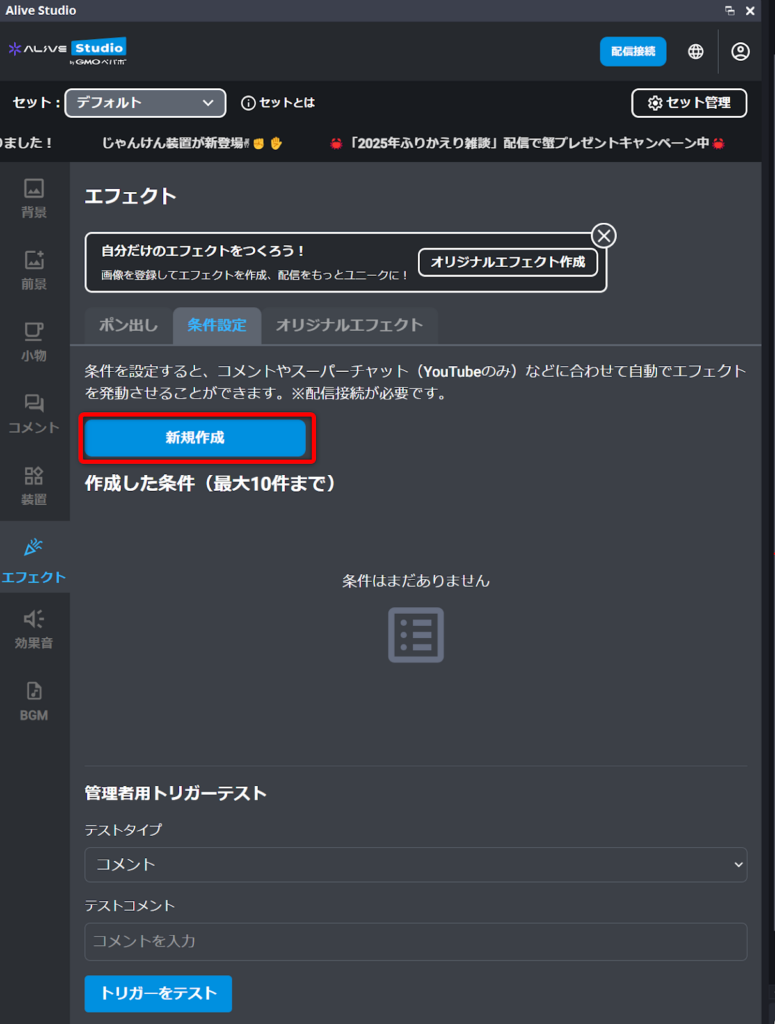
1. From “Effects” > “Condition Settings,” click “Create New”
2. Input a title for the effect
3. Select activation conditions from “Comments” or “Super Chats (YouTube)”
- For comments
Input the keywords whose occurrence will trigger the effect (the effect will activate if the specified word is included). - For Super Chats (YouTube)
Input the minimum amount that will trigger the effect
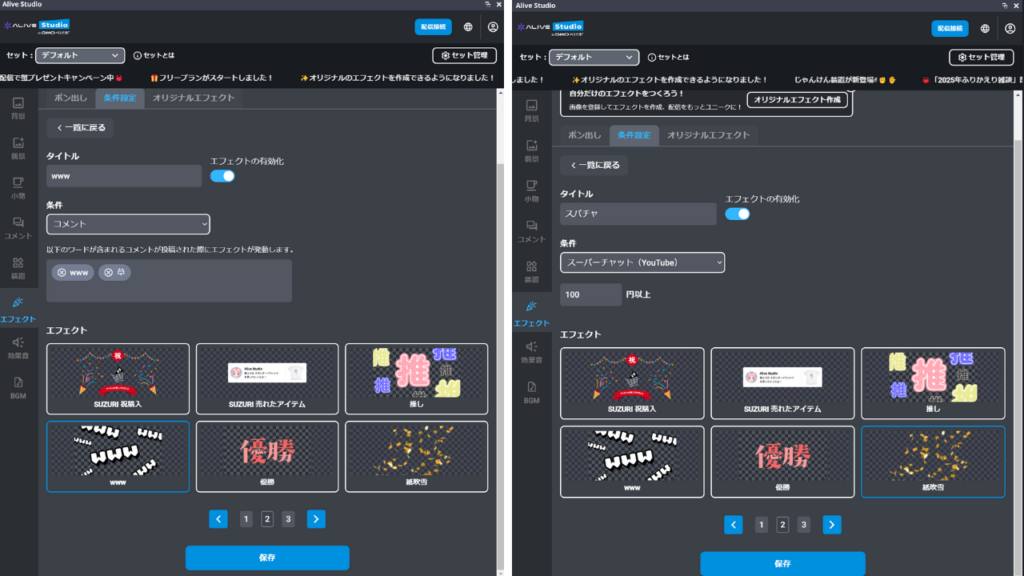
4. Select the effect you want to activate under the set conditions and click “Save”
Use Cases
- Creating a reaction display where an effect activates upon the occurrence of specific words
- In a singing stream, automatically displaying hearts or sparkles triggered by supporting comments like “Nice”
- An effect showing “www” when the “www” comment appears (also great as a distraction in game streams)
How to Use Comment Voting Gadget
This feature allows you to collect keywords included in comments for real-time voting. It enables a display in the form of a bar graph, allowing you to see the current vote count at a glance.
How to Use
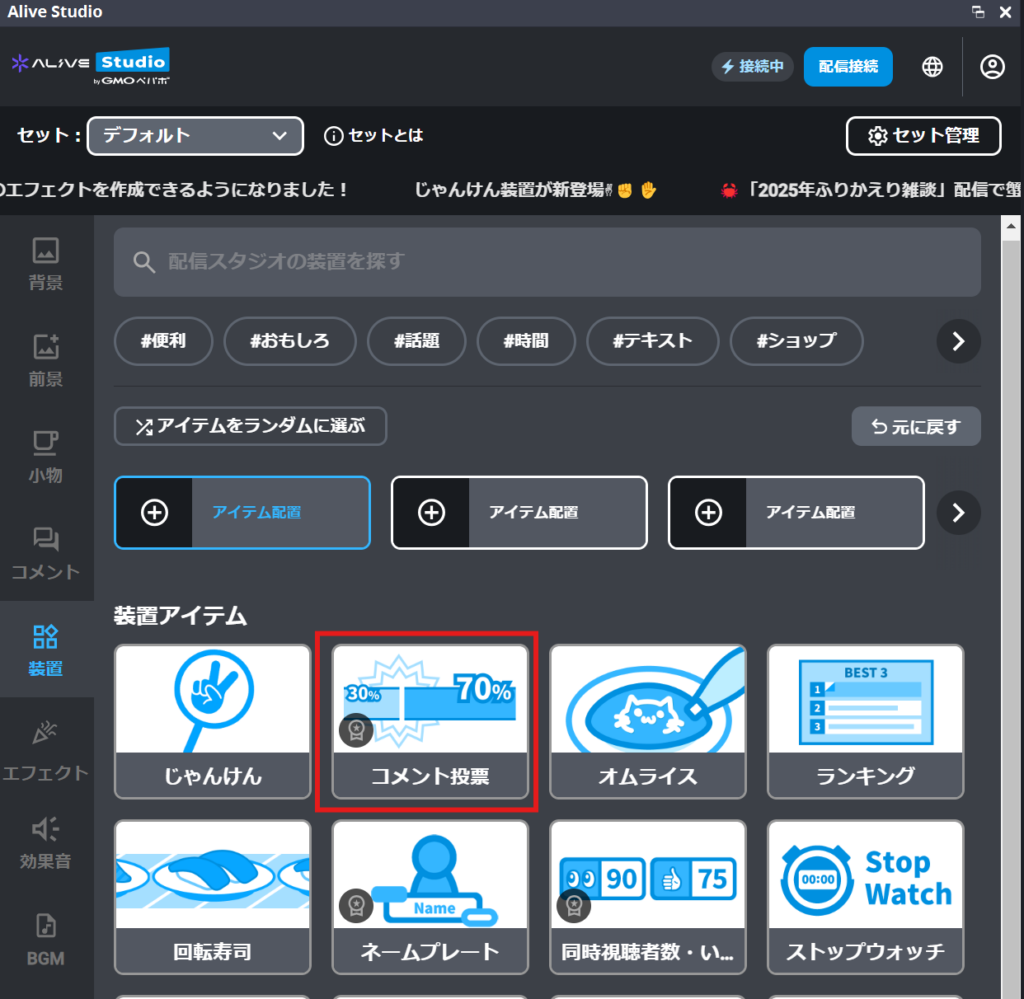
1. Click on “Gadget” > “Comment Voting”
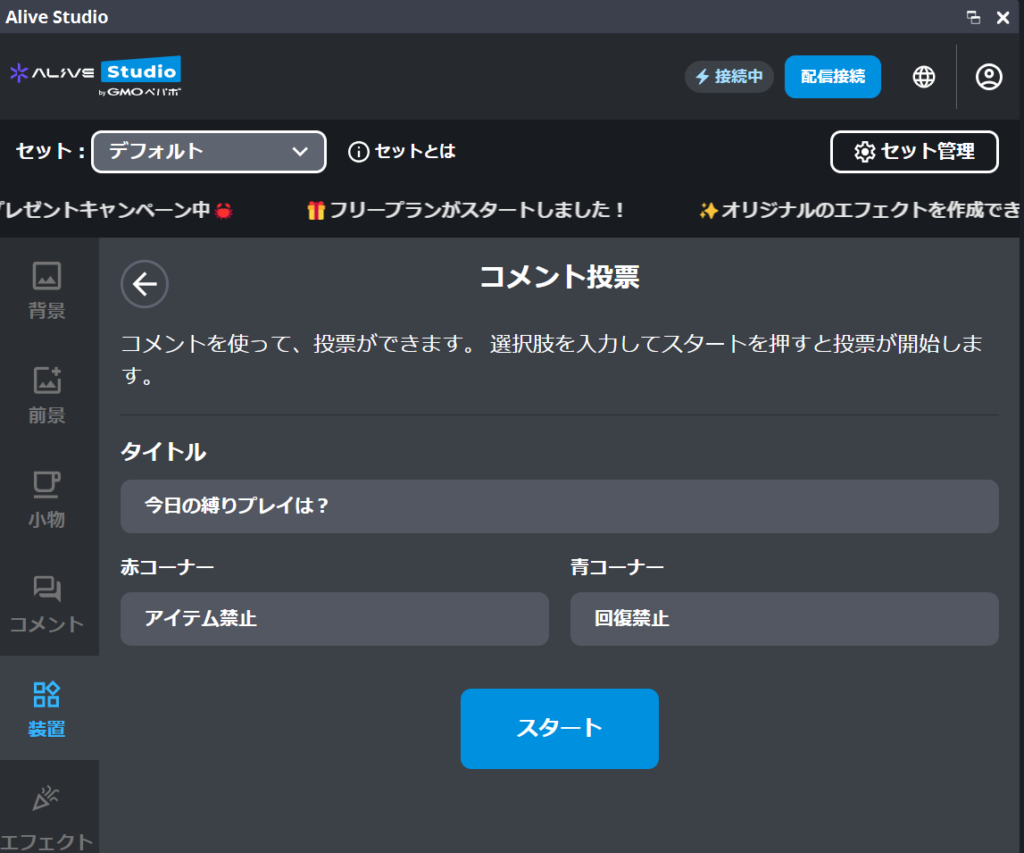
2. Input a title and the keywords available for voting (the title can be left blank)
3. Position it on the streaming screen
4. Click the “Start” button to begin voting.
Use Cases
- Choosing which game to play with audience input
- Leaving the next action in an RPG to viewer decisions in “Let’s Decide the Adventure Together”
- Deciding the theme of a chat through voting
How to Use YouTube Concurrent Viewer & Like Counters
On YouTube, you can use a counter device that updates “concurrent viewer count” and “like count” in real-time.
How to Use
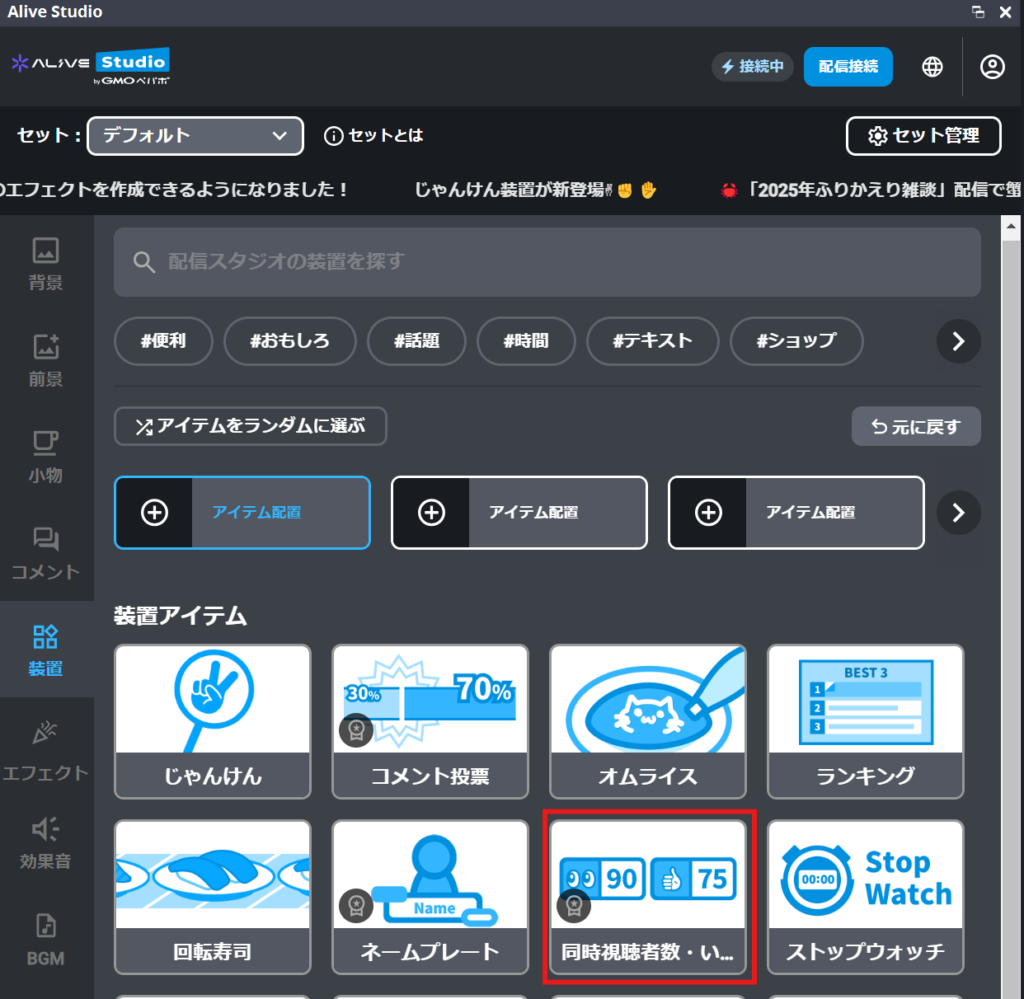
1. Select “Gadget” > “Concurrent Connection & Like Counter”
2. Choose your preferred design (you can also change text and background colors)
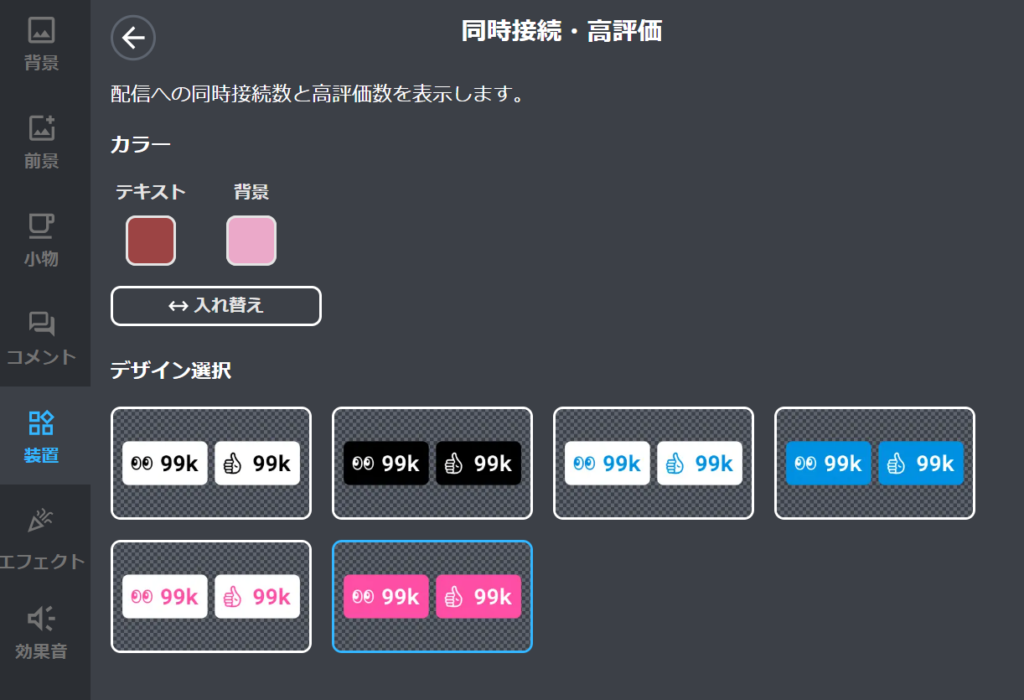
Each time the numbers move, the feeling of audience participation increases, and it clearly visualizes action when prompted to “Hit that like button!”
Use Cases
- Something happens when reaching a certain number of likes!
- A reward project when achieving a concurrent viewer challenge (targeting a certain number of viewers)

Summary: Alive Studio’s Comment Integration is a Tool for Both “Visualization” and “Encouragement to Participate”
Comment display in live streaming is essential for:
- Conveying audience reactions in real-time
- Intuitively visualizing the fun of the stream
- Enhancing comprehension during archives
It is an indispensable function.
That said, many streamers abandon implementation due to the complexity of the setup.
Using Alive Studio’s stream connection (premium), you can utilize a variety of tools to enhance your broadcasts, including comment display, comment effects, and comment voting.
Especially with the high degree of freedom in comment designs, creating “cute,” “cool,” or designs that “fit the streaming screen” becomes easy and attractive.
By creating an environment where comments can be utilized not just as mere text but as a part of the stream’s production, the willingness to participate naturally increases, and the range of projects expands.