Share


Ultimate Guide to Twitch Creator Dashboard: Setup and Stream Manager Tips
There may be streamers who are puzzled, “I don’t know how to use the Creator Dashboard,” or “I’m not sure where to manage stream settings and analytics.”
The Twitch Creator Dashboard is a central tool for stream management, analytics, and monetization, designed to streamline the operation of broadcasts.
In this article, we will explain the basic role, access methods, and how to set up and utilize the Creator Dashboard.
By reading to the end, you will gain practical decision-making materials to improve broadcast operations with evidence rather than intuition.

What is the Twitch Creator Dashboard?
The Twitch Creator Dashboard is a central tool for streamers to manage, set up, analyze, and monetize their streams all in one place.
It features arranging stream titles and categories, managing broadcast settings, and checking viewer numbers and revenue data all on one screen.
This way, tasks before, during, and after a broadcast are not fragmented, allowing for overall management with a bird’s-eye view of operations.
When linked with the streaming manager, it becomes easier to handle operations and ascertain the status during a stream.
Utilizing the Creator Dashboard allows you to review stream content and frequency based on viewing conditions and revenue trends, leading to easier continuous improvement.
Overview of Functions in the Twitch Creator Dashboard
The Twitch Creator Dashboard is implemented with crucial functions that are directly connected to broadcast operations.
This chapter explains five functions of the Creator Dashboard.
- Channel management and profile editing function
- Monetization management function
- Analytics function
- Content management function
- Viewer engagement function
Understand the role of each function and utilize it for stream improvement.
Channel Management and Profile Editing Function
The channel management and profile editing function is useful for the streamer’s appeal.
Since viewers judge stream content and the streamer’s persona from the appearance of the channel page, appearance management is important.
In the Creator Dashboard, you can set the channel name, self-introduction, profile image, and banner image.
By organizing the streaming schedule and information panels, it becomes easier to convey the intention and activity content of the stream.
Continuously managing appearance increases viewer reassurance, leading to follows and engagement.
Monetization Management Function
The monetization management function is important for having a comprehensive grasp of achievements from streaming activities.
After reaching affiliate status, you will be able to check your achievements through multiple monetization menus.
In the Creator Dashboard, information regarding the number of subscriptions acquired and total revenue is organized in one place, making it easy to understand the overall situation.
By verifying alongside stream content and audience reaction, you can also interpret revenue trends.
Regularly reviewing revenue status can be used as decision-making material to review your streaming policy and efforts.
For more details about Twitch’s affiliate program, please refer to the following article:
» Monetizing Twitch Streams: Complete Guide & Effective Strategies
Analytics Function
The analytics function is essential for understanding streaming performance objectively and driving improvement.
By utilizing the analytics function, you can understand viewing status and reactions, which are difficult to gauge solely by intuition, in numerical terms.
In the Creator Dashboard, you can check information such as the following by stream or channel:
- Data to understand the overall performance of the channel
- Overview information to reflect on achievements for each stream
- The channel’s activity status during a specified period
- Information to confirm changes related to followers and views
- Metrics to understand the extent to which streaming activities are leading to achievement
Understanding the above makes it easier to review streaming times and content.
As a result, it helps in making well-informed decisions to design streams that are more accessible to viewers.
Content Management Function
The content management function is important for organizing post-stream videos to expand viewing opportunities.
By properly managing past streams and highlights, you can convey the value of the channel beyond live broadcasts.
In the Creator Dashboard, you can check videos on demand (VOD) and clips in a list and manage them to publish or delete.
By using collections to organize broadcast content by theme, it becomes easier to introduce past broadcasts to new viewers.
Well-organized archives function as viewing pathways even after the broadcast ends, increasing the opportunities to view the channel overall.
As a result, it becomes easier to establish a distribution environment where content can continuously be used.
Viewer Engagement Function
The viewer engagement function is important to enhance the willingness to participate in the stream and enrich the viewing experience.
By preparing rewards according to viewing actions, involvement in the stream naturally increases.
In the Creator Dashboard, you can set rewards according to actions such as viewing or following through channel points.
Since streamers can freely decide the reward content, it’s easy to use as a mechanism to encourage comment participation or support.
Viewers can collect points and exchange them for rewards, making it easier to have a motivation to participate in the stream.
As a result, the interactivity with the audience increases, and you can build an environment that leads to continuous viewing.
Furthermore, there is an article that provides a detailed explanation of Twitch’s channel points, so be sure to check it out.
» Master Twitch Channel Points: Setup, Uses, and Management Tips
How to Access the Twitch Creator Dashboard
The ways to access Twitch’s Creator Dashboard are divided into the following three methods.
- Procedure to access from PC
- Procedure to access via smartphone browser
- Procedure to access via smartphone app
Understand the method that suits your environment and use it to assist in smooth stream management.
Procedure to Access from PC
You can access Twitch’s Creator Dashboard from a PC via the main page after logging in.
The specific access procedure is as follows:
- Access the official Twitch site and click “Log In”
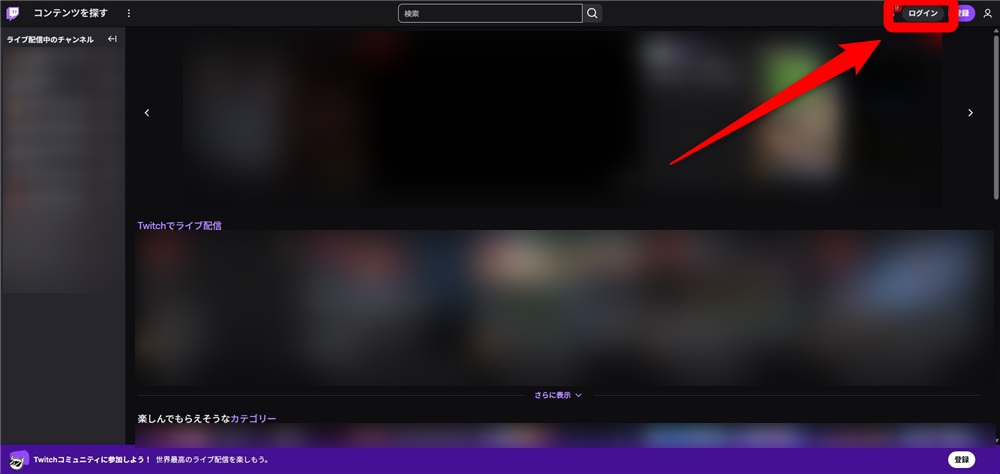
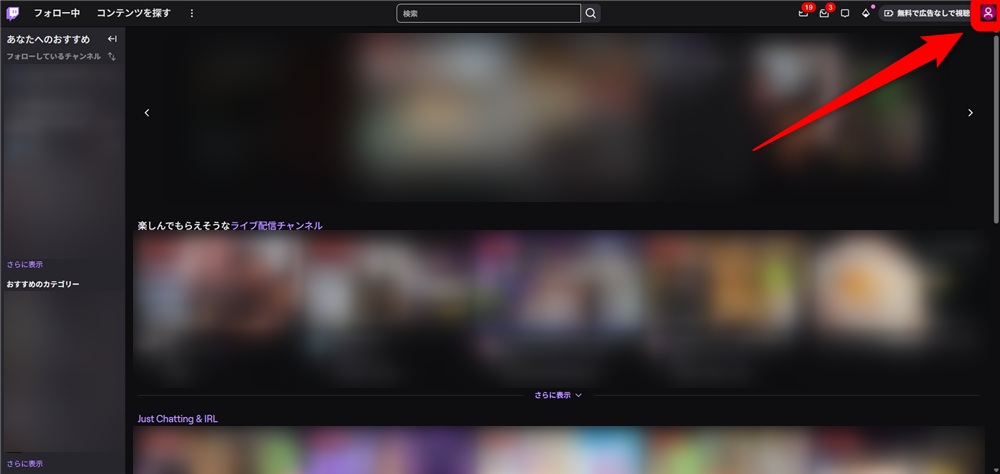
- Click the person-shaped icon in the upper right corner
- Click “Creator Dashboard”
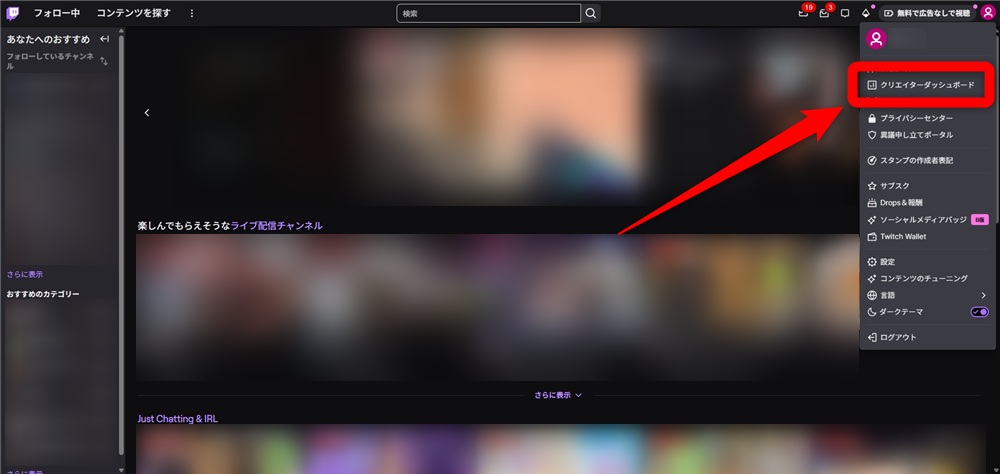
With these steps, the PC version of the Creator Dashboard page will open.
Procedure to Access via Smartphone Browser
Although you cannot access the Creator Dashboard when visiting Twitch on a smartphone browser, there is an alternate way to access it.
First, here is the procedure to access using Safari:
- Open Safari, access the official Twitch site, and log in
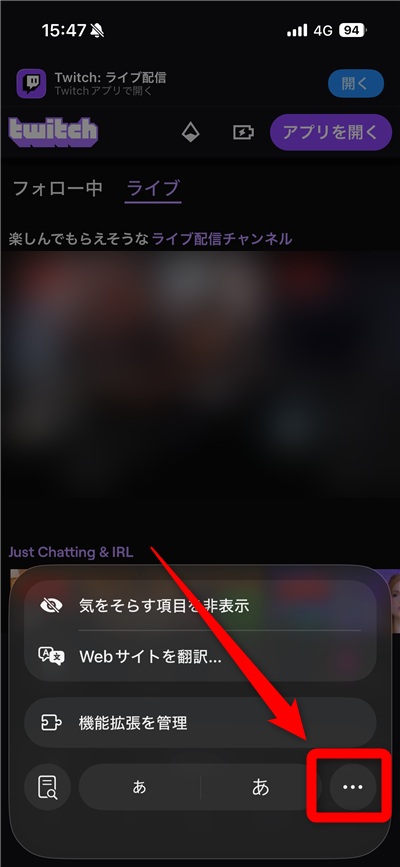
- Open the browser menu

- Open the page menu
- Enable “Request Desktop Site”
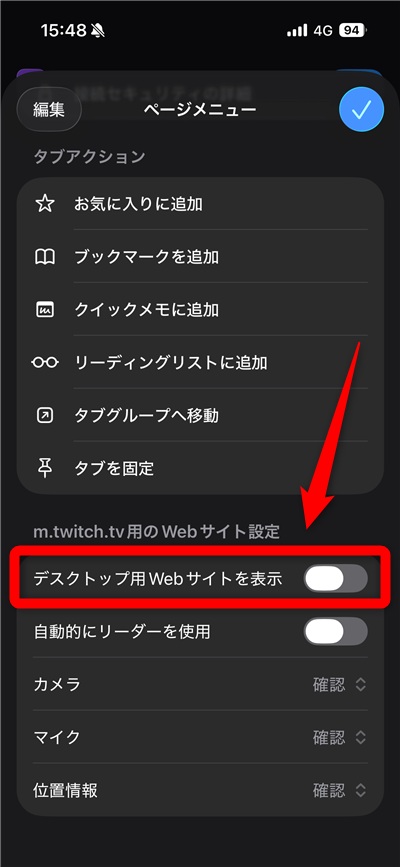
Once the desktop version site is displayed, you can access the Creator Dashboard from the person-shaped icon in the upper right corner, just like “Procedure to Access from PC“.
Note that while the “View Desktop Site” function also exists on Chrome, it does not work on the official Twitch site.
To display the Creator Dashboard on smartphone Chrome, you can enter “https://dashboard.twitch.tv” directly into the URL to access it.
Procedure to Access via Smartphone App
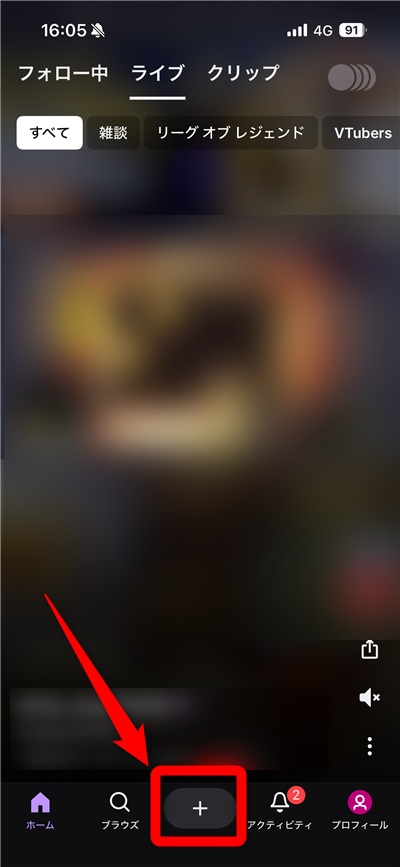
In the Twitch smartphone app, you can access the Creator Dashboard from the top page.
The specific access procedure is as follows:
- Open the Twitch app and tap the “+” in the bottom center
- Tap “Creator Dashboard”
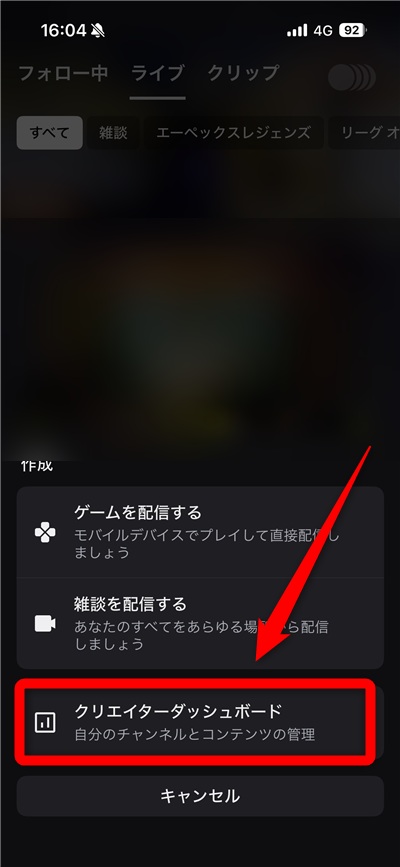
With these steps, the app version of the Creator Dashboard will open.
However, note that the app version only supports simple operations such as starting and ending broadcasts and checking the streaming status, and does not provide detailed setting items for configuring the streaming environment.
Stream key checks, re-issuances, delay mode toggles, and detailed channel point settings management are designed to be done through the browser version.
Therefore, use the smartphone app for broadcast assistance, and make configuration tasks using a PC as a base for separation.
Settings and Utilization of the Twitch Creator Dashboard
The Twitch Creator Dashboard allows you to make various settings to enhance broadcast quality and operational efficiency.
This chapter explains five key settings of the Creator Dashboard.
- Stream settings
- Profile and channel settings
- Moderation and safety management settings
- Monetization menu settings
- Channel points and viewer rewards settings
Let’s take a detailed look.
Stream Settings
Stream settings are important management items for conducting stable broadcasts and preventing trouble in advance.
By organizing basic settings before broadcasting, confusion during the stream and deterioration of viewing environment can be prevented.
In the Creator Dashboard, you can concentrate on confirming and adjusting the following settings from “Settings > Stream”:
- Stream Key: Information for linking with broadcasting software, recommended to periodically reissue and avoid external sharing
- Delay Mode: Choose “Low Latency” for streams that aim to increase real-time interaction with viewers
- Save Past Broadcasts: Enable saving so content can be viewed later
Adjusting the above according to the stream content makes it easier to maintain a stable broadcast environment.
For more information on how to keep archives on Twitch, check out the following article:
» How to Save Twitch Archives: Tips on Preventing Loss or Deletion
Profile and Channel Settings
Profile and channel settings are essential to correctly convey the content of the stream and the streamer’s persona to viewers.
The more organized the information obtained on the first visit, the more likely trust and viewer retention rates will increase.
In the Creator Dashboard, manage the channel appearance primarily from “Settings > Channel” by concentrating on the items below:
- Username: Maintain a name easily associated with the streaming genre or activity, and avoid frequent changes
- Self-introduction: Summarize stream content and frequency concisely, effective in wording usable even by first-time viewers
- Profile Image and Banner: Set an image that immediately conveys the atmosphere of the stream, promoting visibility-focused design
Optimizing the above unifies the channel’s impression, establishing an environment where viewers can watch with confidence.
Moderation and Safety Management Settings
Moderation and safety management settings are important for maintaining order in streams and creating an environment where viewers can participate with a sense of safety.
By establishing mechanisms that prevent inappropriate remarks and nuisance behavior in advance, the broadcast’s progress is less likely to be interrupted.
In the Creator Dashboard, manage the settings by focusing on the following from “Moderation”:
- AutoMod: A function to automatically detect inappropriate expressions, with the standard level of activation recommended at the early stage
- Chat Limitation: Set follower-only or verification requirements, and effectively suppress unruly behavior
- Moderator Management: Register reliable collaborators and share responses when streaming is recommended
Using the above appropriately smoothens interaction with viewers and leads to long-term stable broadcast operations.
Monetization Menu Settings
The monetization menu settings serve as a foundation for continuing streaming activities and are vital.
If you cannot manage each function correctly after monetization, it could affect the viewer experience and reliability.
Proceed with operations by confirming the following settings from “Monetization” in the Creator Dashboard:
- Subscription Management: Confirm perks and badge display and maintain content that fits the streaming style
- Bits Settings: Understand cheer usage status, and recommend natural utilization avoiding excessive presentation
- Ad Settings: Adjust with awareness of placement and frequency that does not disrupt the broadcast’s flow
By organizing and operating the above, it becomes possible to balance revenue and stream quality leading to stable activities.
Channel Points and Viewer Rewards Settings
Channel points and viewer rewards settings are crucial elements for enhancing the desire to participate in the stream.
By preparing a clear return for viewing behavior, staying in the stream and speaking up naturally increases.
In the Creator Dashboard, adjust the following items from “Viewer Rewards > Channel Points” while designing rewards:
- Channel Point Rewards: Prepare uses linked to content, and set a manageable consumption level
- Reward Cost: Consider the balance between acquisition difficulty and execution frequency, set to levels achievable with continuous viewing
- Custom Rewards: Separate promotion use and presentation purposes, and recommend designs that do not hinder stream progression
By designing appropriate rewards, interaction with viewers increases, leading to enhanced vibrancy throughout the entire stream.
What is the Stream Manager on the Twitch Creator Dashboard?
The Stream Manager is a management feature that allows you to operate and check the status during a broadcast on one screen.
This chapter explains the basic functions of the stream manager and the benefits of using it.
Let’s sort the role and strengths of the stream manager to see how it can be utilized in streaming.
Basic Functions of the Stream Manager
The Stream Manager has all the necessary operations and information for streaming consolidated on one screen.
It’s structured so that you can immediately respond while grasping streaming conditions, leading to stable stream operations.
You can mainly use the following functions in the Stream Manager:
- Management of Stream Information: Titles and categories can be changed even during the stream
- Chat and Moderation: Monitoring and restricting statements can be operated on one screen
- Quick Actions: Create clips or execute Raids with one click
- Checking Stream Conditions: Real-time tracking of movements such as viewer count is possible
The Stream Manager serves as a function to reduce the hassle of switching operations, building an environment where you can concentrate on streaming.
Benefits of Using the Stream Manager
The benefit of using the Stream Manager is that you can make decisions and operations during the stream instantly.
With all necessary information and operational elements consolidated on one screen, you can simultaneously enhance both the safety aspect and operational efficiency of the broadcasts.
The specific benefits are as follows:
- Centralized Operations: Execute changes to stream information and quick actions without screen transitions
- Enhanced Safety Management: Instant chat monitoring and moderation
- Immediate Situational Awareness: Check real-time statistics such as the number of viewers
As a result, it becomes easier to make improvement decisions while confirming the liveliness of the stream.
For streamers who want to enhance quality while keeping operational burden low, the Stream Manager can be considered an effective feature.
Summary
By using the Twitch Creator Dashboard, you can monitor stream management, analytics, and monetization all in one screen, advancing your stream operations efficiently.
Conversely, if you operate without understanding the settings, there is a possibility it may lead to a decline in stream quality or a loss in viewer experience.
By referencing this article, organize the roles of each function, review settings, and connect to stable broadcast operations and continuous improvement.