Share


Alive Studio Premium Plan vs Free: Detailed Comparison of Features and Equipment
As you continue live streaming, you may find yourself thinking, “The setup looks pretty good now, but the content ideas are getting repetitive,” or “I’d love to do a listener-participation stream, but it seems like a lot of work to prepare.”
Alive Studio is a streaming screen design service that provides features and materials necessary for creating streaming screens, even with its free plan. The free plan is quite handy, but by switching to the premium plan, you gain an even wider range of options for solving streaming issues.
One of the appealing benefits is the increase in available materials, but this time, we focus quickly on the feature “Devices,” which is currently only available on the premium plan.
Start for free at first and use this as a reference when you consider the premium plan, at a point where you feel, “This would be handy,” or “I’d like to try this idea.”



Differences between Premium and Free Plans
Alive Studio offers two types of plans: the free “Free Plan” and the “Premium Plan” where all features and materials are unlimited.
The Free Plan is perfect for those who want to try streaming screens for free, allowing the use of image materials, basic devices, and some effects.
On the other hand, advanced integration features like connecting YouTube and Twitch comments and production settings are exclusive to the Premium Plan.
The choice of materials you can use expands significantly, making it recommended for those who want to switch backgrounds and effects according to seasonal events or streaming content.
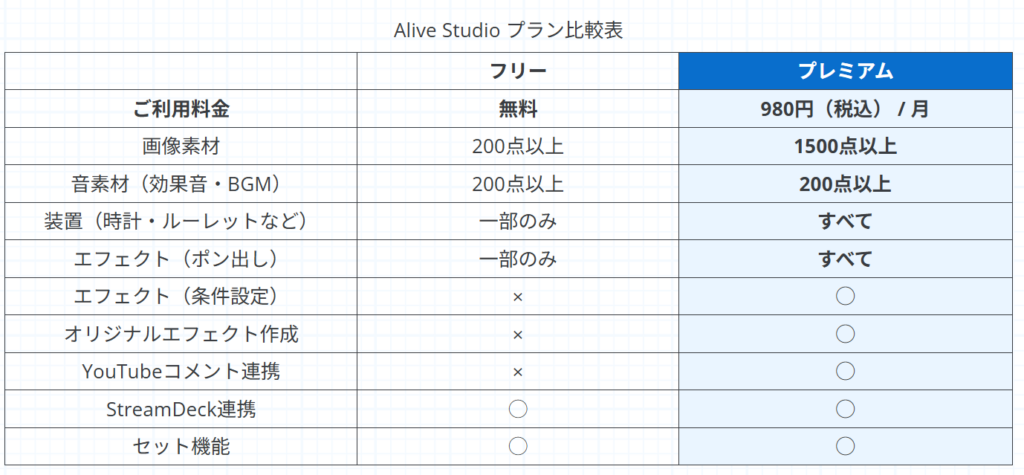
Switching between the Free Plan and Premium Plan is possible at any time with each contract renewal (monthly).
You can flexibly manage your streaming style by opting for the Premium Plan only for months with special streams and switching back to the Free Plan during months with less activity.
Highlighting “Devices” available with the Premium Plan!
Flip: For Drawing Streams!
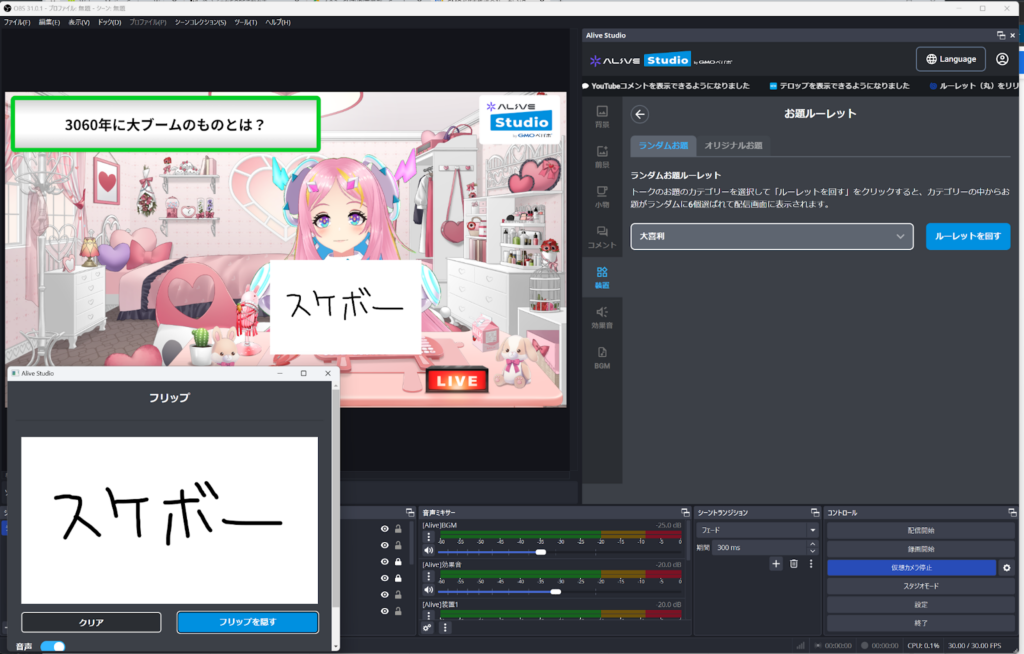
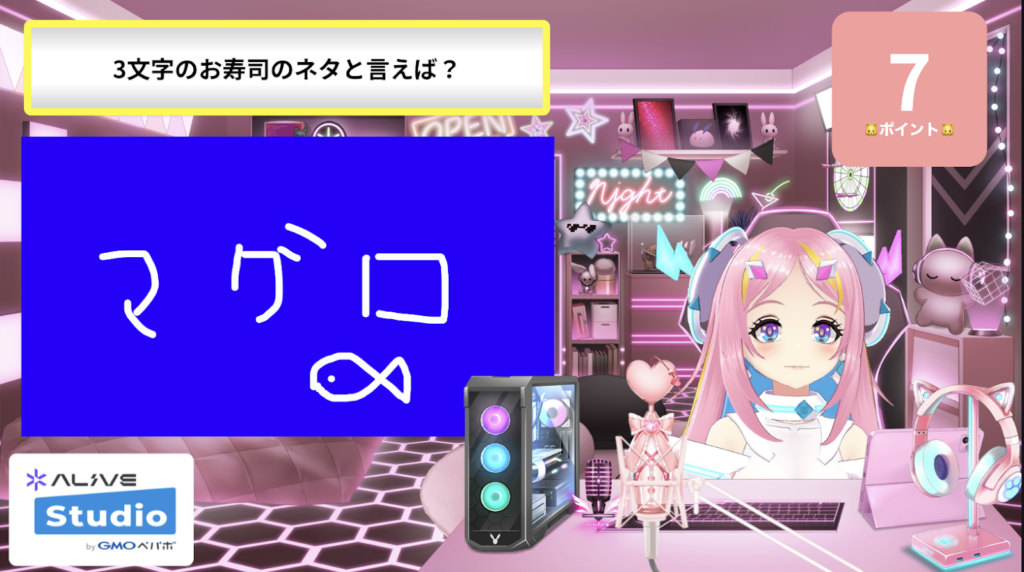
A device that allows you to reveal the drawn content with a single click. With sound effects, it’s easy to create highlights. It works incredibly well with the “Topic Roulette” available in the Free Plan for a natural flow of “decide the topic → draw → reveal.”
If you’re interested in the “Topic Roulette” available with the Free Plan, check out the article below.
Usage Scenarios
- Drawing streams
- Quiz or topic answer reveals
- Simultaneous reveal projects in collaboration streams
How to Use (Setup Method)
Complete the setup just by clicking “Devices” > “Flip” on Alive Studio. The content written on the flip is displayed when you click “Open.”
In drawing streams, it’s recommended to have it open from the beginning, whereas, for quizzes or answer reveals, open after you’ve finished writing.
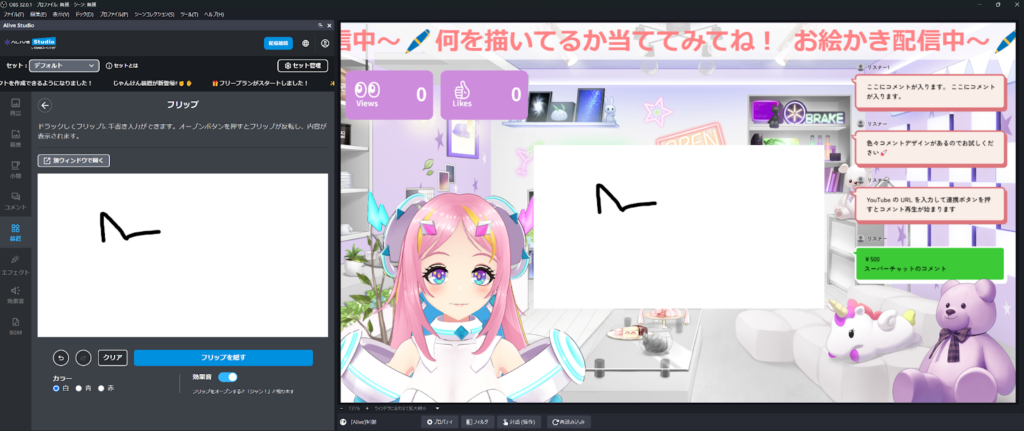
Additionally, the “White, Blue, Red” color options for the background are useful when displaying correct or incorrect answers in quiz streams or when you want to show matching flips in collaboration streams.
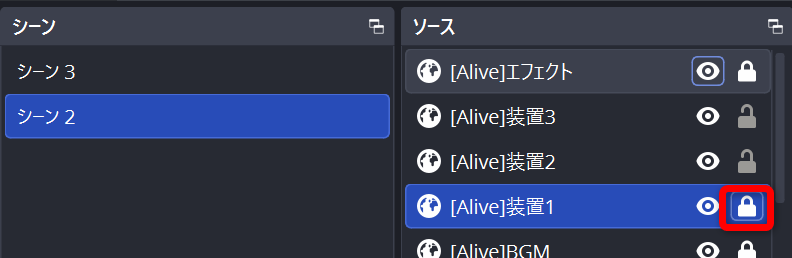
To change the on-screen position, simply click and move it on the screen.
If it doesn’t move, it might be locked. Check “Source” in OBS and if “[Alive]Device1” is locked, click to unlock it. Once unlocked, you can manipulate it on the screen.


Roulette: Also Usable for Punishment Games
A circular roulette device that can set up to 8 options for decision-making. The results are easy to understand visually and add excitement to the flow of the stream.
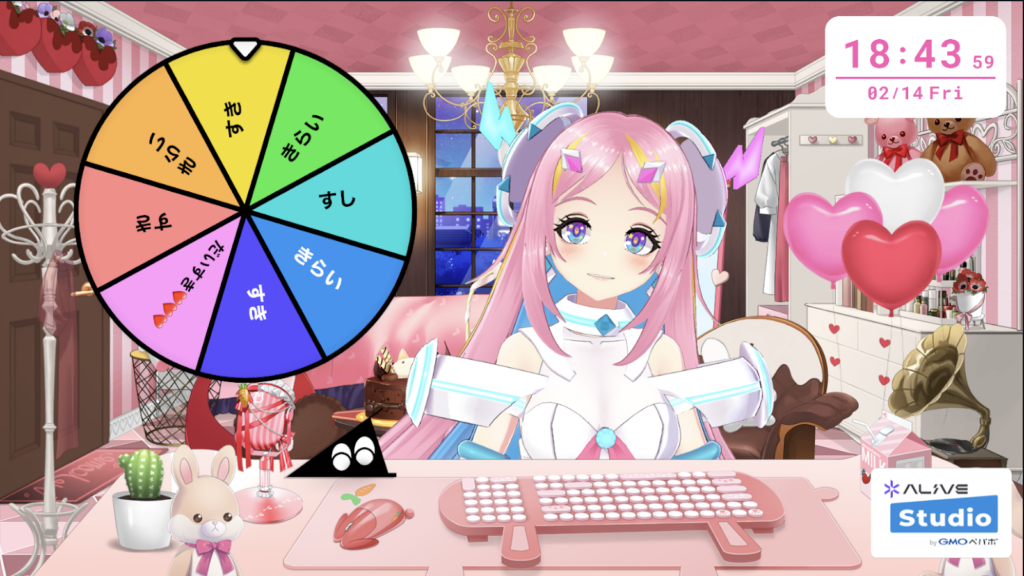
Usage Scenarios
- Deciding punishment games
- Choosing the next project or topic
- Unexpected tasks for collaborators
*Similar things can be done with the Free Plan’s custom topic roulette, but the circular roulette is more effective when you want to emphasize punishment or important choices.
How to Use (Setup Method)
1. Click “Devices” > “Roulette” on Alive Studio
2. Enter the content to be set on the roulette under “Set Topic”
When you click the “Spin Roulette” button, the roulette starts.
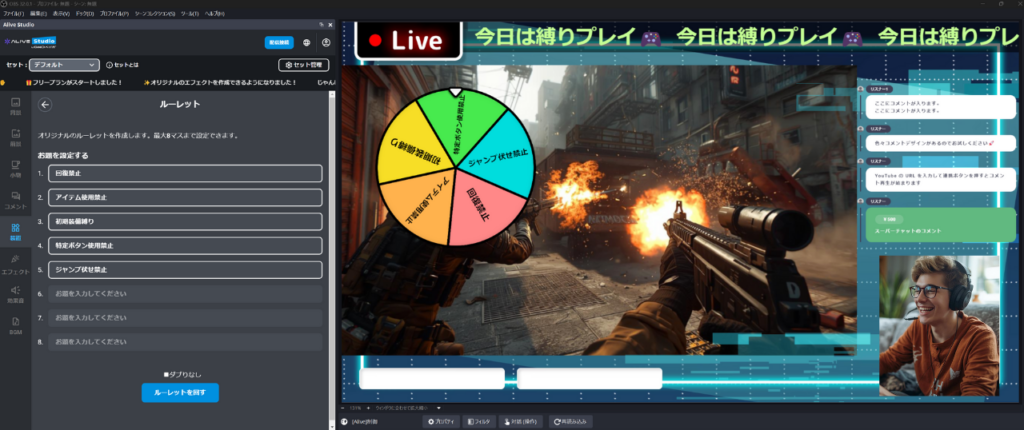
For multiple spins, you can check “No Duplicates” to prevent duplicate results.
Love Game Frame: For Script Reading and Creating Ohave!
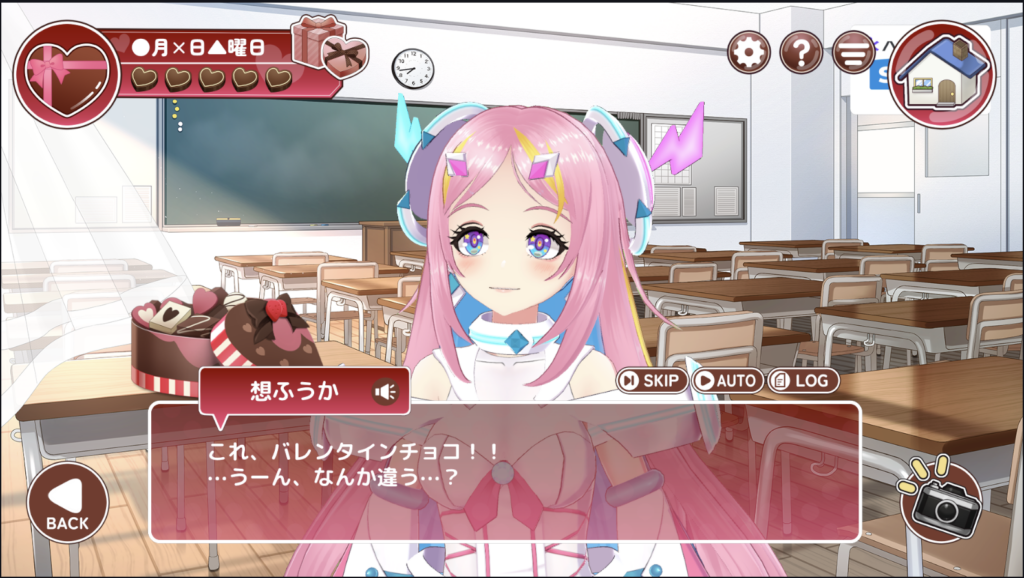
A device that easily creates a screen in the style of a love game, perfect for script reading and situational talks.
The script can be freely input or generated randomly. It’s also attractive that seasonal scripts are automatically prepared according to time, like Valentine’s Day or graduation season.
Usage Scenarios
- Script solicitation and reading streams
- Creating Ohave images
- Expanding talks with “situations”
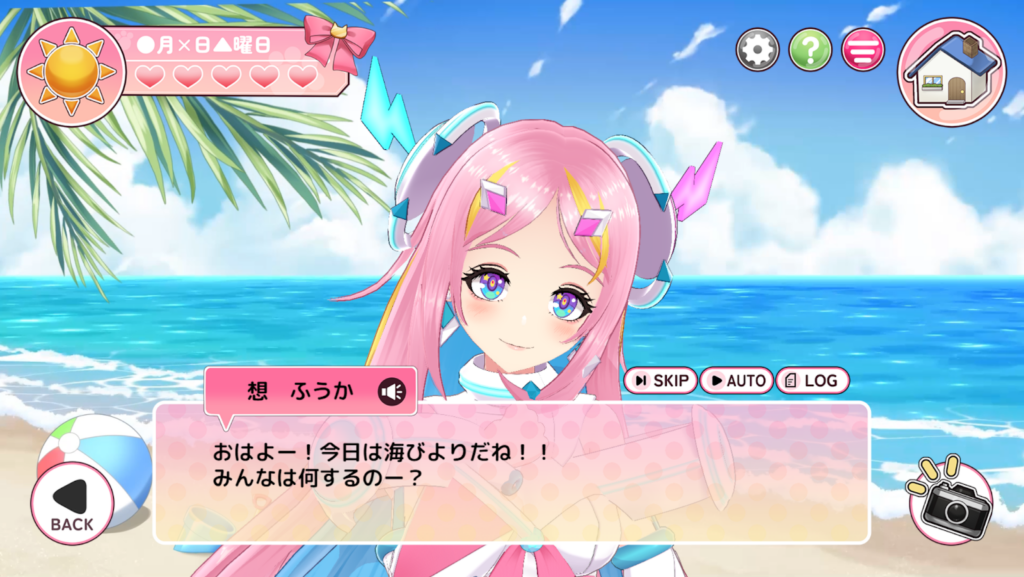
How to Use (Setup Method)
1. Click “Devices” > “Love Game Frame” on Alive Studio
2. Enter the name to be displayed
3. Input the script yourself or click “Randomly Generate Script”
4. Select the frame design
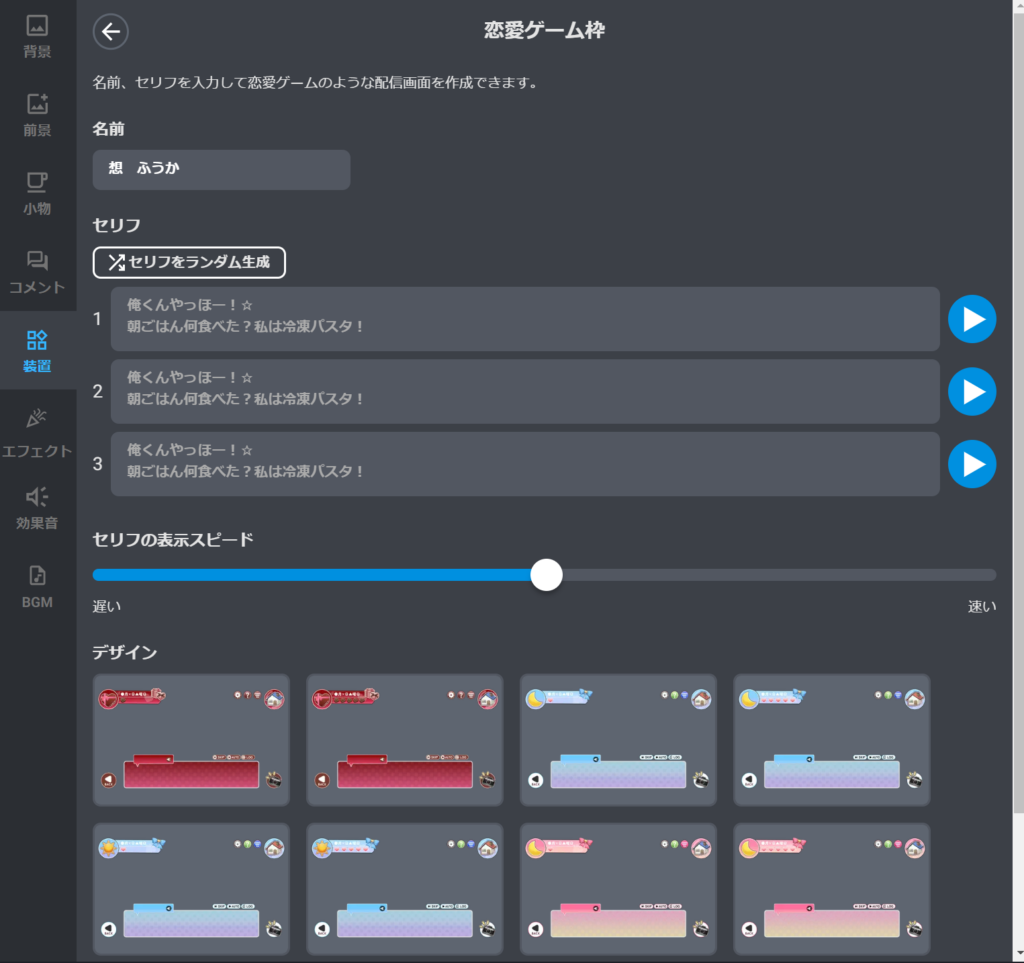
Clicking the play button to the right of the script starts the display, and you can also adjust the speed from “Script Display Speed.”
Scoreboard: Recommended for Competitive Game Streams!

A device where everything from entering game/tournament information to managing player names/set counts/points can be completed on OBS.
The outcomes are easy to grasp at a glance, so those who tune in midway through the stream can quickly understand the current game situation.
There are three options for the number of sets to win:
– BO3 (first to 2)
– BO5 (first to 3)
– Custom (freely specify the number to win)
Usage Scenarios
- Managing wins/losses and points in game streams
- Team battle presentations in collaboration streams
A detailed description of the settings and usage can be found in the article below. If you’re interested, please check it out.
Game streams become quickly understandable! How to use and maximize Alive Studio’s “Scoreboard”
Name Plate
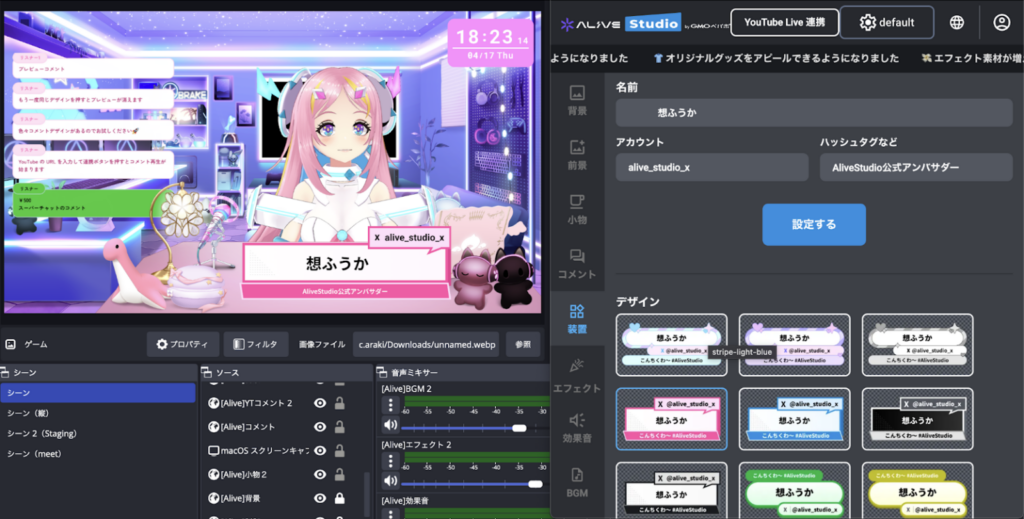
This device can display a name, social media account, and brief comment.
Usage Scenarios
- Collaboration streams
- Introductory tool for first-time viewers
- Fixed display of project titles
How to Use (Setup Method)
1. Click “Devices” > “Name Plate” on Alive Studio
2. Choose a design, set “Name”, “Account”, “Hashtags, etc.” as needed, and click the “Set” button
Comment Voting
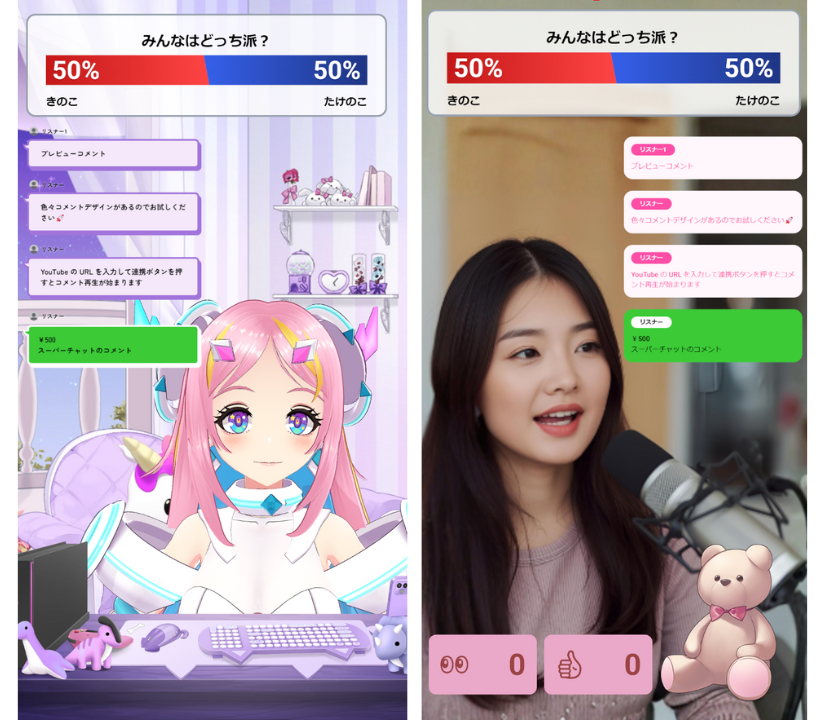
This device allows real-time voting through comments. You can display the voting status on the screen, making it effective as a participatory streaming effect.
Usage Scenarios
- “Which game to play?” viewer choice projects
- RPG “Choose your adventure” where viewers decide the next action
- Deciding the theme for talks through voting
How to Use (Setup Method)
1. Click “Devices” > “Comment Voting” on Alive Studio
2. Enter the title and keywords to be voted on (the title can be blank)
Click the “Start” button to begin the voting.
Simultaneous Viewers & Likes
A device exclusively for YouTube integration that can display the “number of simultaneous viewers” and “number of likes” in real-time.
With visible numerical movements, it’s useful for visualizing viewer participation and for encouraging the button to “like!”
Usage Scenarios
- Something happens with ◯◯ likes!
- Simultaneous view challenge (goal ◯◯ people) with a reward event
How to Use (Setup Method)
1. Select “Devices” > “Simultaneous Connection & Likes Counter” on Alive Studio
2. Choose your preferred design (text color and background color can also be changed)
Besides the devices introduced so far, the Premium Plan offers options such as:
- YouTube & Twitch comment integration
YouTube & Twitch integration! Easily display comments with Alive Studio’s streaming connection! - Various effect features to enhance the stream
Quickly boost the streaming screen! Complete guide to Alive Studio’s “Effect Features”
Combining with devices allows for a significant boost in overall streaming screen presentation.
Alive Studio is a service that undergoes periodic updates, with plans to further add and expand the devices and features available in the Premium Plan.
Therefore, you don’t need to determine “whether it’s immediately necessary” alone.
Firstly, try the Free Plan to get a feel, and consider the Premium when it becomes necessary based on changes in your streaming style and challenges.
Start with the Free Plan! How to Register and Use Alive Studio
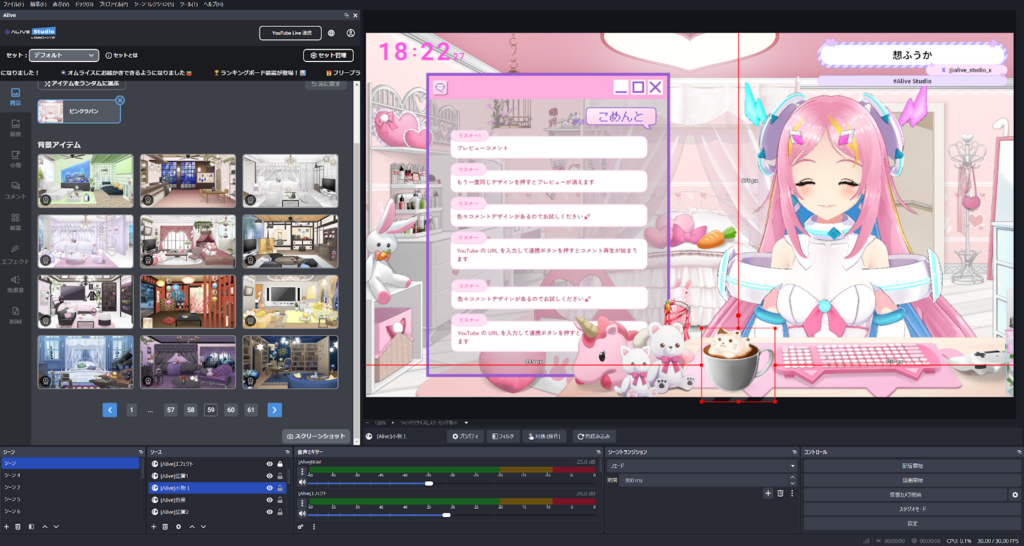
Registering for Alive Studio is straightforward. After signing up for an account (free), prepare by following these steps:
1. Download the dedicated script
2. Register in OBS
Launch OBS, click “Tools” > “Scripts”.
Press the “+” button and select the downloaded script.
Select the scene where you want to add ‘Alive Studio’, and click “Add”.
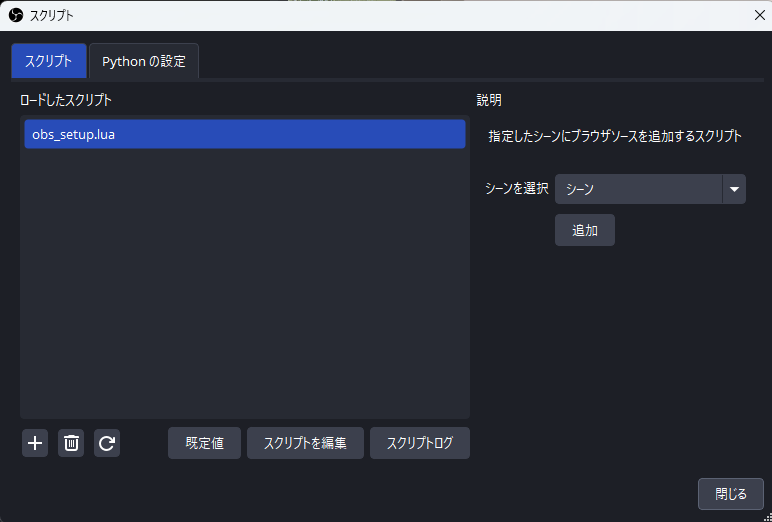
3. Adding a Custom Browser Dock
From the OBS menu, click “Docks” > “Custom Browser Docks”.
Enter the following URL and click “Apply”
| Dock Name | URL |
|---|---|
| Alive Studio (Optional) | https://studio.alive-project.com/ |
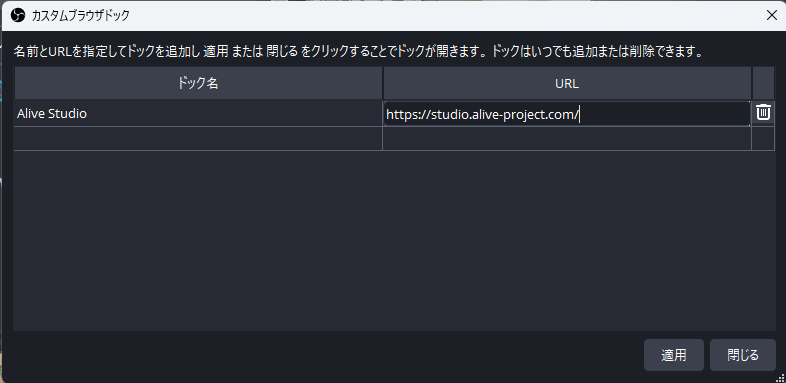
Once set, Alive Studio’s screen will appear on OBS.
How to Switch to the Premium Plan
Switching to the Premium Plan, where the scoreboard is usable, can be done at any time by selecting plan change from My Page.
How to Subscribe to the Premium Plan
1. Log in to Alive Studio
2. Click the person icon at the top right
3. Click “Payment Info”
4. Click “Upgrade to Premium Plan”
Register your payment information and proceed with the procedure.
Summary: Streaming Production Concerns Can Be Solved with Alive Studio
Alive Studio is a streaming support service that allows easy addition of required information to the streaming screen.
By utilizing devices like scoreboards, counters, and captions, you can create an immersive and easily understandable stream for viewers.
Even the free plan is enough to try, making it easy for first-time users to introduce. The point that you can switch to the premium plan when necessary, adapting to your streaming style and goals, is a significant advantage as well.
If you wish to improve the quality of your streams, start by experiencing Alive Studio for free.