Share


How to Watch Twitch Past Broadcasts: Archive Duration and Common Issues Explained

“I want to rewatch the videos after broadcasts on Twitch,” or “I don’t know where the archives of my favorite streamer are,” are some of the questions you might have.
Twitch’s past broadcasts can be easily replayed from various viewing environments such as browsers, smartphone apps, and TVs.
If the streamer has enabled recording and saving settings, the live stream will be available as an archive for a certain period after it ends.
This article explains specific viewing procedures for each device, the storage periods for each status, the reasons why videos may not be displayed, and how to delete past broadcasts.
By reading to the end, you will be able to smoothly find missed broadcasts and fully enjoy past streams.

How to Watch Past Broadcasts on Twitch
On Twitch, past broadcasts can be viewed from the following viewing environments.
- Browser
- Smartphone App
- TV
This chapter explains how to watch past broadcasts on Twitch in the above viewing environments.
Check the viewing style that suits you and review the past broadcasts of your favorite streamer.
How to Watch on a Browser
To watch past broadcasts on Twitch via a browser, select the archive from the video tab within the channel.
If it’s a recorded video that the streamer has made available, you can replay it after the stream has ended by following these steps.
- Access the official Twitch site via your browser
- Display the channel page of the relevant streamer
- Select the “Video” tab
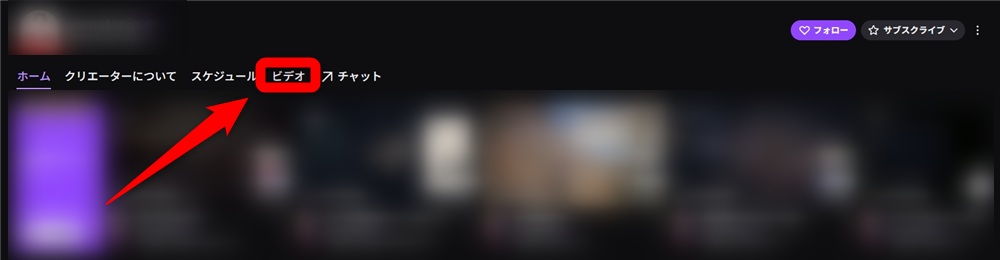
- Select the past broadcast you want to watch
Note that the “Video” tab displays not only past broadcasts but also highlights and clips.
If you want to efficiently search for past broadcasts, select “Past Broadcasts” from the filter.
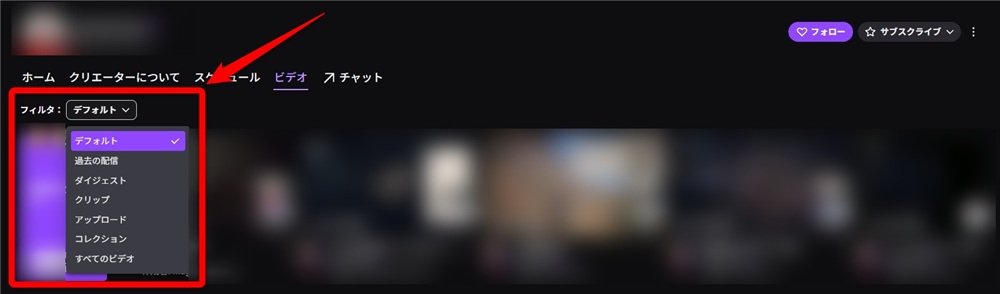
With this method of searching, only past broadcasts will be displayed, allowing you to smoothly find long programs that were aired in the past.
How to Watch on a Smartphone App
If you use the official Twitch app, you can easily watch past broadcasts even while on the go.
If the streamer has set up to retain past broadcasts, you can select and replay recorded videos from the list.
Follow these steps to search for past broadcasts from the smartphone app.
- Launch the smartphone app
- Access the channel of the streamer you want to watch
- Tap the “Video” tab
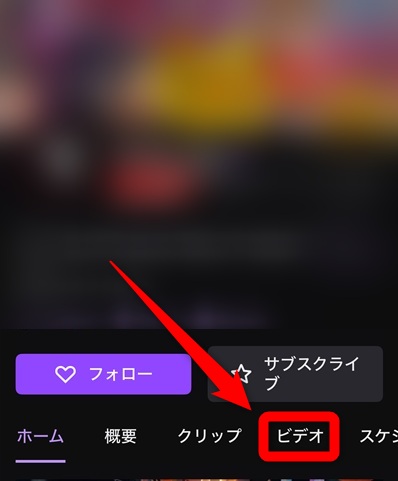
- Select the past broadcast you want to watch
If you can’t find the broadcast you want to watch with the above steps, tap “Show All” next to “Past Broadcasts” to search.
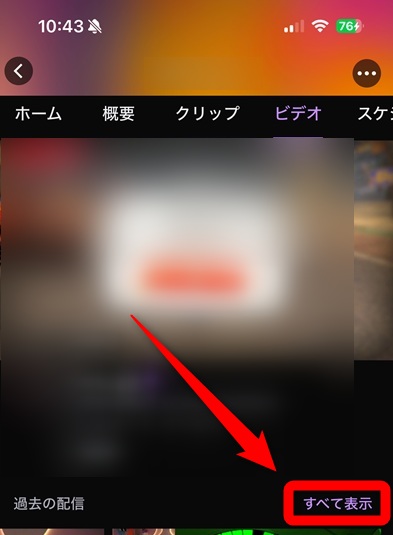
With the smartphone app, you can easily watch past broadcasts anytime and anywhere following the above steps.
How to Watch on a TV
To enjoy past broadcasts on Twitch on a big screen, it is recommended to use external devices or smart TVs equipped with specialized apps.
Similar to PCs and smartphones, TV-compatible apps have features to select and watch past broadcasts.
Prepare the following devices to easily play them from the TV in your living room.
- Smart TV with built-in Android TV features
- Media streaming devices like Fire TV Stick
- Home game consoles such as PS4 or PS5
If you install the app on Fire TV or PS4, PS5, you can enjoy high-quality recorded videos as well as live streams.
The big screen’s unique sense of presence will allow you to fully savor the charm of your favorite streamer.
Twitch Past Broadcasts: How Long Do They Last? Status-Based Retention Period List
There is a defined viewing deadline for past broadcasts published on Twitch, and the days they remain depend on the streamer’s registered status.
Once the period during which archives are stored on the server expires, the recording data is automatically erased from the system and cannot be recovered.
The specific retention periods set for each type of streaming account are as follows.
| Streamer Status | Archive Retention Period |
|---|---|
| General User | 7 days |
| Affiliate | 14 days |
| Partner | 60 days |
| Prime User | 60 days |
| Twitch Turbo User | 60 days |
Partners and Prime Users can retain videos for a long period, but general streamers will have their videos disappear in about a week.
If you want to revisit important broadcasts later, downloading or creating highlights before the deadline is crucial.
5 Reasons Why You Might Not Be Able to View or Display Past Broadcasts on Twitch
The main reasons why past broadcasts might not be viewable or displayed on Twitch are as follows.
- The streamer’s public settings are turned off
- The retention period has expired
- There is a copyright infringement in the broadcast
- Set to subscribers only
- Issues with communication environment or browser cache
This chapter explains potential causes and solutions from the streamer’s settings to viewer device issues.
The Streamer’s Public Settings are Turned Off
The biggest reason why you can’t view past broadcasts on Twitch is that the streamer has not enabled archive saving settings.
Twitch’s default setting does not retain recordings, so unless the streamer intentionally changes it, no videos will be left.
Enable public settings with the following steps.
- Log in to Twitch
- Click “Creator Dashboard” from the top-right icon
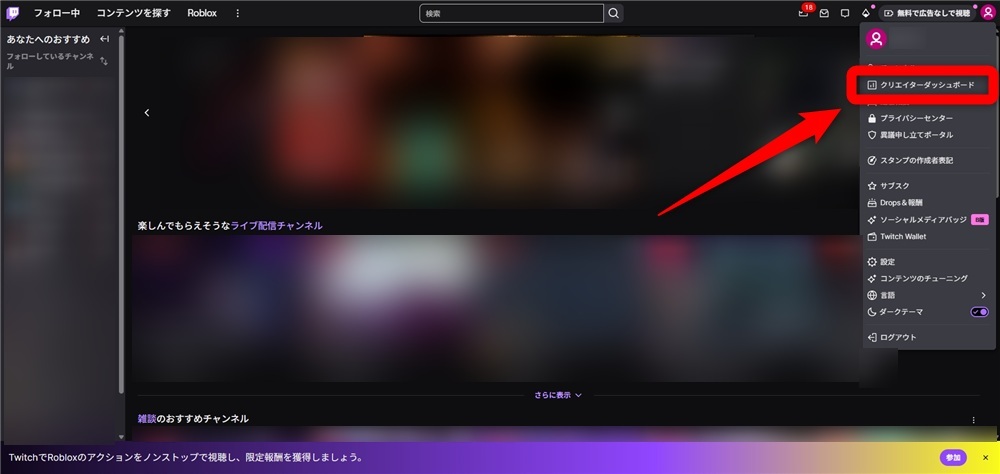
- Click “Settings > Stream” from the left menu
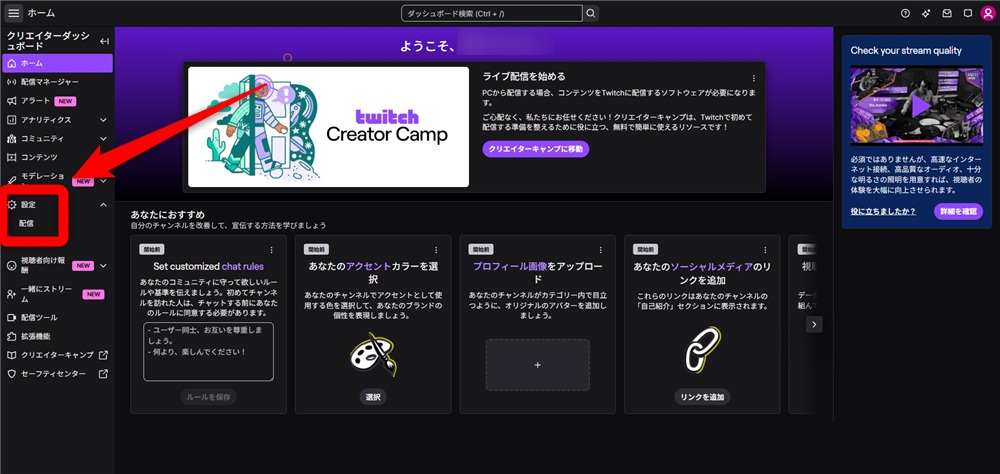
- Switch on “Save Past Broadcasts”
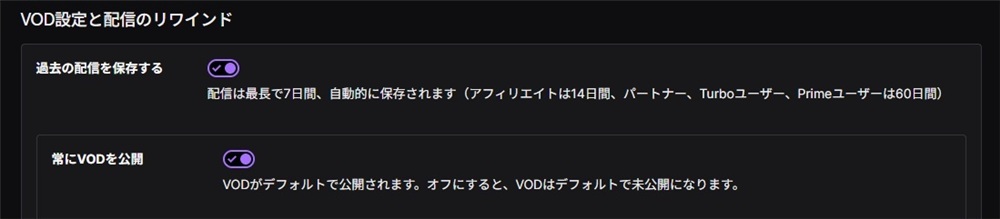
Make sure that the “Always Publish VODs” setting is enabled as well. If it is not enabled, past broadcasts will be recorded and saved but will remain unpublished.
If the streamer has not enabled the above settings, there is no way for third parties to replay the footage later.
Check the above items if you want to retain and publish past broadcasts.
The Retention Period Has Expired
If past broadcasts are not displayed on Twitch, the video’s storage period might have expired and the system automatically deleted it.
Recorded data has a defined expiration based on the streamer’s status, and once it has expired, recovery is not possible.
Check “Twitch Past Broadcasts: How Long Do They Last? Status-Based Retention Period List” for details on status and retention periods.
For long-term storage or publication of your favorite videos, it is essential to take action before they are deleted.
There is a Copyright Infringement in the Broadcast
If unauthorized music or videos are used in past broadcasts, viewing may be restricted due to copyright protection systems.
Frequent cases occur where the normal playback of videos is hindered due to claims from rights holders or automatic detection systems activating.
When a copyright issue arises, here are the main actions taken on the video.
- Parts deemed to infringe on rights are forcibly muted
- The entire broadcast is considered copyright-violative and the archive itself is deleted
- Access from specific regions is restricted, making viewing impossible
Not only can parts be muted, but serious violations can result in the entire video being deleted.
To enjoy wholesome content, it is important that streamers adhere to regulations and create videos accordingly.
Set to Subscribers Only
If a Twitch streamer restricts access to past broadcasts, the videos will not be displayed unless certain conditions are met.
Streamers who are partners or affiliates can use features to restrict the video to subscribers only.
To view videos under restricted access settings, one of the following actions is required:
- Subscribe to the channel in question for a fee
- Use Amazon Prime benefits to apply a free subscription
- Receive a subscription gift from the streamer to gain access
If you attempt to open an archive without subscribing, only preview videos may be displayed or a message indicating viewing is restricted will appear.
If the streamer has set it to subscribers only, it should be informed to the viewers in advance that paid registration is necessary to view the archive.
To ensure that fans can support activities without confusion, it’s important to clearly communicate the content of benefits and viewing methods.
Issues with Communication Environment or Browser Cache
If past broadcasts on Twitch are not loading or stop during playback, there may be issues with the communication environment or browser settings.
Stable speed is needed for videos to load properly, and connection conditions or software-side data accumulation often hinders playback.
If video playback isn’t smooth, try the following remedies in order to see if the situation changes.
- Use another browser, or clear cache and history in the current browser
- Recheck network connection to ensure speed hasn’t drastically dropped
- Try playing in incognito mode as addons might be interfering
If old data remains on the browser side, it’s prone to causing problems in correctly loading the latest video files.
Maintain a comfortable viewing environment by regularly cleaning unnecessary data.
How to Delete Past Broadcasts on Twitch
In case unexpected troubles arise during broadcasts or if you want to organize content, published archives can be manually deleted.
Once deleted on Twitch, video recordings cannot be restored, so make sure to confirm before deleting.
Follow these steps to proceed with deletion:
- Log in to the official Twitch website
- Open the Creator Dashboard
- Click “Content > Video Producer”
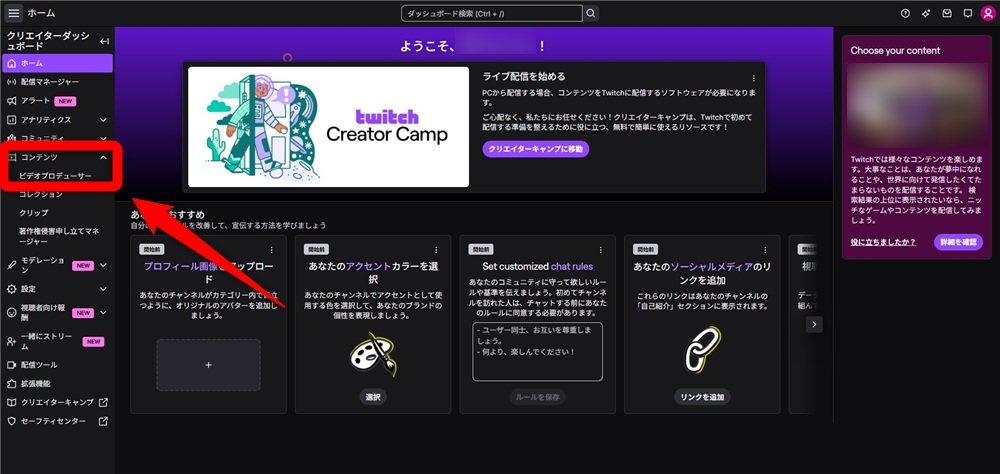
- Click “Delete” from the details button next to the video you want to delete
By knowing the above method of deletion, you can quickly and effectively manage any unwanted information appearing in public or rights-related issues.
To avoid the risk of unintended footage remaining, act promptly to stop the publication of content you want to disable.
Summary
Past broadcasts can be easily replayed from browsers, apps, and TVs, with storage periods ranging from 7 to 60 days depending on the streamer’s status.
Since they are automatically deleted after the storage period, check your favorite videos early.
If videos are not displayed, check for issues such as streaming settings, copyrights, and communications environment.
Understanding the settings and rules regarding past broadcasts can help make streaming and viewing on Twitch more comfortable.