Share


Twitch Rewind Feature Explained: How to Set Up on PC and Mobile

PR

What is Twitch’s rewind feature “Stream Rewind”?
Stream Rewind is an official feature that allows pausing and rewinding playback during Twitch live streams. It was officially implemented on September 26, 2025, and viewers can now use the seek bar to return to any point in the stream. In traditional Twitch, if you missed a scene during a live stream, you had to wait until the archive (VOD) was released. With the advent of Stream Rewind, viewers can immediately check out the scenes they are interested in while keeping up with the stream in real-time. It is a useful feature when you want to revisit decisive moments in esports or the reactions of streamers. However, using Stream Rewind comes with conditions, and not all viewers can use it. The next section provides detailed explanations about the conditions and compatible environments for usage.Conditions for using Twitch Rewind and Target Users
Stream Rewind is a feature that only viewers who are subscribed to a paid service can use. This section explains the conditions for using the feature and the current situation for free users.Limited to Twitch Turbo or Channel Subscribers
To use Stream Rewind, you need to meet one of the following conditions:-
- Subscribed to Twitch Turbo: A paid monthly plan that allows ad-free viewing on any channel
-
- Subscribed to that channel: A service to support specific streamers monthly
-
- Channel with “Subscriber-only Archives” enabled: Even if you’re a Turbo subscriber, you cannot use it unless you’re a subscriber to that channel
-
- Channel with “Ad-free Viewing” turned off: Even if you’re a subscriber to that channel, you cannot use it unless you’re a Turbo subscriber
Free users cannot use the rewind feature at this time
As of now, free users who are not subscribed to Twitch Turbo or channel subscriptions cannot use the rewind feature. Even if you move the seek bar, nothing will happen. However, Twitch CEO Dan Clancy has announced that “it is planned to be opened to all users in the future.” The reason it’s currently limited to paid users is as part of the measures to prevent ad skipping. If ads are skipped using the rewind feature, it affects the revenue of the streamer. For this reason, the service initially rolled out to Turbo subscribers and subscribers, who already do not see ads. The timeframe for making it available to all users has not been announced yet. If you are interested in the updates, be sure to check the official Twitch announcements.How to Rewind Twitch Live Streams by PC and Smartphone
The method of rewinding live streams on Twitch varies depending on the device you use. Here, we introduce how to rewind using Stream Rewind on PC, alternative methods using the smartphone app, and methods using Chrome extensions.How to do it on PC
The steps for utilizing Stream Rewind are as follows: 1. Join Twitch Turbo or become a subscriber of the channel you want to watch 2. Open a stream compatible with Stream Rewind (Affiliate or Partner channels) 3. Hover your mouse over the video player to display the seek bar 4. Drag the seek bar to the left to rewind it to the point you want to see 5. If you want to return to real-time viewing, click the “Live” button If the rewind feature is available, you will be notified with a popup during the first view. If the seek bar does not appear, the streamer may have turned off the feature, so try with a different channel.How to do it using the smartphone app
As of February 2026, the smartphone app (iOS & Android) does not support the rewind feature. If you want to view past scenes on your smartphone, you can substitute it with “chase playback” using archives (VOD). If the streamer publishes the archives, you can access them even during the stream. The procedure is as follows: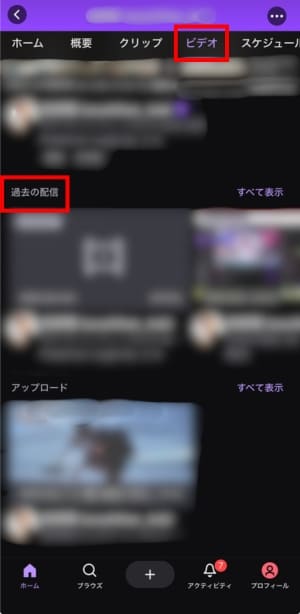
Using the Chrome Extension “Twitch DVR player”
If the official rewind feature cannot be used, there is also a method using the Chrome extension “Twitch DVR player“. Using Twitch DVR player displays the seek bar during live streaming, enabling rewind operations. The installation steps are as follows: 1. Access the Chrome Web Store with Google Chrome 2. Enter “Twitch DVR player” in the search bar and search 3. When you find the extension, click “Add to Chrome” 4. In the confirmation dialog, select “Add extension” 5. When watching a live stream on Twitch, the seek bar will be displayed However, there were reports around May 2025 that it could no longer be used due to “non-compliance with Chrome’s rules.” The situation may have changed, so check the latest operating status in the review section before installing.Reasons and Solutions for Being Unable to Rewind on Twitch
If you are trying to use Stream Rewind and find that the “seek bar won’t appear” or “rewinding is not possible,” there may be several possible causes. This section introduces common causes and solutions.The Streamer has VOD Saving Turned Off
If the streamer has turned off “Save Past Broadcasts,” Stream Rewind cannot be used. Since it relies on VOD (archives) to function, there will be no footage to rewind if it has not been recorded. Even if the viewer is subscribed to Turbo or a channel subscription, the seek bar will not function if the streamer has turned off VOD saving. As there is no remedy available for viewers, you can only wait for the streamer to change the settings. For streamers, ensure that viewers can use Stream Rewind by turning on both “Save Past Broadcasts” and “Always Publish VOD.” The following article provides detailed explanations of Twitch archive settings: >>How to Save Twitch Archives: Tips on Preventing Loss or DeletionSet to Subscriber-only Archives
If the streamer has enabled “Subscriber-only Archives,” you cannot use Stream Rewind even if you’re subscribed to Turbo. This setting makes VODs viewable only to subscribers of that channel. On channels with “Subscriber-only Archives” enabled, Stream Rewind is also restricted to subscribers only. If you are unable to rewind despite being a Turbo subscriber, it’s likely due to the Subscriber-only Archive setting. To use Stream Rewind on the relevant channel, you must subscribe to the channel. Reference: Twitch “How to Enable Subscriber-only Archives”Viewing on Mobile Apps or TV Apps
As of February 2026, Stream Rewind is only supported on PC (web browsers). It cannot be used on mobile apps, tablet apps, or TV apps. If the seek bar does not appear while viewing Twitch on mobile, it is due to app specifications. Twitch CEO Dan Clancy has mentioned that mobile support is being promoted, but no specific release date has been announced. If you want to watch rewinds on your smartphone, use the aforementioned alternative playback with archives (VOD).Not Subscribed to Turbo or a Channel Subscription
Free users who are not subscribed to Twitch Turbo or a channel subscription cannot use Stream Rewind. If the seek bar is not displayed or it cannot be rewound upon operation, first check your subscription status. If you want to use Stream Rewind, you need to join Twitch Turbo (monthly fee) or become a subscriber of the channel you want to watch. By joining Twitch Turbo, you can use Stream Rewind on all compatible channels. If you only want to use it on a specific channel, subscribing to that channel might help minimize the cost. The following article provides more details on Twitch Turbo: >>Monetizing Twitch Streams: Complete Guide & Effective StrategiesBrowser Extensions are Interfering
Ad blockers and certain browser extensions can disrupt the display of Twitch’s player. If the seek bar does not appear properly or clicking it yields no response, extensions might be the cause. As a countermeasure, try the following steps: 1. Temporarily disable extensions such as ad blockers 2. Refresh the Twitch page 3. Check if the seek bar displays properly 4. If the issue is resolved, identify the interfering extension Browsers officially supported by Twitch are Chrome, Firefox, Edge, and Safari, among others. Non-supported browsers and older versions may not function correctly either. Use the latest browsers, and watch Twitch within the recommended environment.Summary
This article explains Twitch’s rewind feature “Stream Rewind,” from the conditions of use to operation methods for PC and smartphones, causes and solutions when it can’t be used. Stream Rewind is a feature that subscribers to Twitch Turbo or channel subscriptions can use on PC. Since smartphone apps are currently unsupported, it is necessary to substitute this function with alternative playback using archives. If rewinding is not possible, check the streamer’s VOD settings, the presence of subscriber-only archives, and your own subscription status. As there are plans to open it to all users in the future, let’s enjoy watching live broadcasts on Twitch while looking forward to upcoming updates.