Share


Create Free & Easy OBS Streams with Alive Studio – No Setup Hassle!
Do you want to start live streaming but feel stuck on “How do I set up my streaming screen?”
Finding materials for “capture,” “frames,” “subtitles,” “BGM,” “effects,” etc., can be time-consuming and costly. Especially for beginners, there are several barriers to face.
- Just searching for and downloading background elements and comment frames can take a lot of time.
- For BGM and sound effects, checking copyright and licenses is a significant hurdle for beginners.
- Switching scenes and setting up browser sources in OBS feels complicated.




Easy Material Search and Setup All in One Place! The Appeal of Alive Studio
Plenty of Materials and Effects Available from the Start, Plus Seasonal Updates!
Alive Studio has a wide range of materials ready to use, including backgrounds, foregrounds, small items, comment frames, and clocks, necessary for your streaming screen. With over 400 images and audio materials available for free, you get unlimited access to even more materials with the premium plan. Materials are constantly added to reflect the seasons.
Collaboration materials with companies and brands are also available. By using exclusive collaborative backgrounds and small items, you can give your stream a special touch, making it perfect for engaging with fans.
Example: Sammy collaboration pachinko/pachislot materials are here!
In addition to backgrounds, various tools such as “Topic Roulette,” “Counters,” “Subtitles,” and some “performance effects” are also provided for free, elevating your streaming from “just displaying” to providing “engaging content.”
Image materials come from the popular domestic VTuber material production team “Usaneko Memory,” and over 100 music tracks from the music material site “Mao On” are available for unlimited use.
Accessing these materials is as simple as a click, eliminating any concerns about copyright or the hassle of searching for materials.
For more details regarding the free plan and premium plan, you can check below.
Check plan details
Linking with OBS is Just 4 Simple Steps! Then, Just Click Away
No complicated settings are required. After registering for an account (for free), you’re all set by following these steps. Once set up, all you have to do is choose your favorite materials, and you can quickly create your streaming screen.
1. Download the dedicated script
2. Register with OBS
3. Add a custom browser dock
4. Select your favorite materials and apply
Detailed instructions on how to set this up can be found here.
For more information on how to use OBS, refer to the article below.
A Beginner’s Guide to Using OBS Studio! Explained from basic operations to streaming and recording methods!
Compatible with Any Platform that Supports OBS! Vertical Videos Supported!
Not only horizontal formats like YouTube and Twitch, but also vertical video streams like YouTube Shorts and TikTok Live are officially supported. There are dedicated materials for vertical formats, so you can easily adapt to any streaming style—this is a great strength.
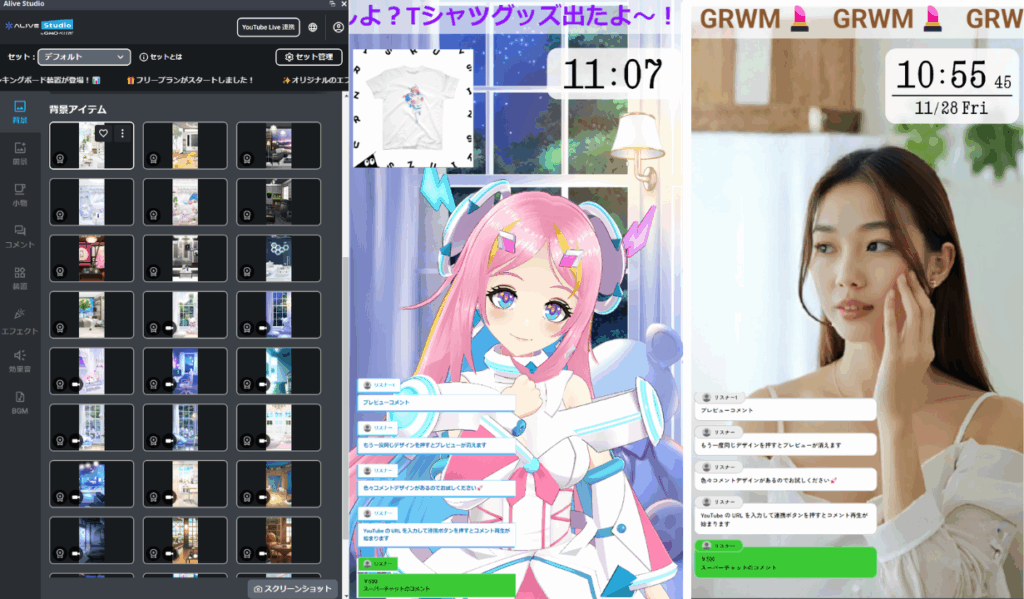
Reference: We have released a script that supports vertical videos and streams!
Integration with Stream Deck is Also Possible!
You can also integrate with “Stream Deck,” a device that allows you to create shortcuts for various PC operations. By creating custom buttons, you can streamline your tasks and save time. Switching materials, triggering effects, and playing sound effects can all be done with just one touch, making operations while streaming intuitive and allowing for smooth screen transitions and project progress.
It’s also possible to operate just the tools according to existing streaming templates.
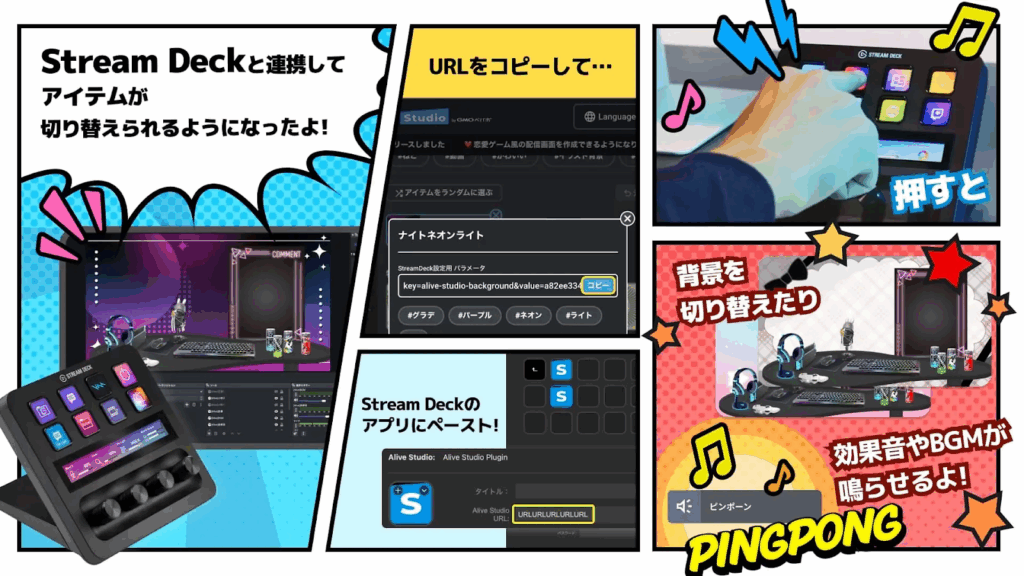
Method of setup is explained below in detail.
How to set up Alive Studio in Stream Deck?
Select Only the Necessary Materials and Functions for Flexibility
With Alive Studio, you don’t need to use all materials at once.
If you want to use your own backgrounds and don’t want to disrupt your current layout, you can pick and choose just the materials and features that you need.
You can keep existing backgrounds and streaming templates as they are while just adding “Topic Roulette,” “Counters,” “Subtitles,” and “performance effects” to enhance your capability without disturbing the overall aesthetic.
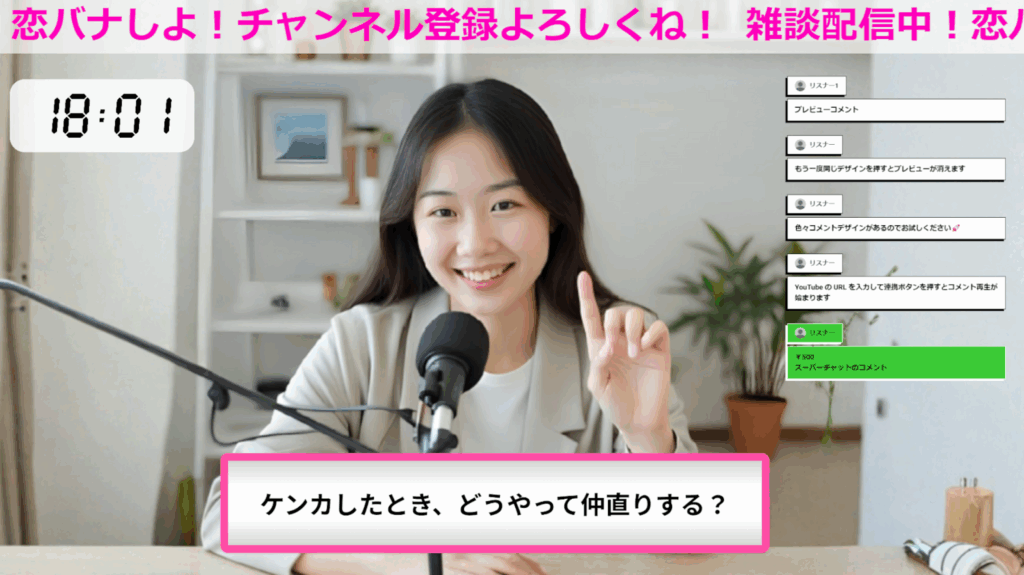
Furthermore, using the “set feature” allows you to save multiple scene configurations all at once. Even when you want to switch scenes during the stream, you can easily switch to a prepared set with just one call. This is handy for managing different performances for game streams or different themes like singing or chatting.
Reference: Now Available for Multiple Scenes 🎉📺️
Not just beginners, but VTubers, real-life streamers, gamers, and others can easily utilize its flexibility, which is a strong selling point.
Additionally, new features and materials are continuously being added with regular updates, preventing your streaming screen from becoming stale.


Enhance Your Planning Capabilities with “Tools”! Elevate Your Streaming Projects and Performance
Alive Studio not only helps set up your streaming screen but also is equipped with various “devices” that assist in planning. Depending on the genre such as chatting, gaming, singing, or work streams, these tools help prevent running out of content, facilitate audience participation, and enhance performance capabilities—what a great point! Up to three tools can be used at once.
The “Topic Roulette” that Helps when You Run Out of Talk for Chatting Streams
The most common concern in chatting streams is “What should I talk about?”
In such cases, you can display the topic roulette, which has set topics in various categories, allowing new topics to arise one after another.
Examples of Use
- Using the “self-introduction” topic roulette for your first stream
- Gathering “topics” from comments on the spot for audience participation projects
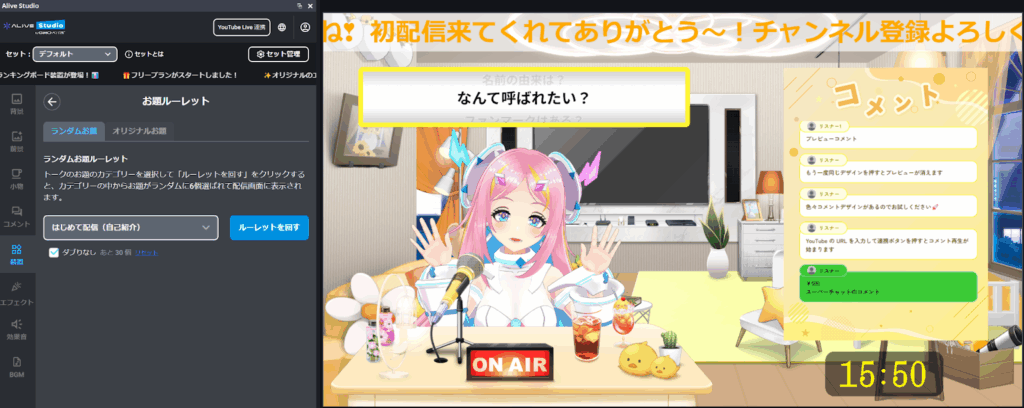
Easy Audience Participation Projects with “Omelette Rice” and “Flip”
Fun projects can be conducted effortlessly using “Omelette Rice,” where you can playfully write words in ketchup, and “Flip,” which opens with sound effects.
Examples of Use
- A gratitude project that writes listener names on “Omelette Rice” with ketchup
- A drawing project where the audience guesses what was written using the Flip
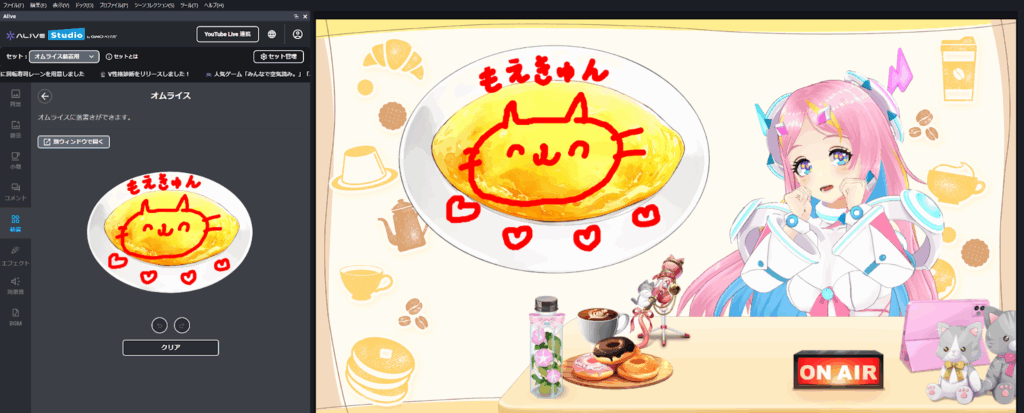
This kind of audience participation project brings fans closer to you and is a foolproof content idea.
*“Flip” is only available in the premium plan.
“Effects” to Enhance Performance Even in Game Streaming
“Effects” work great in game streams. With a premium plan, you can easily create original effects.
Examples of Use
- Manually triggering effects like “confetti” or “hearts” during exciting moments
- Setting effects to trigger based on audience comments to enhance screen performance together with viewers
You can achieve “engaging commentary” effortlessly without any editing.
What Creative Uses Can You Come Up With for Mysterious Devices Like “Conveyor Sushi” and “Mahjong Tiles”?
Examples of Use
- Creating an amazing space simply by placing conveyor sushi! Surprise your audience!
- Perfect for solo Mahjong sessions or Mahjong explanation streams!
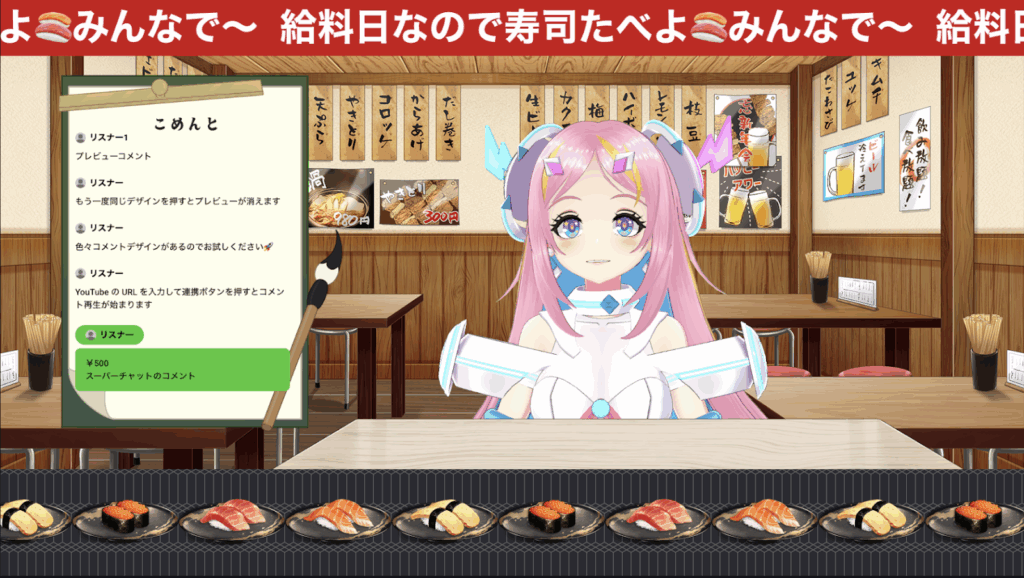
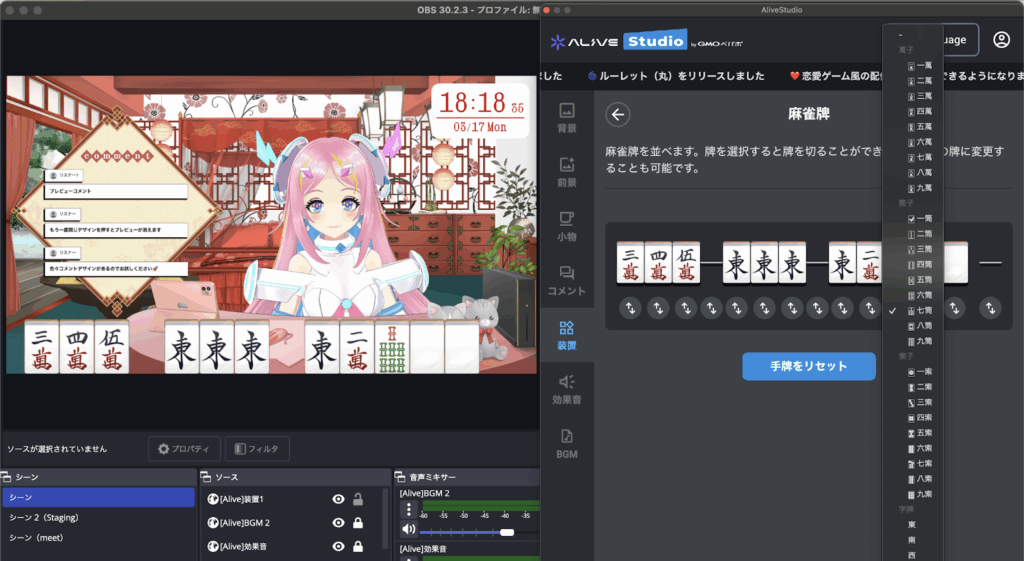
Additionally, the premium plan allows for the use of the following tools:
- Comment voting: Automatically collects and displays audience comments with graphs
- Nameplate: Place names, SNS accounts, and free text
- Real-time viewer count and like count: Display simultaneous viewer counts and like numbers in real time
- Flip: Easily draw on the flip with sound effects and a single click to show it
- Circular roulette: Add up to eight options that you favor and spin it
- Romantic game section: Easily create romantic game-like streaming screens or videos, gather lines for fun, or conduct line broadcasts using random lines
Building Streaming Screens for Different Genres Using Alive Studio
For Game Streaming?
Alie Studio! In game streaming, creating exciting performances for your viewers is essential. By reacting to comments with effects, you can create an invigorating streaming experience that engages the audience. Plus, customizing your screen with tools like “Counters” and “Game Frames” adds to the gamification of your presentation.
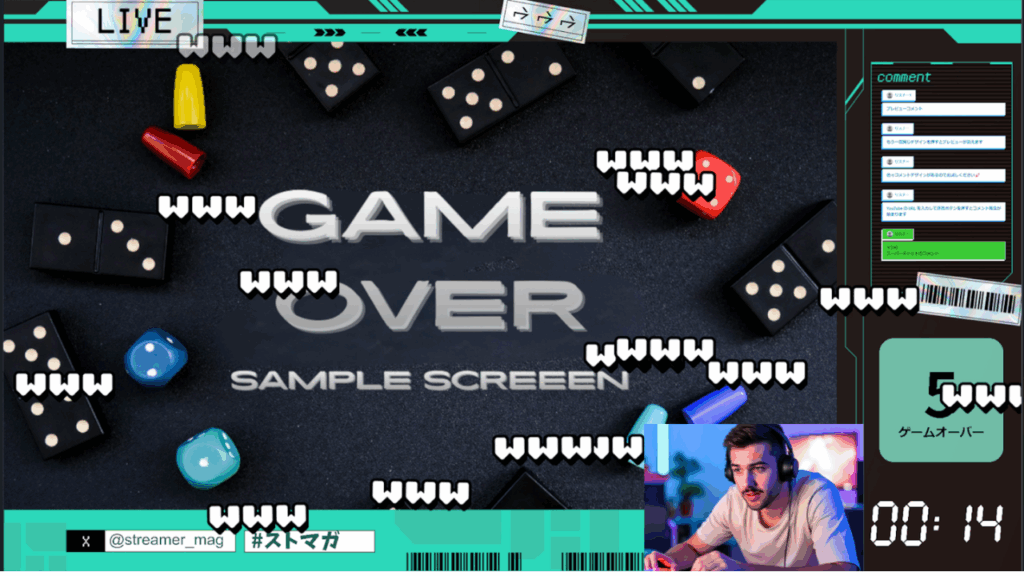
What to use:
- Effects: www (Condition settings are only for premium plan)
- Tool 1: Counter
- Tool 2: Stopwatch
- Comment: Blue background rectangle (premium)
- Background: Game frame (light blue)
- Set the game screen behind the background.
For Singing Streams?
Alive Studio! In singing streams, creating atmosphere with your streaming screen is crucial. You can set up stage-like backgrounds and microphones, as well as topic roulette for selecting songs, all with a single click. Just by changing the visuals, you can make your streaming screen attractive while focusing on singing.
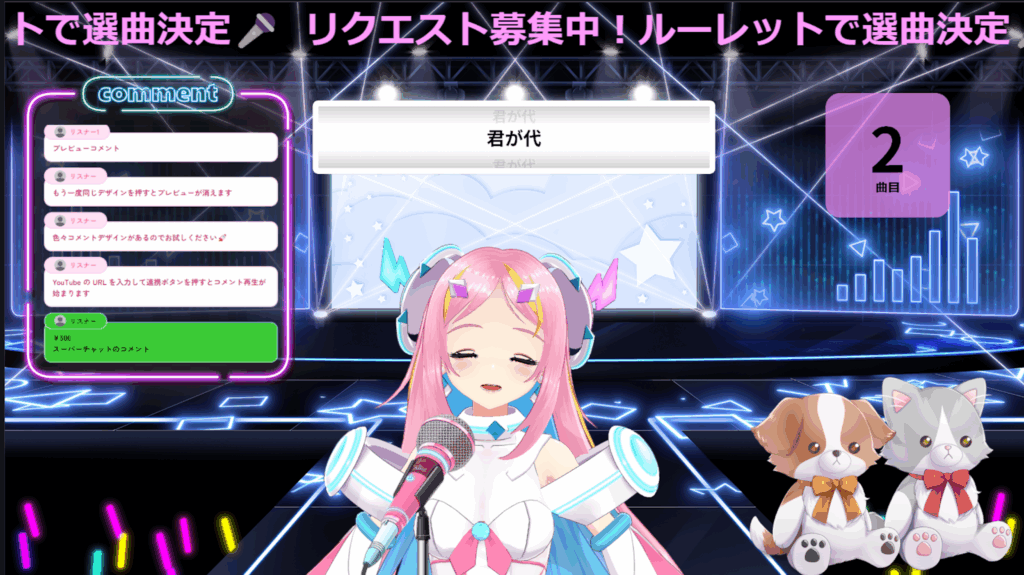
What to use:
- Item 1: Dynamic microphone (pink)
- Item 2: Stuffed toys (Minuet, Chihuahua)
- Background: Starlight Arena (premium)
- Tool 1: Topic roulette
- Tool 2: Counter
- Tool 3: Subtitles
- Comment: Simple pink background frame (premium)
For Chatting Streams?
Of course, Alive Studio! In chatting streams, the worry of “What should I talk about?” is an ongoing concern. Using “Topic Roulette” allows themes to pop up one after another, sparking natural conversations. Besides, using “Ranking Boards,” you can gather topics from your audience for engaging audience participation projects.
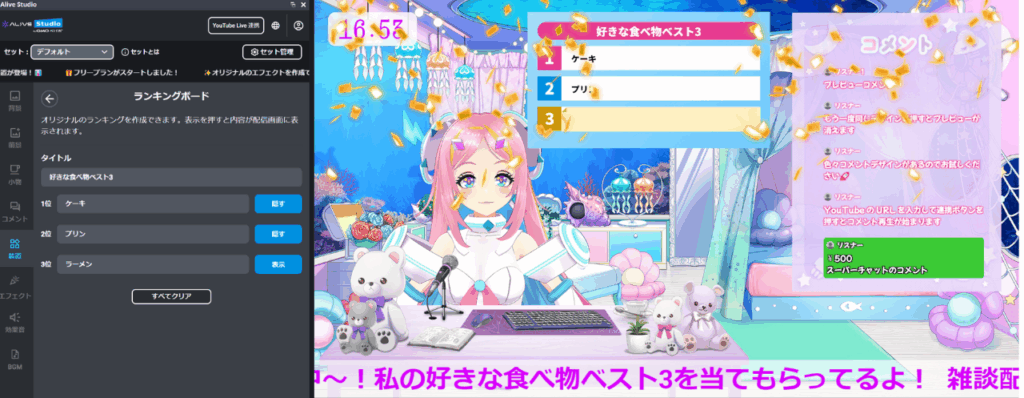
What to use:
- Tool 1: Ranking Board
- Tool 2: Subtitles
- Tool 3: Digital clock
- Comment: Pink bubble letters (premium)
- Comment frame: Cosmic Moon (premium)
- Foreground: Crocus bear (premium)
- Background: Mermaid Room (premium)
For Work Streams?
Alive Studio is the way to go! In study or production streams, managing progress on screen and maintaining motivation are key points. You can easily create engaging presentations with “Timers” and “Subtitles” showing your goals. Creating a supportive atmosphere fosters a sense of community with fans.
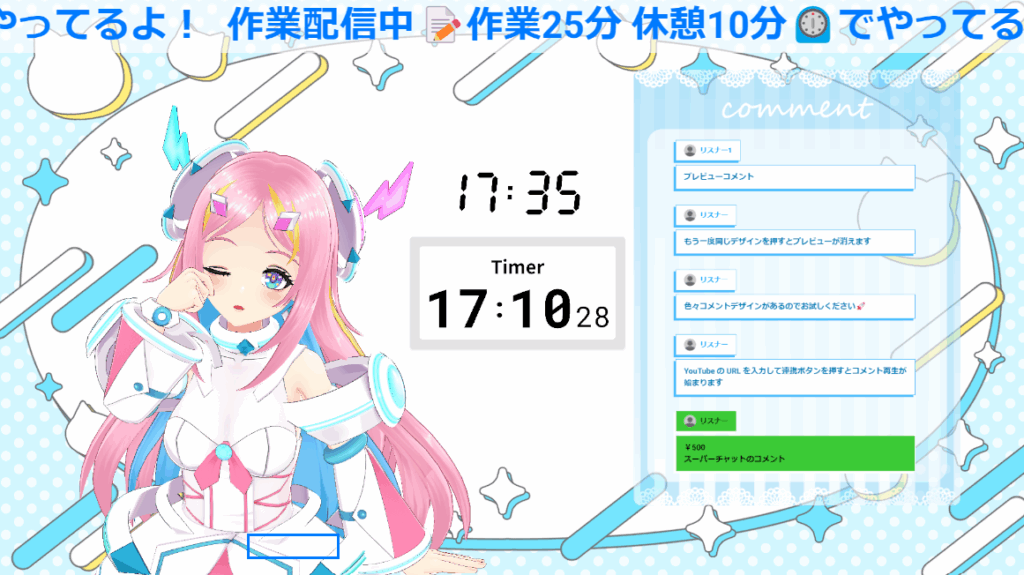
What to use:
- Tool 1: Timer
- Tool 2: Subtitles
- Tool 3: Digital clock
- Comment integration: Blue background rectangle (premium)
- Comment frame: Blue Whisper (premium)
- Background: Pop Star Cat (premium)
Summary: Solve the “Hassles” of Creating a Streaming Screen with Just One Click
Do you want to start streaming? However, you do not want to invest too much time or cost in creating your screen—such common struggles among streamers are efficiently resolved by Alive Studio.
- Operates intuitively on OBS without needing expertise
- Rich materials, performances, and sound resources create an appealing screen with just a click
- It’s easy to try for free, allowing you to start streaming immediately
- Supports both horizontal and vertical streaming
Now, it’s the era where you can start streaming the moment you decide you want to. With Alive Studio, you can concentrate on “your voice” and “your content” without the time taken for “screen creation.”
Use your time for communication with fans and creating ideas for them instead of screen creation.
If you are thinking, “I want to start streaming,” “I want to renew my screen,” or “I want to add more eye-catching performances,” why not transform your streaming into a “showcase” with the free plan first?