Share


Twitch Raids Explained: A Beginner’s Guide to Etiquette and Techniques
Index
You may have experienced a sudden notification while streaming on Twitch saying “User XXX has raided with YYY viewers.”
A moment when many viewers suddenly flock to your stream and the chat box becomes lively is due to a raid. Raid is a Twitch-specific feature that helps streamers connect and grow each other’s channels.
This article will clearly explain for beginners how to execute and receive raids, as well as essential etiquette you should be aware of.

What is a Twitch Raid?
A Twitch raid is a feature that allows you to send your viewers to another streamer’s channel at the end of your stream.
When you start a raid, a message and countdown will appear on the viewer’s screen asking if they wish to join. Viewers who choose to participate will be automatically taken to the raided channel after the countdown. The streamer being raided will receive a notification saying “User XXX has raided with YYY viewers.”
The raid feature was officially implemented by Twitch in November 2017 to foster a culture of mutual support.
It is a function that even beginners who have just started streaming can use as a first step to immerse themselves in the Twitch community.
Reference: Twitch
How to Perform a Twitch Raid
There are two ways to execute a raid. On the PC version, there is a method through “Stream Manager” using mouse operations alone, and a method that can be used with both PC and mobile via “Chat Commands”.
We’ll go through each step.
[PC Version] Steps to Raid from the Stream Manager
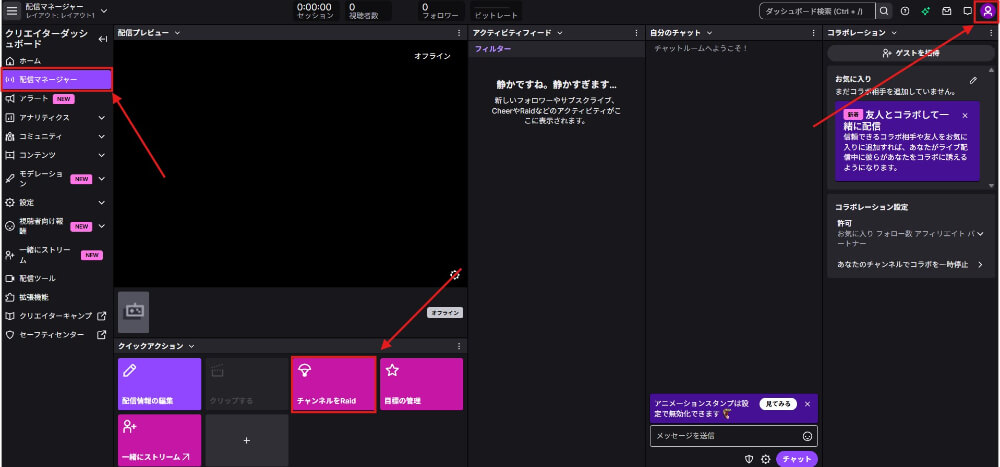
The steps to raid from the Stream Manager are as follows:
1. Select “Creator Dashboard” from the icon at the top right of the Twitch home screen.
2. Click on “Stream Manager” from the left menu.
3. Press the “Raid Channel” button in the Quick Actions section (if not displayed, add from the “+” mark).
4. Enter and select the channel name in the search window.
5. Click “Start Raid”.
When searching for a raid destination, streamers you follow or have recently watched will be displayed as candidates. Streamers currently online are prioritized for display, so you should be able to choose smoothly.
After executing the raid, a countdown will be displayed on the viewer’s screen. The “Raid Now” button will be activated 10 seconds after the countdown starts, and pressing the button will instantly begin the migration. Even if the button is not pressed, the raid will automatically execute after a certain period of time.
[PC & Mobile] How to Raid Using Chat Commands
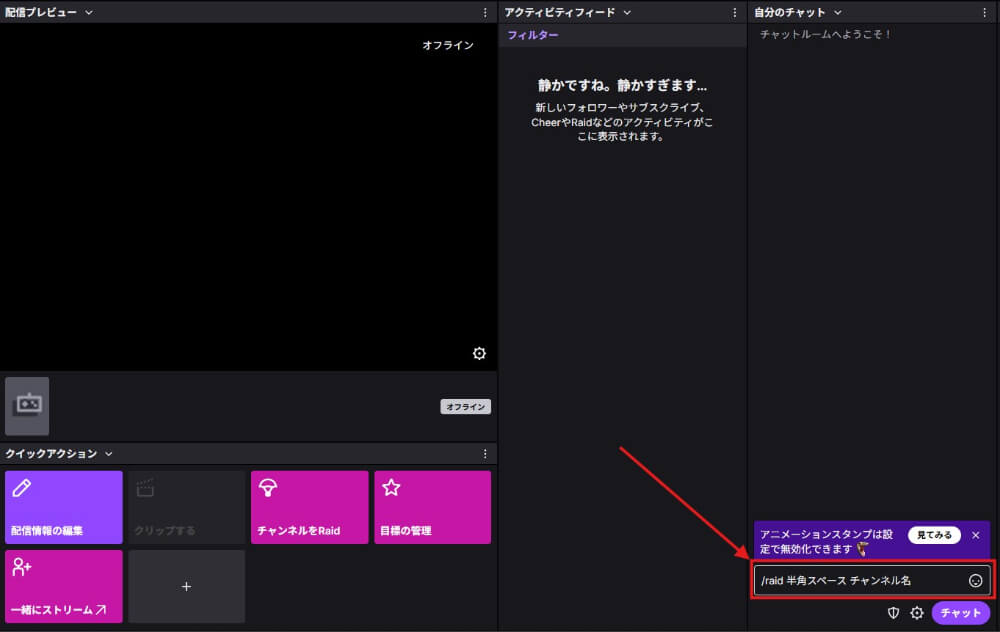
With chat commands, raids can be executed using the same procedure on both PC and mobile. It is appealing for its simplicity, requiring only input into the chat box without needing to open the stream manager.
1. Open the chat box on your stream.
2. Enter “/raid space channel name” (example: /raid twitchpresents)
3. Press the Enter key to send.
If streaming from the smartphone app, you can also input commands from the chat box. You can send raids even when out or on the move.
If there is a spelling error in the channel name, the raid will not execute. It is recommended to copy the channel name of the raid destination in advance to prevent input mistakes.
If you pick the wrong raid destination or the other stream suddenly ends, you can cancel during the countdown by typing /unraid into the chat box.
How to Receive and Respond to Twitch Raids
The impression you give to new viewers greatly depends on how you respond when you receive a raid. Since raids occur suddenly, it’s best to be prepared for how to handle them beforehand.
When you receive a raid, a notification saying “User XXX has raided with YYY viewers” will appear on your stream screen and in the chat box. If your viewer count suddenly increases, it’s likely a raid, so check the chat box immediately.
The steps for responding when you receive a raid are as follows:
1. Verbally thank the streamer who raided you by saying “Thank you for the raid, User XXX!”
2. Welcome all raid participants with “Welcome, everyone who came with the raid!”
3. If you have time, type /shoutout streamer_name in the chat box to introduce the original raider.
Raid participants are concerned about whether they receive a proper welcome. A bright and energetic greeting can help even first-time viewers relax and enjoy the stream.
Viewers who came to enjoy your stream due to a raid might want to support you further. In such cases, Bits can be handy. For more about the tipping system, refer to the article below.
>>How to Donate on Twitch: Buying and Sending Bits, Prohibited Actions Explained
How to Decline a Raid on Twitch
While raids are a form of support on Twitch, you might encounter situations where you wish to turn them away due to your content or circumstances. Twitch allows you to set preferences to “decline all raids,” “limit by viewer count,” or block specific users.
Steps to Decline All Raids
If you wish to decline all raids, you can do so from the Creator Dashboard.
1. Select “Creator Dashboard” from the icon at the top right of the Twitch home screen.
2. Open the “Settings” → “Stream” tab from the left menu.
3. In the “Raid” section, check “Decline All Raids”.
4. Click the “Save changes” button at the bottom right.
Once enabled, you won’t accept any raid. Use this when you wish to concentrate during the stream or avoid a sudden spike in viewers.
How to Limit Raids by Viewer Count
If you want to accept only small raids or avoid large raids, you can specify a range of viewer count to limit raids.
1. Open “Settings” → “Stream” in the Creator Dashboard.
2. In the “Raid” section, enter the minimum and maximum number of viewers.
3. Click “Save Changes”.
For example, if set to “Minimum 5, Maximum 100,” raids with 1-4 viewers or those with over 101 viewers will be automatically declined. It’s useful for accepting only viewer numbers suited for your channel size.
How to Block Raids from Specific Users
You can individually block users who have raided problematically in the past or from streamers with whom you have poor relations.
1. Click the gear icon (settings) in the chat window.
2. Select “View Recent Raids”.
3. Choose the user you want to block and click “Ban”.
Banned users will have restrictions not only on raids but also on joining chats. Use this method to deal with users who persistently raid problematically. Raid blocking settings can be changed at any time to suit your stream’s purpose and situation, so flexibly use them according to your streaming style.
How to Check the History of Twitch Raids
By checking raid history, you can look back on who raided you or who you raided. Knowing how to check can be useful for sending a return raid as a token of gratitude.
1. Open the Stream Manager.
2. Click the gear icon (settings) in the chat box.
3. Select “View Recent Raids”.
A list of streamers who raided you recently will be displayed. Use this for sending return raids or dealing with users you wish to block.
However, Twitch currently lacks an official feature to record long-term raid history. To keep long-term records, using external tools like “Twitch Raid Finder” may be necessary.
Benefits of Raiding on Twitch
Raiding is not just a viewer migration function. For streamers, it has three direct benefits for channel growth and community formation.
It Acts as Free Advertising to Get Your Channel Recognized
When you execute a raid, a popup notification saying “User XXX has raided with YYY viewers” is displayed on the chat box and stream screen of the other party. Your username is introduced with a clickable link, allowing all viewers on the other channel to see your name.
For example, if you raid with 50 viewers, all 100 viewers on the other channel will learn of your existence. It is a high cost-effectiveness strategy to expand recognition without incurring advertising costs.
It Creates Opportunities to Form Streaming Alliances
Raiding is a first positive step for giving a polite greeting to a streamer you don’t know. Direct messaging them suddenly might be daunting, but raiding lets them naturally know you exist.
Through repeated raid exchanges, mutually following each other or being invited for collaboration streams are not uncommon cases. As your streaming network expands, mutual promotion, sharing game strategy information, and consulting on streaming equipment can foster cooperative relationships.
It Becomes an Ending Event That Creates a Sense of Unity with Viewers
Raids function as an ending event as all viewers move to the next stream at the end of the broadcast.
By concluding with “Thank you for today! Let’s all go watch User XXX’s stream at the end!”, viewers can experience a sense of unity by acting with the streamer. It enhances viewer engagement (attachment to your channel) and leads to retaining regular viewers.
If you make raids a staple event at the end, viewers will look forward to “which channel this stream is going to raid”, motivating them to stay until the end of the stream.
Raid Etiquette on Twitch: Unspoken Rules to Know
While there are no formal rules for raiding, there are “unspoken manners” commonly shared within the streamer community. Keep in mind these three manners to send raids pleasantly and delight others.
Choose a Streamer of Similar Scale
It is recommended to select a streamer who has a similar viewer count to yours as the raid target.
For example, raiding a major streamer with 1,000 viewers when you have around 10 viewers will likely result in your viewers being overshadowed, making the impact minimal. Moreover, an additional 10 viewers won’t create much noticeable change, and the raid notification will simply come and go.
In contrast, raiding a streamer of similar size means a significant increase for the recipient, making them more grateful. If you raid a streamer with an average of 10 viewers with your 10 viewers, their viewer count will double. This creates a substantial impact and is likely to foster mutual support relations.
Check the Other Stream for About 5 Minutes Before Raiding
Checking the stream you’re about to raid for about 5 minutes to get a feel for the atmosphere is part of good manners.
Here are some points to check:
| Check Item | Content to Check |
|---|---|
| Streaming Genre | Whether it fits with your viewers |
| Streaming Ambiance | Bright, calm, beginner-friendly, etc. |
| Current Streaming Situation | Whether they seem busy, like being in a game boss battle |
If the other streamer is busy with PvP battles or boss battles in games, they may struggle to handle a raid properly. Choose a time when they seem to have a bit of leeway.
Also, avoid times right before they end their stream. If they stop streaming a few minutes after a raid, the viewers you sent will be left without direction.
Keep Post-Raid Greetings Simple
After raiding, when greeting in the chat box of the other streamer, keep it simple and short.
Here are some recommended greeting examples:
- “Hello. Came with a raid.”
- “Looking forward to the stream.”
- “Sorry for leaving soon after the raid, enjoy the stream.”
Long messages or excessive self-promotion disturb the stream. Sending a short, polite greeting gives a good impression to both the host and viewers.
Even if you leave shortly after the raid, a brief note of that won’t be seen as rude. Showing respect for the other stream builds a good relationship.
Conclusion
This article explained Twitch’s raid functionality from the basics to execution, handling, and etiquette.
Raiding is a function to send your viewers to another streamer at the end of your stream and has effects on establishing streamer connections and growing channels.
When sending a raid, choose a streamer with similar scale, and the guideline is to check their stream for about five minutes. Avoid times when they might be busy, such as in-game boss battles.
To expand your interaction within the Twitch community, try sending a raid to a streamer you’re interested in.
If you’re considering starting streaming on Twitch or setting up your streaming environment, please also refer to the article below.
>>OBS and Twitch Streaming Guide: From Setup to Live Broadcast!