Share


How to Send Bits on Twitch: Buying Guide, Prices & Troubleshooting Tips
Many people might be wondering, “I want to support streamers on Twitch, but I don’t know how to buy or send Bits…”
Bits are virtual goods that can be purchased on Twitch, and the process has some quirks, which might confuse first-time users.
This article explains everything from the price of Bits, the purchasing process, and how to send them (how to cheer), to using power-ups and pinned Cheer, as well as what to do if you can’t send them. If you’re using Bits for the first time, we hope you find this useful.

What is the tipping system on Twitch?
When we think of tipping, many might picture “Super Chats,” but this is a feature of YouTube. On Twitch, support is given using “Bits” as follows.
- Tipping is done by purchasing and sending Bits
- Cheering is a feature that highlights the tip
Tipping is done by purchasing and sending Bits
To tip on Twitch, you first need to purchase a virtual currency called “Bits.” Bits are the points used for Cheers and are digital content for supporting streamers.
The basic mechanism is as follows.
| Item | Details |
|---|---|
| Currency Unit | 1 Bit = 2.29 yen (as of April 16, 2026) |
| How to Buy | Purchase on the Twitch platform |
| How to Use | Send to the streamer from the chat window |
Reference: Twitch “Purchase Bits“
As a note, Bits are non-refundable once purchased and can only be used within Twitch. It’s important to remember to use them solely as a means of support since they cannot be exchanged for other services or products.
Cheering is a feature that highlights the tip
“Cheering” refers to using Bits to support streamers within Twitch. Cheering has more functionality than just tipping and includes participatory elements such as:
- The movement and appearance of emojis change based on the amount of Bits
- The chat shows “who cheered what amount”
- Your name appears in a viewer ranking
- The badge design evolves according to the total amount of Cheers
Furthermore, by using “Pinned Cheer,” you can fix your support message to the top of the chat for a certain amount of Bits.
The ability to create moments that bring you closer to the streamer at your own timing is the charm of cheering.
If you want to start streaming on Twitch, please refer to the following article.
>>How to Start Streaming on Twitch: Setup, Essential Gear & Monetization Tips
Twitch Bits Prices | Price List by Package and How to Buy Them Economically
The best way to buy Twitch Bits is through a browser. The more you buy at once, the cheaper the price per Bit becomes, so let’s first check how much it will actually cost. The specific sending method after purchase will be elaborated on later.
| Number of Bits | Price (Tax Included) | Price per Bit |
|---|---|---|
| 100 Bits | 229 yen | About 2.29 yen |
| 500 Bits | 1,135 yen | About 2.27 yen |
| 1,500 Bits | 3,235 yen | About 2.16 yen |
| 5,000 Bits | 10,440 yen | About 2.09 yen |
| 10,000 Bits | 20,420 yen | About 2.04 yen |
| 25,000 Bits | 49,916 yen | About 2.00 yen |
*Prices are as of April 2026 (browser version). Prices may fluctuate due to exchange rates and promotions. Please check for the latest displayed prices before purchasing.
How to Purchase Twitch Bits
It is recommended to buy Bits from a web browser rather than the mobile app, as purchasing through the app incurs additional fees from the App Store or Google Play Store, making it more expensive. For example, for 100 Bits, it costs 229 yen through the browser, but approximately 342 yen through the mobile app, which is about 1.5 times more.
In this section, we will introduce how to purchase Bits at a lower price using a mobile browser.
The specific steps are as follows.
- Log in to Twitch using your mobile browser
- Tap the “Bits icon” at the top right of the screen
- Select the desired amount and specify the payment method to purchase
STEP 1: Log in to Twitch using your mobile browser
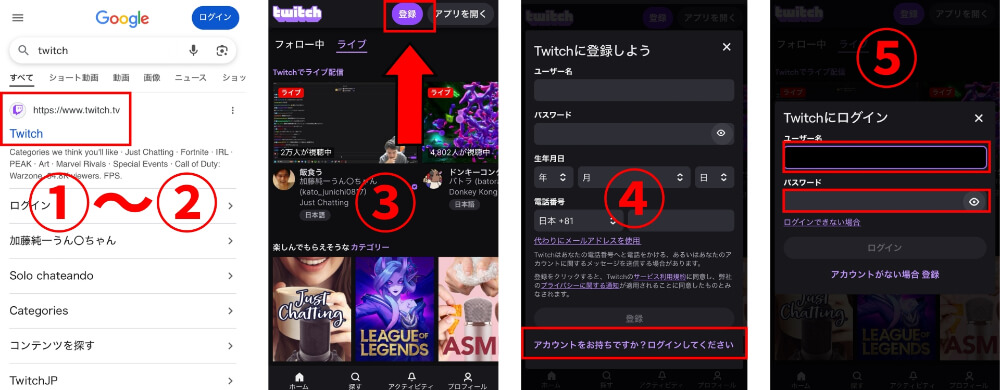
Follow these steps to log in to your Twitch account from your mobile browser.
- Open a mobile browser such as Safari or Chrome
- Search for the official Twitch site or directly enter “https://www.twitch.tv/” to access
- Tap “Sign Up” at the top right
- Tap “Already have an account? Please log in.”
- Enter your username and password to log in to your account
The browser allows for app-like operation, but the pricing during payment is significantly more reasonable compared to the app. This method is recommended for those who want to tip a lot or support in a cost-effective way.
STEP 2: Tap the “Bits icon” at the top right of the screen
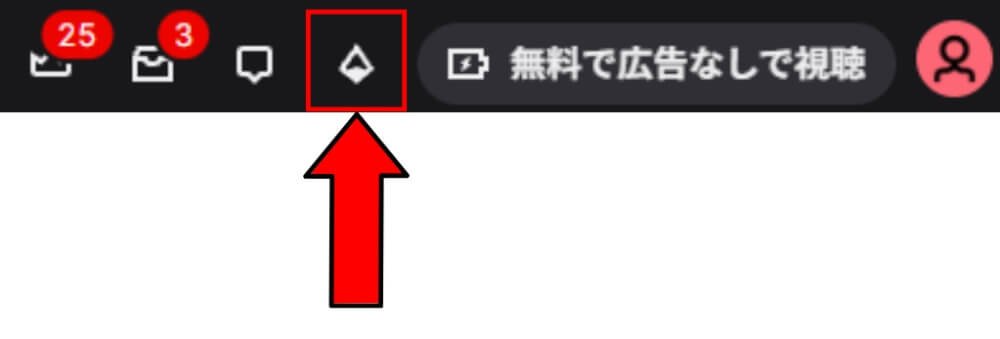
Once logged in, let’s move to the Bits purchase screen.
The diamond icon at the top right of the screen is your marker. Tapping the icon will bring up screens like “Purchase Bits.”
If you can’t find it easily, you can also directly access the following link.
Additionally, if you’re on a live stream screen, you can also access the Bits purchase screen through the icons next to the chat window.
STEP 3: Select the desired amount and specify the payment method to purchase
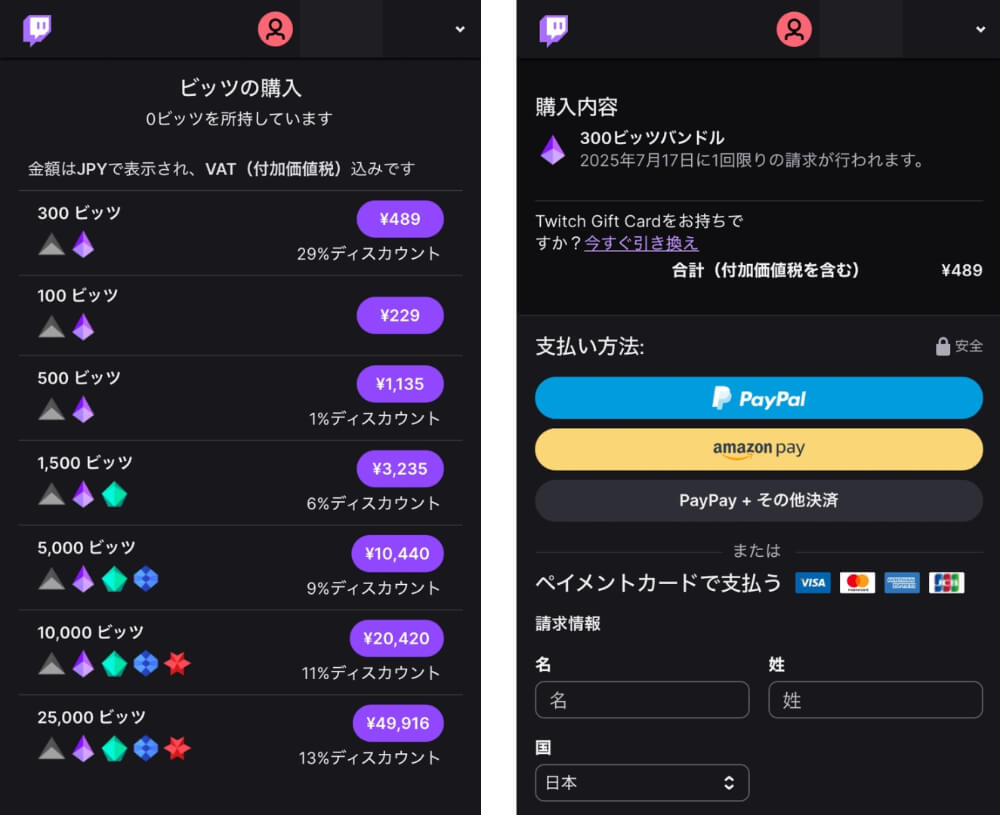
When you tap the Bits icon, the purchase screen will switch. You can choose the desired quantity from several packages, so after deciding on the purchase amount, tap the purple button.
The payment methods available for purchasing Bits are as follows.
- Amazon Pay
- Credit Card
- Convenience Store
- PayPay
- PayPal
- Crypto.com Pay
- Pay-easy
- Bank Transfer
Bits are non-refundable, so be sure to confirm that there are no mistakes in your selected plan before purchasing.
If you’re curious about the badge system after purchasing Bits, refer to the following article.
>>Ultimate Guide to Twitch Badges: How to Customize and Earn The
How to Send Bits on Twitch
Once you’ve completed the purchase of Bits, it’s finally time to send them to your desired streamer, a process known as “Cheering.”
Cheering is not just about tipping; it also involves attaching your feelings with emojis and adding flair to the chat, making it a fun way for viewers themselves to enhance the stream.
Here, we’ll introduce the specific method for cheering, which can be used on both mobile and PC, in three steps.
STEP 1: Open the chat of the stream you want to cheer for
First, open the channel of the streamer you want to support and display the chat during the live stream.
The chat automatically appears at the bottom of the screen when you open the stream. If the Bits icon is displayed in the chat window, it signals that you’re ready to cheer.
However, keep in mind that cheering is only available during the stream. The cheer feature will not be displayed in the chat outside of the stream.
STEP 2: Click the Bits icon and select an emoji
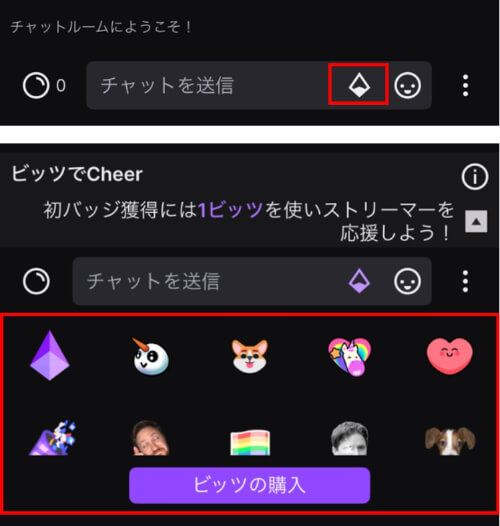
Once the chat window is open, tap the diamond-shaped “Bits icon” on the bottom right. Pressing the icon will display a list of emojis for cheering.
By sending emojis along with Bits, you can enhance your message with emotions or effects.
Commonly used emojis include:
- Heart: Feelings of gratitude or support
- Unicorn: A sense of excitement or a fun atmosphere
- Dog: When you want to convey a cute impression
Check for custom emojis that streamers may have individually set up, as well as emojis specifically for anonymous cheers.
STEP 3: Adjust the amount of “Cheer” to send
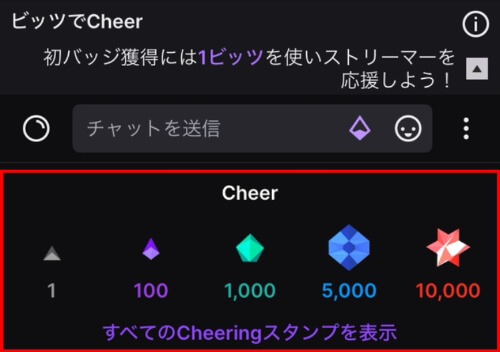
Once you select an emoji, the text in the format “Cheer100” will automatically appear in the chat input field. You can manually edit the “100” part; for example, if you change it to “Cheer500,” you’ll send 500 Bits.
Methods to freely adjust the amount of Cheer include:
- Select from the displayed presets (100, 1,000, 5,000, etc.)
- Directly edit the “Cheer number” in the chat window to change it to your desired amount of Bits
Additionally, you can input a comment by leaving a space after “Cheer100,” allowing you to send a message along with your cheer.
Finally, simply check your sending content and press the enter key or the “Send” button to complete.
What is the “Power-Up” feature available with Bits on Twitch?
The “Power-Up” is a feature that lets you use Bits, which are Twitch’s cheering items, to add extravagant and fun effects to the chat window and the streaming screen.
The usage is very simple; just open the menu from the diamond-shaped icon at the bottom of the chat input area, and anyone can use it immediately.
Here are three appeals of the Power-Up feature.
Make Emojis Huge
This feature allows you to enlarge your favorite emoji (emote) to several times its usual size, making it stand out massively in the chat window.
When expressing intense feelings like “funny” or “amazing,” or during the most exciting moments of the stream, it grabs attention.
The use is very simple: just select “Make Emojis Huge” from the menu and send the emoji you want to use. It’s a fun feature that even beginners can casually try!
Message Effects
The message effects feature comes in handy when you want your message to be seen by your favorite streamer. You can add rainbow decorations to the background of your comments or special visual effects where emojis dance.
Even in popular streams where many viewers might cause a flood of comments, you can make your message sparkle and stand out, catching the streamer’s attention.
Full-Screen Celebration
The “Full-Screen Celebration” is recommended for special moments such as the anniversary of streaming activities or the emotional moment of clearing a difficult game.
Among the three types of power-up features, this one has the most visual impact, with the selected emoji exploding from the bottom of the streaming screen and filling the entire screen dramatically.
It’s a special effect that allows streamers and viewers to share joy and emotion as one while creating an electrifying moment for everyone present.
The Mechanism of Pinned Cheer on Twitch
Pinned Cheer is a feature that allows you to use Bits (Twitch’s tipping) to prominently fix your message at the top of the chat window.
It’s simple to use; just check the box saying “Pin this Cheer” when sending a Cheer.
The duration for which the message is pinned varies depending on the amount of Bits used, and the specific guidelines are as follows.
| Range of Bits | Pinning Duration |
|---|---|
| 1–199 | 1 minute |
| 200–499 | 2 minutes |
| 500–999 | 5 minutes |
| 1,000–1,999 | 10 minutes |
| 2,000–4,999 | 20 minutes |
| 5,000–9,999 | 60 minutes |
| 10,000–99,999 | 120 minutes |
Source: Twitch “Bits Cheering Guide“
Note that streamers can set a minimum number of Bits required for pinning, so the number of Bits needed for pinning may vary by channel.
Why are Bits banned on Twitch? Common Patterns
Not all streams allow tipping. Tipping can be restricted due to game rights or the streamer’s wishes.
If you’re wondering “Why are Bits banned?” check out the common patterns below.
| Pattern | Reason |
|---|---|
| When streaming games that are prohibited for monetization | Some titles prohibit monetizing based on the rights holder’s policy, and for example, tipping is banned for ‘ELDEN RING.’ |
| When the streamer themselves has refused tipping | For reasons like “I prefer spreading the word rather than receiving support,” some streamers restrict tipping by setting a high minimum amount, effectively making it impossible. |
It is important to check the game’s guidelines and the channel description before tipping.
Causes and Solutions for Not Being Able to Send Bits on Twitch
If you’ve bought Bits but can’t send them, there could be multiple reasons.
If there’s an error in the chat window or the send button isn’t responding, check the following points.
| Cause | Common Situations | Example Countermeasures |
|---|---|---|
| Insufficient Bits | The Bits you hold are below the minimum Cheer amount | Purchase the necessary amount additionally |
| Streamer’s Settings | Set to a minimum of 1,000 Bits, so you can’t send 100 | Adjust the Cheer amount and send once |
| Browser/App Issues | “Could not process” displayed during Cheer | Refresh the page, use a different browser, clear cache |
| Unstable Internet Connection | Stops halfway through sending, and processing doesn’t complete | Switch Wi-Fi, turn off VPN, check the connection, etc. |
If the problem persists, consider contacting official support.
You cannot send Bits to streamers who do not meet monetization conditions. If you want to know more about Twitch monetization, refer to the following article.
>>How to Monetize on Twitch: A Complete Guide to Qualifying Faster
Frequently Asked Questions About Tipping on Twitch
Here are some frequently asked questions about tipping on Twitch.
- How much of Twitch tipping is returned to the streamers?
- What fees are involved in Twitch tipping?
- What is the difference between subscriptions and Bits?
- From how much can you tip?
- What are the actual prices for Bits and Cheers?
- Which is more profitable, Twitch subscription earnings or tipping?
- If I send 100 Bits, how much reaches the streamer?
- How much is 150,000 Cheers in Japanese yen?
How much of Twitch tipping is returned to the streamers?
Streamers receive about 1 cent, or approximately 1.58 yen, per Bit. This means if you send 100 Bits, approximately 158 yen is directly delivered to the streamer.
Unlike YouTube’s Super Chat, on Twitch, platform fees occur “during the viewer’s purchase,” added to the price of Bits, meaning that nothing is deducted from the amount received by the streamers.
What fees are involved in Twitch tipping?
The fees for tipping are borne by viewers, not the streamers. When purchased via a browser, about 30% of the fee is added, and purchasing through the app incurs additional fees (about 30%) from Apple or Google. The fees when the streamer receives the payment vary based on the contract terms.
What is the difference between subscriptions and Bits?
Subscriptions are a monthly system suitable for ongoing support, costing 700 yen (web)* per month, which provides benefits like emojis.
On the other hand, Bits are one-time support that are convenient when you want to convey your feelings with emojis. If you want to enjoy real-time reactions, Bits are recommended.
*As of April 16, 2026
From how much can you tip?
You can send from 1 Bit (2.29 yen*). However, streamers may set minimum amounts for tipping. For instance, to prevent abuse, it might be restricted to over 10 Bits or over 1,000 Bits. Check the chat window for notes before cheering.
*As of April 16, 2026
What are the actual prices for Bits and Cheers?
Cheers themselves do not have a price, but as of April 16, 2026, 100 Bits = 229 yen. This makes each Bit approximately 2.29 yen, and via the app, it can be up to 30% more expensive. There are discounts for bulk purchases, and when buying 25,000 Bits, the price can drop to about 2.00 yen per Bit.
Since the Twitch tipping system is based on cents, be aware that it may fluctuate in the future.
Which is more profitable, Twitch subscription earnings or tipping?
If you are aiming for stable income, “subscriptions” are recommended, while if you want to increase earnings in a short time, “tipping (Bits)” is suitable.
The return amount to streamers fluctuates based on the distribution rate and exchange rates, but under general circumstances for regular streamers, here are the amounts for a 700 yen support:
- Subscription: About 350 yen (Streamer 50% / Twitch 50%)
- Bits: About 482 yen (700 yen = approximately 305 Bits)
Thus, while subscriptions provide predictable ongoing revenue through monthly fees, Bits are a viable method for generating income massively during events or peak moments.
Effectively using both methods according to your objectives leads to maximized earnings. We also have a system called Partner Plus, where streamers who meet certain conditions can enjoy up to a 70% share of subscriptions.
If I send 100 Bits, how much reaches the streamer?
Streamers receive 1 cent (0.01 dollars) per Bit, so for 100 Bits, the earnings amount to approximately 158 yen*. Viewers pay around 229 yen, meaning the difference of about 71 yen is processed as Twitch’s fee. The amount sent is delivered to the streamer effectively.
*Based on 1 dollar = 158 yen
How much is 150,000 Cheers in Japanese yen?
If you send 150,000 Bits, streamers receive about 1,500 dollars (approximately 237,000 yen*) based on the 1 Bit = 1 cent calculation.
Meanwhile, the amount paid by viewers when purchasing Bits would be around 299,500 yen, making the actual return rate about 79%.
This kind of large-scale cheering is often given during commemorative events like birthdays or graduations and serves as a strong expression of support.
*Based on 1 dollar = 158 yen
Conclusion
This article explained how to purchase Twitch’s tipping feature, “Bits,” the structure of “Cheering,” how to send them, and important examples of bans to watch for.
Cheering is not just about sending money; the ability to convey feelings through emojis and performances makes it enjoyable. Tipping becomes more economical as you buy in bulk, and using pinned Cheer allows your message to stand out.
However, it is essential to confirm any restrictions on tipping set by the game or streamer, as there may be cases where tipping is not allowed.
Tipping connects streamers and viewers, serving as a tool to express feelings beyond monetary value. If you’re eager to support someone, try cheering from a small amount to close the gap with your favorite streamer.