Share


Easily Add On-Screen Captions with Alive Studio — Free and Simple Tips
A common concern among live streamers is how difficult it is to convey what they are currently doing.
Viewers who join midway through a broadcast may take dozens of seconds to a few minutes to understand the situation. During that time, it’s not uncommon for them to think, “I don’t really get it, so I’ll just leave…” and exit.



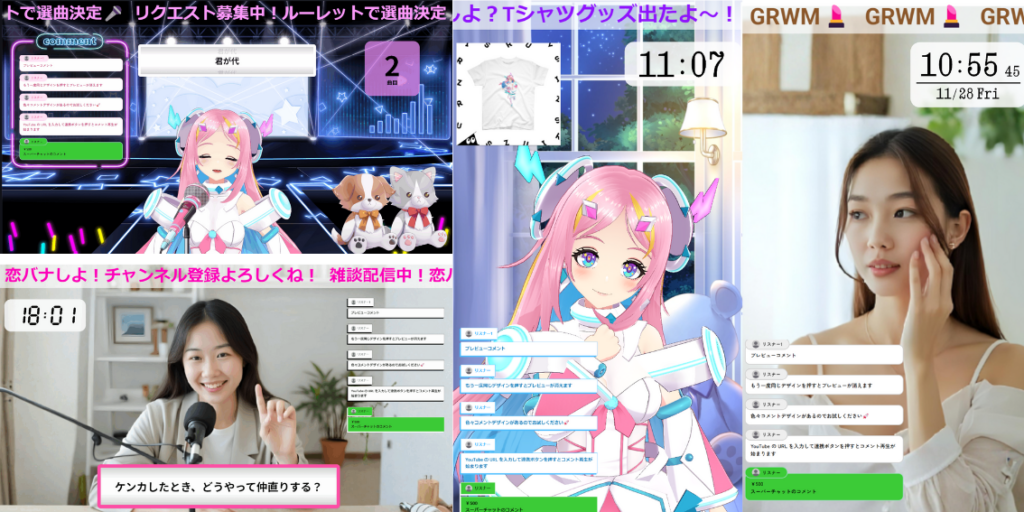

Why do we need captions in live broadcasts? Summary of benefits
As you continue your broadcasts, you may often encounter the following issues.
- It’s difficult for viewers who join midway to understand the current situation.
- New viewers may leave without knowing “what’s happening.”
- If the topics constantly change, viewers may feel left behind.
- Setting up text on OBS is complicated and updating it is a hassle.
Captions can help resolve these “common streamer dilemmas” all at once.
1. Easily conveys plans and current situations (welcoming to new joiners)
Being able to understand “what type of broadcast it is” the moment a viewer joins is a significant relief for them.
Simply adding a line like “Currently in a boss battle,” “Playing under specific rules,” or “Chatting about topic X” via captions helps viewers who join midway grasp the situation instantly.
Even during long streams or complex gameplays, captions can indicate the “current location,” preventing viewers from dropping out.
2. New viewers find it easier to comment (lower threshold for joining the conversation)
A major reason why new viewers hesitate to comment is that they don’t know “what’s being discussed.” When they understand the situation, they feel more comfortable joining the conversation.
Additionally, displaying phrases like “Please share your thoughts!” or “Tell me what you like!” as captions creates natural prompts for comments.
- New viewers, feel free to comment!
- Today’s theme: X. What is your opinion?
- What should we do next? We are currently polling!
Displaying these “light invitations” on screen also helps invigorate discussions.
3. Topics are organized even in chatting or long broadcasts
In chatting streams, topics can change rapidly, causing viewers to sometimes wonder, “What are we talking about right now?”
By indicating the “current discussion topic” or “next topic” through captions, viewers can more easily follow the flow of the broadcast.
Even in long broadcasts, viewers who join midway can quickly catch the atmosphere, maintaining a sense of unity in the stream.
Captions are easy to set up with Alive Studio
If you rely solely on regular OBS text sources for captions, you’ll encounter “pain points” such as the hassle of editing text every time, difficulty in updating during live streams, and time-consuming position adjustments.
With Alive Studio, you can use the “caption feature” directly incorporated into your stream screen, completing the setup in just a few clicks.
You can easily create “professional-looking captions” even without design knowledge.
Steps to set up captions
Registering for Alive Studio
First, if you haven’t used Alive Studio yet, please register an account (free) and follow the steps below to get ready.
1. Download the dedicated script
2. Register on OBS
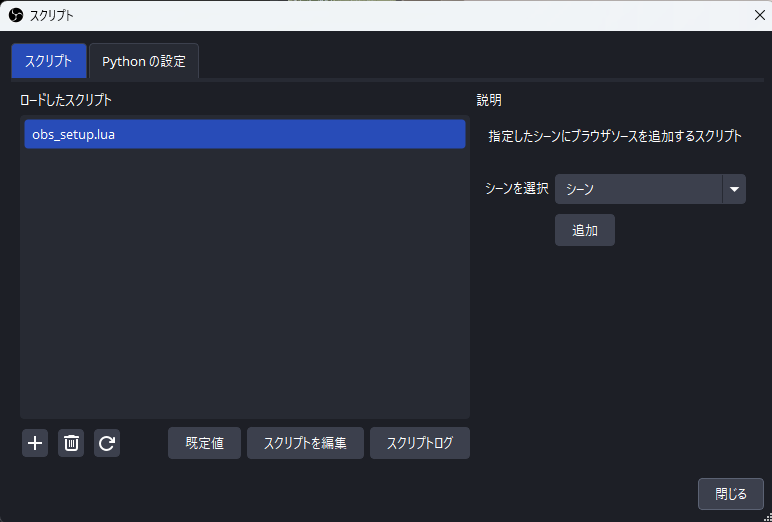
Launch OBS, click on “Tools,” then “Scripts.”
Click the “+” button and select the downloaded script.
Select the scene where you want to add “Alive Studio” and click the “Add” button.
3. Add a Custom Browser Dock
From the OBS menu, click “Docks” → “Custom Browser Docks.”
Enter the URL below and click “Apply.”
| Dock Name | URL |
| Alive Studio (optional) | https://studio.alive-project.com/ |
Once configured, the Alive Studio interface will appear directly within OBS.

Setting up captions
1. Click “Gadget” then “Telop” in Alive Studio.
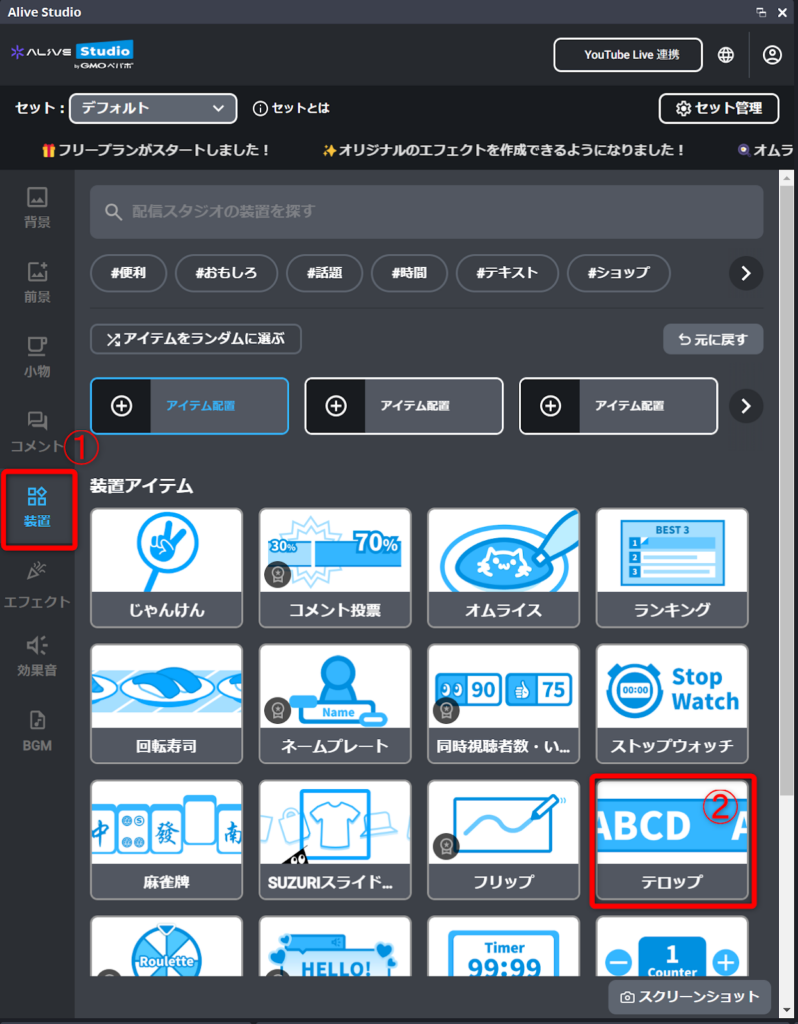
2. From the gear icon for captions, enter the content you want to include and click “Reflect in Scene.”
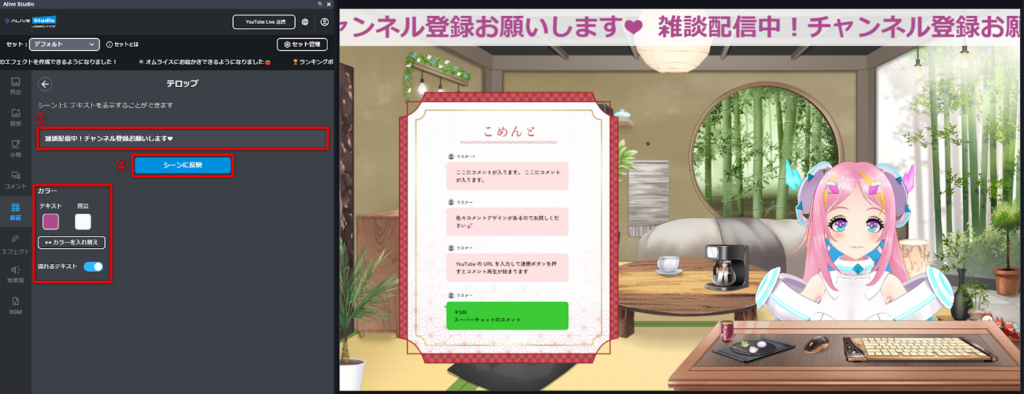
You can also change the colors, opacity, and toggle the flowing text on and off.
Ready-to-Use Caption Text Templates
Alive Studio captions can be controlled directly from OBS, so even when you think “I want to show this line right now,” you can update the text instantly without stopping your stream.
If you prepare frequently used phrases in advance, all you need to do during the stream is copy and paste.
This lets you guide viewers and encourage comments without interrupting the flow of your broadcast.
Below, we’ll introduce practical caption templates by scene—easy to use in almost any type of stream.
Chatting Streams
Chat streams can be hard to jump into if viewers don’t know what’s being discussed. By showing the current topic, what’s coming next, or what kind of comments you want, it becomes much easier for viewers to join in—and stay longer.
▼ Sample captions
- Status / Topic
- Chatting right now! Feel free to comment—first-time viewers are welcome!
- Current topic: We’re talking about ○○. Lurkers are welcome too!
- Up next: Planning to talk about ○○.
- Encouraging comments
- Looking for topics! Ask us anything like “What do you think about ○○?”
- We want your opinions! Share your experiences in the comments.
- First-time viewers, feel free to say hi—even a quick hello helps!
- Long-stream notices
- On a short break: grabbing some water. Please hang tight!
Game Streams
In game streams, the most important thing is answering “What’s happening right now?” Showing quest names, challenge rules, or progress helps even latecomers follow along. Prompting strategy-related comments is also very effective.
▼ Sample captions
- Current status / progress
- Currently playing ○○ 🎮 / Goal: Clear ○○ today!
- Current quest: ○○ / Challenge: ○○ restrictions
- First time on this stage! Please be kind 😄
- Boss fights / hype moments
- Boss battle in progress! Cheering comments welcome!
- Studying the mechanics—experienced players, any tips?
- Strategy input
- Comment request! What weapon do you recommend?
- Which way should we go next? Let me know!
- Grinding / leveling
- Farming materials right now—chatting as we go.
- Build plan: Focusing upgrades on ○○.
Singing Streams
For singing streams, clearly showing the current song, the next song, and whether requests are open helps prevent viewers from dropping off. Explaining break reasons via captions is also a nice touch.
- Song info
- Singing stream live! Next song: ○○ (requests open)
- Requests welcome! Check the description for the song list.
- Progress / prep notices
- Preparing the next song—please wait a moment!
- Taking a short vocal break. Let’s chat for a bit!
Collaboration Streams
Because collabs involve more information, it helps to show who you’re streaming with, the current segment, and notes about comment responses to avoid confusion.
▼ Sample captions
- Status
- Today’s stream is a collaboration with ○○!
- Currently in the middle of a segment—responses may be delayed. We’ll read comments later.
- Encouraging comments
- Questions welcome! We’ll read what we can.
- Thanks for all the comments—we’ll go through them in order!
Captions as Subtle Prompts for Viewer Participation
Captions aren’t just for displaying information—they can also act as triggers for on-screen interactions.
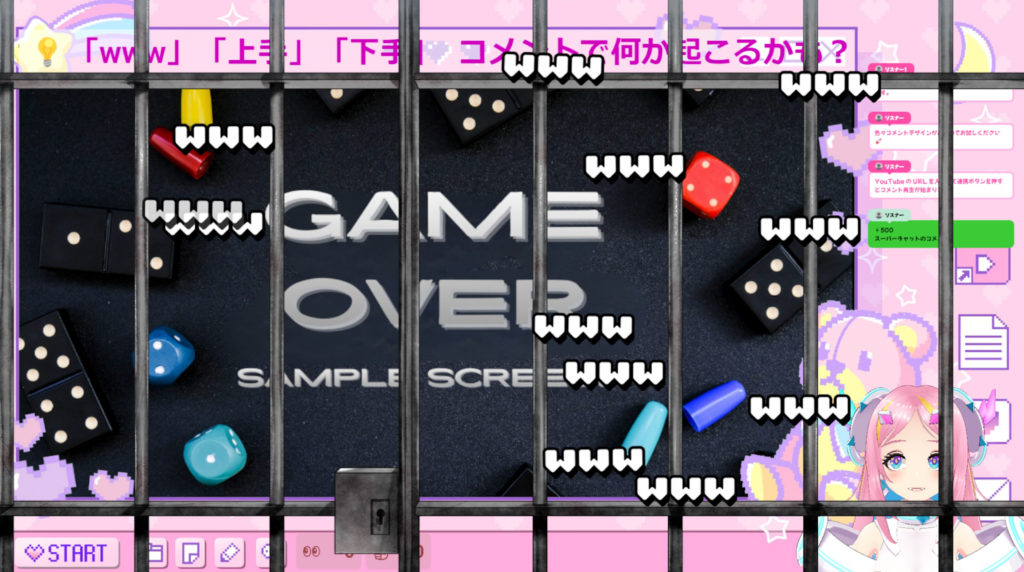
With the Alive Studio Premium Plan, you can trigger visual effects on screen through viewer comments.
Effects can now be triggered by YouTube comments and Super Chats! 💬💖
By subtly explaining effect triggers in your captions, you lower the barrier for viewers to participate—making it easier and more fun to comment.

Conclusion: Captions Are a Form of Viewer-Friendly Hospitality
Captions organize what’s happening in your stream and act as a guide so even first-time viewers can enjoy it without confusion. Simply showing what’s happening now, what’s coming next, and how to participate through comments reduces friction and naturally builds excitement.
With Alive Studio, creating and updating captions is surprisingly easy. You can edit them smoothly even during a live broadcast, keeping the viewing experience fast-paced and clear. Captions are a small act of kindness toward your audience—and a powerful way to make your stream easier to watch. Even beginners can start today, so try adding just one line to your next stream.