Share


Enhance Your Streaming with Information Overlays: Alive Studio’s Handy Tools Summary
Have you ever considered displaying a clock on your streaming screen?
Whether you want to keep track of streaming time, share a sense of time with viewers, or manage the amount of information and design on your screen, many streamers choose to display a clock for these reasons.
By visualizing information in this way, you can make your entire stream clearer and easier to follow.
Displaying necessary information on the screen, not limited to clocks, greatly influences the clarity of your stream. A well-organized streaming screen is easy for viewers to understand, ultimately leading to longer viewer retention.
This article introduces ways to utilize information-sharing tools (such as clocks, timers, stopwatches, and counters) that can be used for free with Alive Studio.




What are the benefits of displaying “information” on your streaming screen?
- New viewers can immediately understand the situation
Viewers who join mid-stream often take time to figure out what the stream is about.
If clocks, timers, or counters are displayed on screen, the streaming time and status of the event can be conveyed without explanation, helping to prevent viewer drop-off.
- Streamers can easily manage progression
While focused on streaming, it’s easy to lose track of time.
Having a clock or timer on the screen allows streamers to visually keep track of break times or the end of the stream, ensuring a stable streaming pace.
What is Alive Studio? Easily place devices for your streaming screen!
Alive Studio is a streaming screen design service that can be used with OBS.
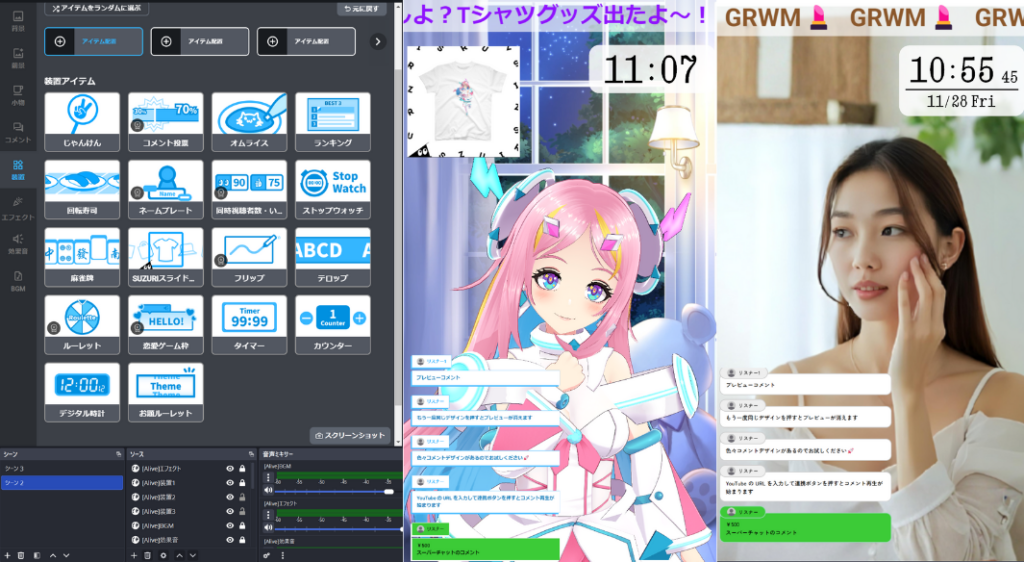
It provides time and count-based convenient widgets that can be placed directly on the streaming screen, allowing you to add them just by selecting and placing without expert settings.
It’s suitable for streamers who want to organize their screen without dealing with complicated settings.
How to use Alive Studio and utilize each device
First, if you haven’t used Alive Studio yet, sign up for an account for free and follow the steps below to prepare.
How to register for Alive Studio
1. Download the dedicated script.
2. Register with OBS
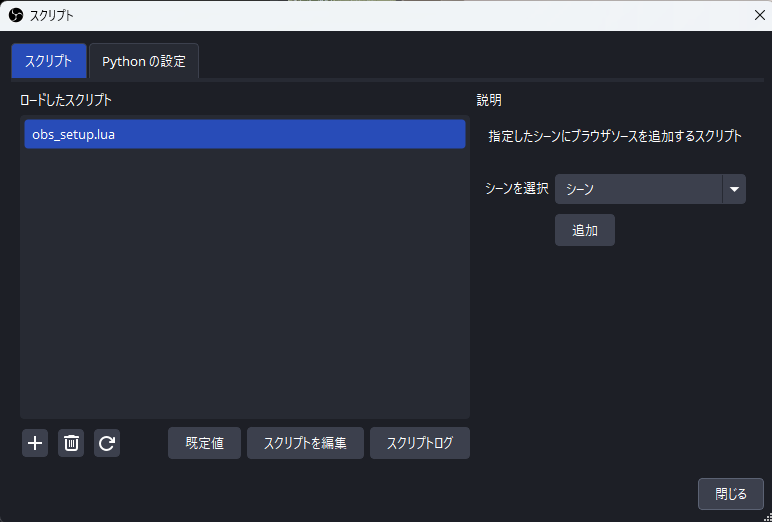
Open OBS and click “Tools” > “Scripts”.
Click the “+” button and select the downloaded script.
Select the scene you want to add ‘Alive Studio’ to and click the “Add” button.
3. Add a custom browser dock
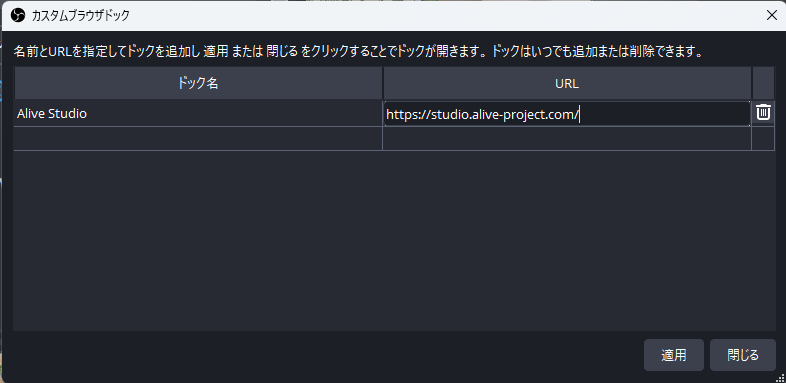
Click “Docks” > “Custom Browser Docks” from the OBS menu.
Enter the following URL and click “Apply”.
| Dock Name | URL |
|---|---|
| Alive Studio (optional) | https://studio.alive-project.com/ |
Once set up, the Alive Studio screen will be displayed on OBS.
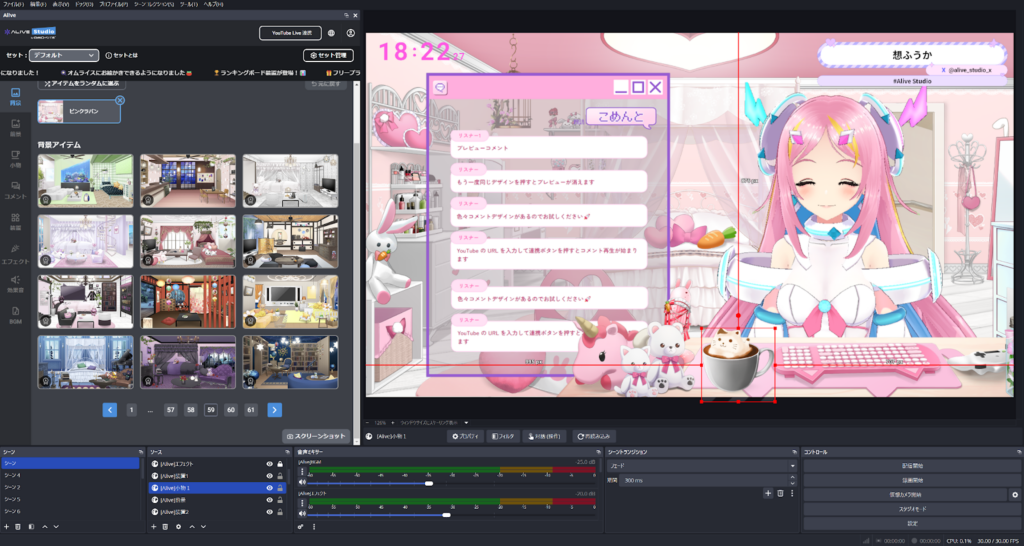
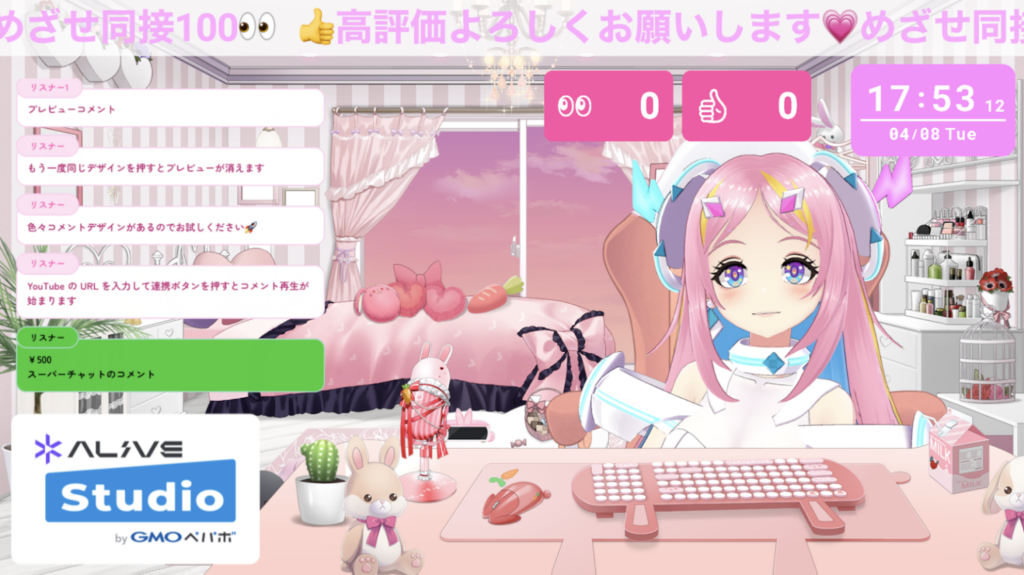
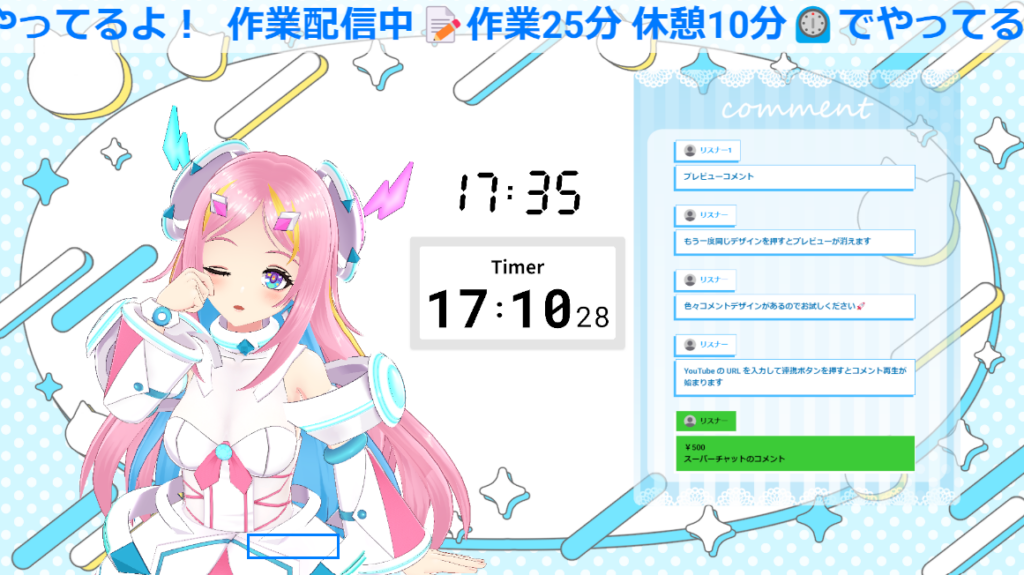
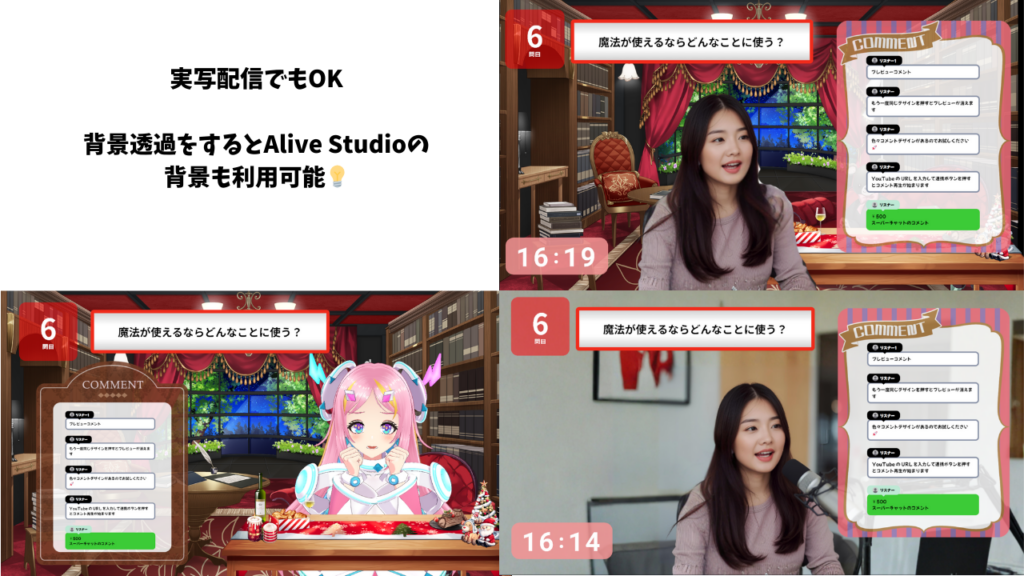
A device that allows you to display the current time directly on the streaming screen. By displaying the clock, both the streamer and viewers can share the same timeline.
The digital display is highly visible and allows free adjustment of text color and design, so it can be incorporated without disrupting the atmosphere of the streaming screen.
Usage Scenes
- Chatting streams, working streams, morning/night activities
- When you want to share time during endurance streams
How to Use (Setup Procedure)
1. Click on “Device” > “Digital Clock”
2. Change colors and design as you like
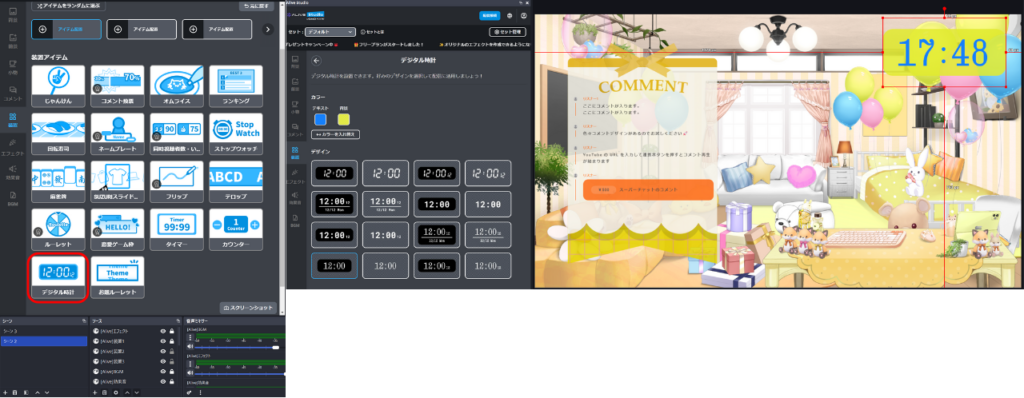
To change the screen layout, just click and drag it on the screen.
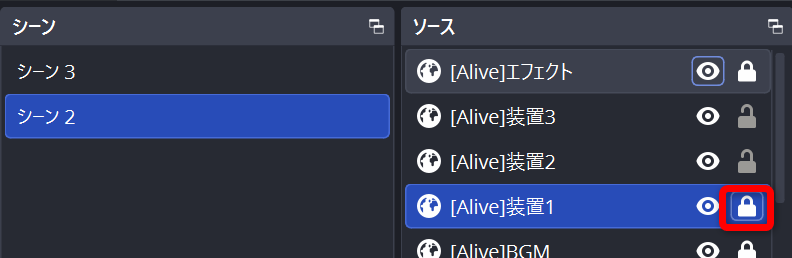
If it doesn’t move, it may be locked. Check the “[Alive] Device 1” in the “Sources” section of OBS. If it’s locked, click to unlock. Once unlocked, you can manipulate it on the screen.
② Timer | Visualize Remaining Project Time
A device that can display remaining time in a countdown format. It can visually convey the time limit or breaks of a project. It’s easy to begin even during a stream by clicking on OBS.
For streams that want to convey remaining time, such as “Only ◯ minutes to the next project” or “◯ minutes till break”, timers play an active role. They are perfectly compatible with endurance streams and challenge projects.
Usage Scenes
- Challenge projects, endurance projects
- When you want to display break times or intervals
- When you want to emphasize “Only ◯ minutes!”
How to Use (Setup Procedure)
1. Click on “Device” > “Timer”
2. Select the time settings and design
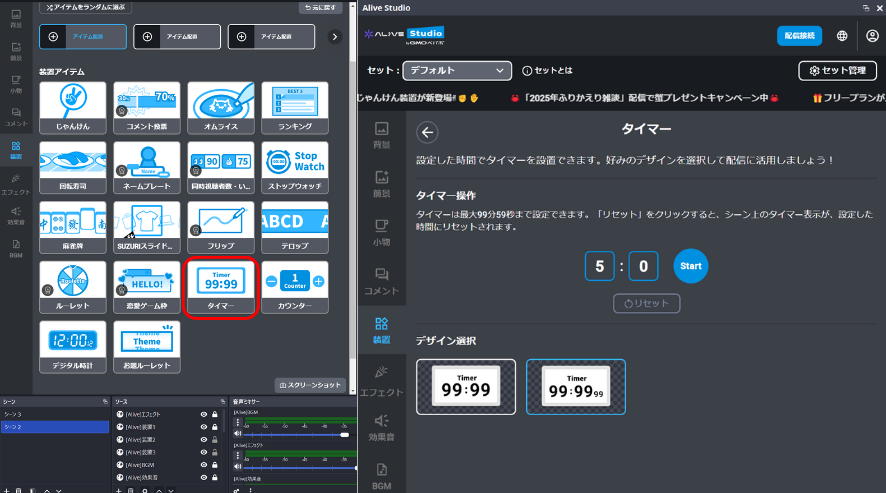
Then, just click the “Start” button when needed to start the timer.
③ Stopwatch | Ideal for Record and Challenge Projects
A device that can measure and display elapsed time, showcasing progress in real-time.
In streams with RTA-style projects or mini-games, showing the stopwatch adds competitiveness and tension.
Usage Scenes
- RTA/timed attacks
- Task streams
- When you want to emphasize “◯ minutes elapsed!”
How to Use (Setup Procedure)
1. Click on “Device” > “Stopwatch”
2. Choose your preferred design
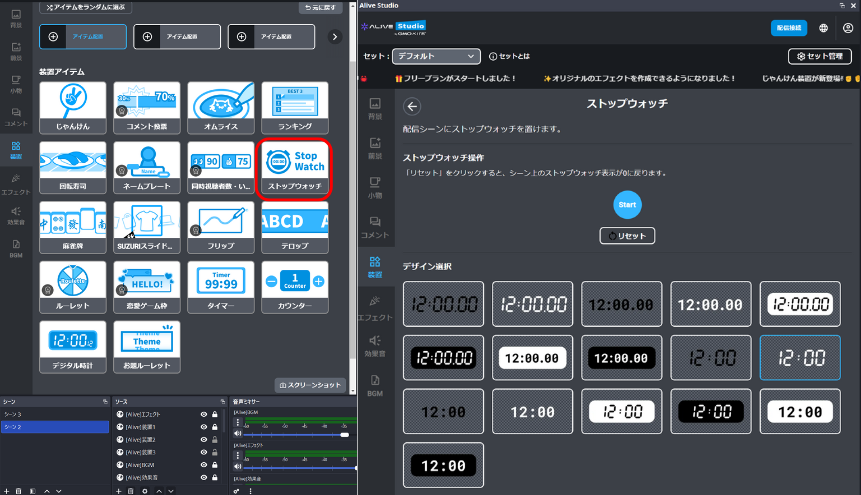
Then, just click the “Start” button when needed to start the stopwatch.
④ Counter | Intuitively Convey Count and Progress
A counter that allows you to adjust values with button controls. It supports multiple setups, allowing for simultaneous display of “success count/fail count”, etc.
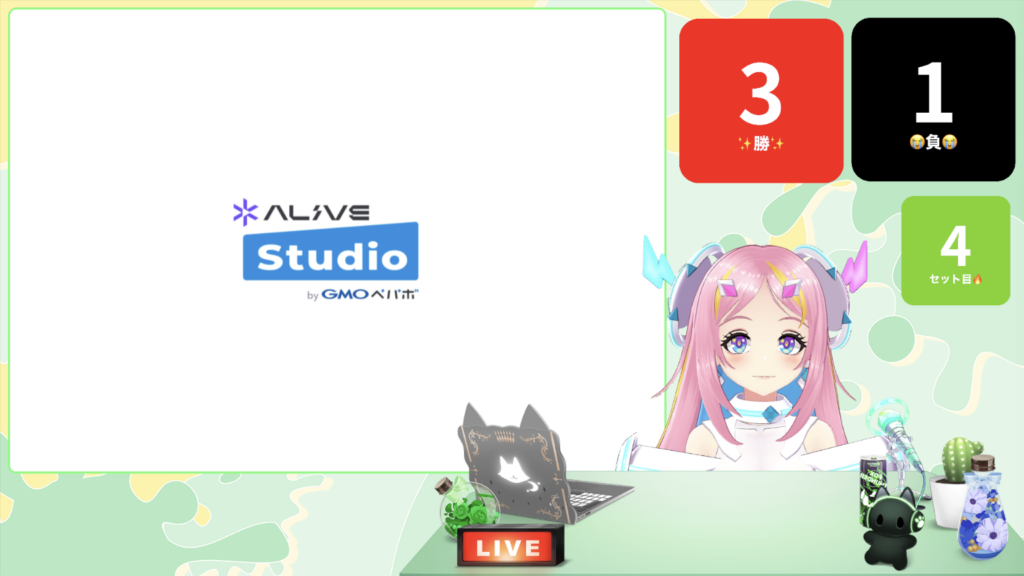
Usage Scenes
- Death count, success count
- Challenge attempt count
- When you want to share “◯th time” or similar situations

How to Use (Setup Procedure)
1. Click on “Device” > “Counter”
2. Set the counter’s title and color
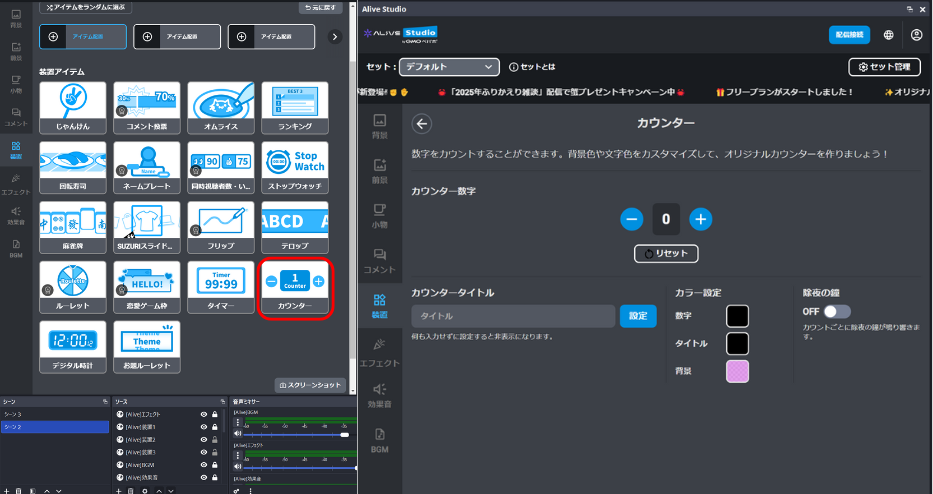
Then, adjust the counter as needed using the “+” and “-” buttons.
⑤ Nameplate (Premium) | Communicate Names and Titles
The nameplate is a device that displays names, project titles, roles, etc. It’s available in the premium plan, allowing for clearer stream screens.
It’s highly designed and convenient for organizing screen information.
Usage Scenes
- Collaboration streams
- Introductory use for first-time viewers
- Fixed display of project titles
How to Use (Setup Procedure)
1. Click on “Device” > “Nameplate”
2. Choose a design, then set “Name”, “Account”, “Hashtags, etc.” as needed and click the “Set” button

What is the Premium Plan?
Alive Studio offers two plans: the basic “Free Plan” and the “Premium Plan,” which provides unlimited access to all features and materials.
With the free plan, you can use the basic functions of Alive Studio at no charge.
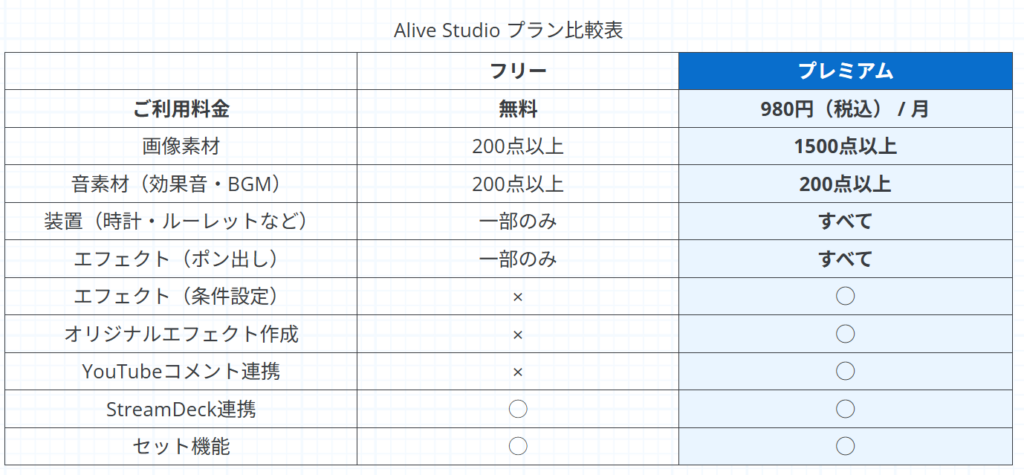
“I want to change the atmosphere first”, “I want to test if it fits my stream” — even with just the free plan, you can enjoy it enough.
If you want to subscribe to the premium plan, you can do so as follows.
How to Subscribe to the Premium Plan
1. Log in to Alive Studio (https://studio.alive-project.com/)
2. Click the person icon on the top right
3. Click “Payment Information”
4. Click “Upgrade to Premium Plan”
5. Register your payment information and make a payment
You can switch between the free and premium plan with each contract renewal (every month).
Try alternating the premium plan only for special anniversary streams, or switch to the free plan during months with fewer activities, tailoring it to your streaming style.
Make It Even Easier to Understand by Combining Devices
The devices introduced so far are very useful even when used alone, but combining multiple devices allows you to convey the “rules” and “progress” of your stream more intuitively.
The strength of Alive Studio is that you can freely combine up to three of these devices in one scene.

| Combination | Plan/Use | Information Shown | Suitable for Streams |
|---|---|---|---|
| Clock × Timer | Overall time management of streaming | Clock: Current Time Timer: Remaining time until project/break | Long streams, task streams |
| Timer × Counter | Timed challenge plan | Timer: Remaining time limit Counter: Clear count, success count | Challenge plans, endurance streams, game streams |
| Timer × Stopwatch | Task + Break management | Stopwatch: Elapsed task time Timer: Until next part/break | Task streams, long streams |
| Stopwatch × Counter | Challenge type, record update plan | Stopwatch: Challenge time Counter: Challenge count | RTA-style plans, game streams |
| Timer × Stopwatch × Counter | Complete visualization of endurance plan | Timer: Remaining endurance time Stopwatch: Current challenge time Counter: Success/Failure count | Endurance streams, planned streams |
Combining devices allows you to share time, counts, and progress simultaneously. The great advantage is that viewers can understand the rules and state of the stream just by looking at the screen without needing explanation.
The examples of combinations introduced above are the basic combinations of devices introduced in this article, but with Alive Studio, you can freely combine other devices according to the content of the project.
Here are some project ideas we introduce together.
Counter × Topic Roulette: A stream that doesn’t end until you answer ◯◯ questions!
A project with a good balance of endurance and tempo, visually creating the feeling of “only a few more questions to go!”
If you’re interested in the topic roulette, check out the article below.
Break the stream monotony with a bang! Easily set up “Topic Roulette” with OBS using Alive Studio
Timer × Omurice: “How much can you draw in ◯ seconds?”
A simple yet engaging challenge setup. It’s also recommended to change the time limit and enjoy the quality differences, such as within ◯ seconds or within ◯ minutes.

When used in combination, it’s convenient to open the omurice device in a separate window.
If you’re interested in the Omurice device, check out the article below.
Draw on Omurice! Play with maid culture in streaming! Introducing unique functions of Alive Studio
Summary|Display Information, Don’t Explain
Displaying information on the streaming screen helps viewers understand and reduces the burden on the streamer.
With Alive Studio, devices such as clocks, timers, stopwatches, counters, and nameplates can be easily added to the streaming screen with simple operations.
For streamers thinking, “I want my screen to be clearer” or “I want to make a stream friendly to newcomers,” why not start by placing one device first?