Share


Alive Studio Scoreboard: How to Use It for Game Streaming
When you’re doing game commentary or eSports streaming, there are often moments when it’s not easy to convey the current match situation during a stream.
- “Who’s winning now?” is a common comment you’ll see.
- Even the streamer may lose track of the number of matches or rounds.
- When new viewers join in the middle, it’s hard to communicate the current situation.
Especially in competitive games, collaboration streams, or tournament-style streams, it’s a common challenge that unclear match situations can lead to viewer drop-off.


With Alive Studio, you can solve the “unclearness” of streaming
Alive Studio is a design service for streaming screens that allows you to use the materials and functions necessary for creating streaming screens even with a free plan.
The “scoreboard device” is a device that can only be used with the premium plan, but it is a feature that is very compatible with game streaming as it allows for the visual transmission of match situations.

By displaying scores, results, rounds, etc., on the screen at all times, you can create a streaming environment that is stress-free for both the streamer and the viewers.

Differences between the Premium Plan and the Free Plan
Alive Studio offers two types of plans: the free “Free Plan” and the “Premium Plan” which allows unlimited access to all functions and materials. The scoreboard device is one of the devices currently available exclusively in the premium plan.
The Free Plan is ideal for those who want to try out streaming screen designs for free, providing access to image materials, basic devices, and some effects.
On the other hand, advanced integration features and performance settings, such as YouTube and Twitch comment integration, are only available in the premium plan.
With a wide range of material choices, it is recommended for those who want to switch backgrounds and performance materials according to seasonal events or streaming content.
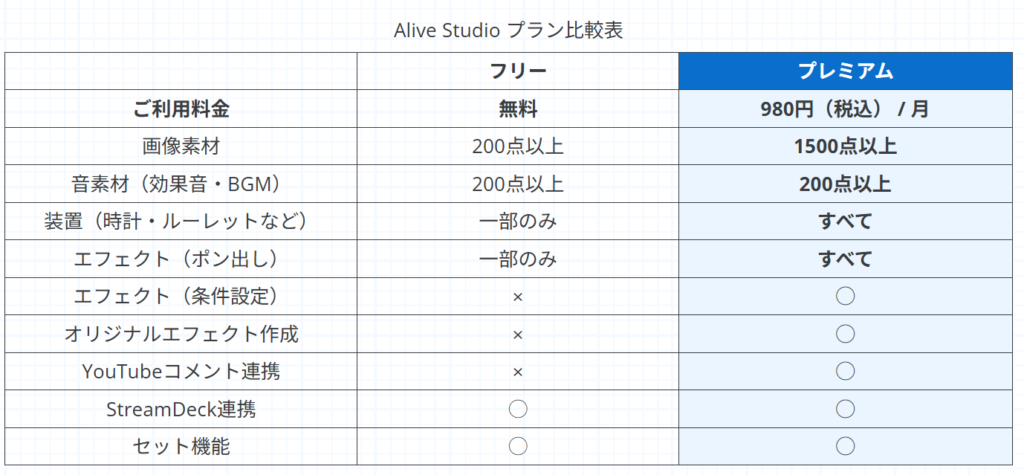
Switching between the Free Plan and the Premium Plan can be done at any time at each contract renewal (monthly).
You can utilize it according to your streaming style, such as using the Premium Plan only for commemorative streams or switching to the Free Plan in months with less activity.
Features of the Scoreboard Device
The scoreboard device in Alive Studio has functions that communicate match situations intuitively in competitive game streams or tournament streams.
In addition to managing match results, it also supports the display of multiple-set systems like BO3 and BO5. It can be operated to match everything from casual matches to formal tournament formats.
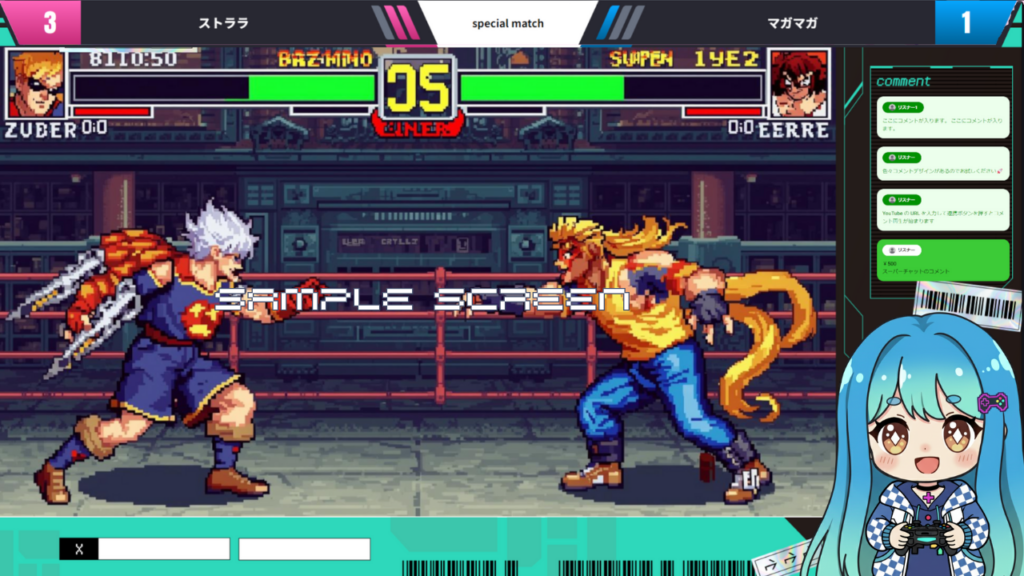
Additionally, the scoreboard can display not only essential information like player names, points, and sets but also match and tournament information collectively.
The editing screen of the scoreboard can be displayed in a separate window, making editing operations easier.
By keeping scores and status always visible onscreen, you can communicate “what kind of match it is now” naturally without verbal explanations.
Even viewers who join mid-stream can easily grasp the situation, leading to smoother comment flows, which is a significant benefit for streamers.
How to Use the Scoreboard Device (Setup Method)
Alive Studio’s scoreboard can be easily set up from OBS even without specialized knowledge.
1. In Alive Studio, click “Device” > “Scoreboard”.
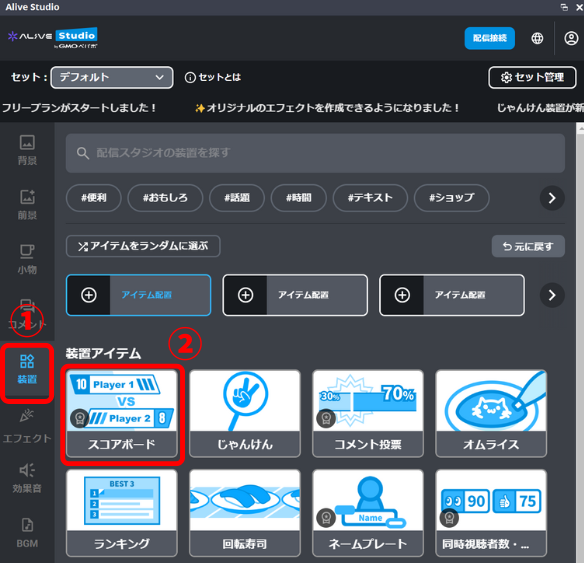
2. Set “Match / Tournament Information”, “Player 1”, and “Player 2” as desired, and click the “Apply” button.
*After changing settings, be sure to click the “Apply” button each time.
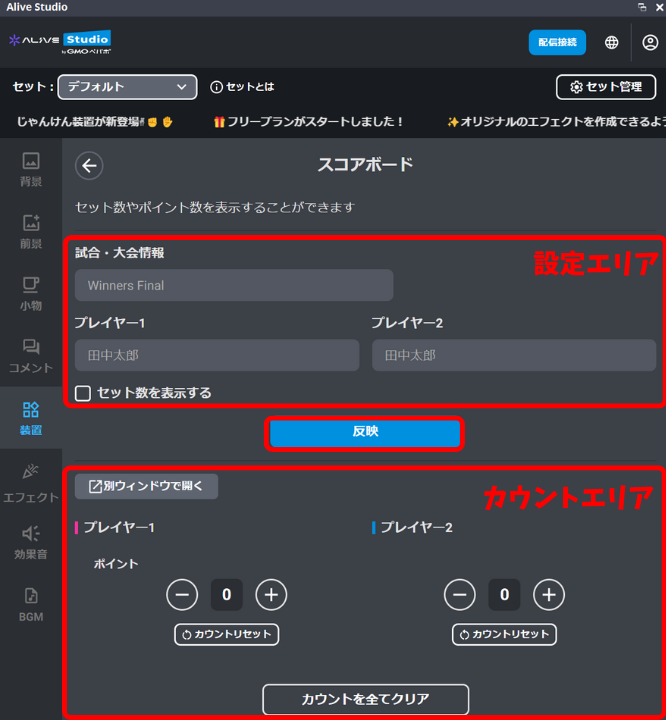
If it is just points, the screen display will look as follows.

3. For streams, manage points using the “+” and “-” buttons in the count area.
Because you can manually update scores even during streaming, you can adjust them in real-time according to match progress.
Additionally, by selecting “Open in a separate window”, you can display only the count area of the scoreboard in a separate window. This smooths the process of making updates during streaming.
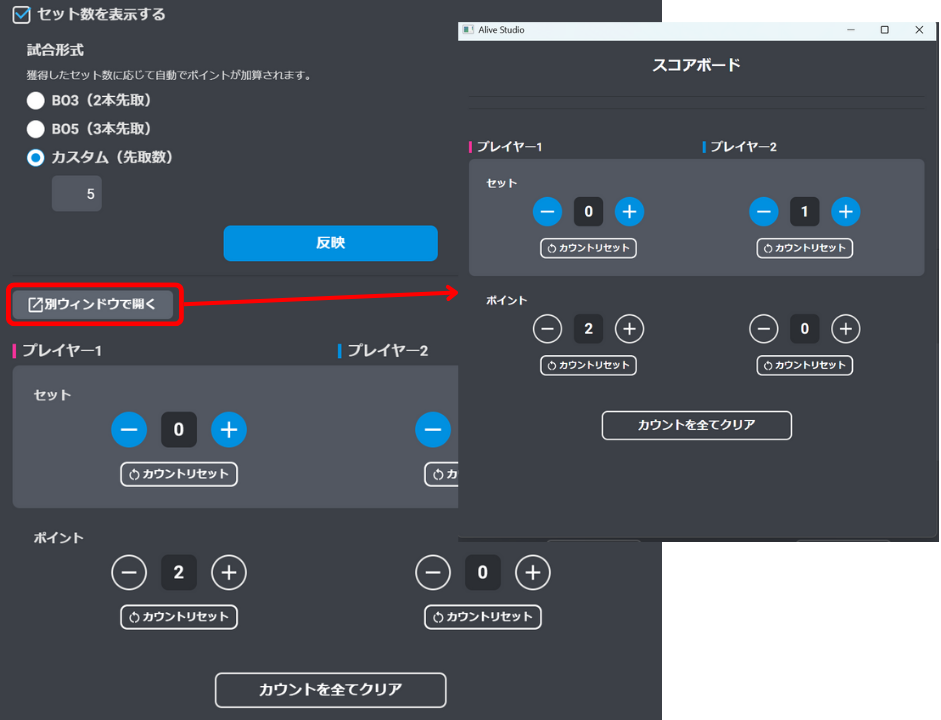
When Setting the Number of Sets to Win First
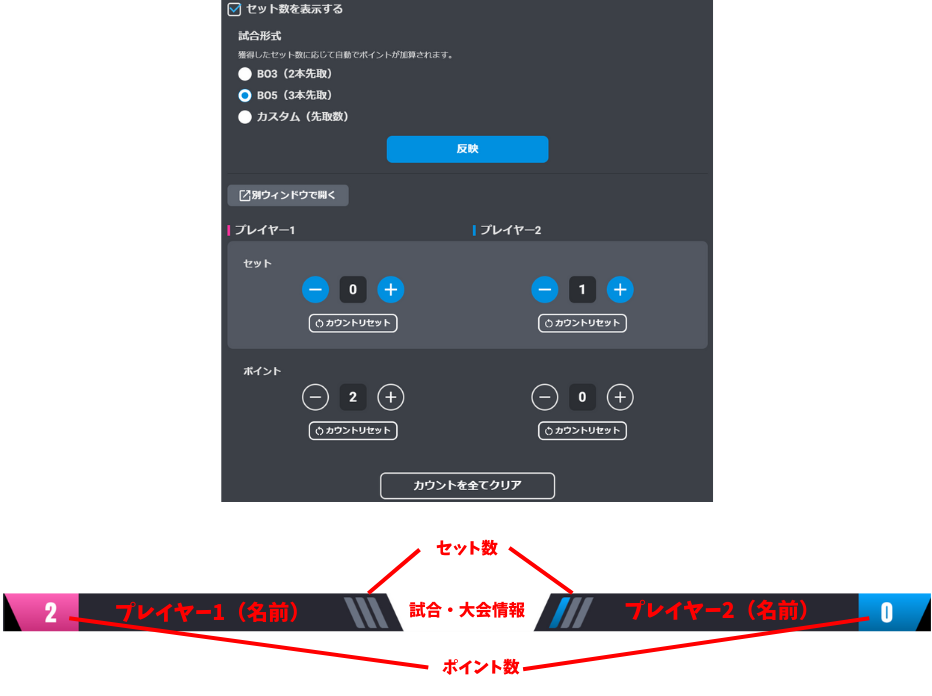
You can choose from the following 3 patterns for the number of sets to win first.
- BO3 (Win 2 sets first)
- BO5 (Win 3 sets first)
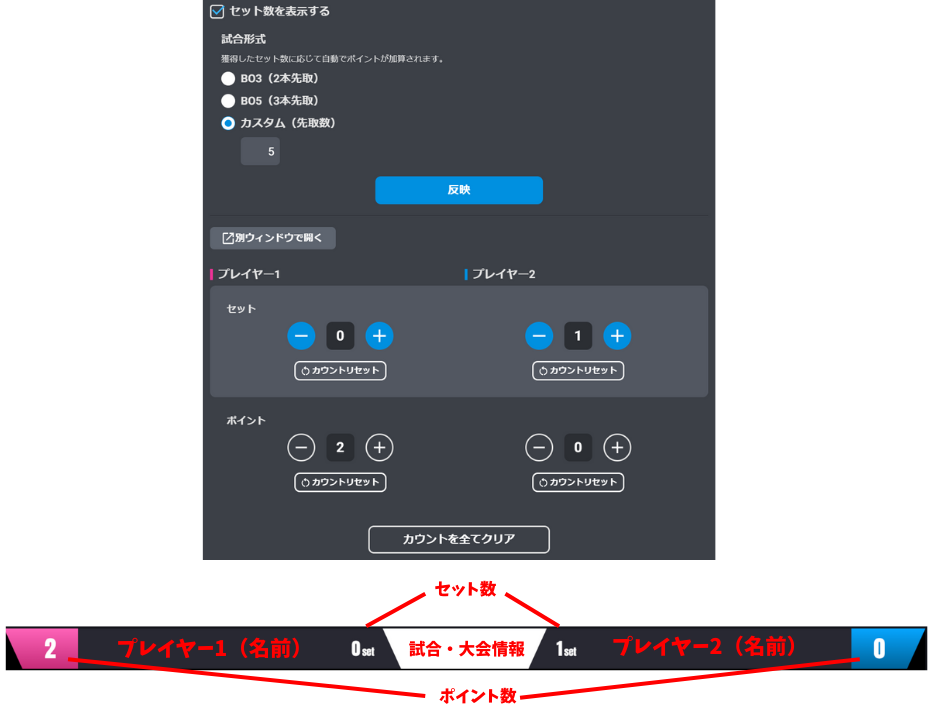
- Custom (You can freely specify the number of wins)
For any format selected, simply check “Display the number of sets”, select the format, and click the “Apply” button to complete the setup.
You can update both the number of sets and points in real-time during streaming using the “+” and “-” buttons.
・BO3 (Win 2 sets first)
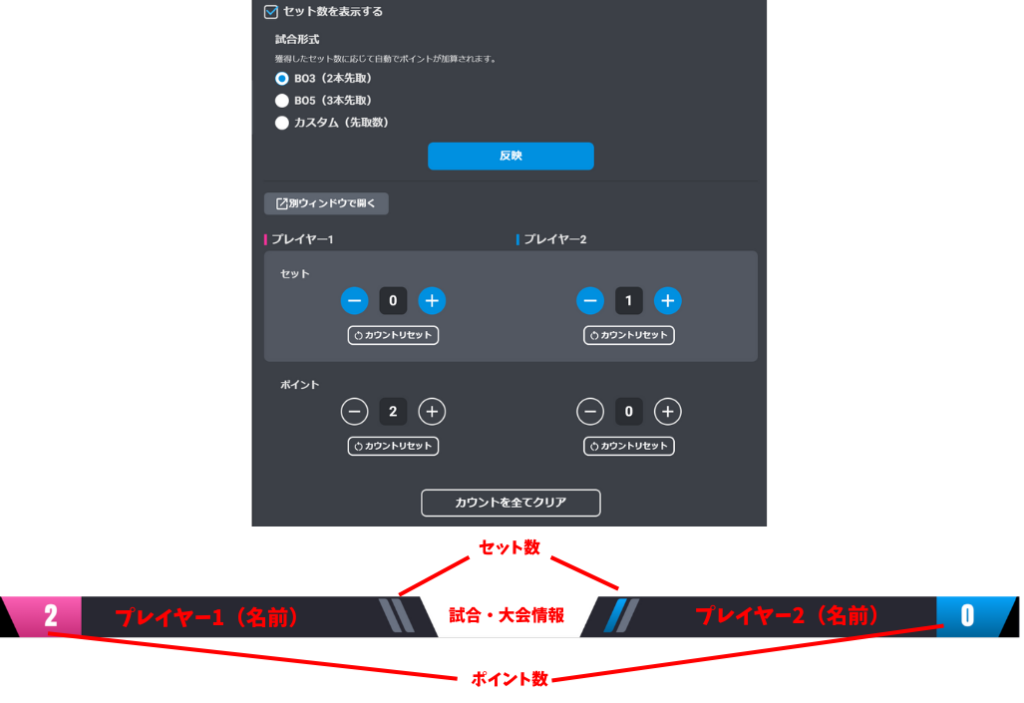
・BO5 (Win 3 sets first)
・Custom (Number of Wins)
For custom, specify the number of wins and click the “Apply” button.
Additionally, besides the scoreboard device, Alive Studio offers many other devices that go well with game commentary.
For example, if you also use “telescriptions” that can display important moments or cautions on the screen, you can supplement rules explanations and the next developments to viewers.

By combining them with the scoreboard, you can more clearly convey “the current game situation” and “what will happen next”.
Furthermore, if you want to be mindful of the streaming time, a “digital clock” that can display the current time or elapsed time on the streaming screen is also convenient.
Even during long streams or tournament streams, it’s easier for both streamers and viewers to share a sense of time.
Both “telescriptions” and “digital clock” are available on the free plan.
How to Register and Start Using Alive Studio
If you haven’t registered for Alive Studio yet, sign up for a free account and follow the steps below to get ready.
1.Download the custom script
2. Register in OBS
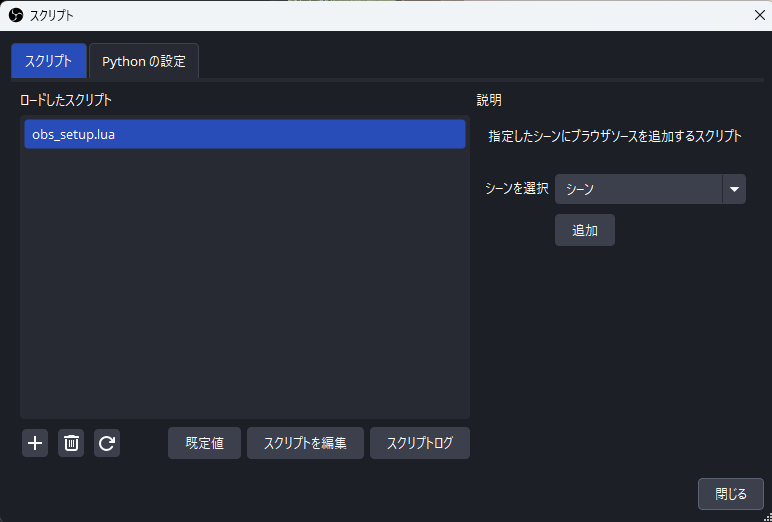
Launch OBS and click on “Tools” > “Scripts”.
Click the “+” button and select the downloaded script.
Choose the scene where you want to add ‘Alive Studio’ and click the “Add” button.
3. Adding a Custom Browser Dock
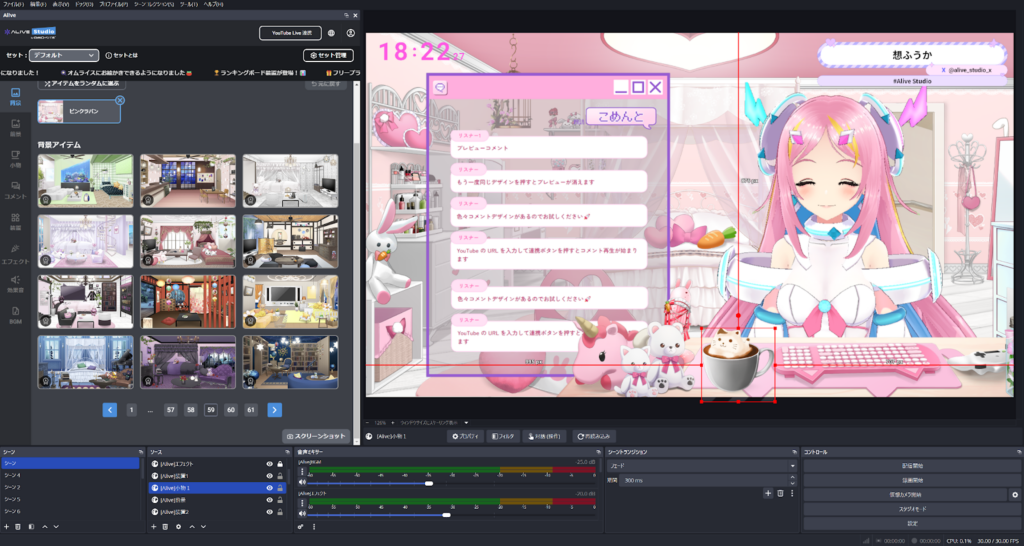
From the OBS menu, click “Dock” > “Custom Browser Dock”.
Enter the following URL and click “Apply”.
| Dock Name | URL |
|---|---|
| Alive Studio (Optional) | https://studio.alive-project.com/ |
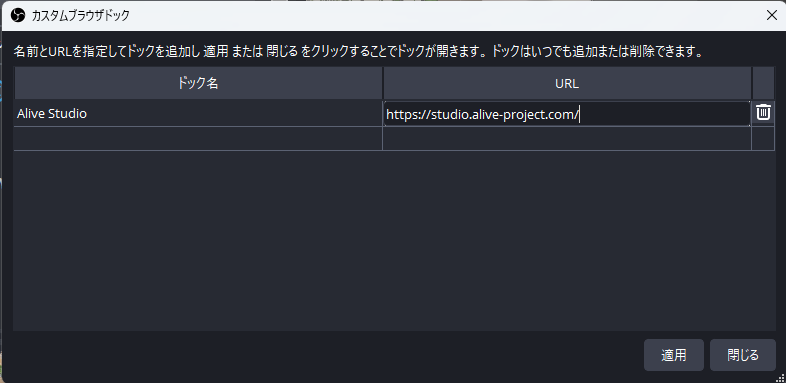
Once set up, the Alive Studio screen will be displayed on OBS.
How to Switch to the Premium Plan
Switching to the Premium Plan, where the scoreboard is available, can be done at any time by selecting plan changes from the My Page.
How to contract the Premium Plan
1. Log in to Alive Studio
2. Click the person icon in the top right
3. Click “Payment Information”
4. Click “Upgrade to Premium Plan”
Register your payment information and proceed.
Alive Studio is a continuously updated service, and devices and functions available in the premium plan are expected to be added and expanded in the future.
Therefore, there’s no need to decide solely on “Do I need it right now?”.
It’s recommended to first check the usability with the Free Plan and consider the Premium Plan when needed according to changes in streaming style and concerns.

Summary: Reducing the “unclearness” of matches enhances the quality of streaming
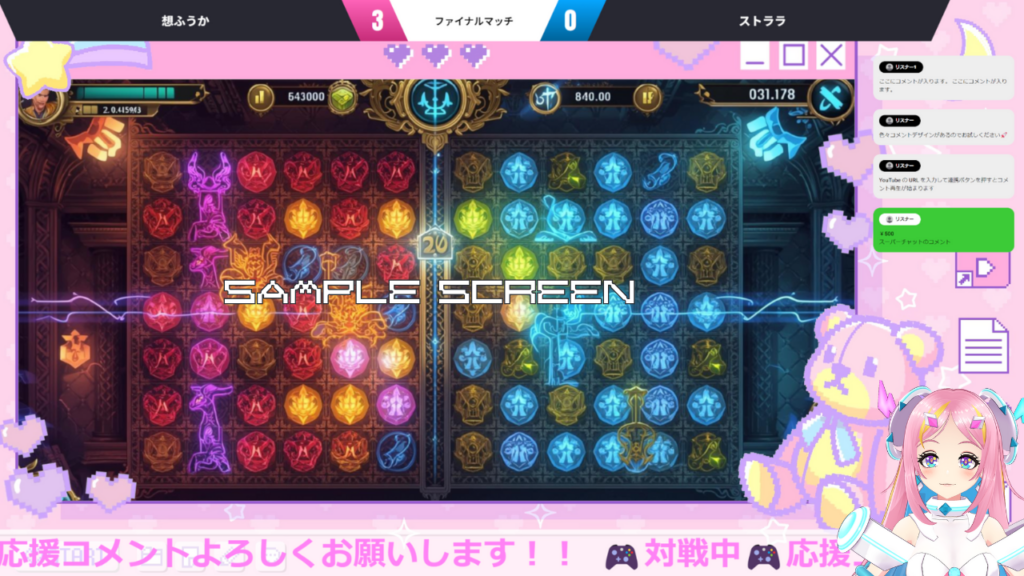
In competitive games and eSports streaming, whether viewers understand “what’s happening now” significantly affects the stream’s accessibility and viewership duration.
With Alive Studio’s scoreboard device, you can constantly display match information such as scores, results, and set counts on the screen, creating a streaming environment where the situation naturally communicates even without streamer explanations.
The ease with which viewers who join mid-stream can grasp the flow is a critical aspect that leads to comment engagement and continued viewership.
Additionally, Alive Studio has numerous devices that complement game commentary beyond the scoreboard device.
First, check the usability with the Free Plan, and during the streaming process, when experiencing slight confusion or wanting to add another element, consider exploring the Premium Plan.
Feel free to try Alive Studio for free initially.