Share


How to Watch Multiple Twitch Streams at Once: Multi-View Tips for Mobile and Desktop

“There might be many of you who want to enjoy multiple streams simultaneously on Twitch or want to know how to watch two windows on your smartphone.”
Here are three main ways to watch more than two streams simultaneously on Twitch.
- Use the browser’s built-in feature to split windows
- Utilize convenient multi-window sites like TwitchTheater.tv
- Use the split-screen feature of your smartphone or tablet or switch between browsers
This article will explain the specific operation steps for both computers and mobile devices as well as official plans for a smooth multi-view experience.
By the end of this article, you’ll be able to enjoy your favorite streamers’ exciting battles or collaborative streams from multiple angles without missing a beat.

What is Multi-Viewing (Multi-View) on Twitch?
Multi-viewing on Twitch is a viewing method where multiple streams are arranged on a single screen to enjoy different perspectives and information simultaneously.
While normal viewing allows you to follow only one program, multi-viewing lets you cover streams from multiple angles.
Multi-viewing can be used with browser features or tools, allowing for enjoyment in the following ways.
- Tournament viewing: Watch official broadcasts and individual footage side by side to check the situation and reactions simultaneously
- Collaboration awareness: Display all perspectives and grasp the flow of the project in real-time
- Efficient information gathering: Open a strategy program and actual gameplay footage simultaneously to efficiently gather game knowledge
By aggregating footage, you can save the hassle of switching and fully capture the energy of live broadcasts.
Benefits of Using Multi-Views on Twitch
The main benefits of using multi-views on Twitch are as follows.
- Follow multiple angles simultaneously
- Compare the playstyles and strategies of different streamers in real time
- Contribute to the “concurrent viewership” by displaying your favorite streamers simultaneously
Let’s take a closer look at the unique convenience of multi-views and how they support streams that cannot be achieved with a single screen.
Follow multiple angles simultaneously
By making the most of multi-views on Twitch, you can dramatically increase the coverage of information by simultaneously capturing live footage from different angles.
Subtle movements and events at different points that might be missed on a single screen can all be comprehensively grasped in real-time with multi-views.
This viewing style, which allows you to gather diverse information while maintaining the energy of the scene, is suitable in the following situations:
- Large-scale events: Check the overall progress while tracking detailed expressions on personal windows
- Competitive games: Display both camps’ perspectives side by side to objectively analyze advanced strategies and maneuvers
Viewing from multiple perspectives is an effective means to experience the realism of live broadcasts more deeply.
Compare the playstyles and strategies of different streamers in real-time
By lining up multiple windows of different streamers, it is possible to directly compare the subtle differences in top players’ advanced actions and situational judgements.
Analyzing how each streamer chooses strategies or acts in certain situations in real-time is a unique benefit of multi-view.
By watching in parallel, the following elements, which might be hard to notice from a single viewpoint, can be compared:
- Comparison of operation accuracy: The proficiency of character movement and skills
- Learn judgement criteria: The priorities and optimal decisions in the same situations
- Comparison of equipment or setups: The effectiveness of different builds or tactics
Viewing mixed with analysis is likely to turn into a high-quality learning time that will enhance your skills.
Contribute to “concurrent viewership” by displaying favorite streamers simultaneously
Opening multiple windows on Twitch is an effective way to support the community of streamers you want to cheer for and sustain their activities.
If you make it easier to keep track of each channel by utilizing multiple windows, you can contribute to the excitement of the stream in the following ways:
- Activate reactions: You can quickly comment according to the situation of each program, enhancing the excitement of the broadcast in real-time
- Support exposure: By maintaining enthusiastic reactions, there is a growing possibility of being evaluated as a lively program
The stance of enjoying while using multiple windows will be a great support for streamers to continue their activities.
How to Use Multi-Views for Simultaneous Viewing on Twitch
We will explain four ways to enjoy simultaneous viewing using multi-views on Twitch.
- Watch by separating tabs/windows in your browser
- Use TwitchTheater.tv for viewing
- Use Multistre.am for viewing
- Use MultiTwitch for viewing
From methods using standard functions to steps taking advantage of high-convenience multi-window sites, let’s set up the optimal viewing environment according to your setting.
Watch by separating tabs/windows in your browser
The method of using the browser’s standard feature to separate tabs or windows is the simplest and safest way to realize multi-views without introducing special tools.
You can watch using multi-views simply by opening new tabs for each stream you want to watch and separating them as independent windows.
By combining the OS’s screen splitting feature, you can enjoy the streams simultaneously in the following arrangement:
- Split left and right: Display two streaming screens side by side on the monitor
- Display in four corners: Display up to four streaming windows side by side
- Free adjustment: Change window sizes, displaying main streams larger
As it does not go through external sites, it is secure in terms of security, and it is a method that anyone can practice immediately.
Use TwitchTheater.tv for viewing
TwitchTheater.tv is a multi-functional tool best suited for heavy users who want to manage many streams on one screen.
It supports simultaneous playback of more than 16 windows, and its high customizability allows individual chat boxes for each stream and free layout changes.
You can use TwitchTheater.tv by following these steps:
- Visit the official website
- Enter the streaming URL
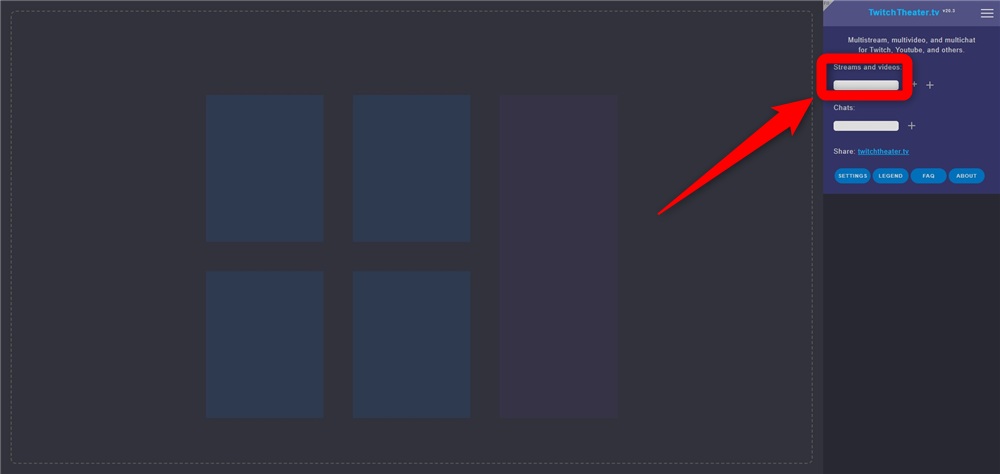
Enter the URL of the stream you want to display in “Streams and videos:”
- Display the streaming screen
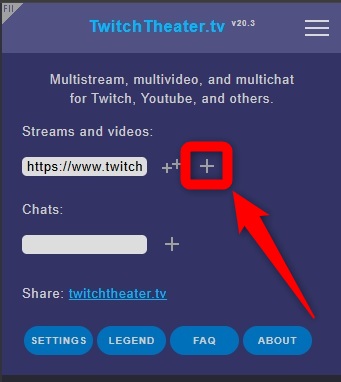
Click the “+” to display the streaming screen. Click “++” on the left to display the chat screen along with the streaming screen.
If displaying multiple streams, repeat the above steps, and multiple streams will be displayed on the screen as shown below.
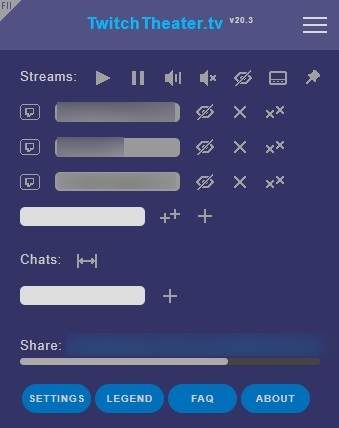
Once a layout is configured, it can be saved as a dedicated URL, allowing you to quickly start simultaneous viewing in the same combination next time.
Use Multistre.am for viewing
Multistre.am is a multi-window site with an intuitive interface that allows up to 8 channels to be quickly arranged in tiles without complex settings.
By simply entering the name of the streamer you want to display, it automatically adjusts to the optimal layout for the screen size.
The specific steps for use are as follows:
- Visit the official site
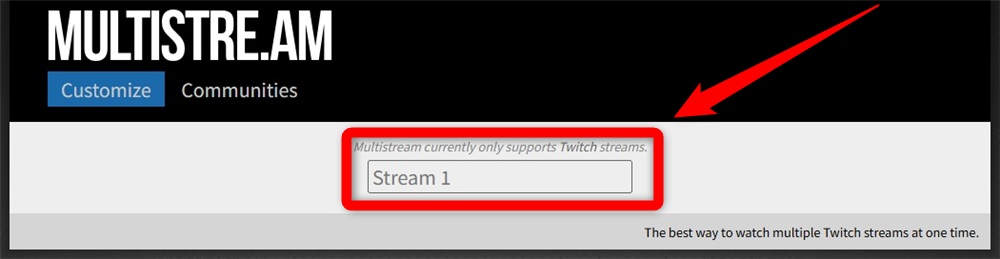
- Enter channel names
Enter the ID of the streamer you wish to watch in the input field in the middle of the site. If displaying multiple streams, enter multiple streamer IDs. The streamer ID is the part of “https://www.twitch.tv/…” after the domain.
- Select a layout
Select your preferred split pattern and whether or not to include chat from the layout displayed under the streamer IDs.
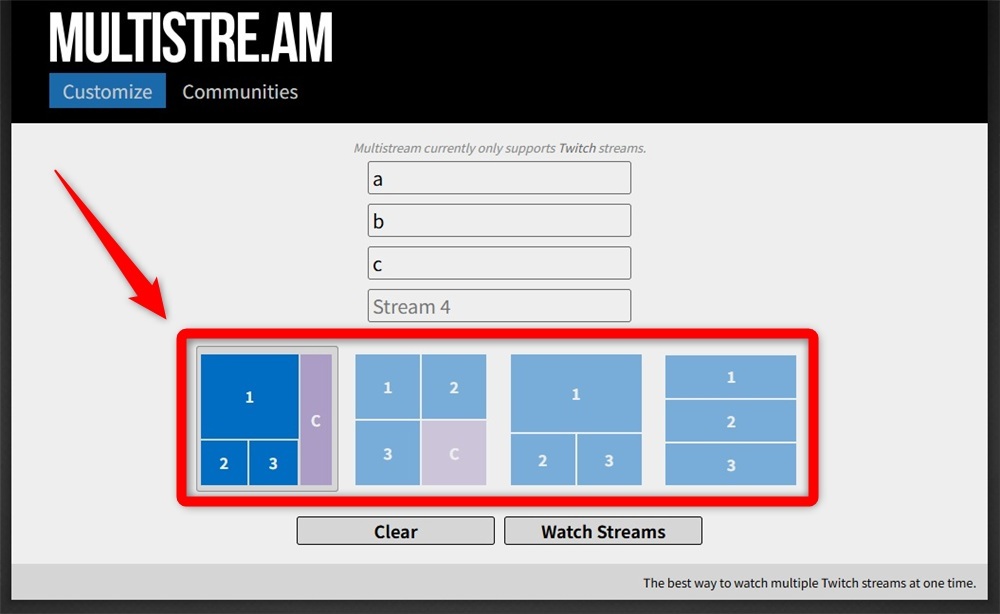
Once setting is complete, press the “Watch Streams” button to start viewing with multiple windows.
This method is highly recommended for first-time external tool users as it allows a sophisticated viewing environment to be built with just clicks, without requiring specialized knowledge.
Use MultiTwitch for viewing
MultiTwitch is a simple multi-window tool that allows quick collective expansion of specific live footage by simply adding the streamer’s name to the URL suffix.
Without using a dedicated input form, you can operate directly from the browser’s address bar, making it effective for quickly opening specific group broadcasts.
You can use MultiTwitch by following these steps:
- Enter the basic URL
Enter the site’s official domain, “multitwitch.tv/”, into the browser’s address bar.
- Connect channel names
Enter the streamer IDs after the slash. For multiple streamer IDs, separate them with a slash.
Example: “https://multitwitch.tv/StreamerID1/StreamerID2/StreamerID3”
When finished, press the enter key, and all specified streaming screens will automatically line up at an optimal size.
Since it eliminates the complexity of layout settings, this method is recommended for those who want to watch events featuring their favorite streamers in the shortest time possible.
Using Multiple Windows on Smartphones or Tablets for Twitch
We’ll explain how to use smartphones or tablets to watch Twitch with multiple windows.
- Use external tools from the browser
- Use the tablet’s screen splitting feature
Let’s confirm methods optimized for smartphones to comfortably watch streams in two screens or windows even when you’re out and about.
Use external tools from the browser
Though standard apps on smartphones can only display one stream, by using multi-view sites through the browser, multi-window viewing on mobile devices becomes possible.
Accessing external tools like Multistre.am just like on a computer lets you array multiple live images on the screen.
Even with limited screen size on smartphones, by taking advantage of the tool’s layout adjustment feature, it’s possible to efficiently enjoy simultaneous viewing in the following formats:
- Stacked top and bottom: Align two streaming windows vertically utilizing the screen’s portrait view
- Individual audio management: Reduce the volume of channels other than the primary one you’re watching from the tool’s settings menu to prevent mixed audio
- Full screen landscape: Tilt the device sideways to secure a wider width, constructing an immersive multi-view environment
While being cautious about data usage and battery consumption, the method of combining the browser with convenient external sites is an effective measure for cheering for multiple favorites simultaneously even when you’re out.
Use the tablet’s screen splitting feature
By taking advantage of tablet devices like iPads or Android’s screen splitting capabilities, you can realize 2-window viewing by combining the official app and a browser.
Invoke the multitasking feature built into the device’s OS, display different streams on both sides, and construct a stable simultaneous viewing environment without using special tools.
The specific process for using the screen splitting feature is as follows:
- Launch the app
Open the official Twitch app and display the live screen of the streamer you want to watch first.
- Execute split view
Start split view by dragging the browser from the edge of the screen to load another streamer’s page.
- Adjust display ratio
Move the boundary line left or right to fine-tune the width of the windows so the main footage you want to watch is larger.
The method of completing with the OS’s standard features is recommended in terms of operating stability and security as a viewing style.
Official Plans for a Comfortable Multi-Viewing on Twitch
To stabilize the multi-viewing on Twitch at a higher level, leveraging the official paid monthly plan “Twitch Turbo” is effective.
By joining, video ads are hidden on all channels on the platform, eliminating interruptions that hinder viewing.
The specific benefits of joining Twitch Turbo are as follows:
- Complete synchronization of footage: Suppresses loading caused by ad wait time, resolving critical lag and sync discrepancies between multiple screens
- Smooth switching: Since no ads are inserted when moving to another channel, stress when circulating multiple perspectives is reduced
- Stable high-quality viewing: Avoids bandwidth consumption by ads, ensuring stable performance even when playing multiple live images simultaneously
An environment where you can track all screens in real-time without being hindered by ads is a valuable choice for enjoying tournament viewing or group streams where momentary decisions are crucial.
Conclusion
The viewing style utilizing multi-views allows you to cover information from multiple angles in events or collaborative streams and contribute to supporting the streamer’s community.
By using the browser’s standard features or convenient multi-window sites on computers, and the screen splitting feature on smartphones and tablets, it’s possible to display more than two windows in the optimal environment regardless of location.
If you are concerned about synchronization discrepancies or ad interruptions, incorporating the official Twitch Turbo plan can provide a more seamless and comfortable viewing experience.
Refer to the steps in this article to fully enjoy your favorite streamers’ live scenes without any diminishment.