Share


OBS Screen Capture Not Working: Solutions for Different Sources and OSs
Many people may feel anxious when they encounter a situation like “I tried to capture the screen with OBS, but the preview is still completely black…” while preparing for a stream or recording.
There are multiple reasons why OBS screen capture might not be displaying, including mismatched GPU settings, minimized windows, and incorrect capture method settings.
This article comprehensively explains the causes and solutions for four types of capture sources (screen capture, window capture, game capture, and video capture devices) for both Windows and Mac.
If you only know the symptoms, go to the symptom-specific checklist; if you know the source you’re using, proceed directly to the relevant section.

Three Key Points to Check First When OBS Screen Is Not Displaying
When screen capture is not displaying in OBS Studio, please try the following three steps first.
- Restart OBS and the application you are capturing
- Update OBS and your PC to the latest versions
- Remove the source and then re-add it
These basic troubleshooting methods are effective regardless of the capture source or OS, so let’s check the following steps.
Restart OBS and the Application You Are Capturing
First, restart OBS and the application you are capturing (such as a game), and if that doesn’t work, restart your PC as well. Restarting your computer can reset issues with CPU performance or memory consumption. Sometimes, a temporary issue with the PC may cause the screen not to display, so it’s best to try restarting first.
Additionally, it becomes crucial to start “OBS → Application” in that order. If you open the target application first, there may be cases where OBS fails to capture the video information correctly, leading to a black screen. Make it a habit to always launch OBS first, followed by the target application such as a game, to prevent recognition errors.
Update OBS and Your PC to the Latest Versions
Updating OBS and your PC to the latest versions can help prevent issues caused by bugs in OBS or Windows. If an update is needed for OBS, a notification will appear at startup. Click “Update Now” to proceed with the update.
If you skipped the update notification screen, you can check for necessary updates by clicking “Help” in the menu bar and selecting “Check for Updates.”
In the past, due to a switch to signing with only ECC certificates in OBS 31.0 (released in December 2024), some games using Riot Vanguard, such as VALORANT and League of Legends, had issues where game capture was non-functional or the screen appeared completely black.
From OBS 31.1 onward, the signing has been done with both a new RSA certificate and an ECC certificate, improving compatibility with Riot Vanguard. As of April 2026, the latest version is OBS 32.1.1, which can be downloaded from the official OBS website.
※ Specifications may change. Please check for the latest information on the official help page.
Remove the Source and Re-add It
If capture is not displaying due to a misconfigured source or cache issues, you can reset it by removing the source and then re-adding it. The steps are as follows.
- Remove the target source from the “Sources” panel in OBS
- Exit OBS
- Restart OBS
- Using the “+” button in the “Sources” panel, add a new source of the same type, and redo the settings
By resetting the accumulated configuration errors and cache issues, it is recommended to try this step before attempting other troubleshooting methods.
Checklist for Symptoms When OBS Screen Capture Is Not Displaying
There are various patterns for symptoms of the OBS screen not displaying, each with different underlying causes. First, confirm which pattern your symptoms fall under and try the appropriate troubleshooting method.
The representative symptom patterns are the following four types.
- The screen is completely dark
- It reflects like a mirror in an infinite loop
- The target window for capture does not appear in the options
- The video displays, but there is no sound
The Screen Is Completely Dark
The reasons why the screen may appear completely dark primarily fall into three categories.
- Mismatched GPU settings: This occurs when OBS and the target application are running on different GPUs, especially common in environments with two GPUs, such as laptops
- Copy protection: DRM protected content like Netflix and Amazon Prime Video cannot be captured by OBS. Security software interference can also be a factor
- Inconsistency in capture methods: This occurs when the choice of source is incorrect for the desired video, such as trying to capture a fullscreen game with a window capture
In environments where a laptop has two GPUs, checking the GPU settings should be a top priority.
Reflects Like a Mirror in an Infinite Loop
The symptom of the video reflecting in an infinite loop is caused by the screen capture inadvertently capturing “OBS’s own window.”
This phenomenon occurs when the monitor displaying OBS is selected as the capture target in a dual-monitor setup, or when OBS’s screen is open while capturing the entire desktop in a single-monitor setup.
The Target Window for Capture Does Not Appear in the Options
If the desired window does not appear in the options even after opening the properties for window capture, the main causes are as follows.
- The window is minimized: OBS does not recognize or allow selection of windows that are minimized on the taskbar
- Fullscreen mode is active: Window capture will not recognize games or applications running in fullscreen mode as a window
- Order of operation issues: If you start the application after opening the window capture settings in OBS, OBS cannot recognize the windows that open afterward, so they will not appear in the options
Following the order of starting OBS first and then the application ensures that it is displayed correctly in the options.
The Video Displays, but There Is No Sound
If the video appears correctly but there is no sound, it is usually due to incorrect output settings for “Desktop Audio” on OBS or the ON/OFF settings for “Audio Capture” in the capture source.
Open the audio mixer in OBS to check whether the desktop audio is enabled (whether the meter is moving).
In the case of a Mac environment, the specifications for capturing desktop audio differ significantly depending on the OS version (macOS 13 Ventura or later, or earlier) and the version of OBS. Therefore, incorrect settings that do not align with your usage environment can lead to audio capture issues.
Troubleshooting When OBS Screen Capture Is Not Displaying【Windows 10/11】
If screen capture in OBS is not working in a Windows 10 or Windows 11 environment, changing GPU settings and launching with administrator privileges can be effective solutions.
If you are capturing a game on a laptop with two GPUs or want to capture games like Genshin Impact or Street Fighter 6, please prioritize trying the following steps.
Assign High-Performance GPU to OBS in Graphics Settings
High-spec PCs like gaming rigs may have both an integrated GPU and a dedicated external GPU, so it’s important to check that the GPUs are not conflicting with each other.
The setting steps for Windows 11 are as follows.
- Open Windows “Settings”
- Select “System” → “Display” → “Graphics”
- From “Add an app,” select “Desktop app” and add “obs64.exe”
- Click “Options” for the added OBS and select “High performance” to save
For Windows 10, you can similarly set this by navigating to “Settings” → “System” → “Display” → “Graphics settings.”
Launch OBS with Administrator Privileges
For some games, you may need to launch OBS with administrator privileges for the capture to display correctly. Genshin Impact and Street Fighter 6 are prime examples.
【Standard OBS Version】
- Right-click the OBS icon on the desktop or start menu
- Select “Run as administrator”
【Steam Version of OBS】
- Launch Steam and open “Library”
- Right-click on “OBS Studio” from the list on the left
- Go to “Manage” in the menu that appears and click “Browse local files”
- Open the “bin” folder
- Open the “64bit” folder
- Right-click on “obs64.exe” (or “obs64”) and select “Run as administrator”
Check for Copy Protection or Security Software Interference
It’s also important to check for copy protection from streaming services and the security on your PC. If you capture content with copyright protection from streaming services, the OBS screen capture will appear black.
If your security software is blocking OBS’s communication, add OBS to the firewall exception settings.
- Open the settings for your security software
- Look for “Firewall” or “Exception Programs”
- Add OBS (obs64.exe) to the exception list
- Restart OBS and check if the video is displaying
Services that have copy protection cannot be captured by OBS due to their specifications. If the properties screen appears black, consider that copy protection might be the cause.
Disable Graphics Acceleration
If you try to capture a browser like Chrome using window capture or OBS screen capture and it turns black, it is often caused by the browser’s graphics acceleration (a feature that speeds up rendering using a GPU).
To disable it in Chrome, follow these steps.
- Open Chrome, and from the upper right “︙” menu, select “Settings”
- Click “System” in the left sidebar
- Toggle off “Use hardware acceleration when available”
- Click the “Relaunch” button to restart Chrome
- Reconfigure window capture in OBS to see if the video displays
Similar settings can be found in other browsers like Edge under “Settings” → “System,” so please check there too.
Prevent Mirror Effect by Excluding OBS Window in OBS Settings
By excluding the OBS window in screen capture, you can prevent the mirror effect, so proceed as follows.
- Click “Settings” → “General”
- Toggle on “Hide OBS window from screen capture” and click “OK”
In OBS screen capture properties, there is an option to “Hide Window,” allowing you to specify which windows to exclude. Just choose “OBS Studio” from the exclusion window options to complete the settings.
For detailed instructions on OBS screen capture settings, please refer to the following article.
>>Game Capture Not Working in OBS: Solutions for Common Issues
Troubleshooting When OBS Screen Capture Is Not Displaying【Mac】
The most common cause for OBS screen capture not displaying on Mac is that screen recording is not permitted in the macOS security settings.
Next, let’s check the macOS screen recording permission settings and the capture source selection for the Mac version of OBS.
Allow OBS under “Screen Recording and System Audio Recording”
When you launch OBS for the first time or after a macOS update and the capture is not displaying, checking the screen recording permission settings is the first step.
The steps for this are as follows.
- Open the Apple menu and select “System Preferences”
- Click “Privacy & Security”
- Select “Screen Recording and System Audio Recording”
- Find OBS in the list and toggle it ON
- Restart OBS and check if the screen capture displays correctly
Source: Apple “Grant Permission to Use Screen Recording or Audio Recording“
If it is permitted but still not displaying, toggling it OFF and back ON may resolve the issue.
Use macOS Screen Capture
When adding a “Screen Capture” source in the Mac version of OBS, it may not display properly just like in Windows. You need to use the “macOS Screen Capture” source specifically designed for the Mac version of OBS.
The steps are as follows.
- Click the “+” button at the bottom of the OBS sources panel
- Select “macOS Screen Capture”
- In properties, select the screen, window, or application you want to capture
- Click “OK” to complete the settings
The standard “Screen Capture” source may not function correctly in the Mac environment, so make sure to select “macOS Screen Capture” in the Mac version of OBS.
For detailed setup methods for the Mac version of OBS, please refer to the following article.
>>OBS for Mac: Download Guide and Streaming Setup Explained
Troubleshooting When OBS Window Capture Is Not Displaying
When window capture is not displaying, it’s essential first to check the state of the window and its capture method settings.
Here, we will explain the following four steps.
- Restore the window from minimized state
- Disable fullscreen mode
- Change the capture method
- Check if the correct window is selected
Restore the Window from Minimized or Fullscreen State
If you feel that OBS window capture isn’t functioning, the first thing to check is whether the target window is minimized. When minimized, OBS cannot recognize the window, making it impossible to select it in the properties.
If it is in fullscreen mode, change the display mode from the game or application settings to “Windowed Mode” or “Borderless Window.”
Pressing the Windows key + D can also help to minimize the desktop and switch back to window mode.
After returning to the standard window display, reopen the OBS source settings to check the video.
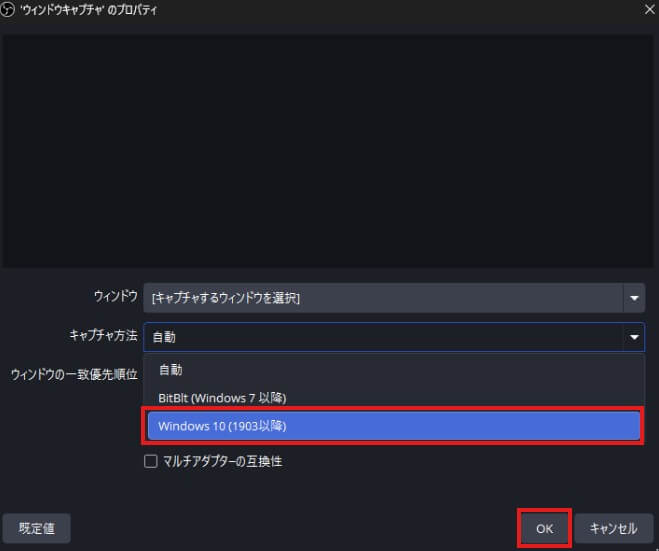
Change the Capture Method to “Windows 10 (1903 and later)”
If the capture method for window capture is left as “Auto,” it may not display correctly. Specifying the capture method manually in properties can often resolve this.
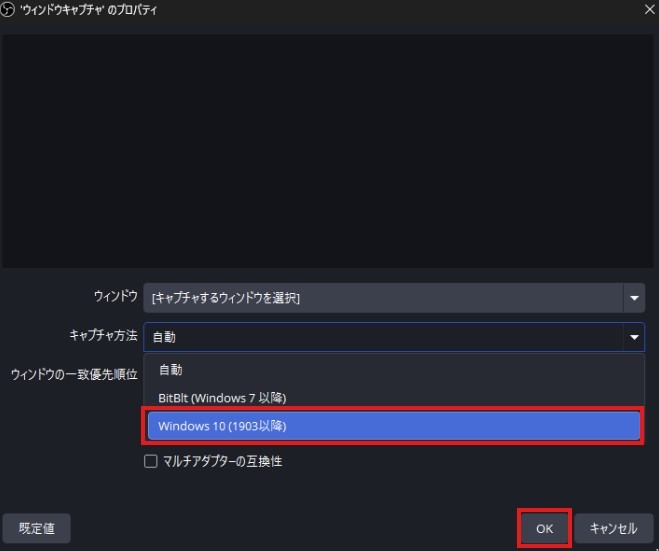
- Double-click the window capture on the OBS sources panel to open properties
- Change the “Capture Method” dropdown from “Auto” to “Windows 10 (1903 or later)”
- Click “OK” and check if the video is displaying
If it does not display with “Windows 10 (1903 and later),” you can also try “BitBlt.” Since the capture method can differ by application or game, it is recommended to try options other than “Auto” in order.
Check If You Are Selecting the Correct Window
If multiple windows with the same or similar names appear in the properties of window capture, you may be selecting the wrong one.
Switch between different candidates in the properties window list while checking the video preview, trying until the correct window is displayed.
If you launch the application after opening the window capture settings, that application will not be displayed in the options. You need to close the settings window, launch the application, and then reopen the settings window to display it.
Troubleshooting When OBS Game Capture Is Not Displaying
When game capture is not displaying, changing the mode and launching with administrator privileges can be effective.
Here, we will explain the following four steps.
- Change the mode
- Change the display mode in-game
- Change anti-cheat settings
- Solutions for unsupported games
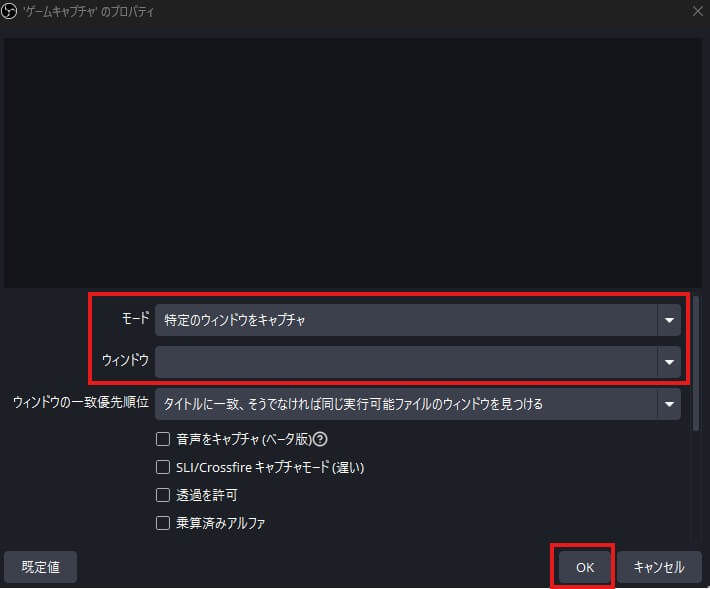
Change the Mode to “Capture Specific Window”
When wanting to stream games like Minecraft Java Edition, simply changing the setting to “Capture Specific Window” usually resolves the issue.
If left in the initial setting of “Capture Fullscreen Application,” sometimes it will not load games played in windowed modes that have borders. Changing the setting allows you to capture the screen regardless of the display format of the game.
The steps are as follows.
- Double-click the game capture in the OBS sources panel to open properties
- Change the “Mode” dropdown to “Capture Specific Window”
- Select the game you want to capture from the “Window” dropdown
- Click “OK” to check if the video displays
Change the In-Game Display Mode to Borderless
If the game screen is not displaying, often changing the display mode to “Borderless” from the game’s settings will resolve the issue.
When in fullscreen mode, the game may not display properly to OBS. “Borderless” allows it to appear to occupy the whole screen while being treated as “no border window” by the computer, making it easier for OBS to recognize.
If it still does not display even after switching to borderless mode, as a last resort, you can try switching to the framed “Windowed Mode.”
Toggle Anti-Cheat Compatibility Hook Settings
For games like PUBG, ARK, and Fortnite, toggling the “Use Anti-Cheat Compatibility Hook” setting can resolve display issues.
This is because security measures to prevent cheating tools in games can stop OBS from capturing the video.
The steps to change the settings are as follows.
- Open the properties for game capture in OBS
- Check the state of the “Use Anti-Cheat Compatibility Hook” checkbox
- If it is currently ON, change it to OFF and apply, then check the video (if OFF, turn it ON and check)
For Unsupported Games, Switch to Window Capture
For games like Destiny 2 or Counter-Strike 2 (CS2) that do not display, switch to “Window Capture” or “Screen Capture” as an alternative method to capture the video.
Not all games support “Game Capture,” and some games are not supported due to specifications. Remove the current game capture from the OBS screen and add a new window capture or screen capture to select the game screen again.
Just keep in mind that this method may put slightly more load on the computer, which could lead to performance issues.
Troubleshooting When OBS Is Not Recognizing Capture Cards
If OBS isn’t recognizing your capture card, it’s often due to uninstalled or outdated drivers. Confirm the following steps in Windows Device Manager.
- Check and update the capture card drivers
- Disable HDCP (PS5/PS4)
- Check the specifications of HDMI cables and USB ports
- Close other capture software
Check and Update the Capture Card Drivers
If OBS does not recognize the capture card, it often results from drivers that are uninstalled or old. Please follow these steps in Windows Device Manager.
【Verification Steps】
- Press Windows key + X and open “Device Manager”
- Expand “Sound, video and game controllers” or “Imaging devices”
- If an exclamation mark “!” appears next to the capture card device name, this indicates uninstalled or corrupted drivers
【Update Steps】
- Right-click the device name → “Update Driver” → try “Search automatically for drivers”
- If automatic updates do not resolve the issue, download the latest drivers from the manufacturer’s official site and install them manually
When reinstalling drivers, it’s best to uninstall them first, then restart the PC before reinstalling the new drivers.
Disable HDCP (PS5/PS4)
If the game screen does not display for PS5 or PS4, disable “HDCP (the copyright protection scheme)” in the system settings. If it remains enabled, the copy protection will prevent OBS from capturing the video.
【For PS5】
- Open Settings
- Select “System”
- Select “HDMI”
- Turn off “Enable HDCP”
【For PS4】
- Open Settings
- Select “System”
- Uncheck “Enable HDCP”
Disabling HDCP may prevent you from viewing the PlayStation Store and some video services, so please be cautious.
As for the Nintendo Switch, both the regular model and the OLED model support HDMI output in TV mode, making them compatible with streaming combining capture cards and OBS. However, the Switch Lite does not have an HDMI output port, so capture cards cannot be used.
Check the Specifications of HDMI Cables and USB Ports
If the video from the capture card is not displaying on the monitor, try replacing the HDMI cable or changing the USB port you are connecting to. Failures in cables or mismatched USB port specifications could be the cause of the issue.
Here are two points to check.
- Check the HDMI cable: Try switching to a different HDMI cable to see if the video displays
- Check the USB port specifications: If a capture card requires USB 3.0 or better and is connected to a USB 2.0 port, it may not display video or could introduce latency. Check your PC’s USB port specifications and reconnect to an appropriate port
If it still does not improve after changing ports, try disconnecting the USB hub and connecting directly to the PC’s port.
Close Other Capture Software
If any streaming or recording software besides OBS (such as XSplit or Streamlabs) is running, close them all. Capture cards typically cannot be used with multiple software at the same time, and having other software running may prevent OBS from recognizing the video.
Open Task Manager (Ctrl + Shift + Esc) to check if any streaming or capture software other than OBS is open, then close it and restart OBS.
For details on capture card connections and supported devices, please refer to the following article.
>>OBS Streaming Guide: Mastering Game Broadcasting with Capture Cards
Choosing and Features of OBS Capture Sources
OBS has the following four types of capture sources, selecting the correct source for your needs can help prevent display issues.
- Screen Capture
- Window Capture
- Game Capture
- Video Capture Device
Choosing a source that does not fit your purpose itself can cause issues, so make sure to understand the characteristics of each source.
Screen Capture | Captures the Entire PC Screen
When setting up screen capture in OBS, pay attention to the following three points.
- Ensure OBS is not maximized
- Use cropping to specify the capture area
- If you want to hide the screen, utilize studio mode
When selecting a capture source, keep OBS in a regular window state rather than maximizing it. During the process of setting up the capture source, a mirror-image display may occur, so it’s necessary to check the display while proceeding with the work.
Window Capture | Captures Only a Specific Window
In setting up window capture, maintain the window that you want to show to the audience in a regular state without minimizing or making it fullscreen. Minimized windows will not appear as options.
Also, make sure audio capture is turned OFF. If set to ON, background music may play in duplicate, so caution is needed.
Game Capture | Capture Specific to PC Games
To stream smoothly using game capture, the following settings are recommended.
| Setting Item | Setting Content |
|---|---|
| Mode | Select “Capture Specific Window” |
| Window | Select the game name you want to capture |
| Window Matching Priority | Select “Match title, otherwise find a window with the same executable” |
| Check Items | Check the following two: “Limit capture frame rate” and “Use Anti-Cheat Compatibility Hook” |
Video Capture Device | Capture Video from External Devices
When setting up a video capture device in OBS, keep the following two points in mind.
- For casual streams, you need to configure the webcam settings
- For TV game streaming, a capture card and drivers are required
Many issues where video does not display occur because other applications are occupying the camera, such as Zoom. Close other software and confirm that the correct device name is selected in the settings screen under “Devices.”
Conclusion
If you encounter issues with OBS screen not displaying, the quickest solution is to first try the three basic steps: “restart, update, and re-add the source (the screen to display).”
If the issue persists, use the “symptom-specific checklist” in this article to identify the cause and proceed with troubleshooting methods suitable for your environment (Windows or Mac, etc.) and purpose.
If none of the steps resolve the issue, switching to another display method can also be effective (e.g., if the game screen does not display, try changing the settings to capture the window or the entire screen).
Choosing the appropriate method based on the situation is key to smoothly resuming your streaming or recording.