


Share


Alienware 16X Aurora Review: Can a Gaming Laptop Handle Streaming and Video Editing?

Have you ever thought “there is no way a laptop can handle streaming and video editing”?
- It probably cannot match the comfort of a desktop
- It will throttle once it heats up
Many people share these concerns yet still find themselves considering a laptop due to space or budget constraints.
To put those worries to rest, we tested two Alienware 16X Aurora models side by side.
We ran the higher-spec model (Core Ultra 9 + RTX 5070) and the lower-spec model (Core Ultra 7 + RTX 5060) through real-world streaming, VTuber, and video editing scenarios.

Key Takeaways
- Both models handle everyday streaming and video editing with ease
- The main differences emerge in GPU benchmarks (up to +18%) and SSD write speed (~3x)
- No thermal throttling occurred even after 30 minutes of FurMark stress testing
- Heavy 3D backgrounds + avatar simultaneous streaming caused VRAM exhaustion on both models

Spec Comparison: Two Models, Same Chassis
Both units we tested are the same “Alienware 16X Aurora.” The only difference is the internal configuration — primarily the CPU and GPU. Let us see how much that configuration gap matters in practice.
| Higher Spec (RTX 5070) | Lower Spec (RTX 5060) | |
|---|---|---|
| Dell Official Price (tax included, at time of testing) | 389,000 yen | 309,000 yen |
| CPU | Core Ultra 9 275HX | Core Ultra 7 255HX |
| GPU | RTX 5070 8 GB GDDR7 | RTX 5060 8 GB GDDR7 |
| Memory | 32 GB DDR5 | 32 GB DDR5 |
| Storage | 1 TB M.2 NVMe PCIe SSD | 1 TB M.2 NVMe PCIe SSD |
| Display | 16.0-inch WQXGA (2560 x 1600) | 16.0-inch WQXGA (2560 x 1600) |
Note: The specs and prices above reflect the review units and pricing at time of testing. Current models may differ. Always check the official website for the latest configuration and pricing before purchasing.
In the gaming laptop market, the lower-spec model (RTX 5060) falls in the mid-range, while the higher-spec (RTX 5070) sits in the upper-mid-range.
These differ from the top-tier RTX 5080/5090 machines and ultra-thin models; they occupy the “serious gaming laptop” category that balances gaming performance with practical utility. Using them primarily for streaming and video editing might seem like overkill, but this review also examines how that extra headroom pays off.
Test Conditions
Performance mode: AWCC (Alienware Command Center) set to “Full Speed”
Power: All tests conducted while plugged into AC power
Verdict: Both Models Are More Than Enough for Streaming and Video Editing
| Use Case | Higher Spec (RTX 5070) | Lower Spec (RTX 5060) |
|---|---|---|
| 1080p60 OBS streaming | No issues (Encode 26%) | No issues (Encode 23%) |
| 4K30 OBS streaming | No issues (GPU 48%) | No issues (GPU 47%) |
| VSeeFace + OBS simultaneous | No issues (GPU 23%) | No issues (GPU 24%) |
| 4K video export (DaVinci) | 1 min 16 sec (H.264) | 1 min 16 sec (H.264) |
| 3D VTuber streaming | VRAM error occurred | VRAM error occurred |
Either model handles everyday streaming and video editing just fine. The differences show up in GPU benchmarks (up to +18%) and SSD write speed (~3x).
If you also want to play demanding games or export large volumes of footage daily, go with the higher-spec model. If streaming and video editing are your primary tasks, the lower-spec model is more than sufficient.
As a general reference, a typical gaming laptop lasts about 5-8 hours for video playback and 1-2 hours under heavy load. Secure a power source if you plan to stream on the go.
How Different Are the Fundamentals? CPU, GPU, and SSD Benchmarks
Let us start with the three foundational specs — CPU, GPU, and storage. Even in the same chassis, how much difference does the internal configuration make?
CPU: Multi-Core Favors the Higher Spec; Single-Core Goes to the Lower
CPU performance was measured with Cinebench 2026, the standard benchmark.
Cinebench 2026 quantifies CPU computing power. The “multi-core” score reflects all cores working simultaneously, while the “single-core” score shows how fast one core alone can operate. In simple terms, multi-core is the “team speed” and single-core is the “individual sprint.”
| Score | Higher Spec (RTX 5070) | Lower Spec (RTX 5060) |
|---|---|---|
| Multi-core | 6,359 pts | 6,292 pts |
| Single-core | 492 pts | 499 pts |
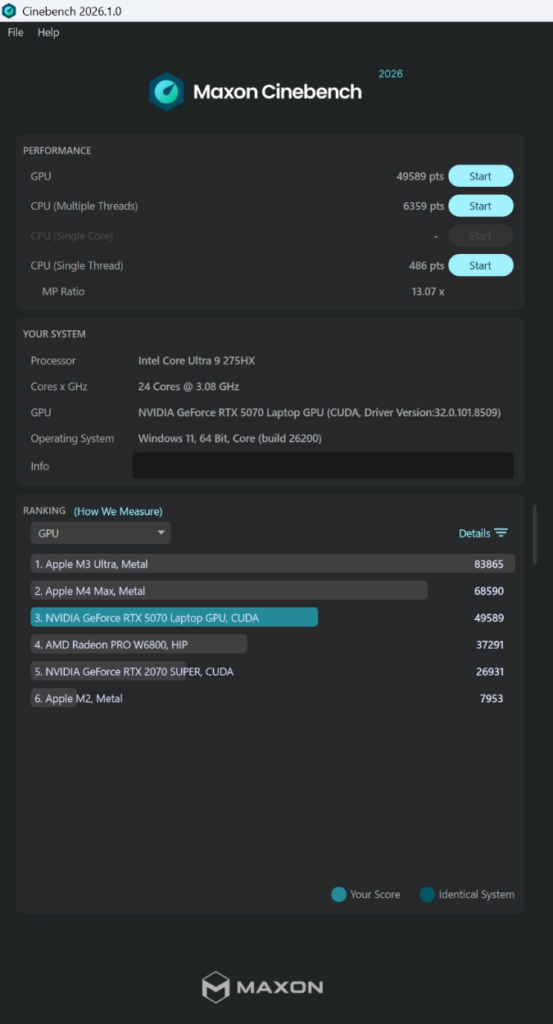
Cinebench summary
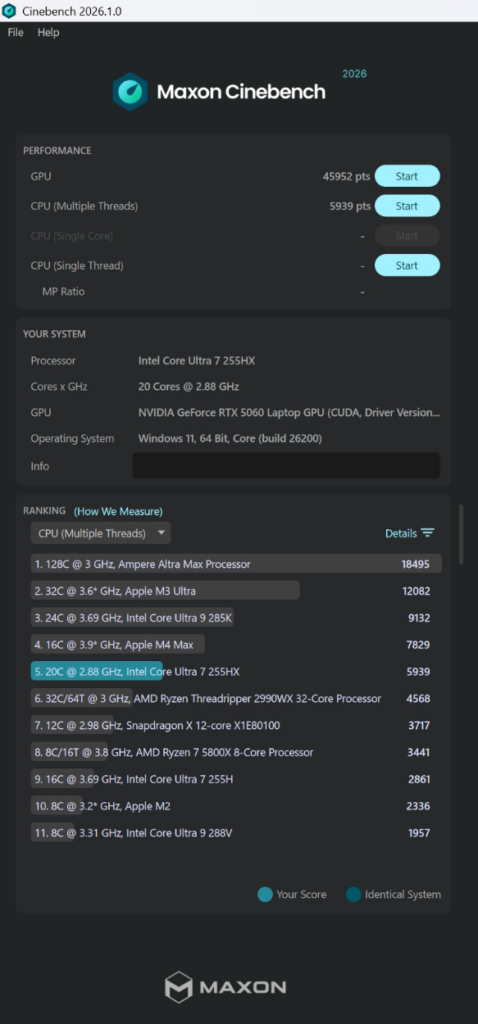
Cinebench summary
Multi-core performance edges out by about 1% on the higher-spec model. Surprisingly, single-core performance actually favors the lower-spec unit.
This comes down to architecture.
The Core Ultra 9 275HX packs 24 cores, and the higher core count means less thermal and power headroom for each individual core. As a result, when only one core runs at full tilt, the 20-core Core Ultra 7 255HX has more room to stretch.
Since gaming and OBS encoding often lean on single-core performance, “higher model = always faster” does not hold universally. Keep this in mind when choosing.
GPU: Up to +18% in Benchmarks, Minimal Gap in Streaming
Graphics performance was measured with 3DMark.
3DMark quantifies GPU performance; a higher score generally means games run more smoothly at higher settings.
| Test | Higher Spec (RTX 5070) | Lower Spec (RTX 5060) | Difference |
|---|---|---|---|
| Steel Nomad Light | 14,646 (108.5 fps) | 12,360 (91.6 fps) | +18.5% |
| Time Spy | 14,204 | 12,543 | +13.3% |
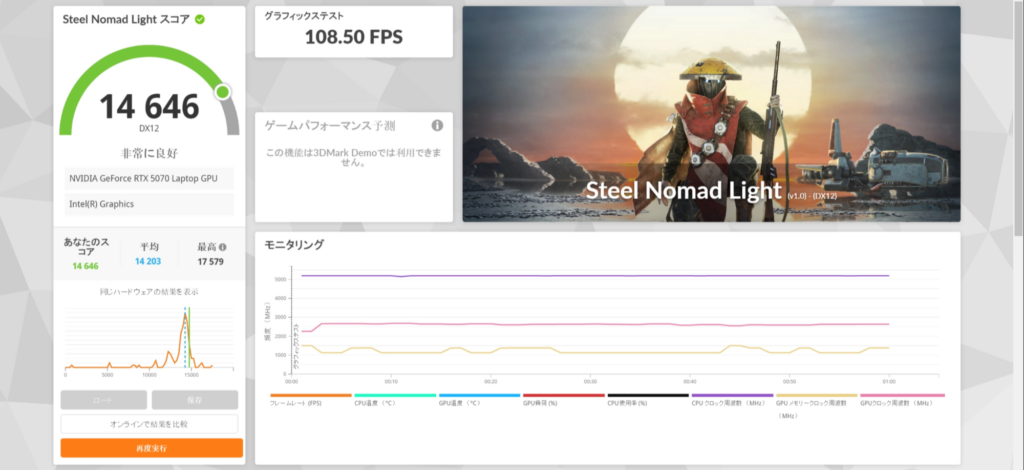
Steel Nomad Light score
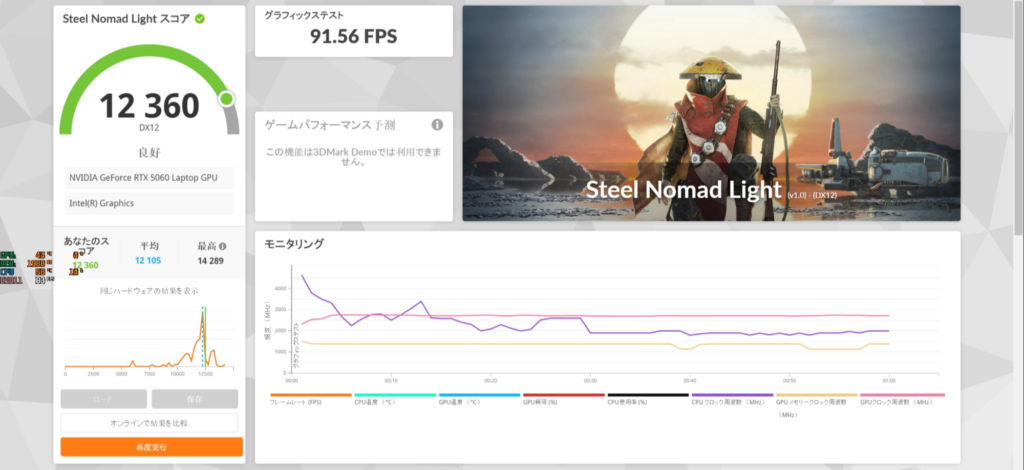
Steel Nomad Light score
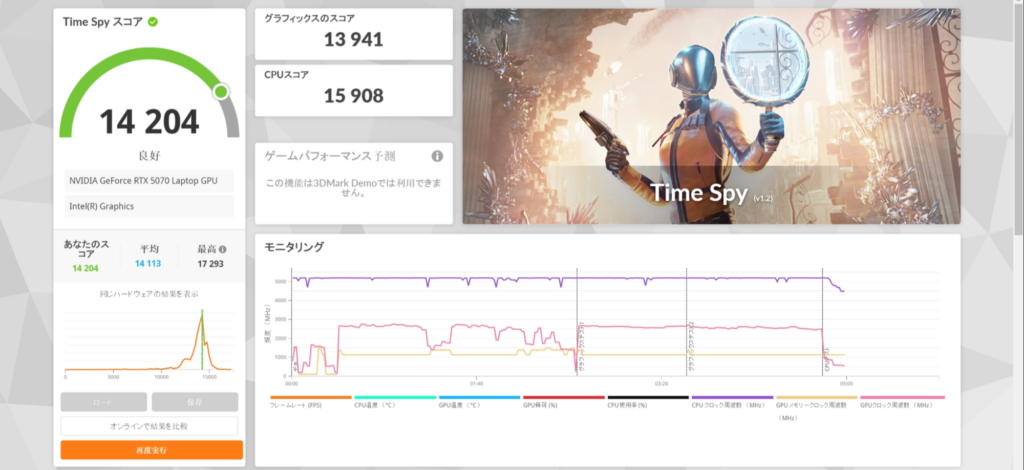
Time Spy score
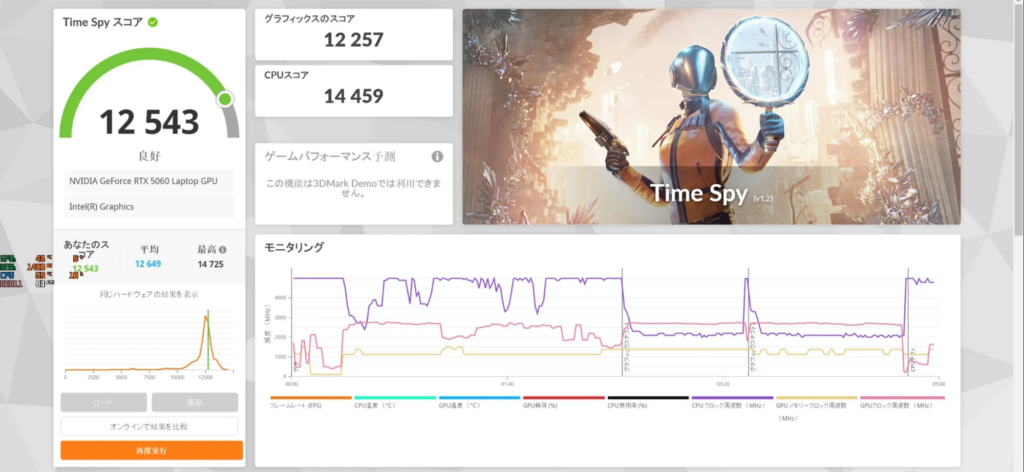
Time Spy score
The numeric gap is clear, but in our streaming scenarios (covered later), both models stayed below 30% GPU usage. This is because OBS encoding uses NVENC, a dedicated circuit separate from the main GPU workload.
The difference matters for “gaming while streaming” or high-resolution AAA titles, but for streaming and video editing alone, the lower-spec model delivers plenty of performance.
Glossary | NVENC
A dedicated video encoding circuit built into NVIDIA GPUs. It operates independently of the GPU’s main workload, so streaming performance does not degrade even when the GPU is under heavy load.
Storage: ~3x Difference in Write Speed
SSD speed was measured with CrystalDiskMark.
CrystalDiskMark measures SSD read and write speeds. “SEQ” represents sequential large-file operations, while “RND 4K” represents random small-file operations.
| Metric | Higher Spec (RTX 5070) | Lower Spec (RTX 5060) |
|---|---|---|
| Read (SEQ1M Q8T1) | 6,558 MB/s | Up to 5,779 MB/s |
| Write (SEQ1M Q8T1) | 5,799 MB/s | 2,033 MB/s |
| Random Read (RND4K Q32T1) | 1,064 MB/s | 718 MB/s |
| Random Write (RND4K Q32T1) | 937 MB/s | 602 MB/s |
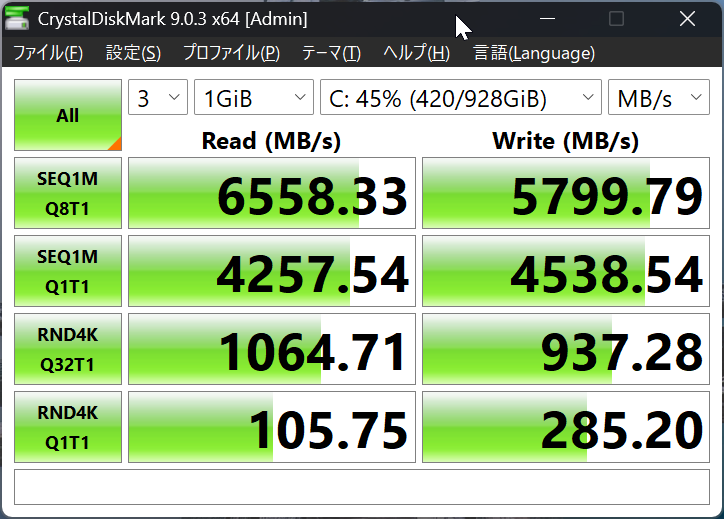
CrystalDiskMark
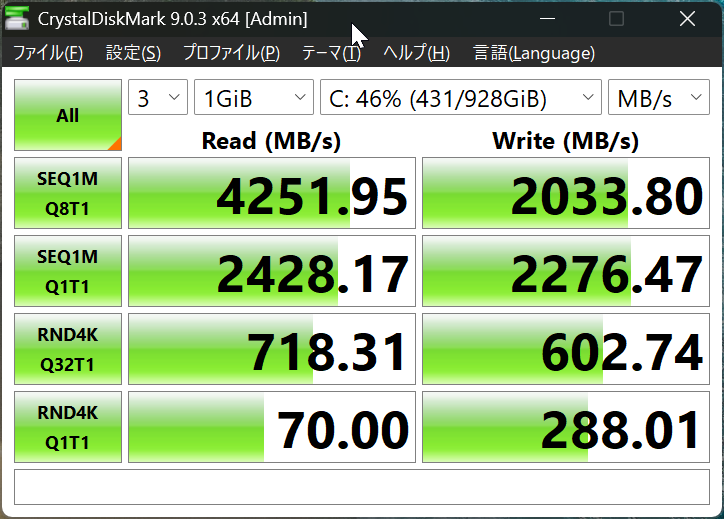
CrystalDiskMark
Write speed showed roughly a 3x gap. You may not feel this in everyday streaming or editing, but if your SSD is the destination for video exports and recordings, and you handle large 4K files daily, this gap compounds over time. It is one solid reason to opt for the higher-spec model.
Can It Handle Long Sessions? Heat and Stability Testing
A major concern with laptops is whether they overheat and throttle during extended use. Here we applied continuous stress to test stability.
Sustained Load: No Throttling After 30 Minutes
We ran FurMark, a GPU stress test that pushes the chip near its limits, continuously for 30 minutes.
FurMark is designed to check for thermal throttling and heat buildup under sustained GPU load.
Glossary | Thermal Throttling
A mechanism that automatically reduces processing speed when the CPU or GPU exceeds a safe temperature. When it triggers, performance drops — a particular concern for heat-sensitive laptops.
| Metric | Higher Spec (RTX 5070) | Lower Spec (RTX 5060) |
|---|---|---|
| Peak temperature | 86 C | 86 C |
| Thermal throttling | None | None |
| Average FPS | 163 | 156 |
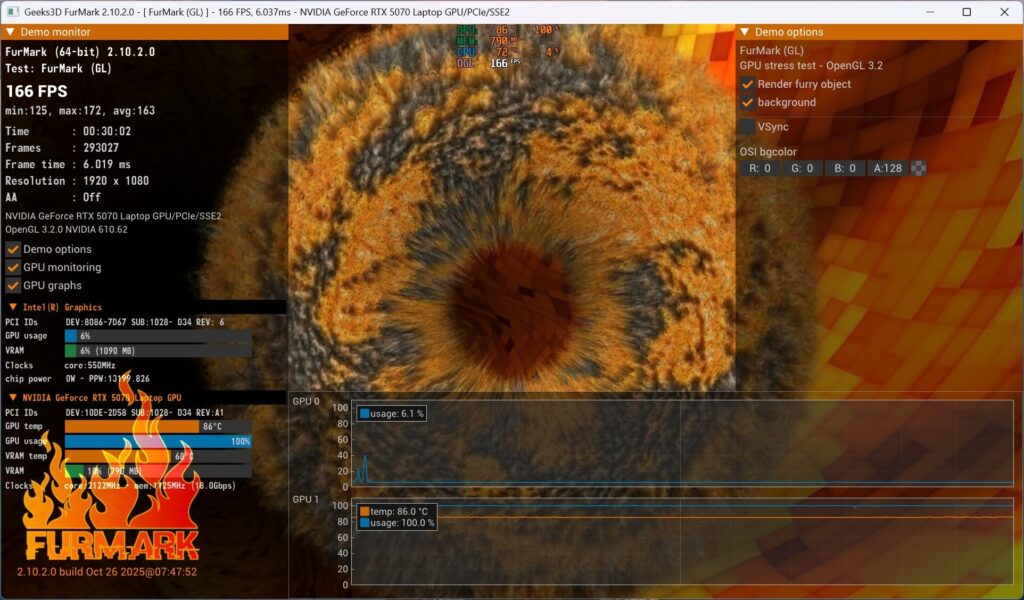
FurMark 30-minute stress test
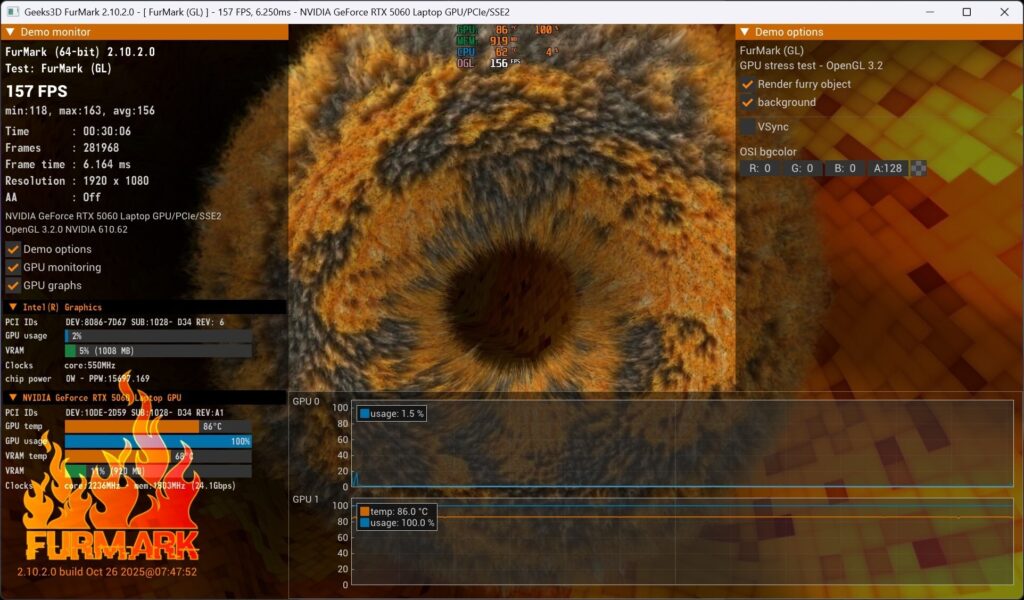
FurMark 30-minute stress test
Neither model throttled.
In a CPU stress test (Cinebench 2026 run three consecutive times), score degradation was just -1.0% on the higher-spec and -0.9% on the lower-spec — well within margin of error. The thermal design is solid for a gaming laptop.
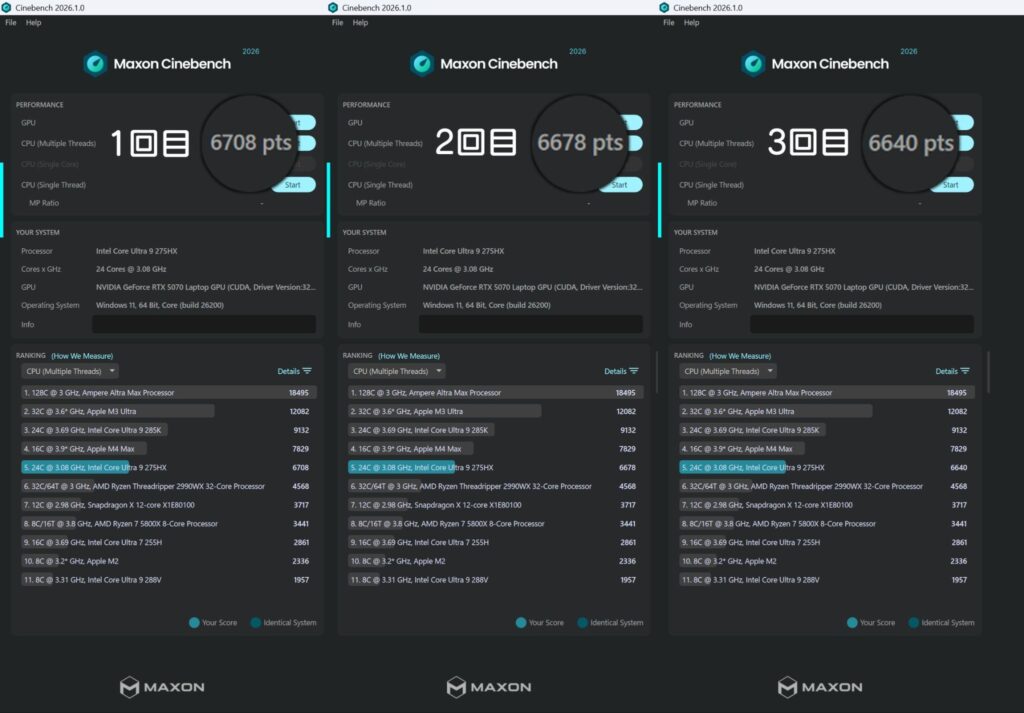
3 consecutive runs
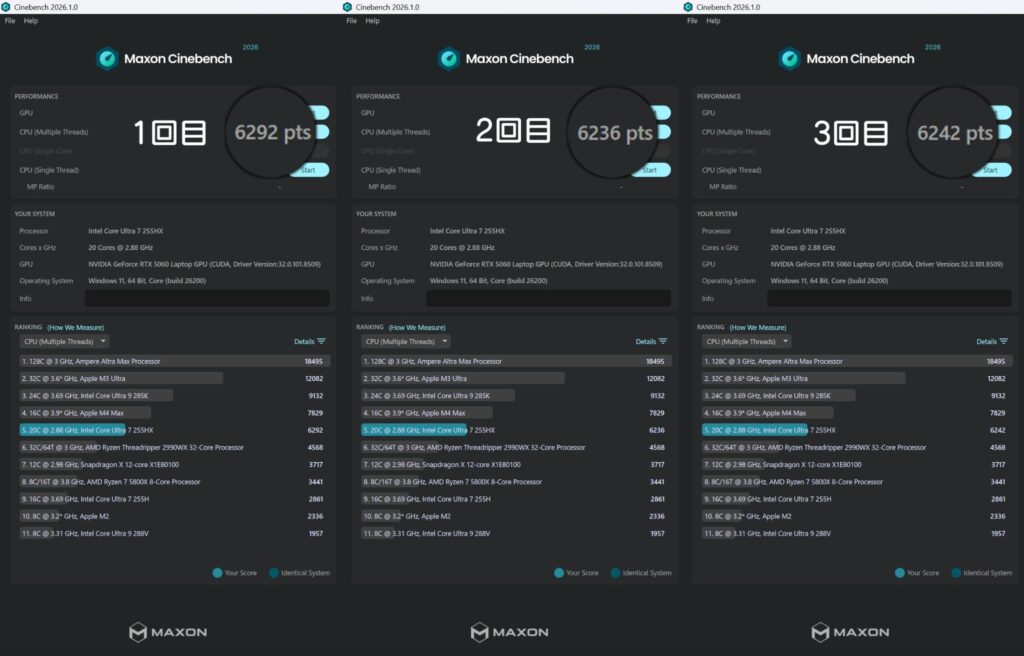
3 consecutive runs
Extreme Load Temperatures: Normal Streaming Is Fine; Max Load Requires Caution
Under an extreme stress test combining a heavy 3D scene (City Sample) + VSeeFace + OBS, the higher-spec model’s CPU reached 101 C.
During typical streaming and video editing, temperatures stayed around 50 C and posed no concern. However, if you plan to game heavily while streaming for extended periods, keep an eye on CPU temperatures.
Streaming and Video Editing Performance
OBS Streaming: Under 50% Usage at Both 1080p60 and 4K30
| Streaming Config | Higher Spec Encode% | Lower Spec Encode% | Temperature |
|---|---|---|---|
| H.264 / 1080p60 | 26% | 23% | 42-45 C |
| H.265 / 1080p60 | 17% | 17% | 43-46 C |
| H.264 / 4K30 | 48% | 47% | 39-45 C |
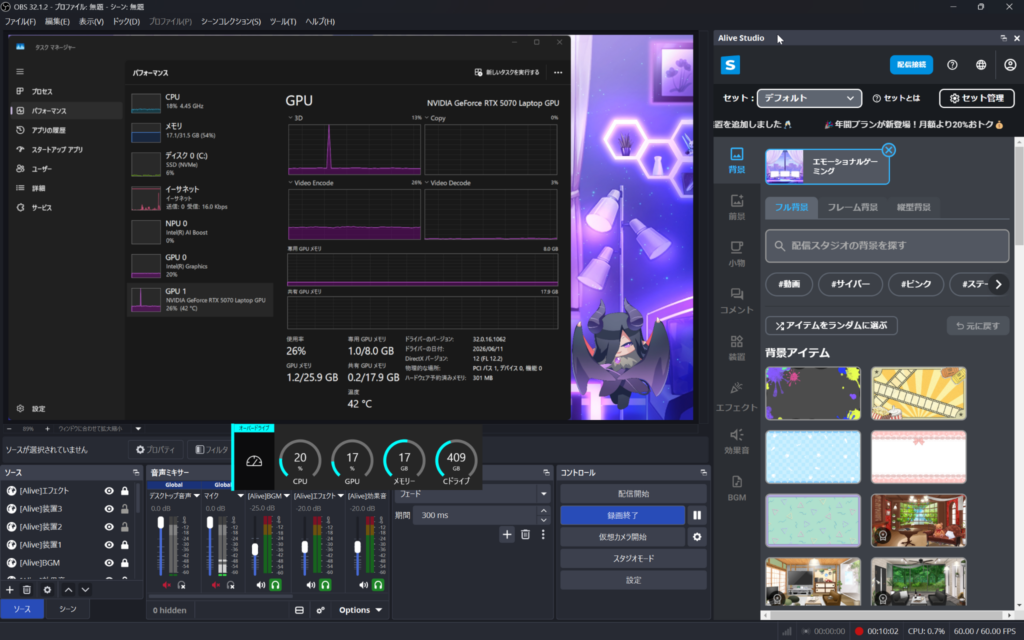
H.264 streaming
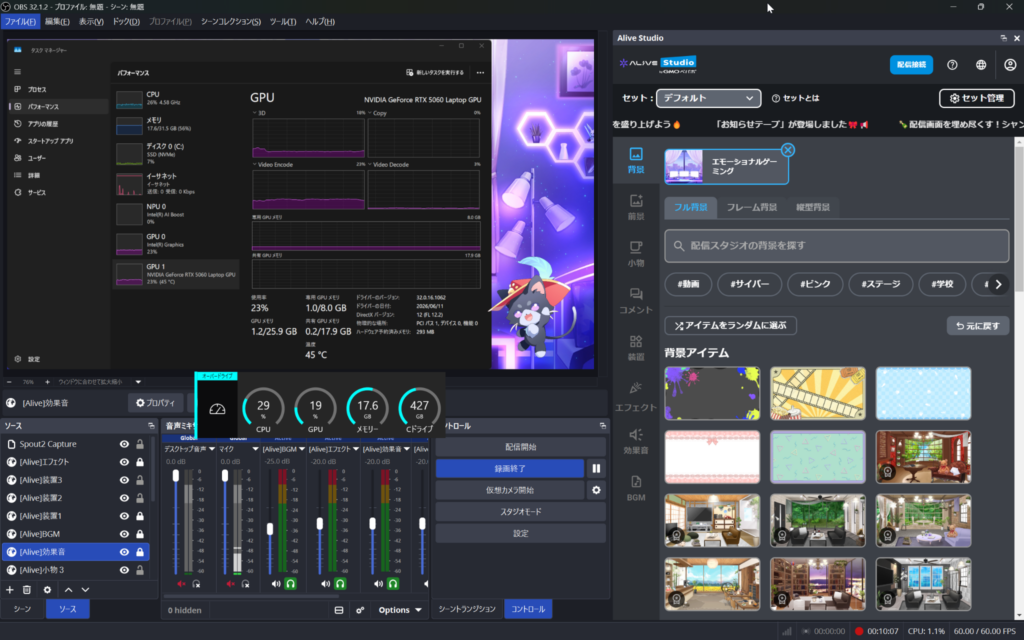
H.264 streaming
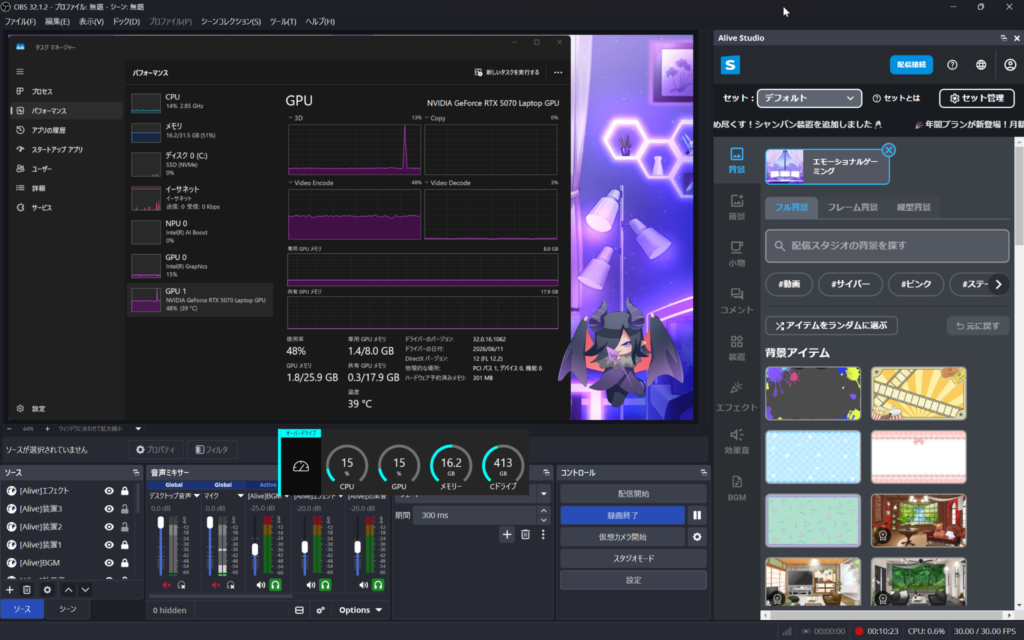
4K30 streaming
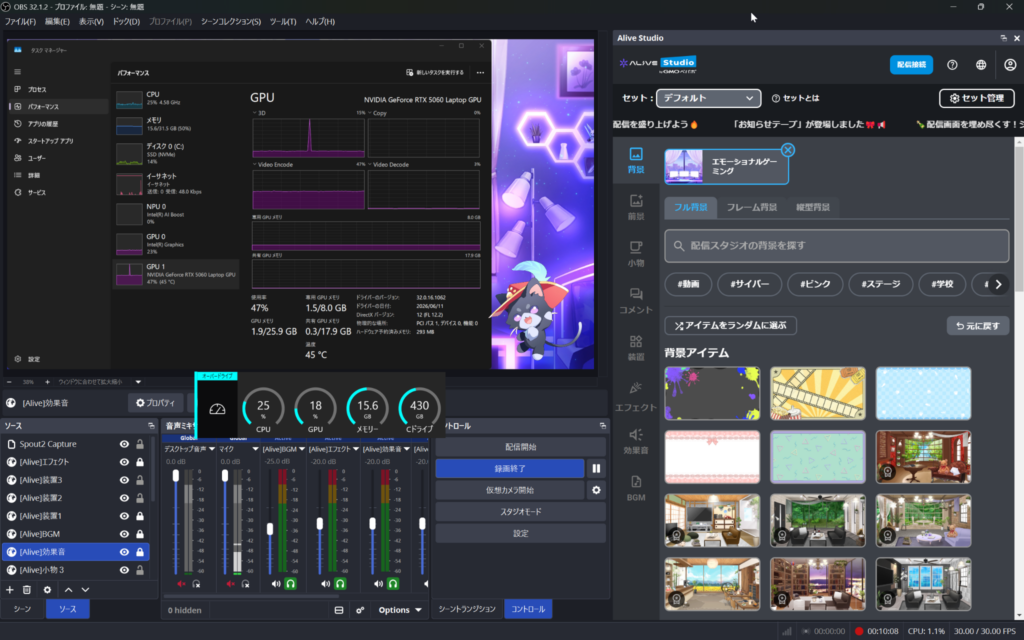
4K30 streaming test
At 1080p60 (CBR 10,000 Kbps), both models stayed under 30% encode usage. Even at 4K30, usage never exceeded 50%, and there were zero frame drops.
Comparing H.264 and H.265, H.265 had lower encoding load and smaller file sizes. If your streaming software supports H.265, it is the more efficient choice.
Glossary | CBR (Constant Bit Rate)
A streaming/recording mode that maintains a fixed data rate. It delivers consistent quality but requires a stable internet connection with sufficient bandwidth.
Glossary | H.264 / H.265
Both are video compression standards (codecs). H.265 is the successor to H.264 and can halve file size at equivalent quality. However, not all software supports it yet, so H.264 remains the safer choice for compatibility.
Avatar Streaming: Lightweight Avatars Work Great; Heavy 3D Backgrounds Need Caution
We tested with VSeeFace (a 3D avatar app) and OBS running simultaneously.
VSeeFace and WebcamMotionCapture use your PC’s camera to track facial movement and reflect it on a 3D avatar in real time. They are staple tools for VTubers. Since WebcamMotionCapture is known to be more GPU-intensive, we tested both for comparison.
| Simultaneous Setup | Higher Spec GPU% | Lower Spec GPU% | Temperature |
|---|---|---|---|
| VSeeFace + OBS | 23% | 24% | 54 C / 49 C |
| WebcamMotionCapture + OBS | 25% | 29% | 51 C / 49 C |
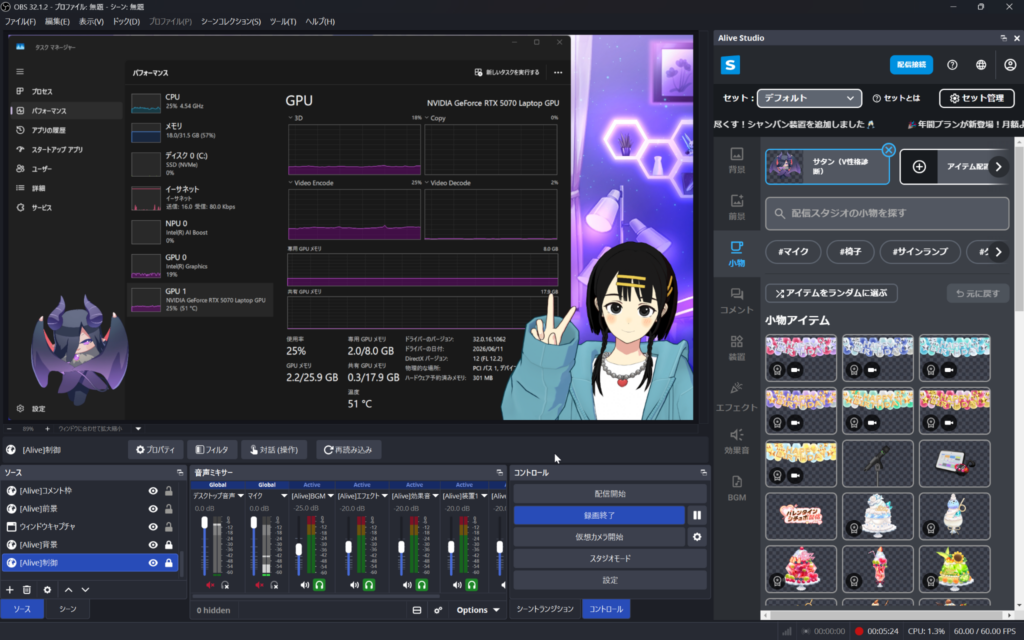
WebcamMotionCapture+OBS
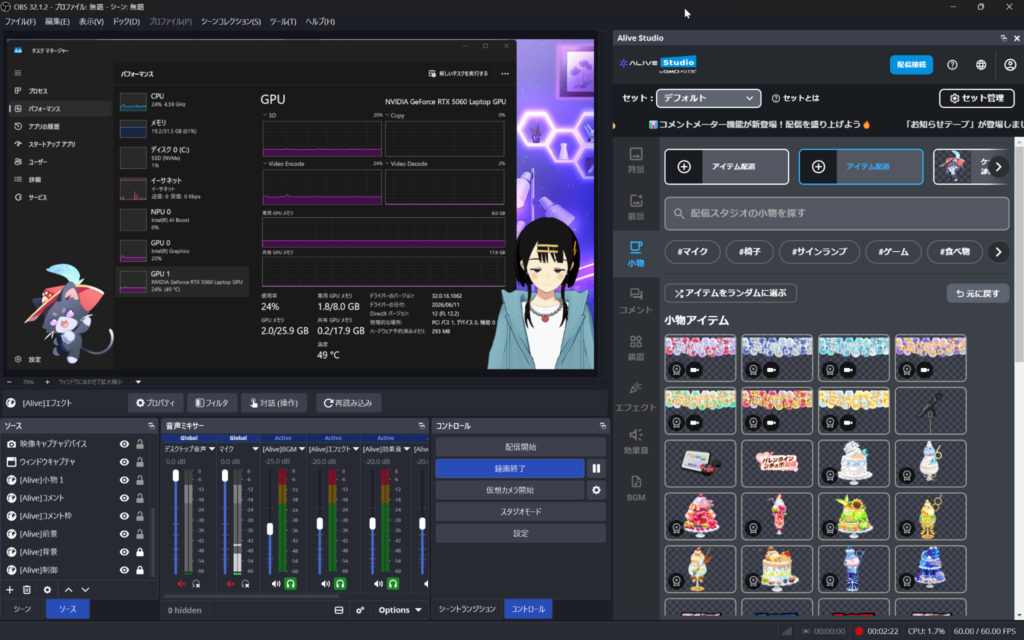
VSeeFace+OBS
VSeeFace-based streaming held a stable 60 fps on both models.
However, under an extreme load test combining City Sample (a massive 3D environment) + VSeeFace + OBS, both models ran out of VRAM.
| Extreme Load Test | Higher Spec (RTX 5070) | Lower Spec (RTX 5060) |
|---|---|---|
| VRAM error | Occurred (1,106 MB over budget) | Occurred (347 MB over budget) |
| City Sample FPS | 3-7 fps | Under 10 fps |
| OBS streaming | Stable 60 fps | Stable 60 fps |
Glossary | VRAM
Dedicated memory used by the GPU for rendering. The heavier the content (avatars, 3D environments), the more VRAM is required. Running out causes instability or errors.
City Sample is an extreme benchmark — NVIDIA itself demonstrated at Computex 2026 that it took an RTX Spark laptop with 128 GB unified memory to run it without VRAM errors. This is not something the average streamer would ever encounter; we tested it purely to find the absolute limit.
The result was City Sample dropping to 3-7 fps — completely impractical. VRAM errors appeared as well.
But here is the surprising part: even as City Sample ground to a halt, OBS maintained a steady 60 fps throughout. The OBS log did record a VRAM warning (“Video memory has been exhausted (376.297 MB over budget)”), but the actual broadcast was unaffected.
The reason is that NVENC, the encoding circuit responsible for streaming, operates independently from the 3D rendering pipeline. Even when the game side hits its limit, the stream itself keeps running. In other words, “even when the GPU is maxed out, the stream does not stop.” This is a surprisingly reassuring feature.
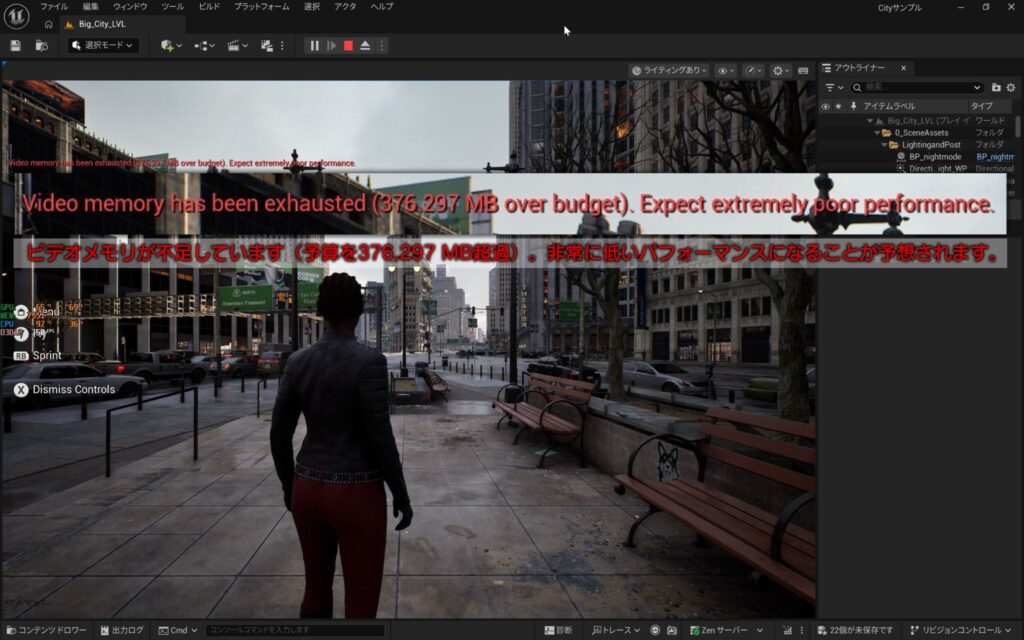
VRAM error screen
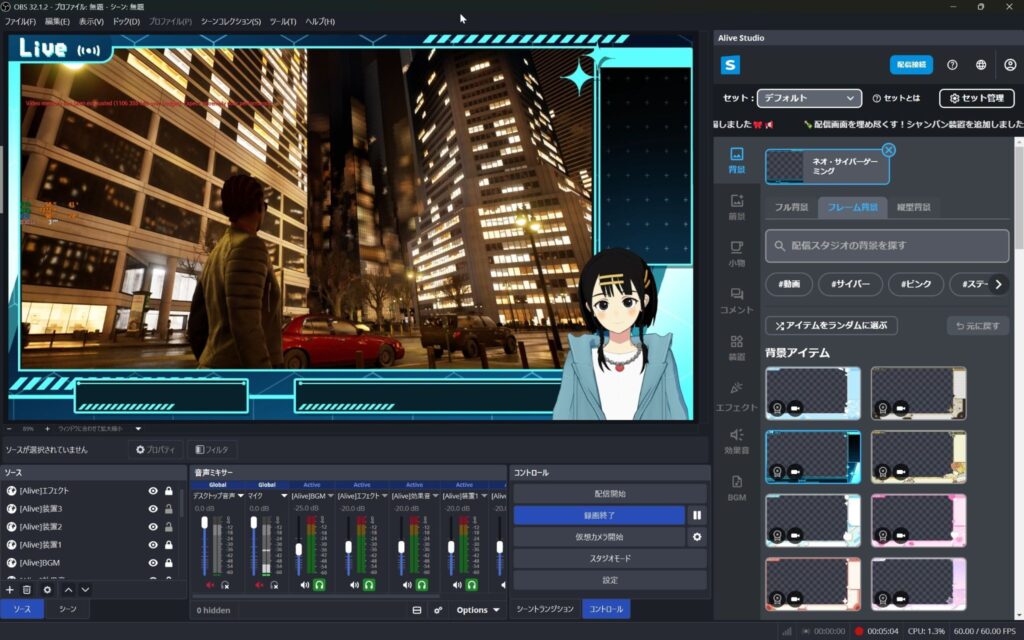
City Sample + VSeeFace + OBS running simultaneously
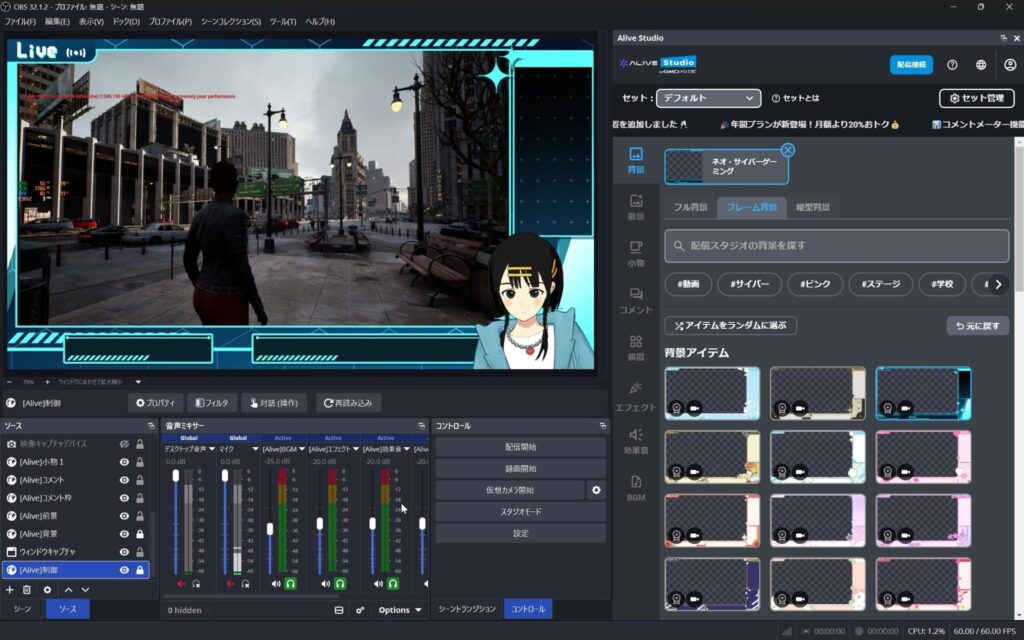
City Sample + VSeeFace + OBS running simultaneously
4K Export: 5-Minute Footage in 1 Minute 16 Seconds
We exported 4K footage (5 minutes) in DaVinci Resolve.
DaVinci Resolve is a video editing and color grading application. Even the free version supports high-quality 4K exports and is widely used by video creators and streamers.
| Export Format | Higher Spec (RTX 5070) | Lower Spec (RTX 5060) | File Size |
|---|---|---|---|
| H.264 | 1 min 16 sec | 1 min 16 sec | 3.05 GB |
| H.265 | 1 min 35 sec | 1 min 32 sec | 2.00 GB |
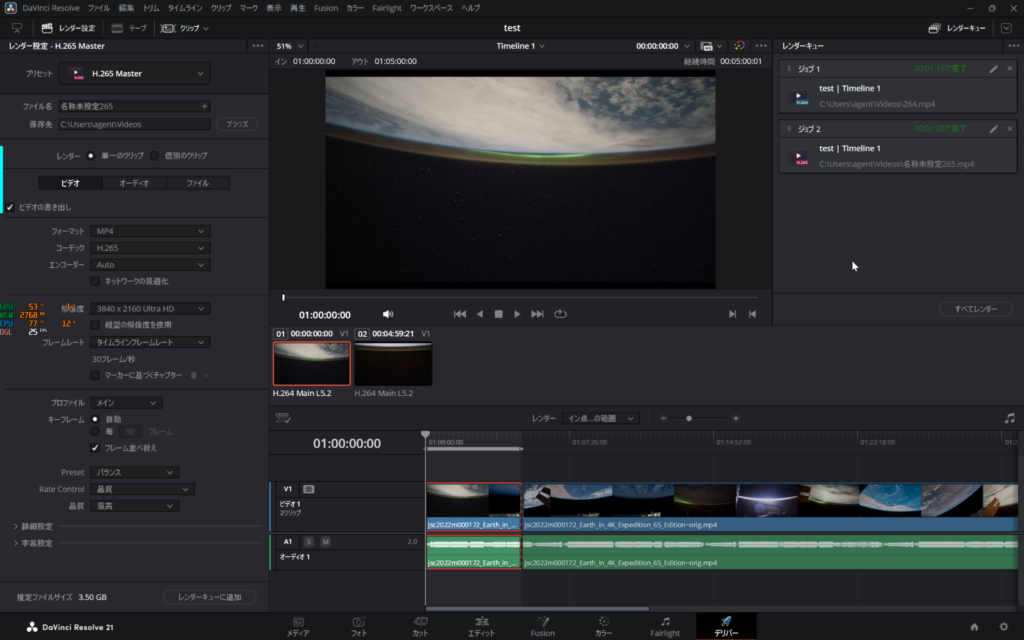
H.264 / H.265 export
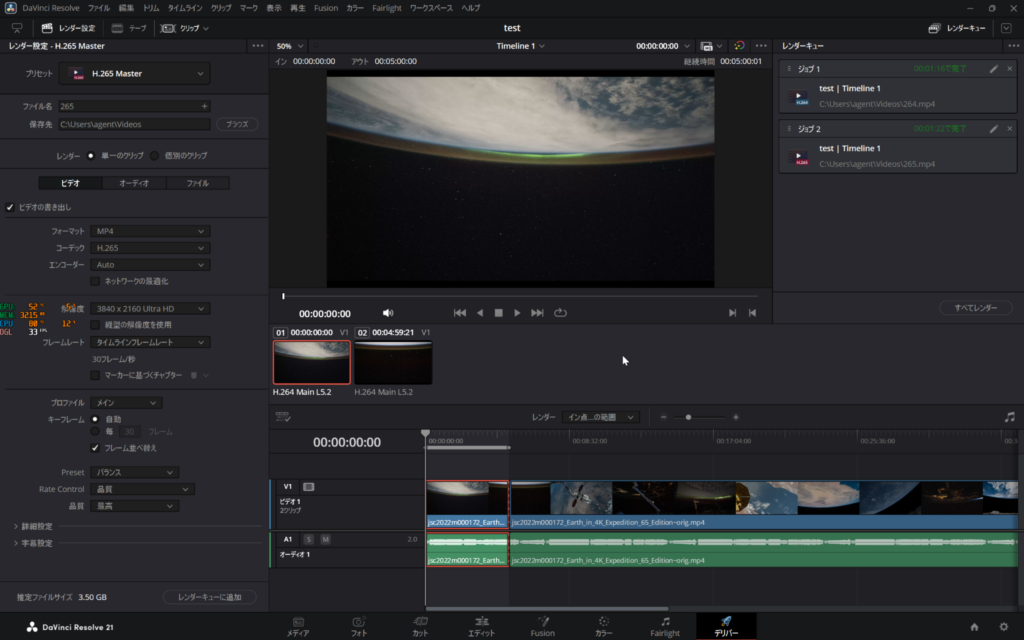
H.264 / H.265 export
The export speed difference between models was negligible — both completed H.264 and H.265 exports in nearly the same time. Processing 5 minutes of 4K footage in about 1 to 1.5 minutes is more than fast enough for daily editing.
H.265 produces smaller files, so use H.265 to save storage and H.264 when you need maximum compatibility.
Conclusion
We tested everything from raw performance to thermals and real-world streaming and editing. Here is who each model is for.
Who Is This Laptop For?
- Streamers who need a portable setup for events, studios, or off-site broadcasts
- Anyone without the space for a desktop tower
- Creators who want to handle streaming and video editing on a single laptop
Go Higher Spec (RTX 5070) If You…
- Stream demanding games
- Export large volumes of 4K footage daily
- Want headroom for future workloads
The Lower Spec (RTX 5060) Is Enough If You…
- Primarily stream and edit video, with lighter gaming on the side
- Want strong performance at a lower price
Final Thoughts: The Era of One Laptop for Everything
The Alienware 16X Aurora gave a resounding “yes” to the question “can a laptop really handle streaming and video editing?”
1080p60 streaming kept GPU usage below half, DaVinci Resolve exported 5 minutes of 4K in just 1 minute 16 seconds, and 30 minutes of FurMark produced zero throttling.
The one area to watch is simultaneous streaming with heavy 3D backgrounds. Both models hit VRAM errors, so for that use case, a desktop PC should remain on your radar.
Also, the fans can get loud under heavy load, so if you stream with a microphone, pay attention to laptop placement and mic positioning.
Even so, for streaming and video editing as the primary use case, this laptop delivered surprising capability. The days of “it is just a laptop, so expect compromises” may truly be coming to an end.
About the Current Models
The review units in this article used Core Ultra 9 275HX and Core Ultra 7 255HX processors. As of June 2026, the lineup has transitioned to new CPUs (Core Ultra 7 270HX Plus / Core Ultra 9 290HX Plus) with an optional OLED display. Check the official website for the latest specs and pricing.
For more details, visit the official product page:
Alienware 16X Aurora (Dell Official)
Equipment provided by: Dell Technologies
Review by: Umazura