


Share


Corsair GALLEON 100 SD Review: The Stream Deck Keyboard That Declutters Your Streaming Desk
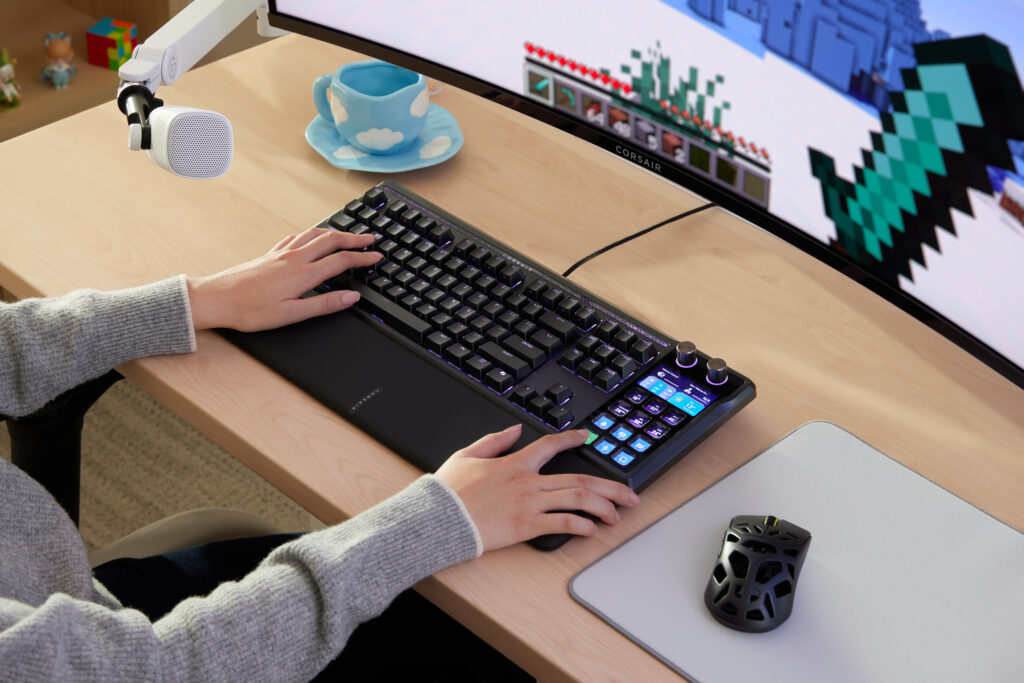
Do you find yourself constantly reaching for the mouse mid-stream just to switch a scene or adjust volume?
You want to switch scenes but have to move your mouse and click through menus. You need to adjust audio but have to tab out of your game. A Stream Deck would solve all this, but there is no room left on your desk. If you are a streamer, you have probably been through this at least once.
The Corsair GALLEON 100 SD tackles that problem head-on. It is a mechanical keyboard with a full Stream Deck built right in. We tested it from a VTuber and live streamer perspective to see how it changes your streaming desk and workflow.


Introduction
We paired the keyboard with Elgato audio gear (Wave:3 MK.2 and others) for the mic and audio interface.
Rather than running through a spec sheet, this review focuses on three practical questions: “Can stream controls stay entirely at your fingertips?”, “Does key noise bleed into the mic?”, and “Can it hold up during long streams?”
A word on product positioning: Corsair places the GALLEON 100 SD in its gaming keyboard lineup. It features 8,000 Hz polling (reporting inputs to the PC at 8x the standard rate — a spec aimed at competitive FPS) and Game Mode (which locks out the Windows key to prevent accidental presses). The gaming DNA is certainly there.
However, its main differentiator is not these competitive features but the full Stream Deck integration. This review centers on how the built-in Stream Deck transforms the streaming workflow.
Streaming Style Compatibility Chart
Here is how the Corsair GALLEON 100 SD matches up with six common streaming styles. Find the one closest to yours.
| Streaming Style | Fit | Notes |
|---|---|---|
| VTuber streaming (Live2D / 3D) | Excellent | Scene switching, volume, and expression changes all at your fingertips. Key icons show your current expression |
| Casual game streaming | Good | 8,000 Hz polling and FlashTap are more than sufficient |
| Competitive FPS streaming | Good | Handles competitive play, but rapid trigger users should note the different switch technology |
| Late-night / ASMR-style streaming | Excellent | 6-layer sound dampening keeps key noise to a minimum |
How Does Built-In Stream Deck Change Streaming?
The core selling point of the Corsair GALLEON 100 SD is the Stream Deck integrated directly into the keyboard. Here is a Q&A look at how well it delivers on the promise of “everything at your fingertips.”
Q. I want to switch scenes mid-stream
A. No extra plugins needed — instant switching
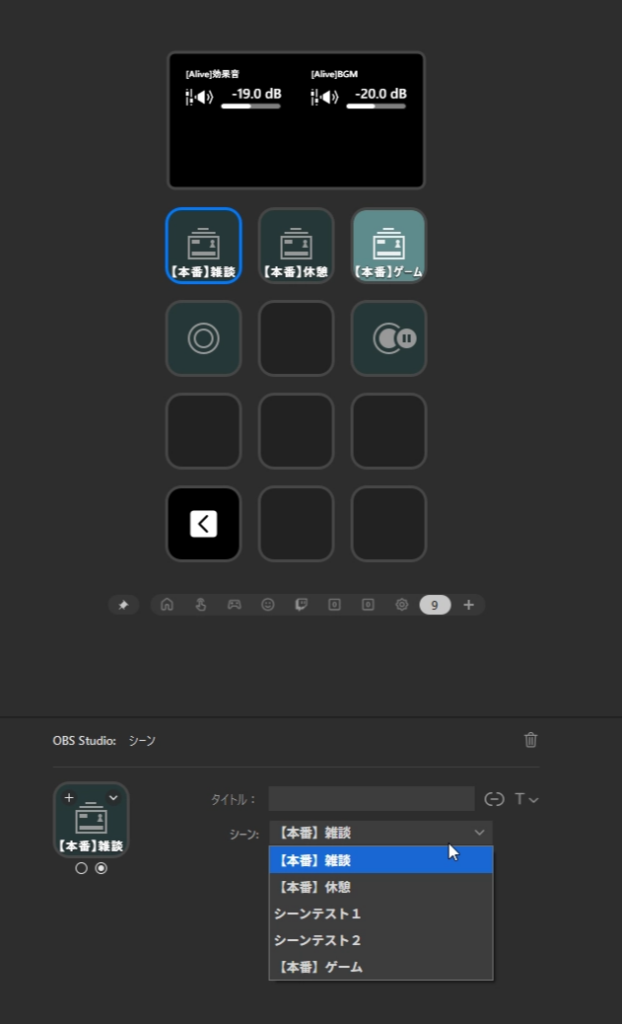
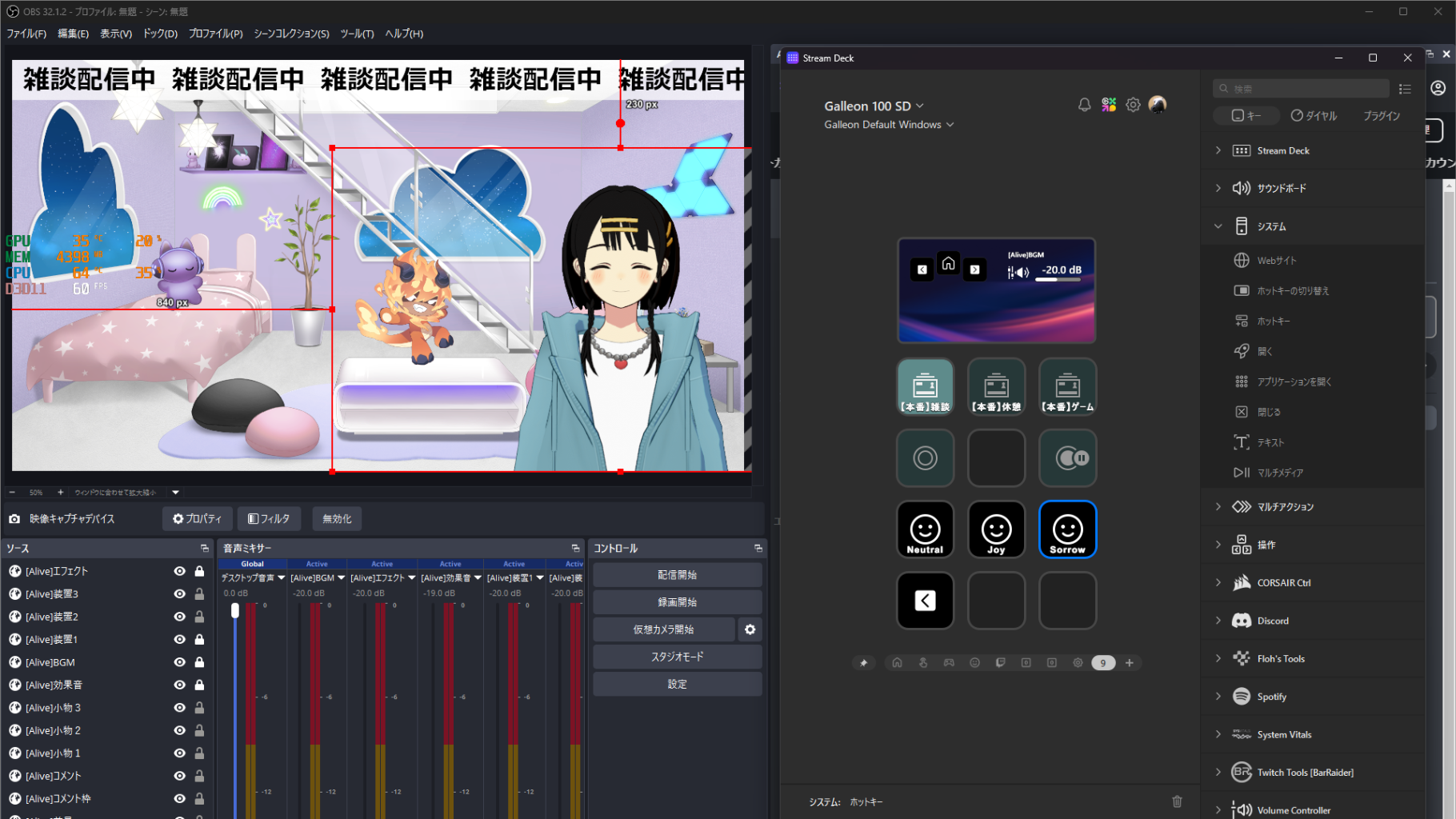
All we had to do was enable WebSocket in OBS (32.1.2), and the Stream Deck section connected immediately. We assigned Chat, Gaming, and Break scenes to keys, and they switched the instant we pressed them. The delay was effectively zero, and anyone familiar with OBS will have no trouble with the setup.
Note for Mac Users
During testing, connecting to CORSAIR WEB HUB while the Stream Deck app was running caused repeated errors. Quitting the Stream Deck app before connecting to WEB HUB resolved the issue. This did not occur on Windows, so it appears to be a Mac-specific quirk.
Glossary | WebSocket
A communication channel that allows external devices to control OBS. Once enabled, you can switch scenes, start recording, and more with a single key press.
Q. I want mic mute and volume control at my fingertips
A. Use the rotary dials for per-source control
Assign mic volume to Dial 1 and BGM or game audio to Dial 2, and you can fine-tune levels with a simple turn. Since the dials can be mapped directly to OBS audio mixer sources, setup is friction-free.
Even when dealing with multiple audio sources (BGM, ambient sound, etc.), each source could be adjusted independently via the dials. A long-press switches to a second layer, so two physical dials effectively give you four or more controls. Muting is a one-tap action, making this a strong enabler for hands-on stream control.
Q. Can I switch avatar expressions with a key press?
A. Yes — and you can see which expression is active at a glance
We loaded the SUZURI original avatar “Sumisumi” into VSeeFace (v1.13.38c), added it as an OBS source, and assigned Neutral, Joy, and Sorrow expressions to Stream Deck keys via hotkeys. Pressing a key triggered an immediate switch.
What turned out to be even more useful than expected was being able to see which expression is currently active right on the key icon. Once you experience the confidence of always knowing your avatar’s expression during a stream, it is hard to go back.
Q. Can the top panel display custom information?
A. It primarily shows dial-linked readouts
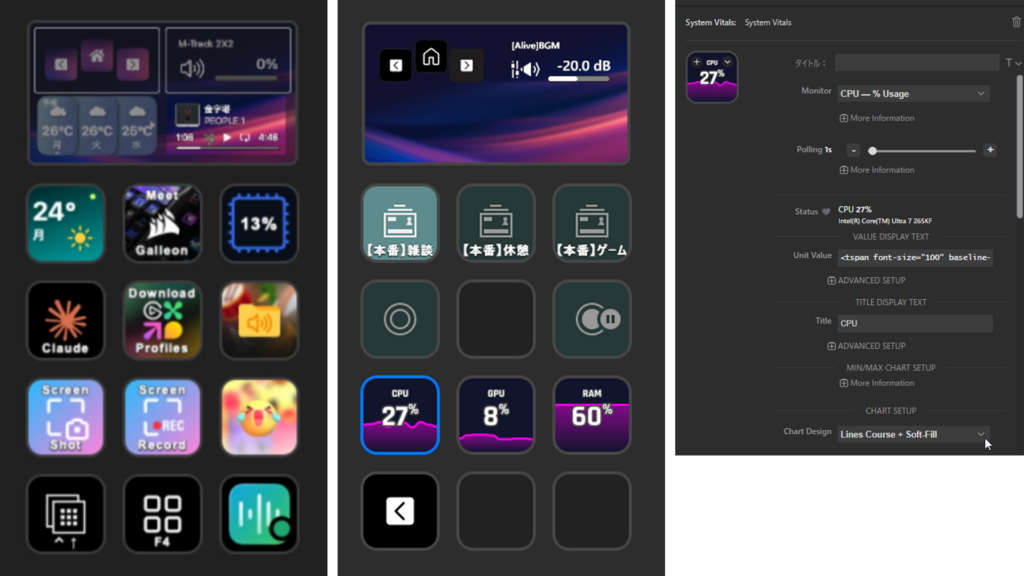
The 5-inch LCD panel at the top is designed to display information linked to the rotary dials (such as volume levels). Additional content is limited to dial-type (encoder) plugins, so system monitoring like CPU, GPU, and memory usage cannot be placed there.
However, system monitoring can be displayed on the 12 LCD keys, one metric per key. CPU, GPU, and RAM usage can be viewed at a glance without opening Task Manager — a huge advantage during gaming or streaming when you need to spot potential issues before they cause problems.
That wraps up the four Q&As covering what makes a keyboard with a built-in Stream Deck so useful.
For a deeper dive into Stream Deck features, check out our related review:
>>Simplifying Stream Audio: Wave XLR MK.2 / XLR Dock MK.2 / Stream Deck + XL
How Does Key Noise Affect Your Stream?
Now let us test whether Corsair’s “gasket mount + 6-layer sound dampening” actually holds up in a streaming environment. We fixed the Elgato Wave:3 MK.2 (USB condenser mic) 15 cm from the mouth for these tests.
We also have a full review of the Wave:3 MK.2 used for this audio testing. Check it out for reference:
>>Wave:3 MK.2 Review: One Mic to Elevate Your Chat and Game Streams
Glossary | Gasket Mount
A mounting structure that sandwiches the key PCB between soft gasket material. It absorbs vibration and sound from key presses, cushioning the impact of bottoming out.
Vibration Does Not Transfer to the Desk
We felt virtually no vibration from the keyboard body during typing. The combination of gasket mount and 6-layer dampening is perceptible, and the 1.392 kg weight adds to the stability. The keyboard stays planted while typing, with no resonance transferring to the desk.
However, “no desk vibration” does not equal “no key noise in the mic.” While the keyboard itself minimizes vibration and resonance effectively, the sound of keys being struck will inevitably be picked up by a nearby condenser mic.
As you can hear in the audio, the keyboard’s built-in dampening alone is not enough to keep key noise entirely out of a stream. For proper noise suppression, combining hardware dampening with software-side processing is the realistic approach.
Voice Focus Brings Key Noise Down to Stream-Safe Levels
The most effective tool for suppressing mic-picked-up key noise is Elgato’s AI noise suppression “Voice Focus (ai-coustics),” built into the Wave Link audio mixer software.
Comparing different intensity levels: with Voice Focus OFF, key noise came through clearly. At about 80% intensity, key noise was sufficiently suppressed while voice remained natural. At maximum, key noise was virtually eliminated but voice had an over-compressed, artificial quality. For streams where eliminating key noise is the priority, use max; for chat streams where natural voice matters, 80% is the sweet spot.
The conclusion: it takes a two-pronged approach — the keyboard’s dampening structure (minimizing vibration and key noise at the source) plus Voice Focus (cleaning up whatever remains via software) — to reach a level that is safe for streaming.
Glossary | Voice Focus (ai-coustics)
An AI noise suppression feature in Elgato Wave Link. It distinguishes voice from environmental noise (key clicks, HVAC hum, etc.) and removes the latter. Strength is adjustable.
Is It Built for Daily Streaming?
Definite Key Feel — But Expect an Adjustment Period
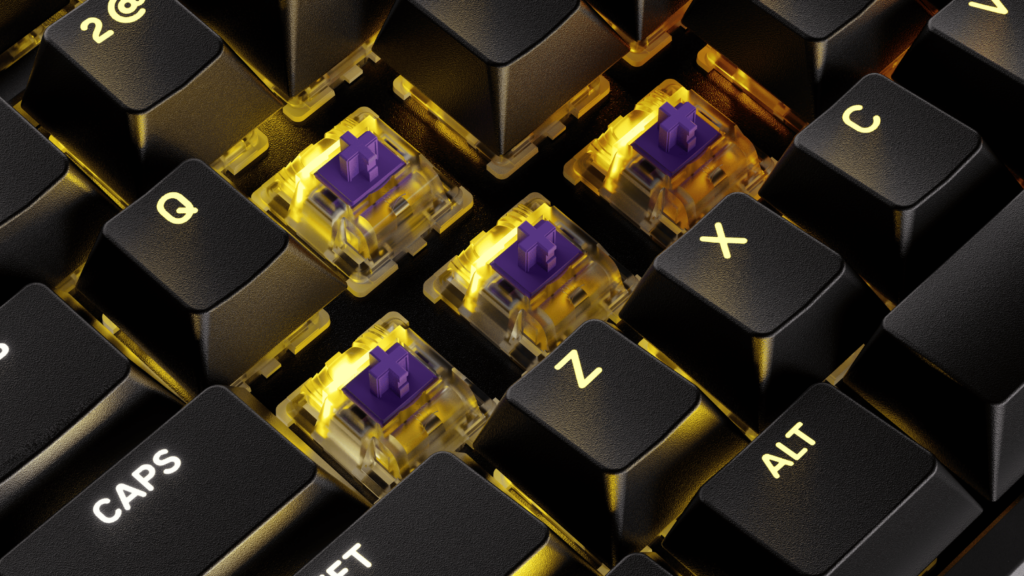
The switches are MLX Pulse Linear (approx. 4 mm travel / 45 g actuation force). If you are coming from a MacBook Pro (approx. 1 mm travel / 35-40 g), the first few days will feel heavy and deep.
That said, the “satisfying press” of a mechanical keyboard is clearly present, and the sound is pleasant without being harsh. After about a week, the adjustment period was over.
Palm Rest Included — Reduces Fatigue During Long Sessions
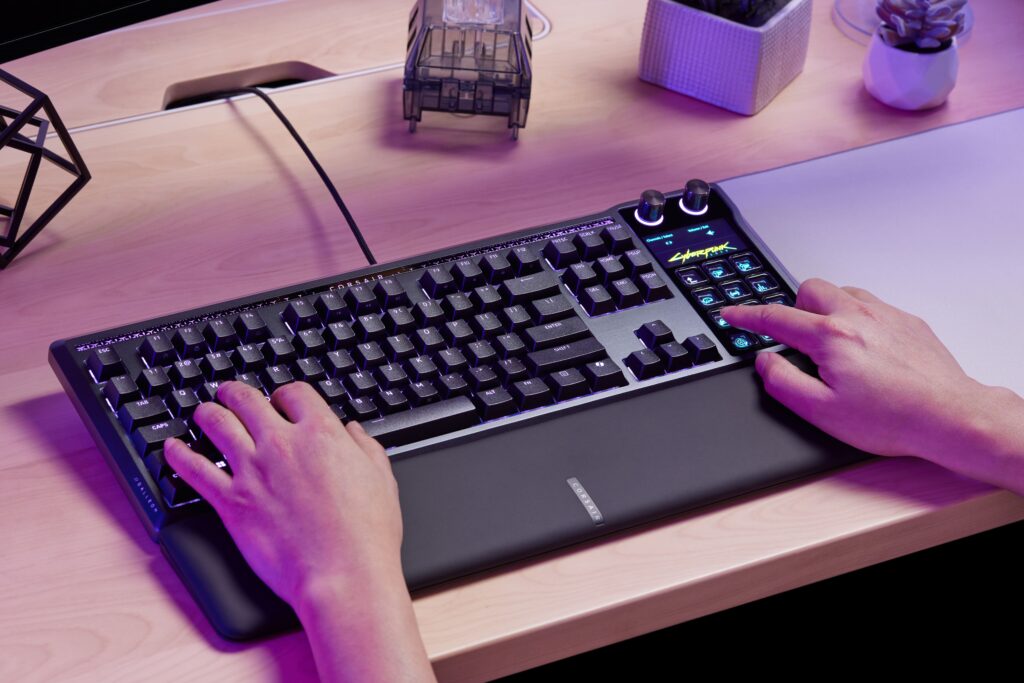
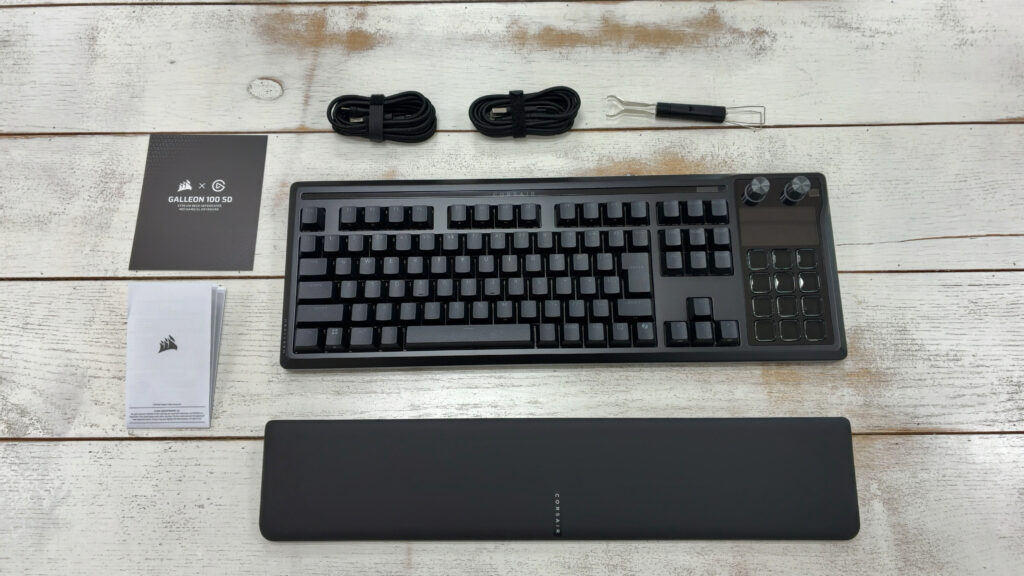
During extended use, the difference with and without the palm rest was dramatic. Remove it, and wrist fatigue sets in quickly. The Corsair GALLEON 100 SD ships with a magnetic palm rest that snaps firmly into place and pulls away easily when you want it off. Not having to buy one separately is a genuine advantage.
Glossary | Palm Rest
An accessory placed in front of the keyboard to support your wrists. It reduces fatigue during extended typing sessions.
Hot-Swappable Switches for Future Customization
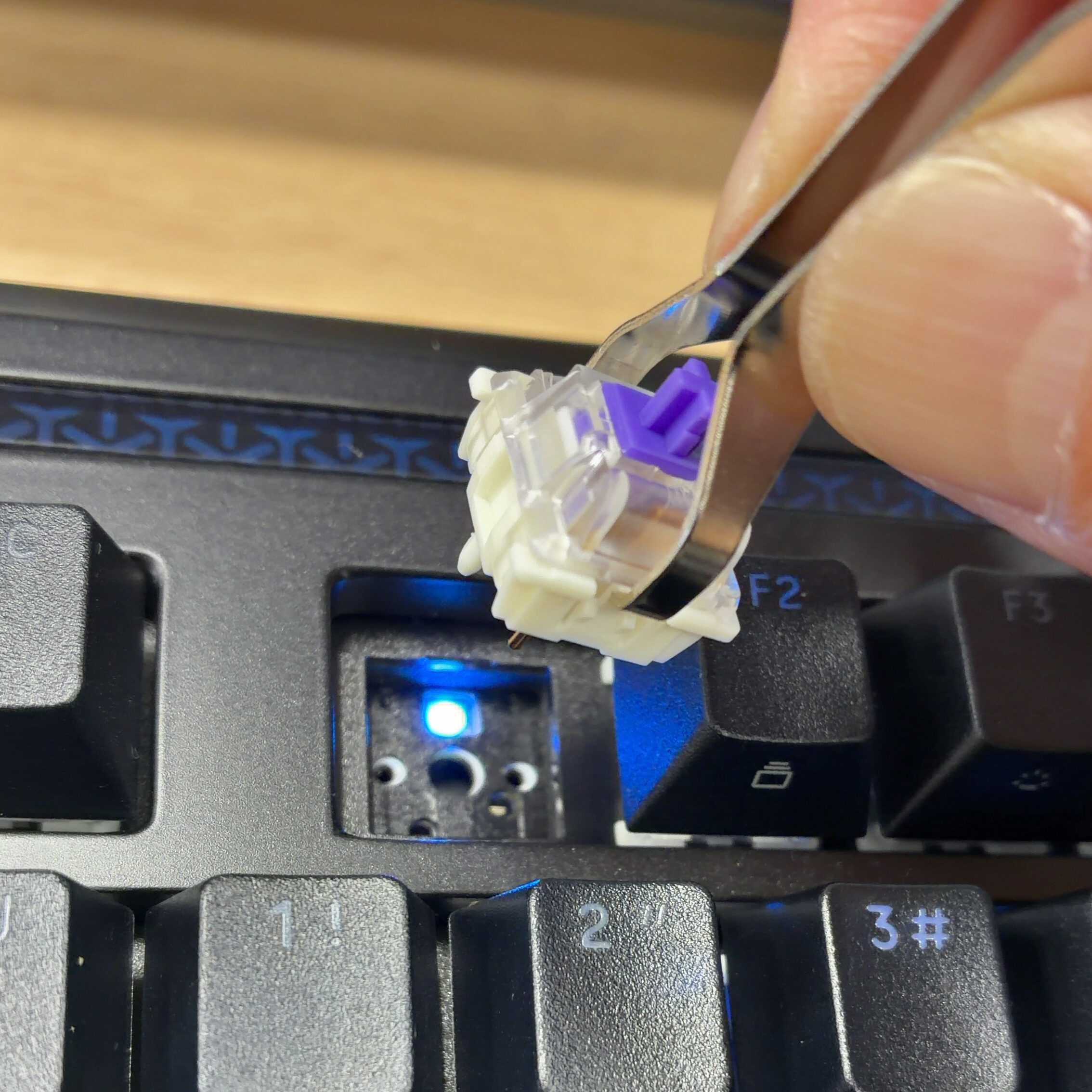
For a keyboard you use every day, the ability to customize key feel or replace worn-out switches is reassuring.
The Corsair GALLEON 100 SD supports hot-swap. Just pull a switch with the included tool and push in a replacement. Even beginners can manage it — the only precaution is inserting the switch straight down to avoid bending the pins.
Glossary | Hot-Swap
The ability to replace key switches without soldering. You can change the key feel to your preference or fix individual broken keys easily.
Does It Hold Up for Game Streaming?
We have covered stream controls, key noise, and typing feel. But gaming input performance matters too. The Corsair GALLEON 100 SD has a full suite of gaming features, so let us look at the highlights for game streamers.
8,000 Hz Polling: More Than Enough Headroom
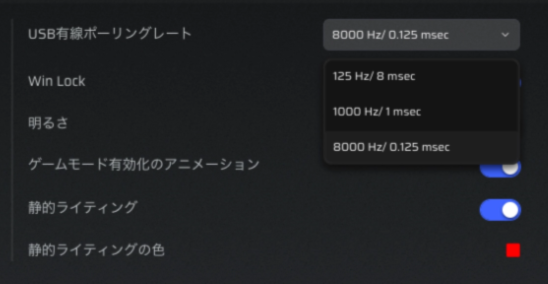
Switching between 1,000 Hz and 8,000 Hz showed no perceptible difference during streaming-level typing or WASD mashing.
This is expected. The difference between 0.125 ms and 1 ms response times matters only at the highest tier of competitive FPS. For streaming gameplay, you will never feel “limited by polling rate.” Consider it a non-issue.
Glossary | Polling Rate
How frequently the keyboard reports inputs to the PC. A higher rate means faster response.
FlashTap SOCD: Customizable Per Genre
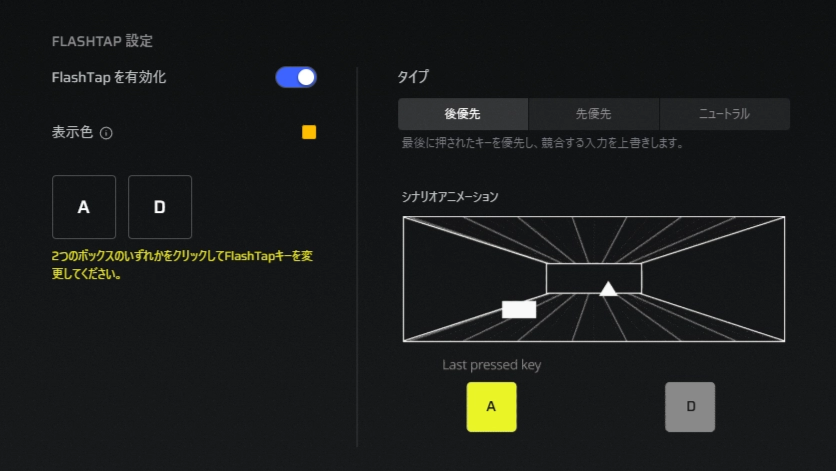
FlashTap SOCD, which controls how opposing directional inputs (e.g., A for left and D for right pressed simultaneously) are handled, worked correctly across all three modes: last-input priority, first-input priority, and neutral.
For game streaming, “last-input priority” felt the most natural. It improves strafing responsiveness (rapidly alternating left-right to juke), making movements look sharper to viewers. For casual game streams where preventing accidental inputs matters, “first-input priority” works well. “Neutral” matches most games’ defaults.
Glossary | SOCD
Rules for handling simultaneous opposing directional key presses. Different settings affect movement responsiveness and stability.
Game Mode: Prevents Accidental Windows Key Presses
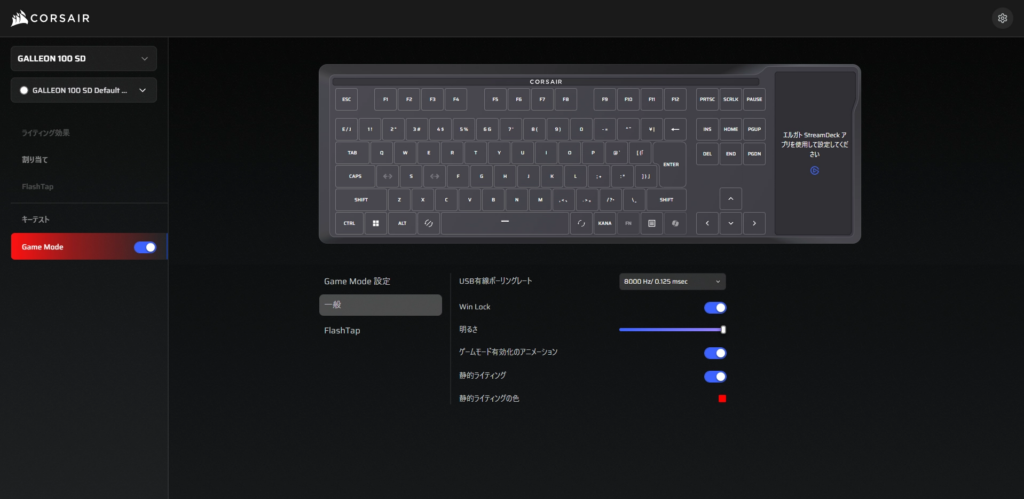
Enabling Game Mode disables only the Windows key.
This physically prevents the classic streaming mishap of accidentally hitting the Windows key and flashing your desktop to viewers. Other shortcuts like Alt+Tab remain functional, so you can still navigate as needed during streams.
A Note for Hardcore Competitive FPS Players
For streaming-level gameplay, the GALLEON 100 SD is more than adequate. However, if you are deeply invested in competitive FPS, one thing to know:
The Corsair GALLEON 100 SD uses a high-speed linear mechanical design combined with Stream Deck integration. It does not feature the analog (Hall Effect) switches, rapid trigger, or adjustable actuation points that have become popular in competitive FPS circles. If fine-tuning actuation points is critical to your play, factor this difference in before purchasing.
Conclusion
Who Is This For?
Based on our testing, the Corsair GALLEON 100 SD is ideal for:
- Streamers who want all controls consolidated at their fingertips
- Anyone who wants to minimize devices on their desk
- VTubers who regularly do avatar-based streams
- Late-night or close-mic streamers who need to keep key noise low
- Anyone debating between buying a standalone Stream Deck and a quality mechanical keyboard separately
Conversely, those who need rapid trigger and adjustable actuation for serious competitive FPS, or those focused purely on cost efficiency, may find better-fitting options elsewhere.
A Keyboard That Elevates Your Entire Streaming Workflow
The price tag is not small. But compared to buying a standalone Stream Deck and a quality mechanical keyboard separately, the investment makes sense. When evaluated not as a single-spec powerhouse but as a tool that elevates your entire streaming workflow, the Corsair GALLEON 100 SD stands in a class of its own.
As a reviewer who lives and breathes live streaming rather than competitive esports, the combination of keyboard and Stream Deck in one device proved genuinely powerful. Scene switching, volume, avatar expressions — all handled without looking away from the screen. Once you experience that, there is no going back.
One honest note on the software side: CORSAIR WEB HUB ran more smoothly on Windows than on Mac. Even so, the overall package is polished, and it is easy to recommend to streamers.
If you want a cleaner streaming desk and controls consolidated at your fingertips — and the budget allows — this deserves a spot on your shortlist.
A keyboard with a built-in Stream Deck is a dream configuration, and using it was genuinely exciting.
For more details, visit the official product page:
Corsair GALLEON 100 SD: Official Page
Equipment provided by: Corsair Gaming, Inc. (Elgato)
Review by: Umazura