


Share


Alienware Aurora ACT1250 + AW3225QF Review: One Desktop for Streaming, Editing, and Gaming
Have you ever run into these problems while streaming?
- Games start stuttering during long streams
- Running an avatar alongside BGM and visual effects makes everything sluggish
- You want to create stream highlight clips, but video exports take forever
The Alienware Aurora ACT1250 from Dell is built to eliminate these spec-related frustrations.
In this article, we review the Alienware Aurora ACT1250 desktop PC alongside the 4K QD-OLED monitor AW3225QF, from the perspective of a VTuber and live streamer.
Rather than simply listing benchmark numbers, we tested real-world scenarios that streamers actually care about: “Does it stutter during streams?”, “Can it run an avatar while multitasking?”, and “Is video export fast enough to not be annoying?”

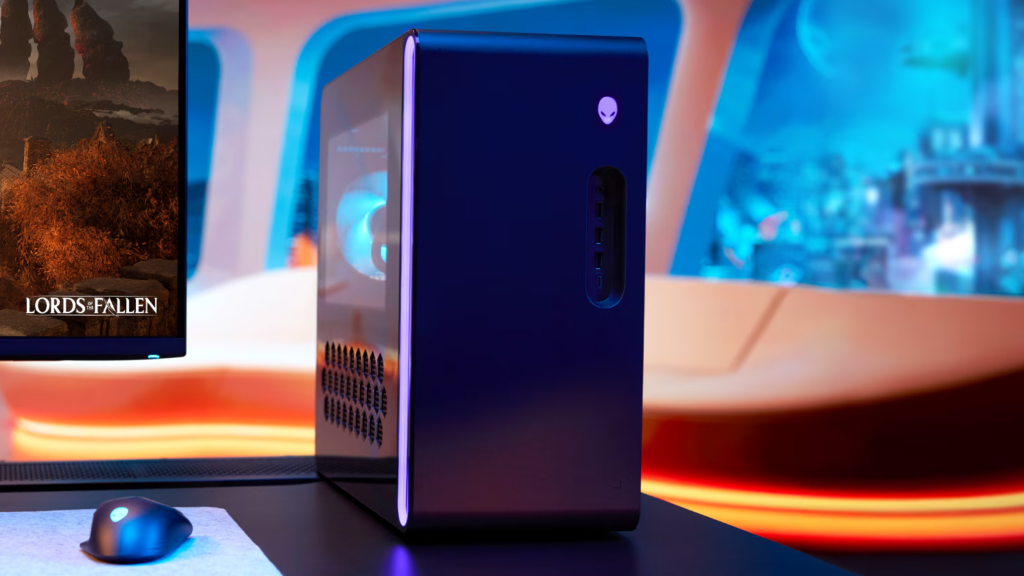
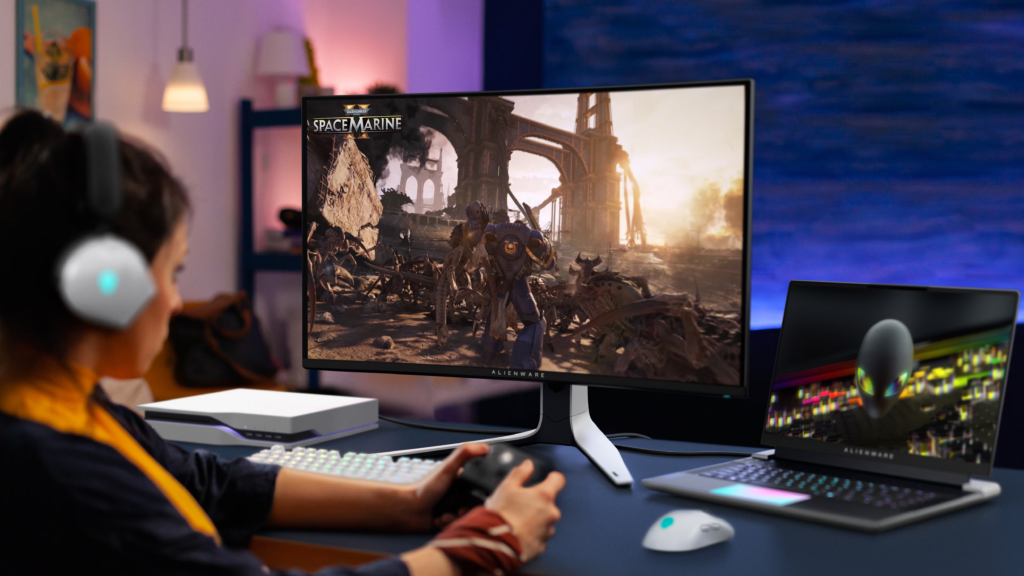
* Images courtesy of the Dell Technologies official website
Key Takeaways
- A high-end setup that handles streaming, VTubing, and video editing all in one machine
- Built for long streams — performance stays rock-solid even when temperatures rise
- The 4K QD-OLED monitor takes avatar visuals to the next level
- The only concerns are size and price. Overkill for lighter use cases

Introduction
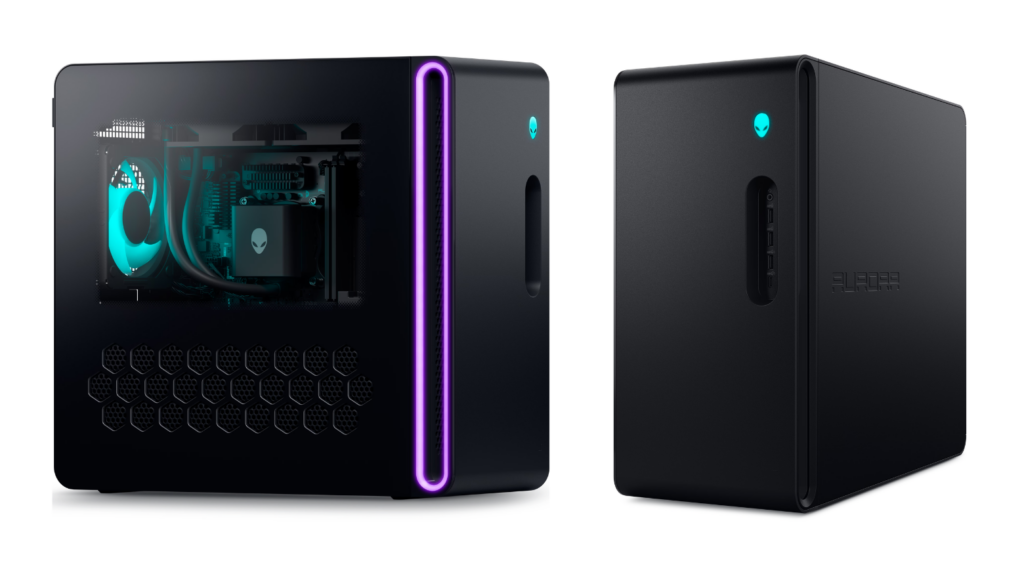
* Image courtesy of the Dell Technologies official website
The Alienware Aurora ACT1250 packs an RTX 5070, Core Ultra 7 265KF, and 32 GB of memory — a high-end configuration designed to handle everything from streaming to video editing to gaming on a single machine.
Can this setup truly deliver across streaming, video editing, and gaming? Let us find out through testing that mirrors real streaming conditions.
Test Conditions
Main PC: Alienware Aurora ACT1250 (RTX 5070 / Core Ultra 7 265KF / 32 GB RAM)
Monitor: AW3225QF (4K QD-OLED)
OS: Windows 11 Pro
Measurement tools: MSI Afterburner (OSD overlay + logging) + RivaTuner Statistics Server
Screenshots: ShareX
Background apps closed, screen sleep disabled
* Results reflect our team’s testing environment and may vary depending on setup and configuration.
Streaming Style Compatibility Chart
Whether the Alienware Aurora ACT1250 fits your streaming needs depends on your style.
Here is a quick compatibility overview for common streaming scenarios.
| Streaming Style | Fit | Notes |
|---|---|---|
| Chat streams with Live2D avatar | Excellent | Avatar + OBS still leaves 30% CPU headroom |
| FPS streaming (Apex / Valorant) | Excellent | Makes full use of a 240 Hz monitor |
| Demanding game streaming (Genshin / Monster Hunter) | Excellent | Handles 4K max settings with room to spare |
| 3D streaming (VRChat, etc.) | Excellent | 32 GB RAM is sufficient |
| UE5 ultra-heavy + streaming | Fair | Runs but stutters. Upgrading to 64 GB RAM recommended |
Performance Explained Through Common Streaming Pain Points
Benchmark numbers alone often leave you wondering “so what does this mean for me?”
Instead, let us look at performance through the lens of issues streamers commonly worry about.
“My stream starts stuttering after a few hours…”
— Performance stays strong even under heat
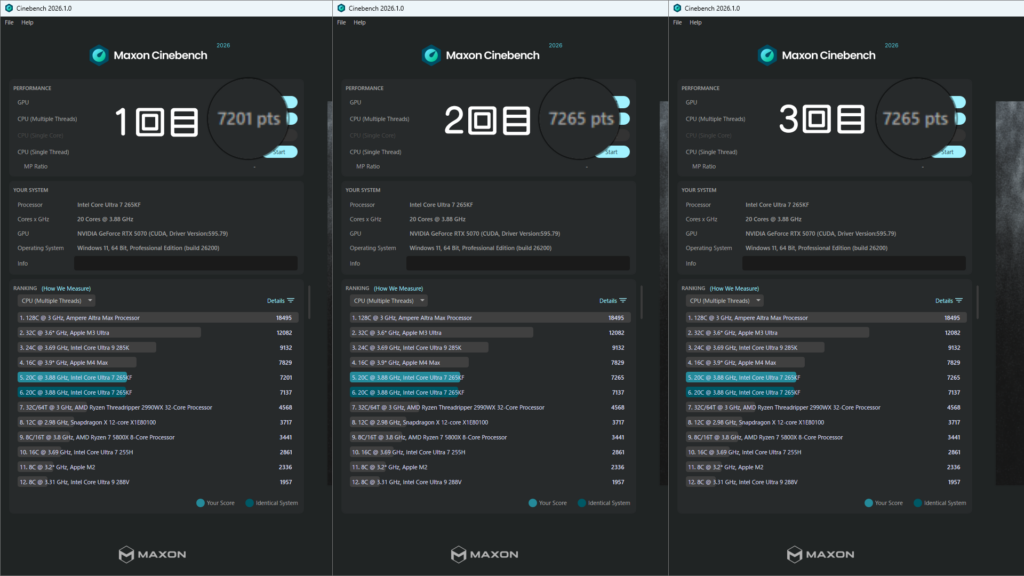
Running Cinebench 2026 (a CPU performance benchmark) three consecutive times produced scores of 7,201 > 7,265 > 7,441 pts — actually increasing rather than decreasing. This confirms zero thermal throttling. The CPU peaked at 93 C but performance never dipped.
Glossary | GPU (Graphics Processing Unit)
The component responsible for rendering visuals — games, 3D content, and video processing. It directly affects how smooth your stream, avatar, and gameplay look.
Glossary | Thermal Throttling
A safety mechanism that automatically reduces CPU or GPU speed when temperatures get too high. When it triggers during a stream, it can cause stuttering.
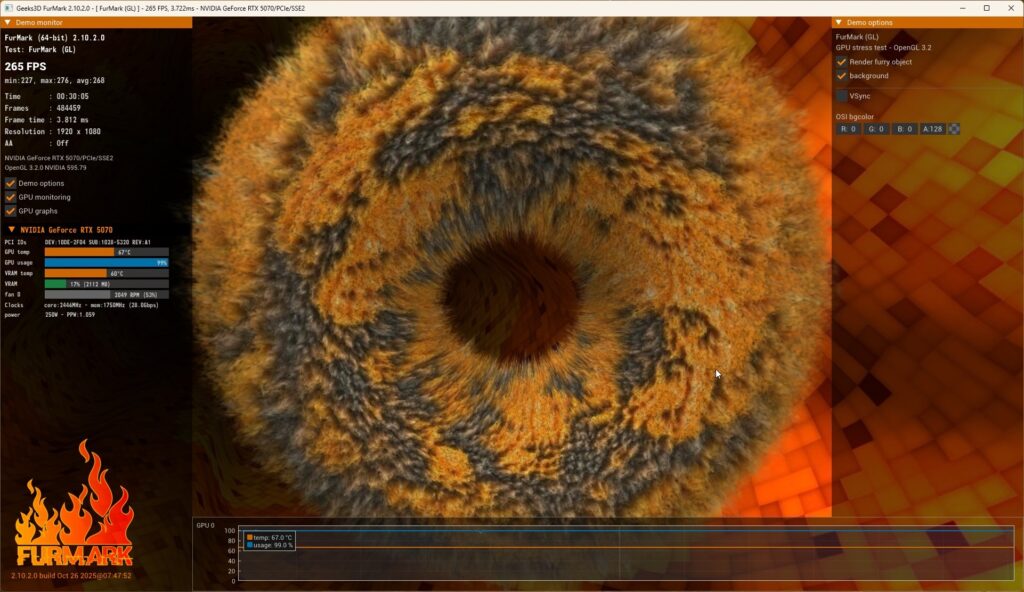
We also ran FurMark (a GPU stress test) for 30 continuous minutes. The GPU peaked at just 67 C with 250 W power draw — roughly 7-8 yen per hour in electricity. The temperature stayed well within the range where fans do not ramp up aggressively, making it well suited for long streaming sessions.
Glossary | CPU (Central Processing Unit)
The brain of the PC that handles all general processing. It determines how well your streaming software, face tracking, and multiple simultaneous applications perform.
“Turning on recording makes my game lag…”
— Recording barely affects FPS
We tested three common recording configurations, each running for 10 minutes.
| Configuration | CPU Temp | GPU Temp | 10-Min File Size |
|---|---|---|---|
| 1080p60 / H.264 | 66 C | 37 C | ~729 MB |
| 1080p60 / H.265 | 66 C | 35 C | ~730 MB |
| 4K30 / H.264 | 66 C | 35 C | ~640 MB |
Temperatures were virtually identical across all three. This means changing the recording settings barely affects system load — “turning on recording made my game stutter” is unlikely with this setup. Since recording is offloaded to NVENC, neither the CPU nor the main GPU pipeline is burdened.
Glossary | NVENC
A dedicated encoding circuit built into NVIDIA GPUs. By handling recording and streaming on a separate circuit, it avoids eating into the GPU’s main rendering performance — so your game FPS stays unaffected.
“Running an avatar makes multitasking impossible…”
— Plenty of CPU headroom even with multiple apps
Running VSeeFace (a 3D face-tracking app) with an avatar while recording 1080p60 via OBS produced the following peak loads:
- CPU usage: 68% (roughly 30% headroom remaining)
- GPU usage: 30%
- Memory: 4.4 GB
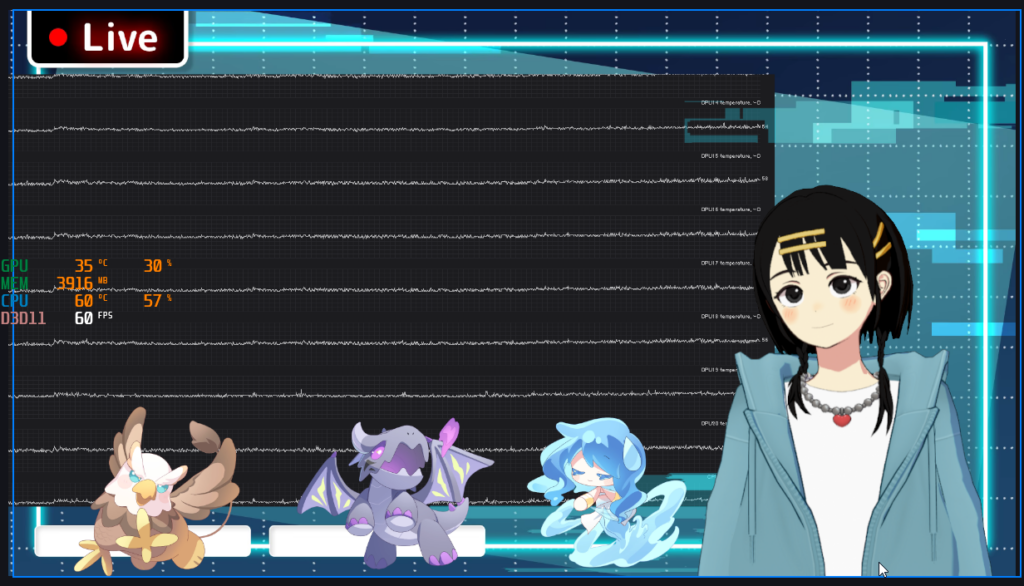
With 30% CPU headroom, you can comfortably run Discord voice chat, a browser for reading comments, and YouTube for background music simultaneously.
Face-tracking apps like VSeeFace, VTube Studio, and Animaze are all CPU-intensive and can bog down lesser systems. The Core Ultra 7 in the ACT1250 handles multiple parallel tasks with room to spare.
“Video exports take forever…”
— 5 minutes of 4K footage exported in 48 seconds
We exported a 5-minute 4K video in DaVinci Resolve:
- H.264: 48 seconds (GPU usage 100%)
- H.265: 1 min 3 sec (GPU usage 64%)
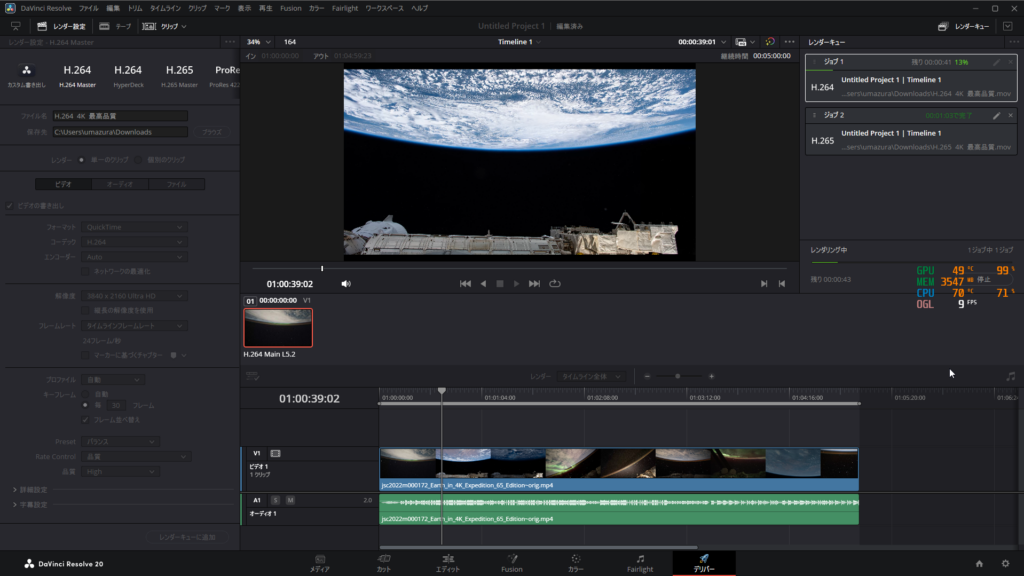
On many PCs, exporting 4K video takes as long as — or longer than — the footage itself. Finishing in 48 seconds is a massive time-saver for anyone who produces stream highlight clips regularly.
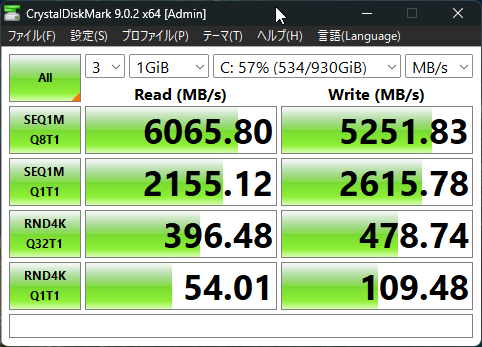
Storage speed (NVMe SSD) also impressed: 6,065 MB/s read and 5,251 MB/s write, keeping heavy footage previews responsive.
No performance drops during long streams, comfortable headroom while recording and running avatars, and blazing-fast exports. Based on these results, “struggling with processing power” simply does not seem to be in the cards with this machine.
Test Conditions | Performance Tests
CPU sustained load: Cinebench 2026 multi-core test run 3 consecutive times. Score progression and peak CPU temp recorded
GPU max load: FurMark 2.10.2, 1920×1080, windowed, no AA, 30 minutes continuous. Peak temp, min clock, throttling checked
Storage speed: CrystalDiskMark 9.0.2, C: drive (NVMe SSD), full “All” test. SEQ1M Q8T1 values used
OBS encoding load: 3 configs (1080p60 H.264 / 1080p60 H.265 / 4K30 H.264) each recorded for 10 min via NVENC
VTuber multi-load: VSeeFace avatar + OBS virtual camera 1080p60 H.264 recording for 5 min, peak CPU/GPU/memory logged
Video export: NASA 4K footage (5 min), CUDA enabled, max quality, H.264 and H.265 export times measured
* OBS tests measured encoding load only, without a GPU-intensive game source. Real game streaming will produce higher temps and usage than shown here.
AW3225QF Monitor: Key Points for VTubers
* Image courtesy of the Dell Technologies official website
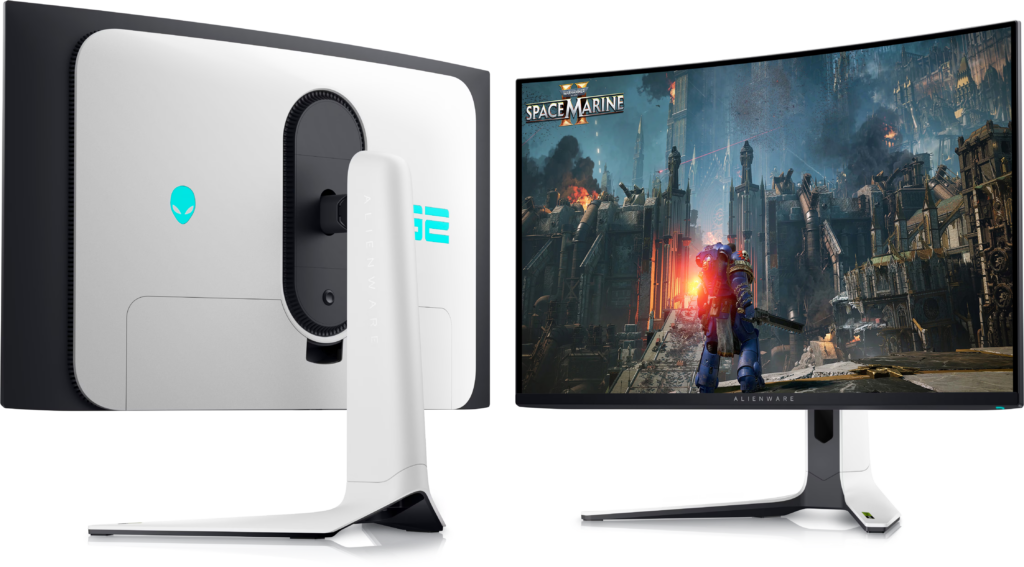
The AW3225QF is a 32-inch, 4K QD-OLED gaming monitor with a 240 Hz refresh rate. Beyond gaming immersion, it has a significant impact on how a VTuber’s stream looks. Here are the points that matter from a streamer’s perspective.
Your Avatar Looks Dramatically Better
The key strength of QD-OLED in one phrase: “blacks are truly black.” Standard LCD monitors leak a bit of light even in dark areas, making blacks look grayish. QD-OLED pixels shut off completely, so your avatar’s outlines pop with razor-sharp contrast.
Color reproduction is also impressive. Rather than oversaturated neon colors, the panel delivers a wide gamut with natural, refined tones. The result is a VTuber stream that looks more like a produced video than a webcam feed.

HDR Should Be Left On
With HDR off, the image takes on a reddish tint and blacks become shallow. The moment you switch HDR on, the visual quality transforms completely. If you own the AW3225QF, we strongly recommend keeping HDR enabled.


Glossary | QD-OLED
A panel type where each pixel emits its own light. Black areas shut off completely, delivering exceptional contrast and vivid colors. The trade-off compared to LCD is the risk of “burn-in” from displaying static images for extended periods.
How Much Refresh Rate Do You Really Need?
Refresh rate indicates how many times per second the monitor redraws the screen, while FPS indicates how many frames per second the game renders. Higher numbers in both mean smoother motion.
We compared 30 / 60 / 120 / 240 fps on the AW3225QF.
| Comparison | Perceived Difference |
|---|---|
| 30 to 60 fps | Clearly noticeable |
| 60 to 120 fps | Noticeably smoother; hard to go back |
| 120 to 240 fps | Minimal — only visible if you look closely |
For anyone outside the competitive FPS scene, 120 Hz or above is more than comfortable. 240 Hz is for enthusiasts who want every possible edge.
Worried About QD-OLED Burn-In?
QD-OLED does carry burn-in risk, but the AW3225QF includes several protective measures:
- Automatic screen refresh when the display is powered off
- A built-in cooling fan to prevent heat-related burn-in
- 3-year warranty (burn-in covered) + advance replacement service
As long as you follow basic practices — auto-hide the taskbar, use a screensaver, and avoid displaying the same static stream layout for hours on end — this monitor will serve you well for years.
Test Conditions | Monitor Visual Evaluation
City Sample running at 4K max settings
SDR vs. HDR toggled to compare color reproduction and black depth
Refresh rate compared at 30 / 60 / 120 / 240 fps via GeForce Experience FPS limiter
Bonus: Pushing the ACT1250 to Its Absolute Limit
While we had the hardware, we decided to see just how far it could go under the heaviest possible workload.
We launched City Sample — an extremely demanding UE5 (Unreal Engine 5) demo known for pushing hardware to its limits — and ran VSeeFace (avatar tracking) + Alive Studio (video compositing) + OBS (recording) all simultaneously.
Test Conditions | Extreme Load Scenario
City Sample (1080p max settings) + VSeeFace + Alive Studio + OBS (1080p60 / NVENC H.264) all running simultaneously for 10 minutes
Windows HDR disabled to avoid VSeeFace avatar overexposure
OSD screenshots captured at 5-min and 10-min marks
The result: it completed the 10-minute run with zero crashes. Here are the numbers:
| CPU usage | 94-96% |
| GPU usage | 57-70% |
| Memory usage | 11.5 GB |
| Frame rate | 60 fps maintained |
| Peak temperature | GPU 70 C / CPU 69 C |
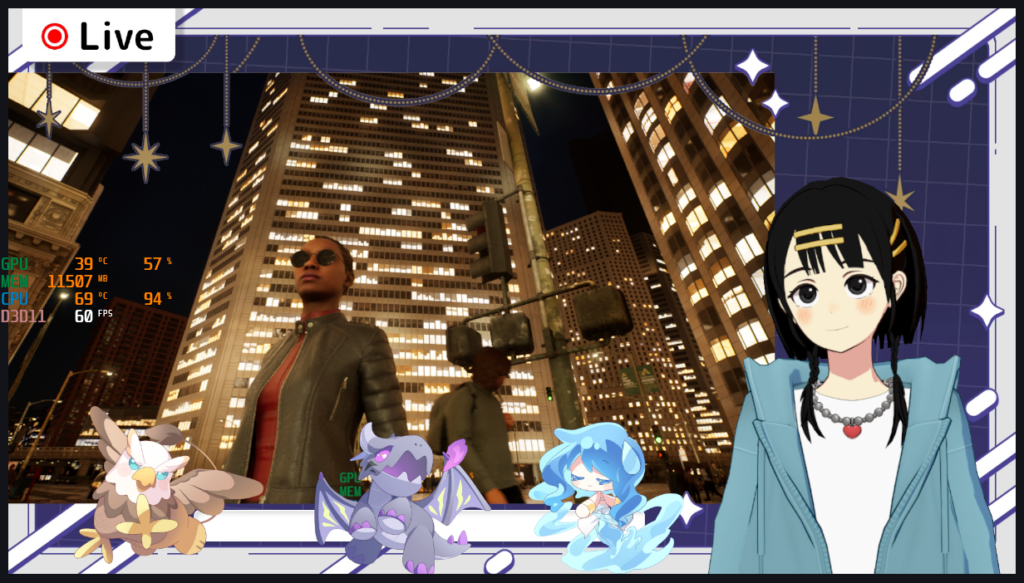
Honestly, while 60 fps was technically maintained, there was visible stutter. VSeeFace’s blink tracking slowed over time, and OBS produced two recording warnings.
That said, City Sample is an intentionally unoptimized tech demo designed to showcase UE5’s absolute limits. No typical game puts anywhere near this load on a system. The fact that it completed the test at all is the real headline here.
Conclusion
Who Is This For?
Based on our testing, the Alienware Aurora ACT1250 and AW3225QF are ideal for:
- Streamers who want to handle streaming, video editing, and gaming on one machine
- Anyone who runs frequent, long-duration streams
- Viewers and creators who want high-quality, smooth visuals in games and streams
- Those looking to invest in a long-lasting setup (the monitor includes a 3-year warranty)
On the other hand, if your use case is mostly casual Live2D chat streams a few times a month, this is honestly overkill. There are more cost-effective options for that level of use.
A High-End Machine That Does Everything You Want
The Alienware Aurora ACT1250 lives up to the “high-end” label — it truly lets you do everything. No performance drops during marathon streams, comfortable headroom while multitasking, and lightning-fast video exports. Streaming, video editing, and gaming all handled on one machine.
The AW3225QF monitor complements it perfectly. The deep blacks and vivid colors of 4K QD-OLED make avatars and stream layouts pop. The 240 Hz smoothness benefits gaming, and the burn-in protections plus 3-year warranty provide long-term peace of mind.
The physical size and price tag represent a significant investment. But when you consider the ability to level up streaming, editing, and gaming all at once, it is worth serious consideration if your budget allows.
For more details, visit the official product pages:
- Alienware Aurora ACT1250: Product Page
- Alienware 32 4K QD-OLED AW3225QF: Product Page
- Equipment provided by: Dell Technologies
- Review by: Umazura