


Share


Elgato Wave XLR Pro Review: All-in-One Audio Control for Serious Streamers
As streaming setups get more serious, managing audio quickly turns into a headache. For example:
- In a collab stream, you want to send your collab partner a clean feed of just your voice, with BGM and game audio stripped out
- You want to control the volume going out to your stream separately from the volume you monitor on your own end
- You want to keep an archive recording that has the BGM removed
This challenge — needing a different audio balance for every destination the sound is going to — only grows as your stream setup scales up.
Elgato has been solving this with its Wave Link software. But to really unlock what Wave Link can do, you need hardware that can back it up. The Wave XLR Pro, which we’re testing here, is the device that completes that picture.
Two XLR mic inputs, up to five independent mix destinations you can manage at once, and the ability to run a gaming PC and a streaming PC through a single unit. At its tested price of 59,980 yen (tax included), it’s expensive as streaming gear goes — but it packs in enough capability to stand as the current flagship of the Wave Link ecosystem. This article shares our hands-on testing for anyone looking to get more out of Wave Link.
📘 Glossary | What is Wave Link?
Wave Link is Elgato’s software for centrally managing its audio hardware. It lets you control volume, effects, and mix destinations for each input through a GUI.

Key Points of This Article
- Two XLR inputs plus up to 80dB of gain, covering both dynamic and condenser mics
- Five independent mix channels let you handle streaming, monitoring, archive recording, and guest returns all from one unit
- Dual PC support plus a standalone mode lets you connect game consoles and smartphones too
- Built around Stream Deck integration. Wave Link has a real learning curve, but once mastered it can replace a physical mixer

Introduction
The Wave XLR Pro Is the “Everything Included” Flagship of the Lineup
Elgato’s audio interface lineup is all designed to work hand-in-hand with its Wave Link software.
The Wave:3 MK.2 delivered the convenience of a USB mic, while the Wave XLR MK.2 brought serious XLR input. Each generation has added exactly what streamers were asking for at the time.
Comparing the three current models closest to the Wave XLR Pro looks like this:
| Model | XLR Inputs | Mix Channels | Dual PC | Reference Price (tax incl.) |
|---|---|---|---|---|
| Wave:3 MK.2 (USB mic) | None | None | Not supported | 28,980 yen |
| Wave XLR MK.2 (audio interface) | 1 | 1 (within connected PC only) | Not supported | 28,980 yen |
| Wave XLR Pro (audio interface) | 2 | 5 | Supported | 59,980 yen |
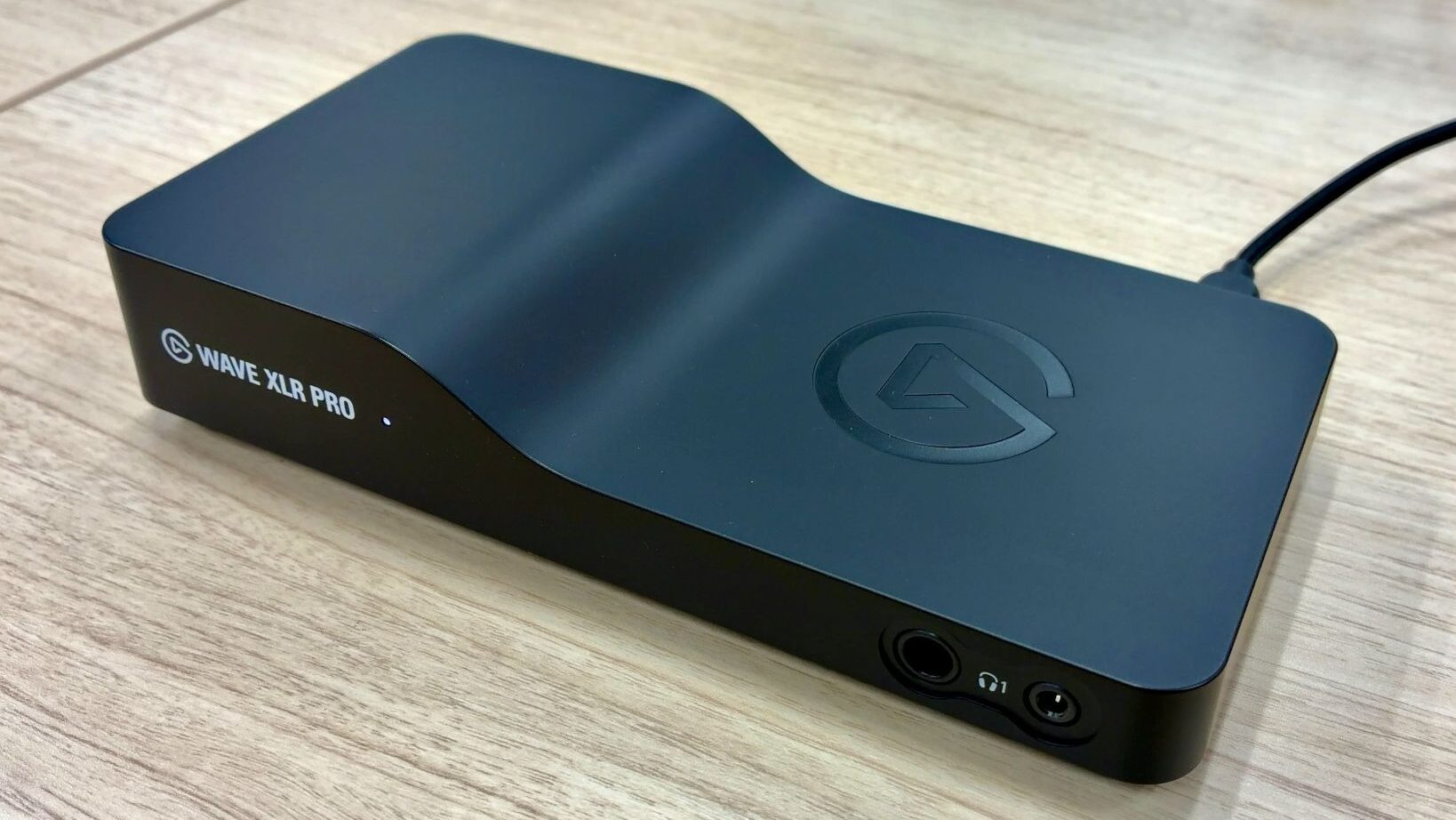
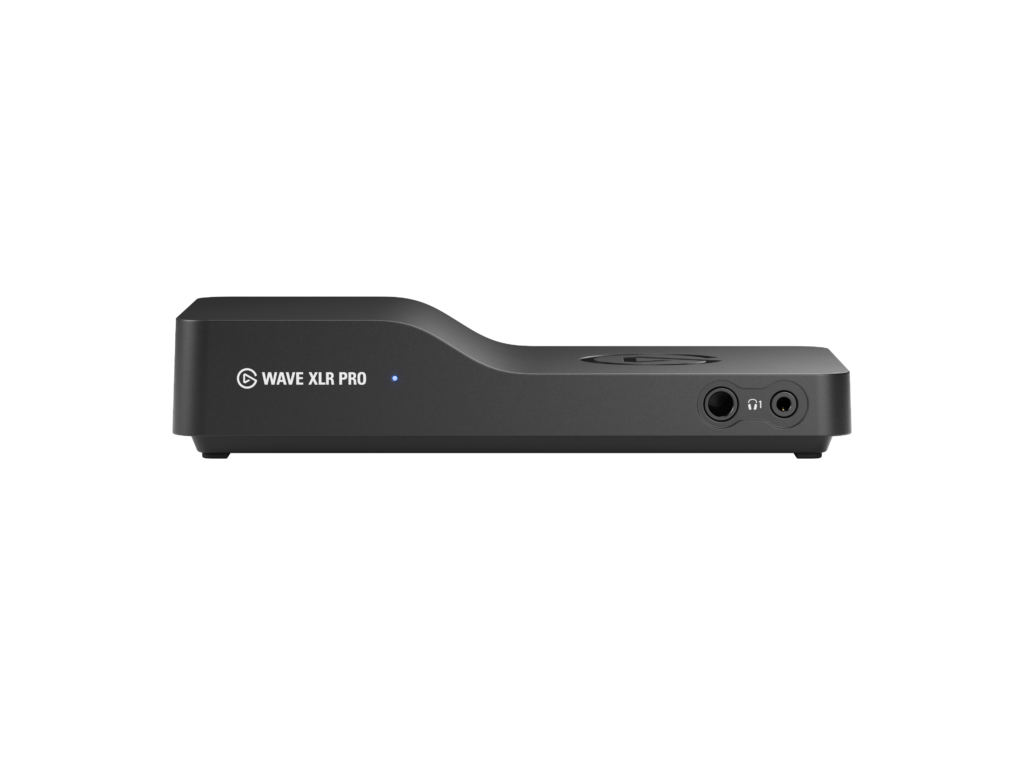
The Wave XLR Pro steps up to two XLR inputs and expands to five independent mix channels. It also lets you assign the front and rear headphone outputs to two different mixes independently. It’s the current top-of-the-line model in the series.
The price has climbed along with the specs, so if you’re streaming with a single mic on a single PC, this will likely be overkill.
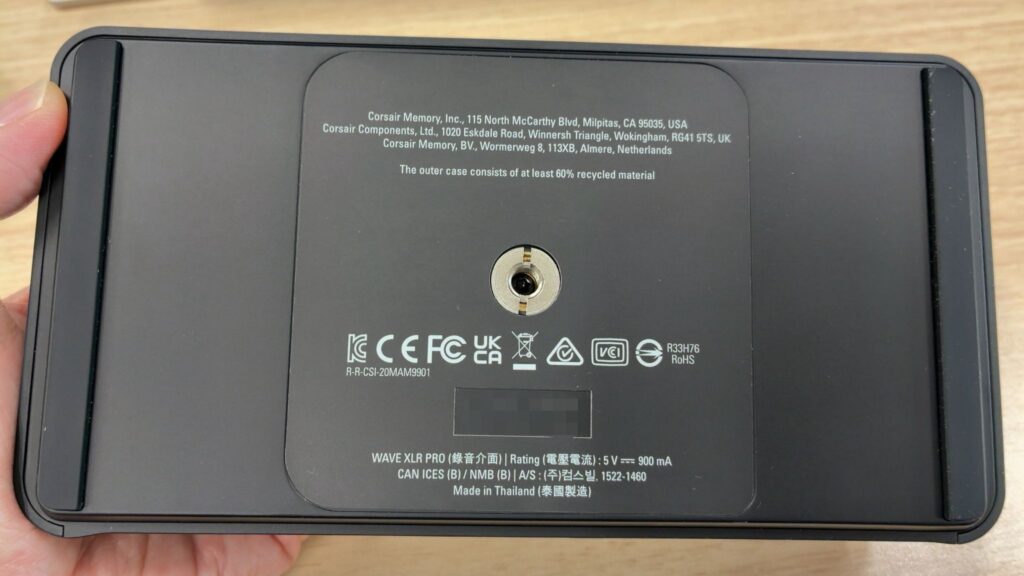
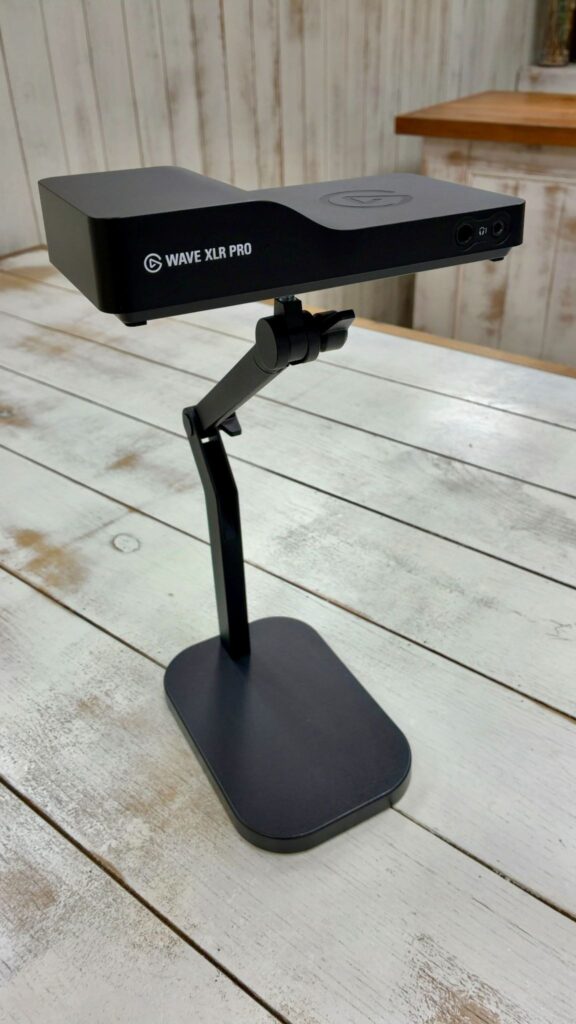
The bottom of the unit has a 1/4-inch threaded mount, so it can be attached directly to a desktop mic stand like the Elgato Wave Desk Stand. That helps free up desk space and keep cables tidy. In practice, you could also clip it to a flex arm — handy for mounting it out of the way and saving space.
For a closer look at the Wave:3 MK.2 and Wave XLR MK.2, check out our in-depth reviews below.
>>Elevate Your Streaming with the Wave:3 MK.2: Perfect for Chat and Games
>>Easy Streaming Audio Setup with Wave XLR MK.2, XLR Dock MK.2, and Stream Deck + XL
At-a-Glance Fit by Streaming Style
| Streaming Style | Fit | Notes |
|---|---|---|
| Just-chatting stream (solo) | ○ | One mic is plenty. BGM ducks automatically when you talk, keeping your voice clear |
| Game streaming (solo) | ○ | Fine control over the balance between game audio and your voice |
| Collab stream (2+ people) | ◎ | Connect two mics at once and return echo-free audio to your collab partner |
| Podcast recording | ◎ | Record a clean, effect-free line simultaneously on a separate channel |
| Dual PC streaming | ◎ | Combine a gaming PC and a streaming PC into a single unit |
| Singing stream / ASMR | △ | Usable, but at this price point it’s worth considering dedicated gear built for singing or ASMR |
Collab streams, podcasts, and dual PC setups are exactly where the Wave XLR Pro’s unique features shine. The two XLR inputs let you run two mics at once, and the five independent mixes let you route a minus-one feed (audio with your partner’s voice removed) or a dry signal (audio captured before effects are applied) to separate outputs. The Host and Aux USB-C ports connect two PCs with a single cable each, and the ducking feature can automatically lower BGM whenever someone starts talking.
We’ll dig into each of these features in detail in the sections below!
Test Conditions | This review was conducted in the following environment
Main PC: —
Streaming software: OBS Studio
Wave Link: latest version
Mics used: Wave DX (dynamic)
Firmware: latest version
*The findings in this article reflect results from our team’s test environment; results may vary depending on your mic model and setup.
Gain and Ducking Performance: Is It Stream-Ready?
80dB of Gain Headroom, with an Optimal Range Around 57–58dB
One of the Wave XLR Pro’s headline features is its “up to 80dB of preamp gain.” It lets you boost the analog signal up to 80dB before it’s converted to digital. Some dynamic mics need 60dB or more of gain, so having 80dB available gives you plenty of headroom across a wide range of mic models.
📘 Glossary | Gain and Preamp Gain
Gain is how much your mic signal gets amplified, measured in decibels (dB) — a unit describing loudness or amplification, where a higher number means more amplification. Even a low-sensitivity dynamic mic can be recorded at a solid volume with enough gain. Preamp gain specifically refers to the amplification applied at the analog stage, before the signal is converted to digital, and is used more or less interchangeably with “gain” in everyday use.
We connected a Wave DX (dynamic mic) and measured across several gain levels.
Here are the results first.
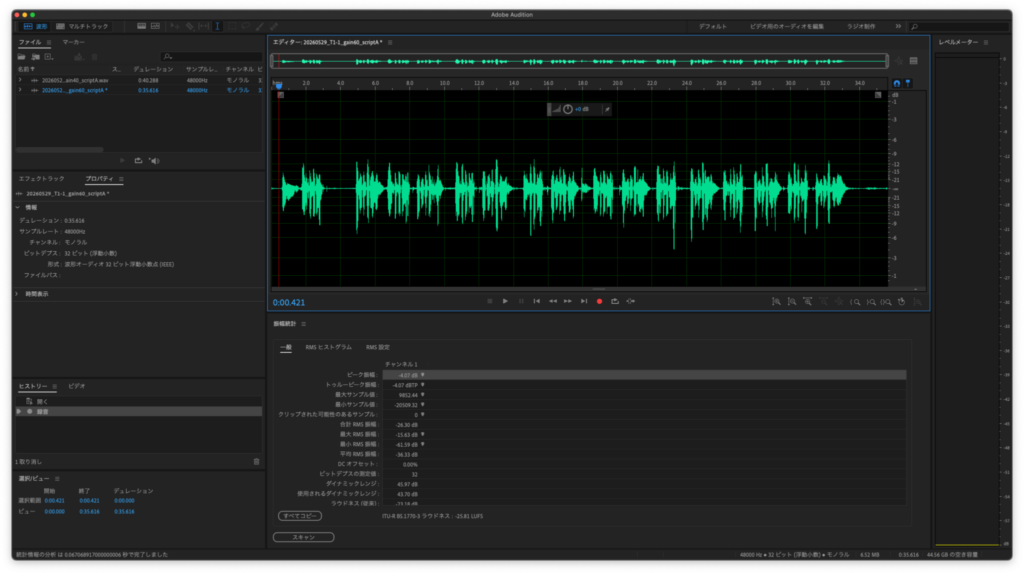
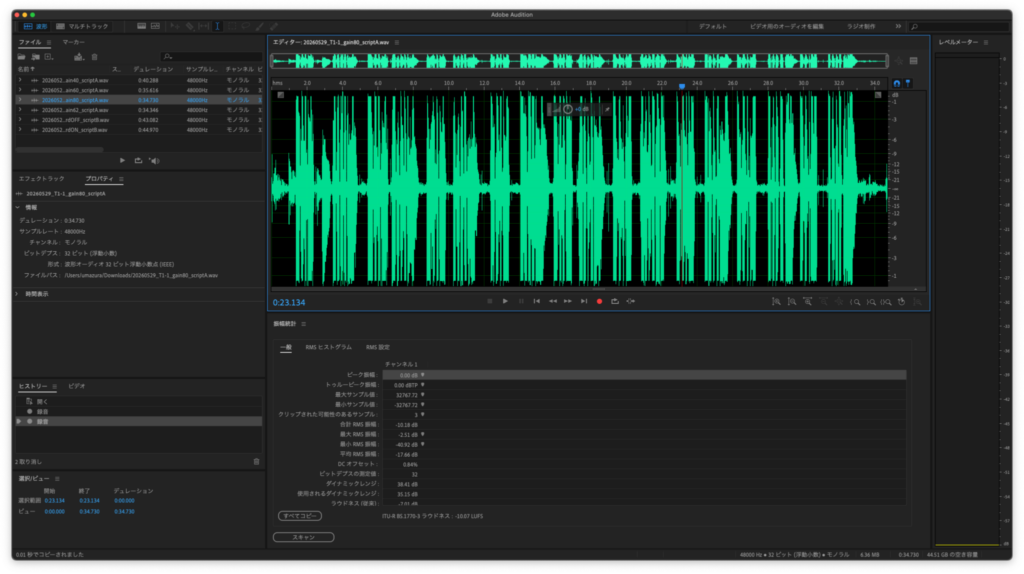
| Gain | Peak Level | Verdict |
|---|---|---|
| 40dB | -22.55 dBFS | Too quiet |
| 60dB | -4.07 dBFS | Optimal range |
| 80dB | 0.00 dBFS | Clipping |
Peak level is the highest point the recorded signal reaches — the closer to 0 dBFS (the digital ceiling), the louder it is, and the larger the negative value, the quieter.
At 40dB, -22.55 dBFS is too quiet, while 60dB lands in the optimal range at -4.07 dBFS. Push it up to 80dB and you hit 0.00 dBFS — the ceiling — and the audio clips.
The optimal gain came out to 57–58dB, with 60dB being the closest preset value. We also tried the “auto gain wizard,” which sets gain automatically with a five-second press-and-hold of the encoder — it landed on 62dB, a touch on the high side.
Note that these measurements were taken with a dynamic mic (Wave DX). Condenser mics are more sensitive, so their optimal gain is typically 20–30dB lower than this.
Hardware Ducking: Fast to React and Natural Even Mid-Stream
Because the Wave XLR Pro’s ducking is processed inside the unit itself, it reacts instantly the moment you start talking. BGM and game audio duck automatically when you speak and return to their original level once you stop.
📘 Glossary | Ducking
A feature that automatically lowers BGM or game audio when you start talking and brings it back up once you finish — useful whenever you want your voice to stay front and center.
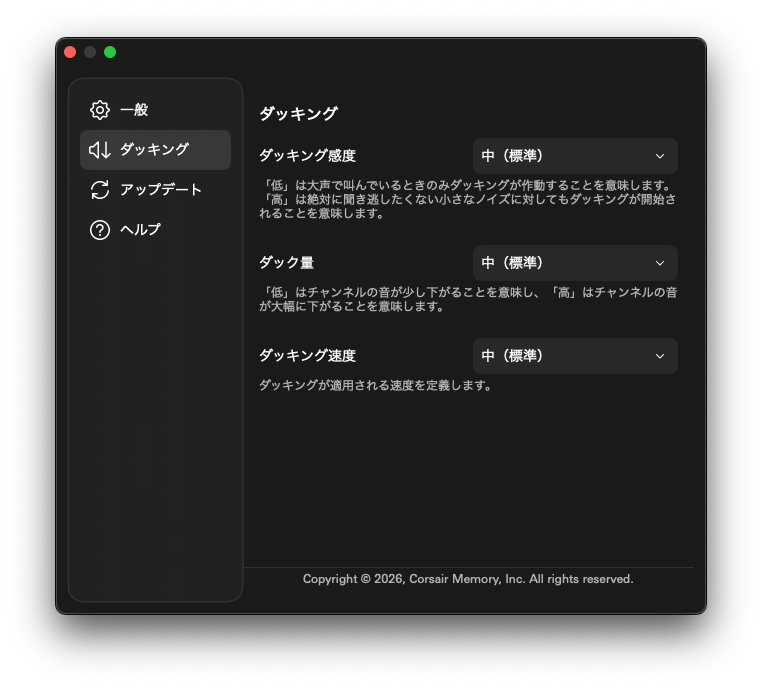
Ducking is controlled through three parameters — depth, attack speed, and recovery speed — each with three settings: low, medium, and high. You can’t dial in exact dB values, but with the defaults (medium/medium/medium) and BGM playing while we talked, the volume changes felt smooth, with no jarring jumps up or down.
Since it can be configured independently per mix, you could have ducking on for Mix 1 (your stream feed) and off for Mix 2 (your own monitoring). Because ducking is processed by the Wave XLR Pro itself, it also works even when the Wave Link software isn’t running — a nice bonus.
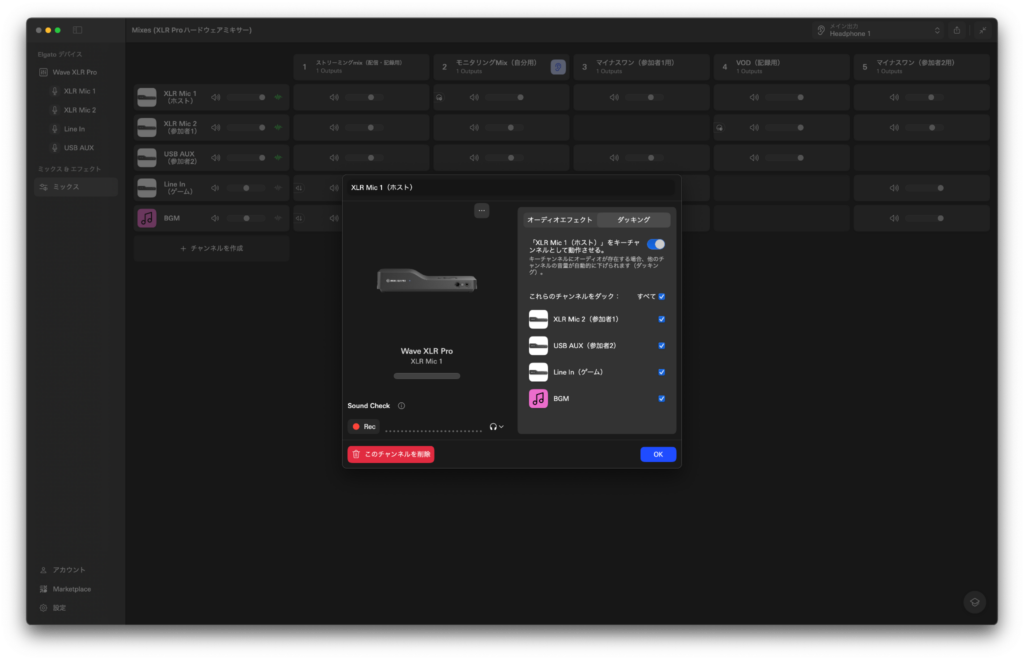
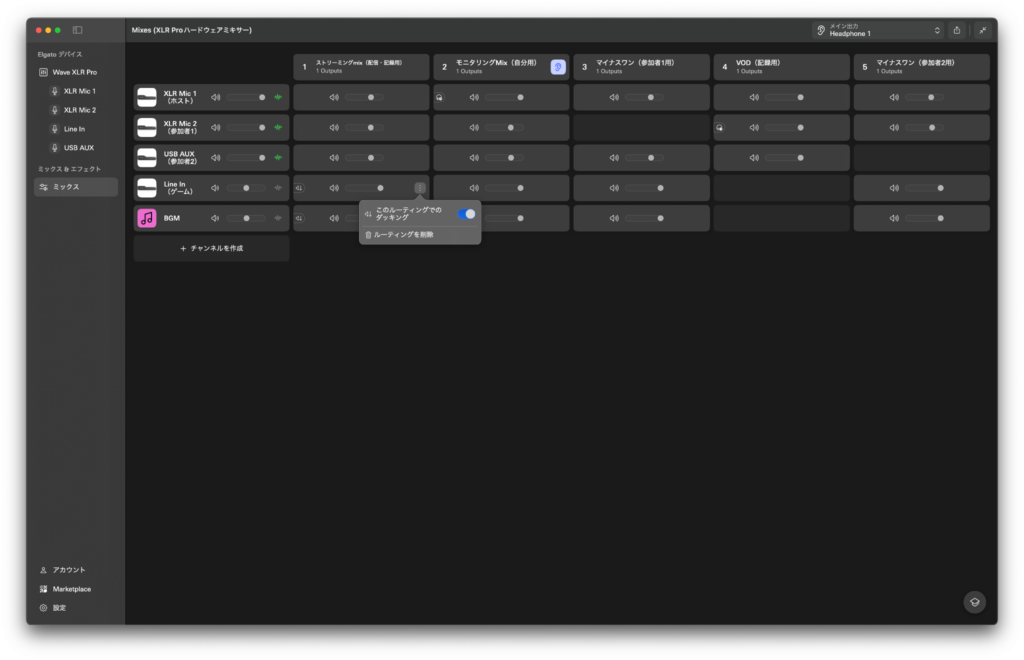
Test Conditions | Gain and Ducking Testing
Mic used: Wave DX (dynamic)
Ducking settings: Default (medium/medium/medium)
Audio Effects: Everything from the Wave XLR MK.2, Carried Over
The audio processing that made the Wave XLR MK.2 popular carries over to the Pro unchanged. That includes the DSP effects that shape your voice and Clipguard 2.0, which prevents sudden clipping. Both run on the Wave XLR Pro’s own hardware, so they don’t add any load to your PC.
The DSP effects cover five types — low-cut filter, expander, compressor, EQ, and voice tune — all adjustable via sliders in Wave Link. Clipguard 2.0 is also present, protecting against distortion from sudden loud input.
It also supports VST Insert. VST is a plugin standard that lets you add third-party audio effects like reverb or voice changers. With Wave XLR Pro’s “VST Insert” mechanism, VST plugin audio is routed through the unit’s low-latency internal path before reaching your PC. Since it skips the usual virtual audio device step, latency stays low and setup is simpler.
For more detail on each of these features, see our Wave XLR MK.2 review. Worth a look alongside this article.
>>Easy Streaming Audio Setup with Wave XLR MK.2, XLR Dock MK.2, and Stream Deck + XL
How 5-Channel Mixing Changes Collab Streaming
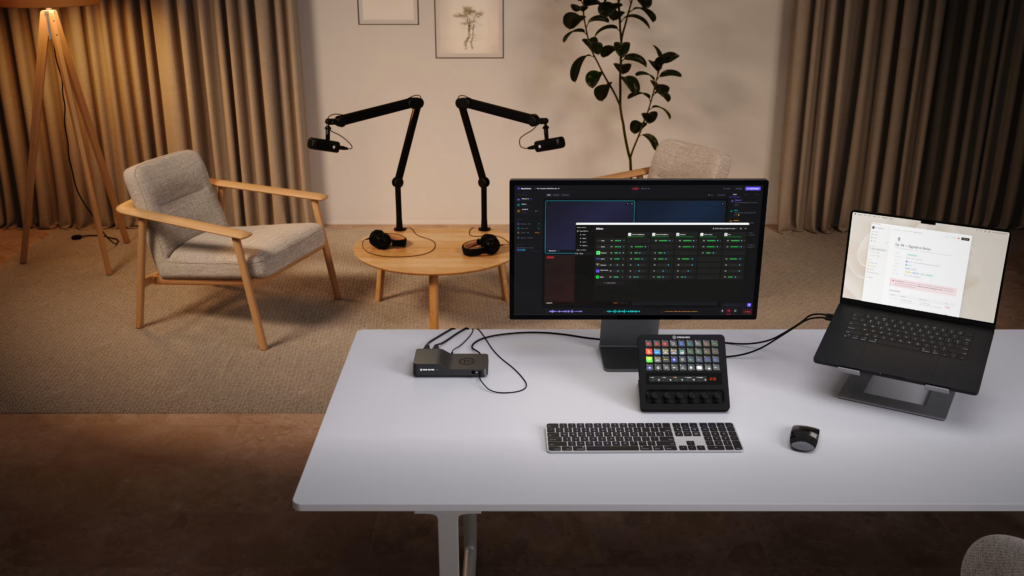
The Wave XLR Pro’s standout feature is its ability to manage up to five separate mix destinations at the same time.
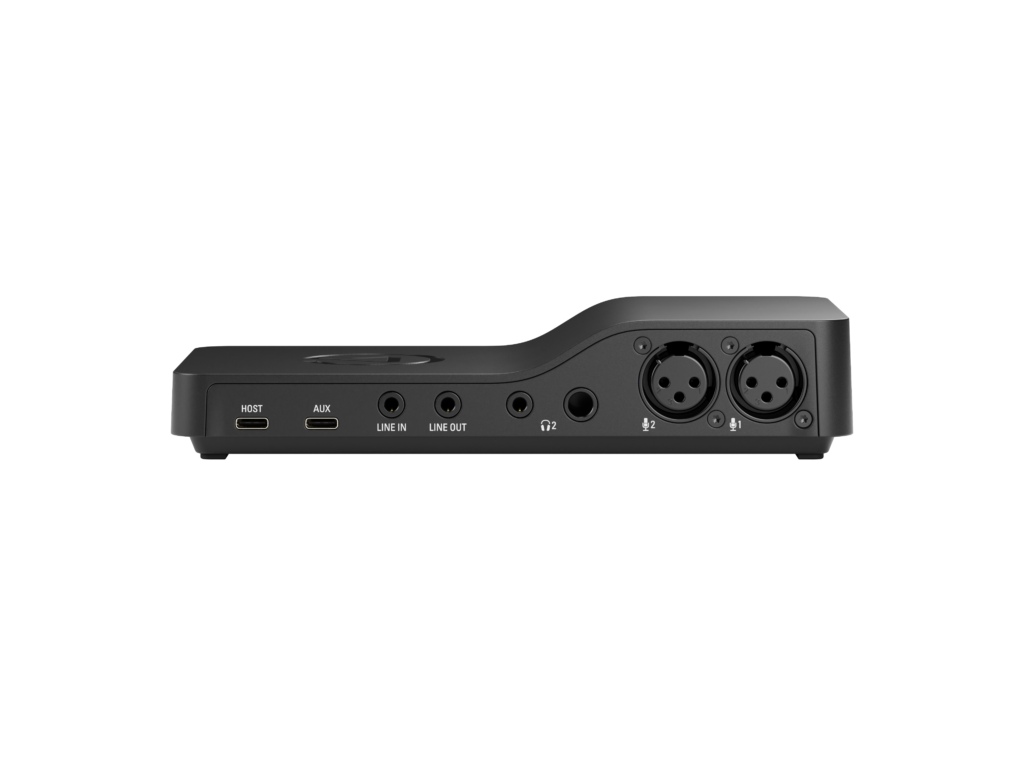
It has two USB-C ports — Host (for your main PC) and Aux (for a second PC) — each able to connect a separate machine. The Host port connects your main streaming PC, and it’s on that PC where the Wave Link software runs. The Aux port is for a second device, like a gaming PC or a smartphone.
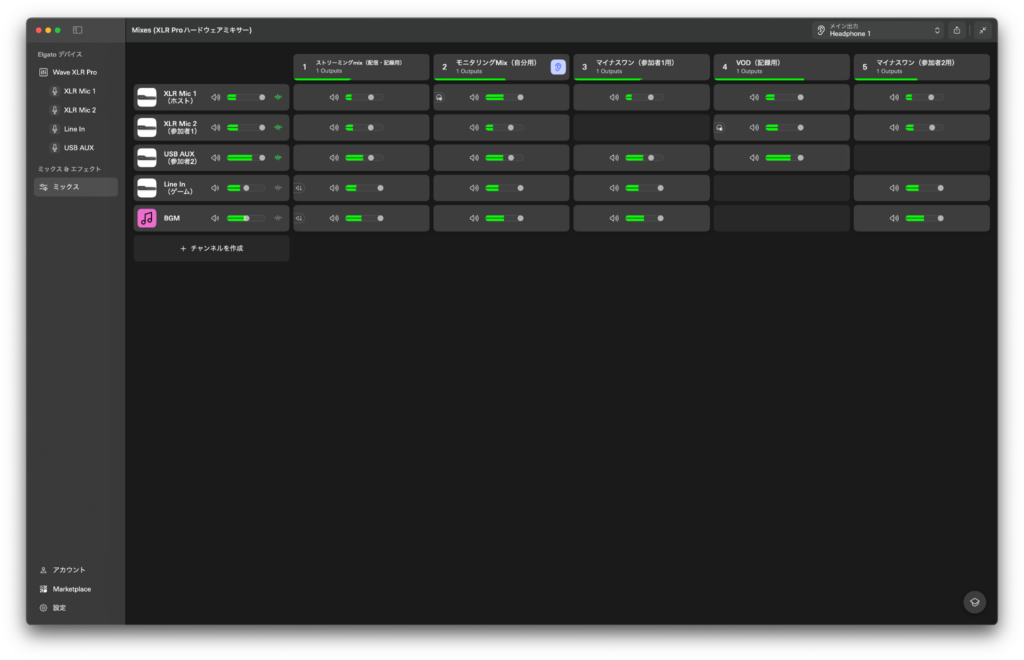
Here’s an example configuration where two people share a room, each with an XLR mic, streaming while also recording a dry track simultaneously.
| Mix | Purpose | Configuration |
|---|---|---|
| Mix 1 | Streaming / recording | Mic + BGM + game audio, ducking on |
| Mix 2 | Your own monitoring | Your voice boosted |
| Mix 3 | In-room guest monitoring | Sends a minus-one feed to the rear headphone output, so your guest hears the other person echo-free |
| Mix 4 | Archive recording | Mic 1 + Mic 2 + Aux guest, no BGM |
| Mix 5 | Aux guest connection | A phone or secondary PC connects physically via USB-C Aux. It’s recognized without drivers, and an echo-free return mix is sent back over Aux |
📘 Glossary | Minus-One
An audio mix with the recipient’s own voice removed. Sending this to a collab partner keeps them from hearing their own voice echoed back.
We Actually Tried It in a Dual PC Setup
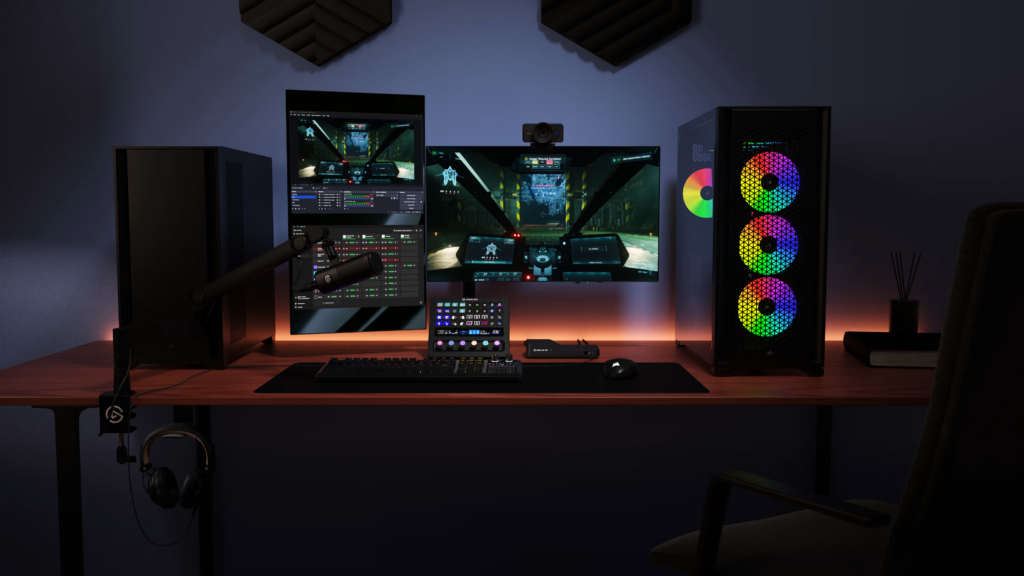
We connected a Mac (Host) and a Windows PC (Aux), and the Windows machine was recognized the moment it was plugged in — no drivers needed. Normally, combining audio from two PCs into one device requires a separate capture card or mixer, but with the Wave XLR Pro a single USB cable handles it. Wave Link treats the Windows audio as a “USB Aux channel,” so game audio drops straight into the mix.
📘 Glossary | Dual PC Streaming
A setup that splits gameplay onto one PC and streaming/encoding onto another. Distributing the workload makes it easier to keep both stream quality and game performance high — a setup common among more advanced streamers.
Because the front and rear headphone outputs (both supporting 3.5mm and 6.3mm) can each be assigned a different mix, you can give yourself and your collab partner completely separate monitoring setups. We ran all five mixes at once and didn’t hit any dropouts or interference.
Operation Really Comes Together with a Stream Deck
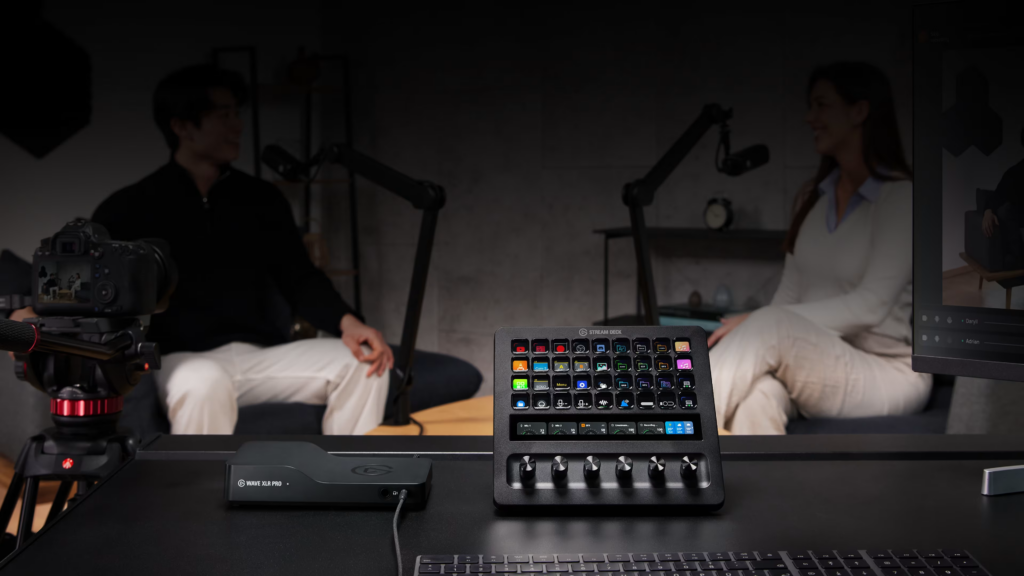
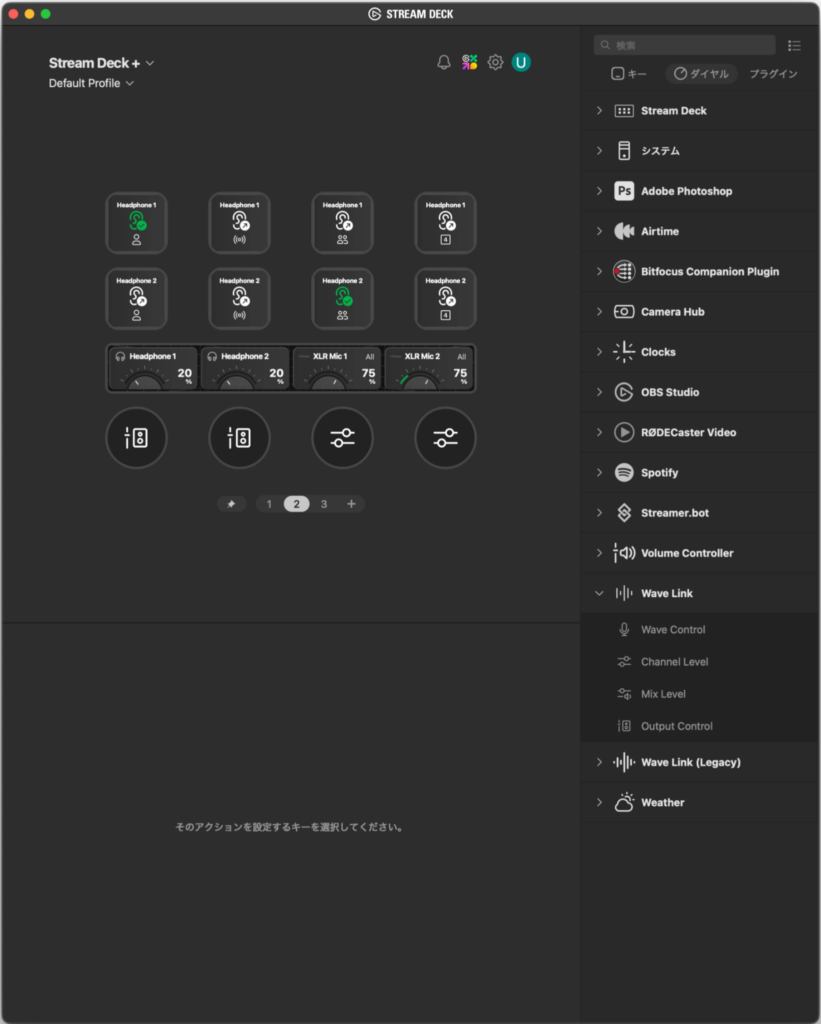
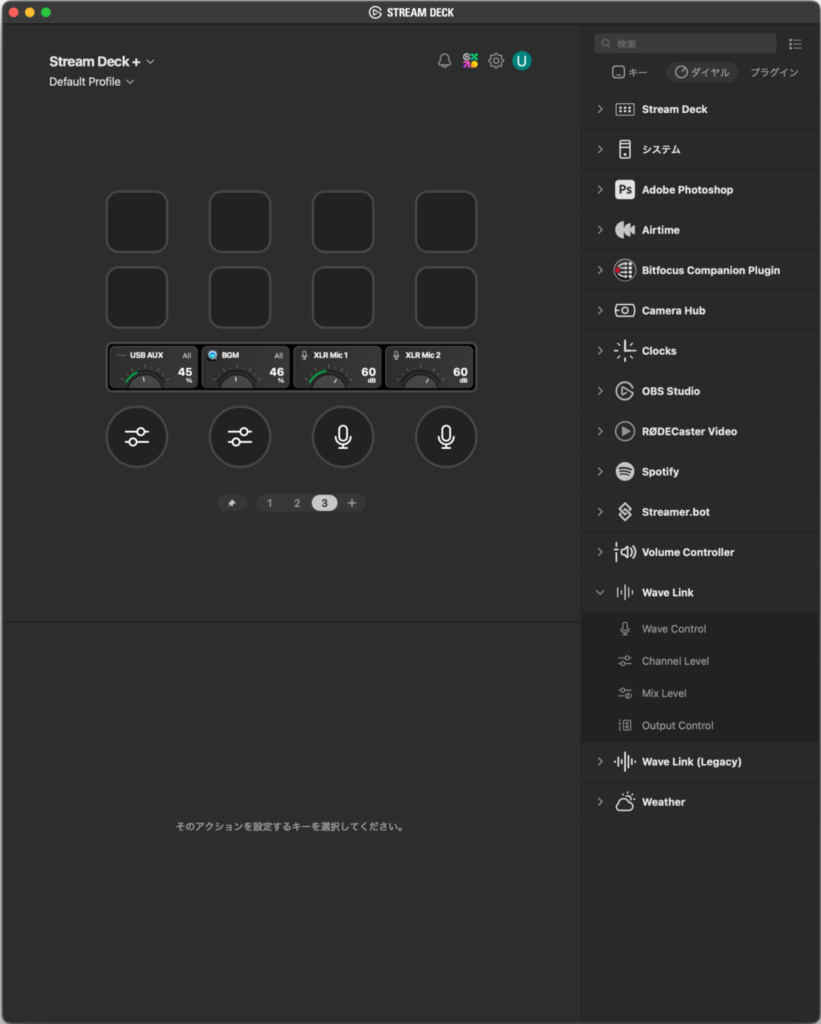
The Wave XLR Pro has no physical faders or switches. Every mix change and volume adjustment happens through the Wave Link software. It works fine without a Stream Deck, but adjusting things in real time with just a mouse mid-stream is impractical — pairing it with a Stream Deck is effectively a requirement.
Set up the official Wave Link plugin on a Stream Deck and you get one-button control over volume, mute, mix switching, and effect toggles, with almost zero delay between pressing a button and seeing it take effect. The Stream Deck+ (the model with dials) is especially nice here, since its dials can be mapped directly to Wave Link’s volume controls, giving you something close to the feel of a physical mixer. If you’d rather prioritize button count, the Stream Deck XL (32 buttons) is also a solid option.
Keep in mind that Stream Deck integration is software-based, so if Wave Link crashes unexpectedly, you lose control entirely. That’s a different kind of reliability than a hardware mixer, which just works the moment you power it on — worth keeping in mind.
Standalone Mode: Recording and Phone Streaming Without a PC
The Wave XLR Pro also supports a “standalone mode” that lets it run independently, without a PC. Of the audio interfaces in the Wave Link lineup, the Wave XLR Pro is the only one that supports this.
Without a PC, it recalls the gain, DSP effect, and mix settings you previously saved in Wave Link, so you can still record with an XLR mic or stream from your phone. Just connect a USB charger to the Host port (the USB-C port normally used for your main PC) and it powers on. It may work with power through the Aux port alone in some cases, but Elgato officially recommends powering through the Host port for stable operation.
We confirmed it working with an iPhone connected via USB-C Aux. The iPhone’s audio gets folded into the Wave XLR Pro’s mix and returned to the iPhone alongside audio from the XLR mic and Line In. Android devices are supported too, making a phone-centric streaming or recording setup without a PC entirely realistic.
VST plugins run on the PC side, so they’re not available in standalone mode. DSP effects and Clipguard 2.0 remain active.
Connecting to Game Consoles
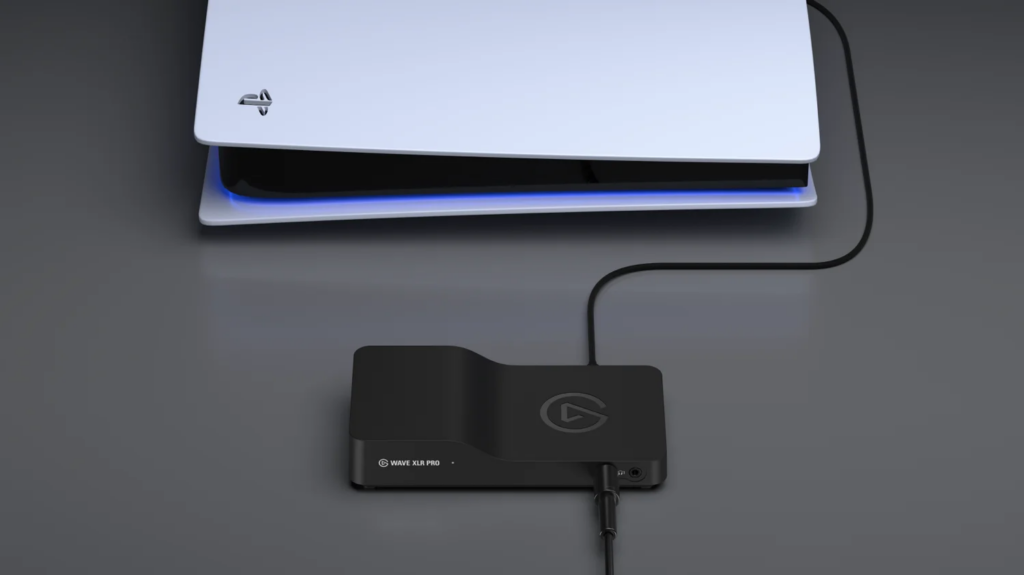
The PS5 connects directly via USB-C and is recognized right away. The Xbox Series S|X and Nintendo Switch / Switch 2 use an analog connection via a TRRS splitter instead. Since the connection method varies by console, it’s worth checking Elgato’s official connection guide for the console you plan to use.
Conclusion: The Next Upgrade for Wave Link Power Users
Who This Is For
Based on our testing, the Wave XLR Pro is especially well suited to:
- Anyone already using an Elgato Wave XLR and looking to expand its capabilities
- Anyone running, or planning to run, a dual PC setup with separate gaming and streaming machines
- Anyone wanting to run collab streams or podcast recordings with two mics
- Stream Deck owners who want audio control folded into it too
- Anyone considering standalone use without a PC
On the other hand, if you’re still on a single mic, single PC, and not yet comfortable with Wave Link, we’d recommend starting with the Wave XLR MK.2 instead.
For Anyone Ready to Rethink Their Whole Audio Setup
At its tested price of 59,980 yen (tax included), this falls into the expensive tier of streaming gear. That said, when you consider the alternative — buying a separate physical mixer and adding even more cables to your desk — a Wave XLR Pro plus Stream Deck setup that’s self-contained starts to look pretty reasonable.
Whether 59,980 yen is worth it comes down to whether you’ll actually use all five mix channels. If you already need to separate your stream and recording audio, send a minus-one feed to a collab partner, or keep a BGM-free line for archiving, this one device covers all of it.
There’s a real learning curve to Wave Link, and a Stream Deck is practically assumed — but once you’ve got it dialed in, you can skip buying a separate hardware mixer entirely. If you’re already perfectly happy with your current setup, this might not be the right time to invest. But if you’re an Elgato user who’s put in the hours with Wave Link and is looking for your next upgrade, this is the product that should be at the top of your list.
If you’re interested in the device we tested here, check out the official product page below.
https://www.elgato.com/us/en/p/wave-xlr-pro
Equipment provided by: Corsair Gaming, Inc. (Elgato)
Review by: Umazura