

Share


No Cables, No Mixer: Routing Audio Between Two PCs with Elgato Wave Cast
Have you ever wished you had two PCs while gaming and streaming or on a call at the same time?
Running your game on your main PC and handling calls or streaming on a secondary one opens up a world of possibilities — stream without worrying about frame drops, or work on one machine while managing assets and research on the other.
Whether you already have a secondary PC, have an old one gathering dust, or own two machines but haven’t figured out how to connect them — a dual-PC setup has clear appeal.
The biggest hurdle, though, is audio routing. Figuring out how to send game audio, your voice, and your co-streamer’s voice between two machines usually means diving into cables and mixers — and that’s where a lot of people give up and stick with a single PC.
That’s exactly the problem Elgato Wave Cast is designed to solve.
Wave Cast lets you route audio between two PCs over your network — no cables, no mixer required.
In this article, we built an actual dual-PC setup and tested everything from initial configuration and per-app audio routing to mic send-back for unified voice calls, plus integration with OBS and Stream Deck.

Key Takeaways
- Software that routes audio between two PCs without cables or a mixer (available on Elgato Marketplace, approx. $54.99)
- Wired connection auto-pairs in 1–2 seconds — no IP address entry needed
- Send your secondary PC’s mic back to the main PC, so Discord/Zoom calls stay on one machine
- Still maturing software: no auto-reconnect, launch-order quirks. Future updates should address these
Test Conditions — This review was conducted under the following setup
OS: Windows 11 (both PCs)
Wave Cast version: latest at time of testing
Connection: wired (via shared switch) / Wi-Fi (for comparison)
Streaming software: OBS Studio
Call testing: Discord, Zoom
*Results are based on our testing environment and may vary depending on your network setup and PC configuration.

Setup Is Simple — Connection Is One Click
Wired via the Same Switch: Auto-Connects in 1–2 Seconds
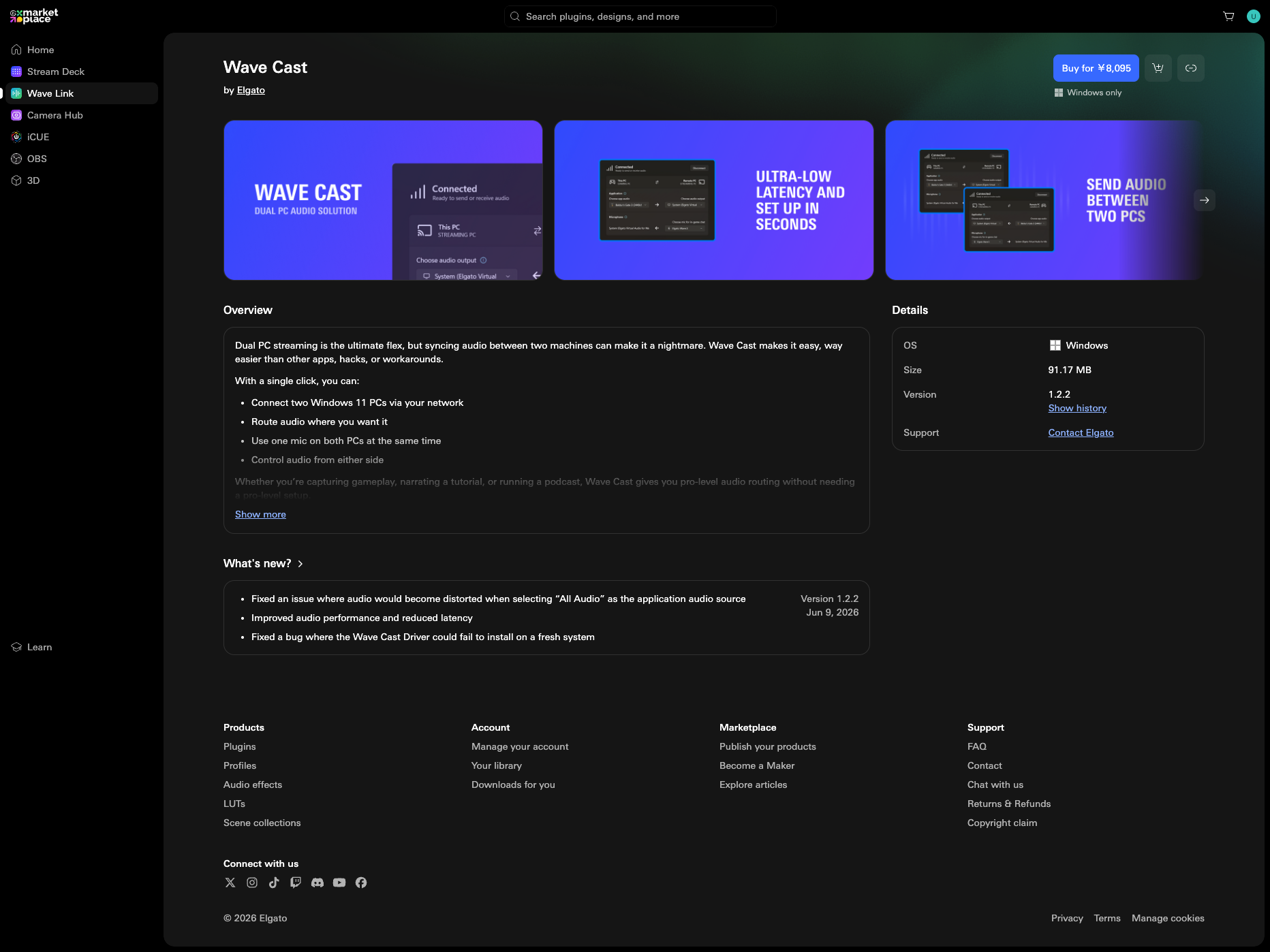
Wave Cast is available on the Elgato Marketplace for approximately $54.99 (as of July 7, 2026). Just install it on both PCs and enter your license key to get started. One license key works on both machines, so there’s no need to purchase two.
The process is straightforward:
- Log in
- Download from your library (the license key is displayed at this step)
- Install
- Enter the key
That’s all it took to purchase and launch the app.
Note that Wave Cast requires Windows 11 (Windows 10 is not supported). Be sure to check your OS before installing.
The connection process is equally simple.
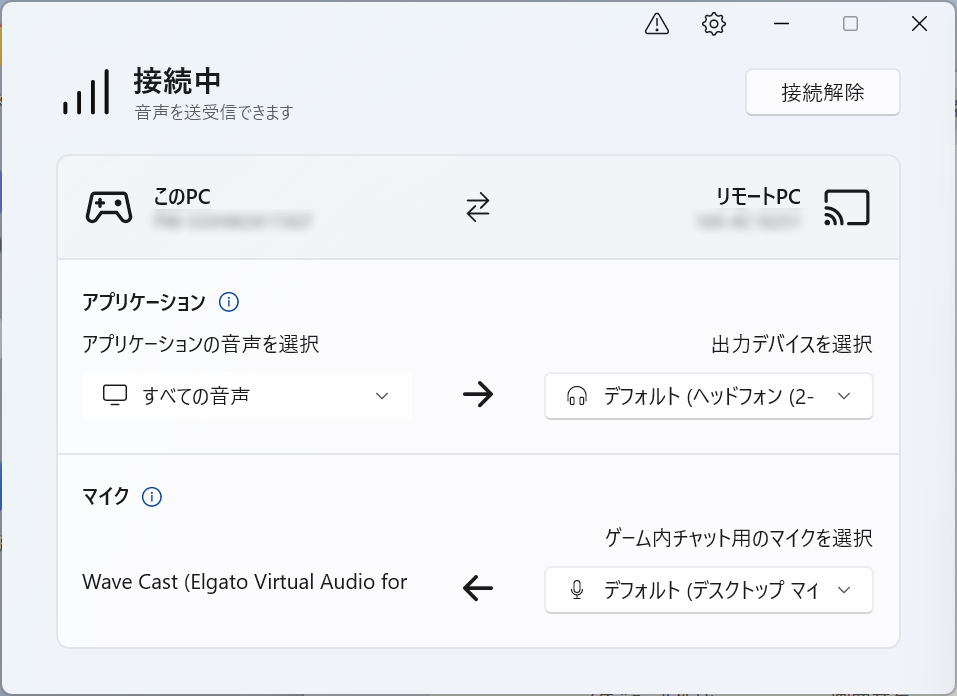
Launch the app on both PCs and assign roles — main (gaming) and sub (streaming). On a wired connection through the same switch, it auto-connects in about 1–2 seconds with no IP address entry required.
One thing to keep in mind: Wave Cast doesn’t auto-reconnect. If the network drops, you’ll need to restart the app. Worth remembering if your connection tends to be unstable during streams.
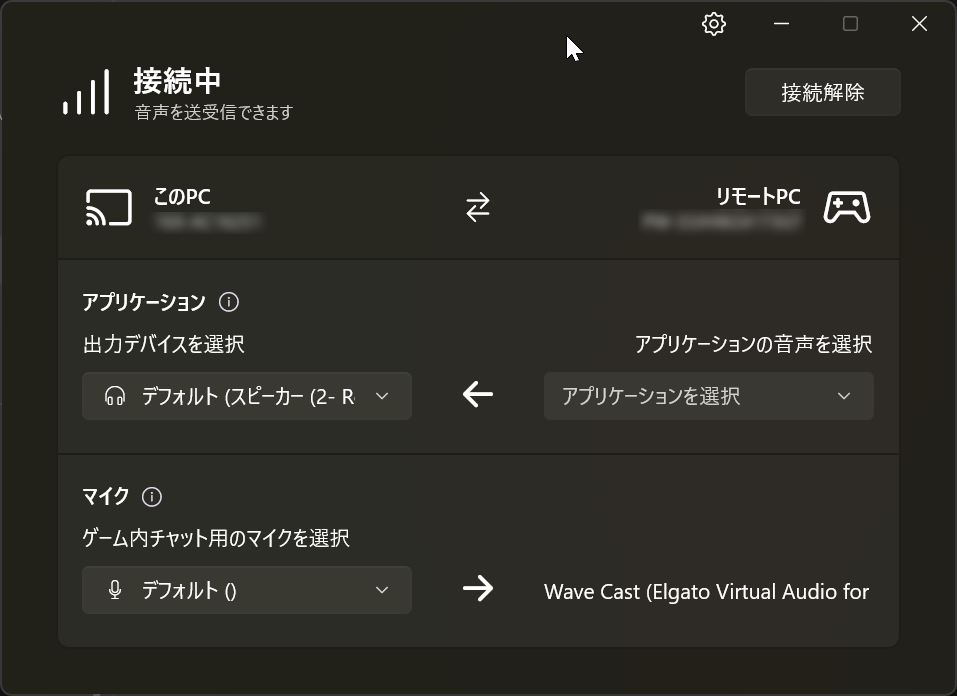
Connection screen on the sub PC (streaming).
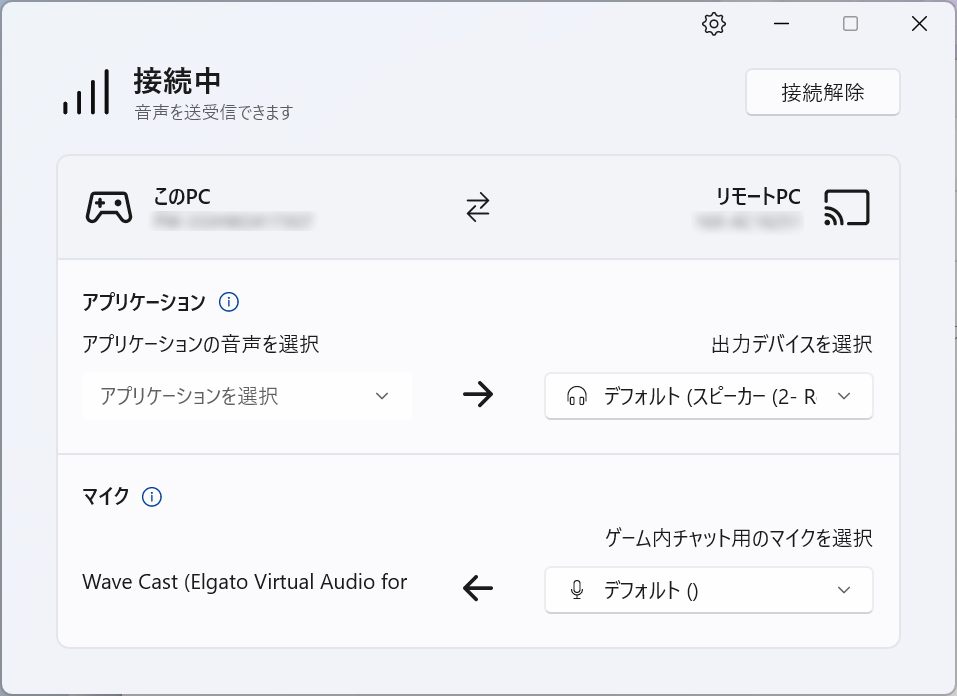
Connection screen on the main PC (gaming).
💡 About Main and Sub Roles
In this review, we designated the main PC for gaming and the sub PC for streaming, but this was simply for testing purposes. Which PC handles which task depends on your streaming style. Wave Cast lets you swap roles with a single software toggle, and there’s no functional difference either way. We even swapped roles mid-test for thermal management, and everything worked fine.
Route Only the Audio You Want
Per-App Selection and Focus App Mode for Flexible Routing
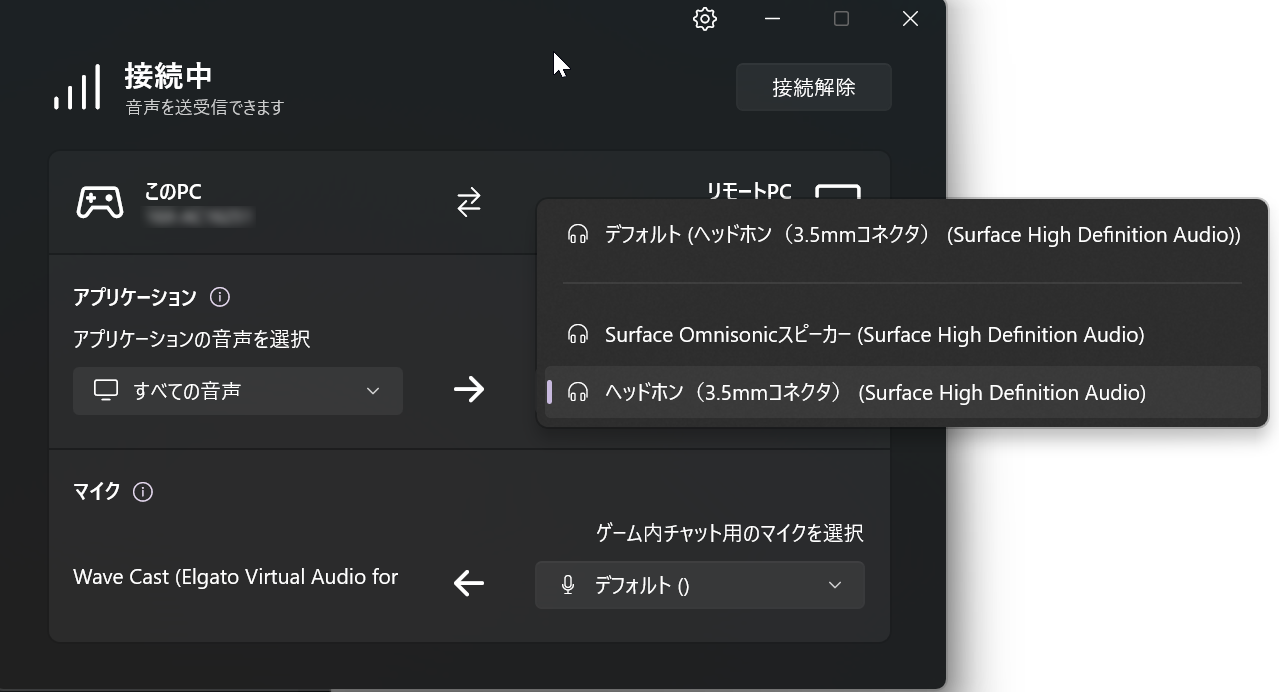
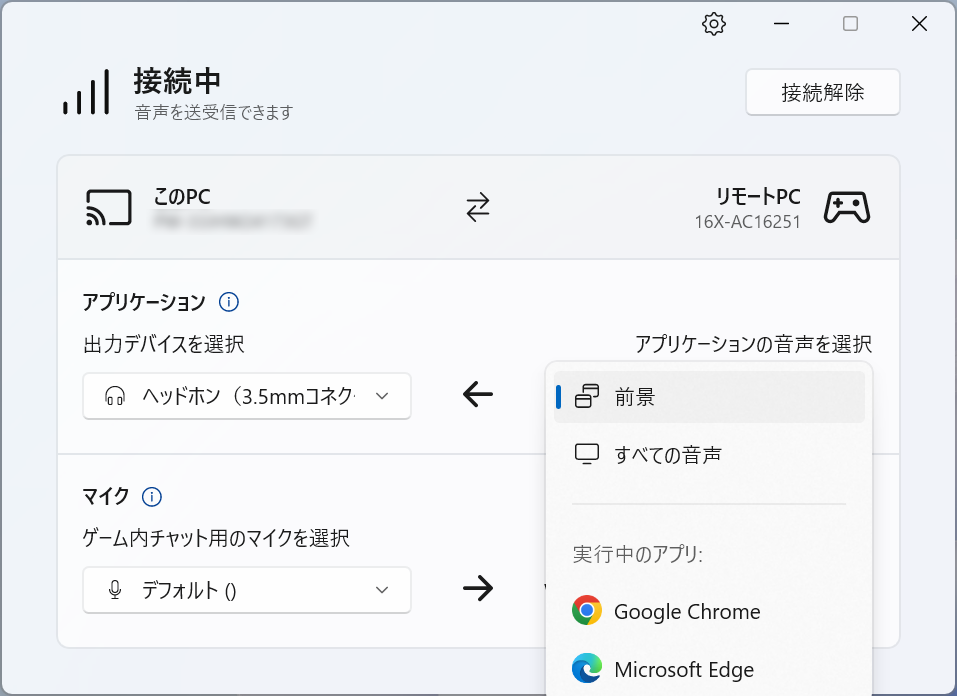
Wave Cast offers three audio routing modes:
- All Audio: Sends everything your PC outputs. No configuration needed, but notification sounds and other unintended audio get sent along too.
- Per-App Selection: Choose specific apps — like your game or voice chat — to route individually. This gives you the most control and is the most practical mode for streaming.
- Focus App: Automatically routes audio from whichever app is currently in focus. Switch from your game to a browser, and the audio follows automatically.
We tested all three modes and found no audio leakage. Switching between them was fast and intuitive.
One caveat: apps launched after Wave Cast is already connected won’t appear in the per-app list. Make sure to open all the apps you want to route before connecting Wave Cast.
📘 Glossary — Routing
Routing refers to how you direct audio from specific apps to specific destinations. Wave Cast gives you three options: send everything, pick individual apps, or automatically follow whichever app you’re currently using.
Wired Is the Way to Go — Wi-Fi Works Under the Right Conditions
On a wired connection, latency was negligible — we checked for lip-sync drift and noticed no discrepancy. Elgato’s official site states that Wi-Fi connections also deliver low latency, so either method should work well in practice.
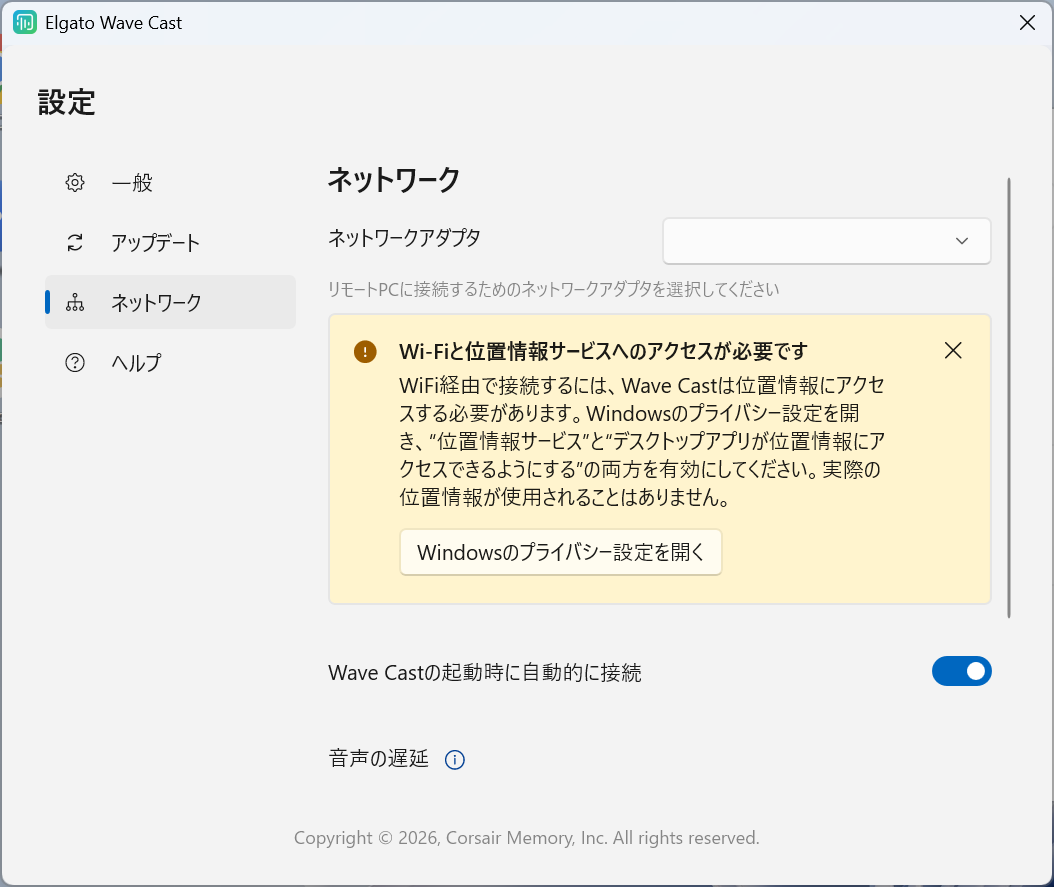
That said, during our testing with a company-managed PC, the Wi-Fi option didn’t appear in Wave Cast’s network list at all. It worked fine on an unmanaged PC, so this appears to be a security policy restriction rather than a Wave Cast bug.
If you’re using a company-issued or IT-managed PC as your secondary machine, be aware that not just Wi-Fi but even direct Ethernet connections (without going through a switch) might be blocked. Connecting through a home router or switch is the safest bet.
One Mic Covers Both PCs
Send Back the Sub PC’s Mic to Handle All Calls on the Main PC
Traditionally, sharing a mic between two PCs required an audio mixer or physically splitting the cable. With Wave Cast, you can send your sub PC’s (streaming) mic audio back to the main PC (gaming) over the network — no extra hardware needed, and you’re down to a single mic.
In our testing, the sub PC’s mic showed up as a virtual microphone on the main PC, and calls on both Discord and Zoom worked perfectly. Audio quality was clear with virtually no noticeable latency. Just eliminating all those cables makes a real difference in how clean your desk setup looks.
Wave Cast’s virtual microphone recognized on the main PC
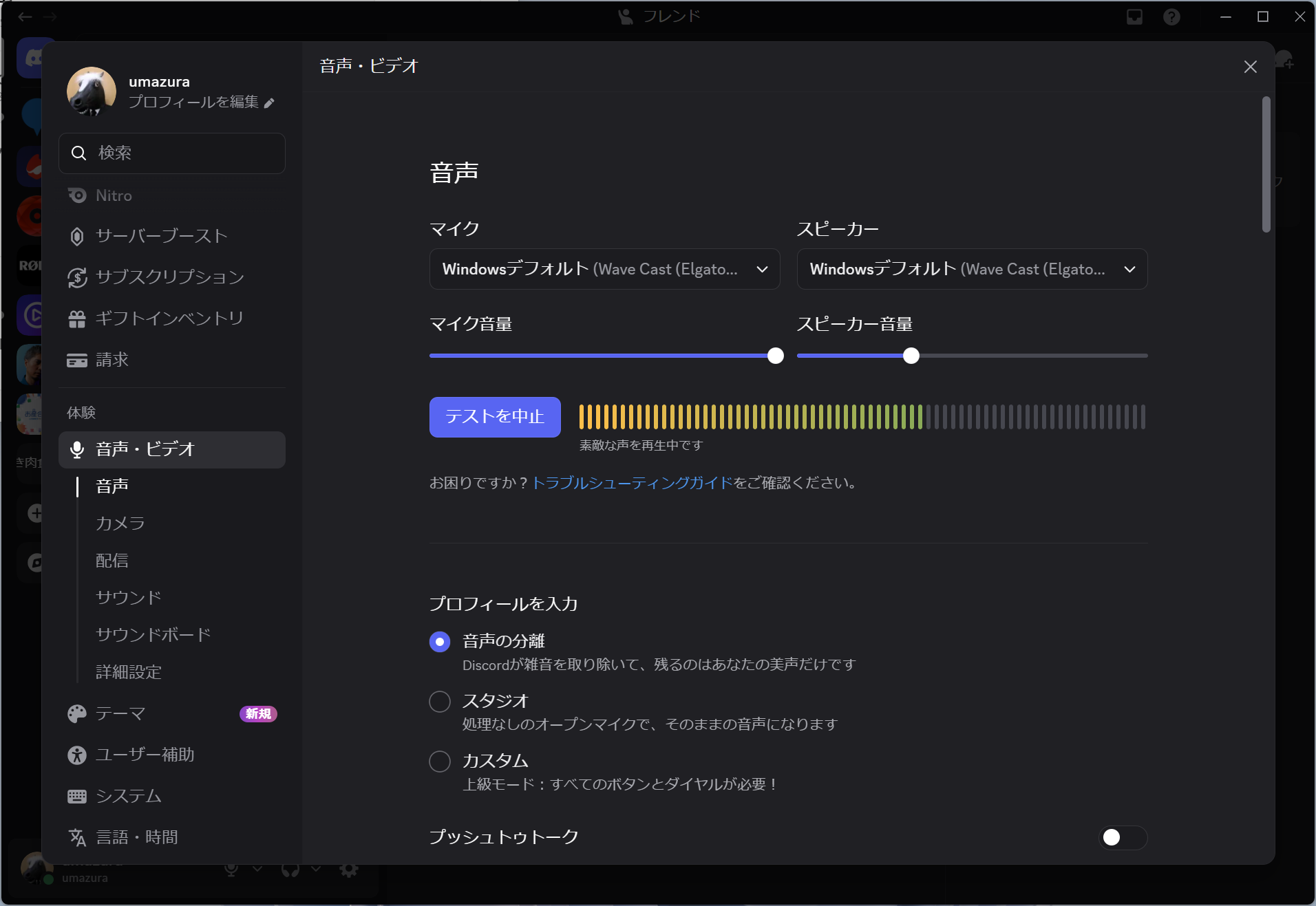
Discord voice settings with Wave Cast’s virtual device selected during a test call
One important note: setting the routing to “All Audio” causes your own voice to echo back through your headphones. Since the mic audio travels to the sub PC first and then returns, “All Audio” mode sends your own voice back along with everything else. Switching to “Per-App Selection” or “Focus App” mode eliminates this issue entirely, so we recommend using one of those from the start when making calls.
Compatibility with OBS and Wave Link
Quick and Easy via OBS Direct — More Control via Wave Link
Adding Wave Cast audio to OBS is as simple as selecting it as an audio source. Setup is straightforward, and the audio quality was clean. We did experience a brief burst of noise once during testing, but it cleared up after switching to a more stable network connection. Since Wave Cast sends audio over the network, an unstable connection can introduce noise — so a wired setup or placing your router nearby is recommended.
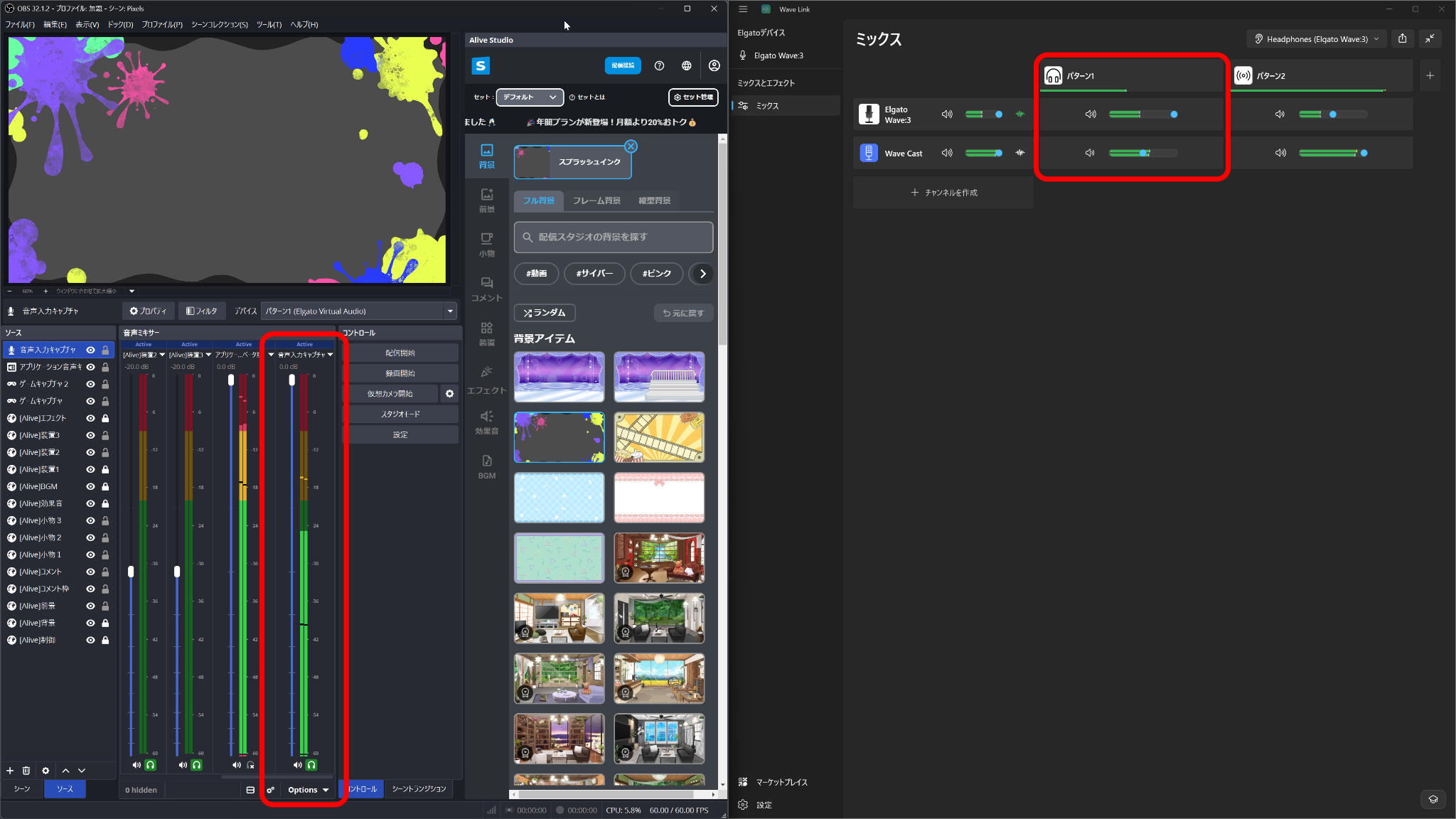
For more granular control, you can route Wave Cast through Elgato’s mixer software, Wave Link. This lets you split game audio and mic audio into separate channels, and create independent volume mixes for your stream output and your own headphones. For a quick setup, go with OBS direct; for fine-tuned stream-vs-monitor mixing, Wave Link is the way to go.
One-Touch Control via Stream Deck
Button-Press Convenience — But Relies on an OBS Beta Feature
With the Stream Deck plugin, you can connect/disconnect, switch app audio routing, and monitor real-time latency (displayed in milliseconds) — all with a single button press. The experience felt smooth overall.
However, the audio-switching button only works when OBS is using its “Application Audio Capture” feature, which lets you capture audio directly from a specific app. As of July 2026, this remains a beta feature in OBS. If you want to take full advantage of the Stream Deck integration, keep this in mind.
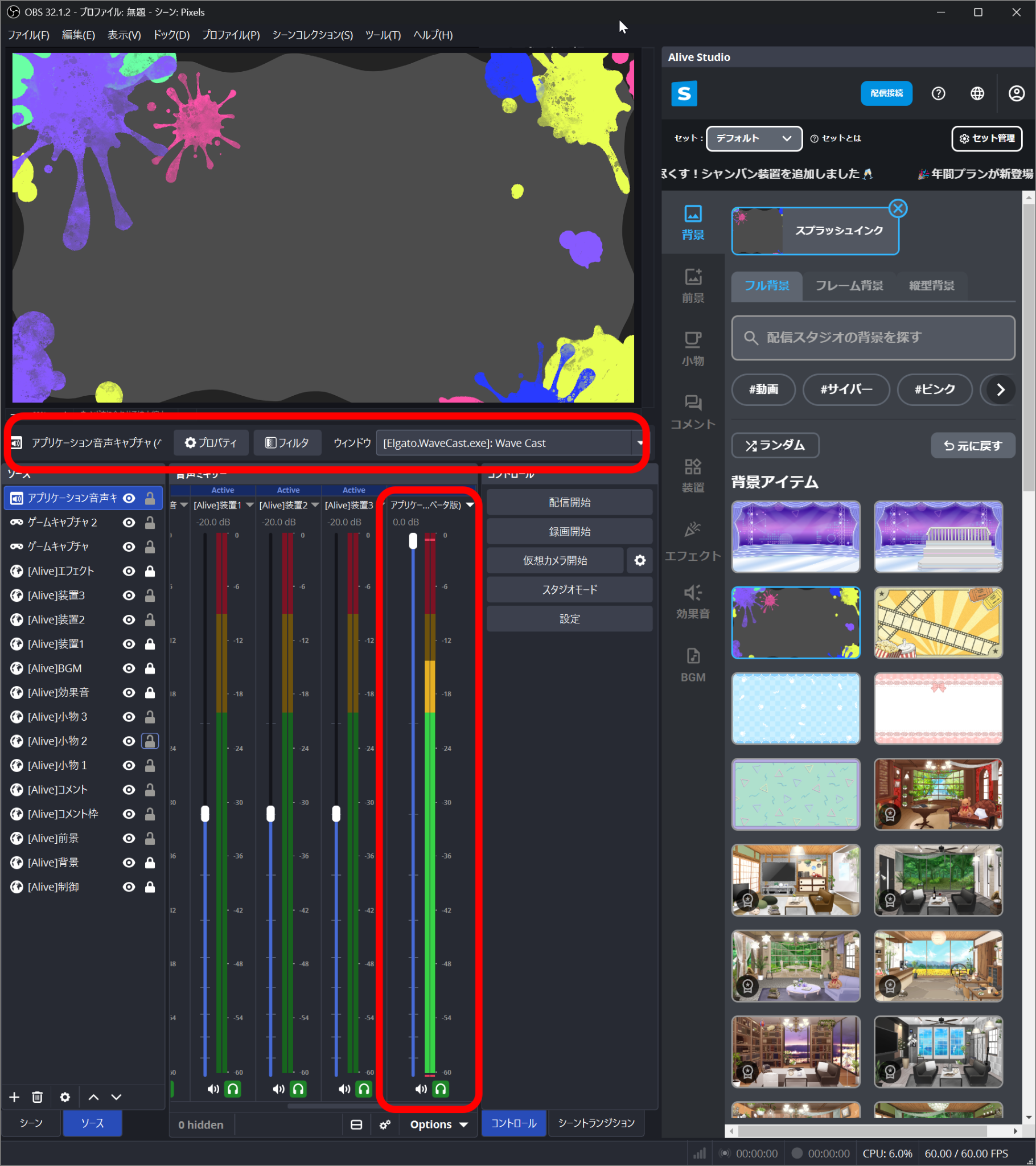
OBS “Application Audio Capture” with Wave Cast selected (highlighted section)
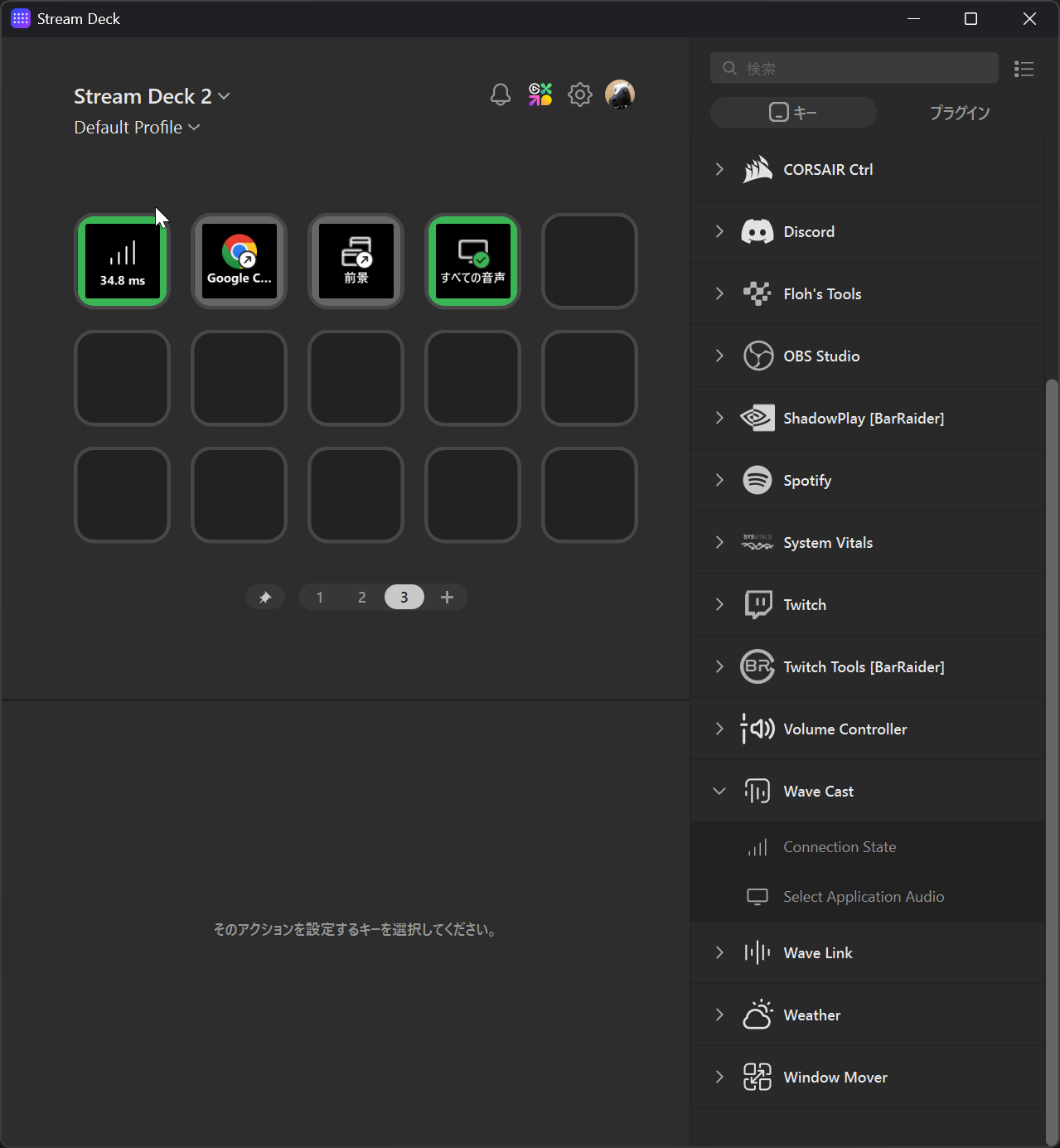
Wave Cast buttons on Stream Deck. Shows real-time latency (34.8ms) and app audio switching
Conclusion
Based on our testing, here are three tips for getting the most out of Wave Cast:
- Use a wired connection through a switch or router as your baseline
- Launch all the apps you want to route before connecting Wave Cast
- Set audio routing to “Per-App Selection” or “Focus App” mode for calls and streaming
Follow these three rules and you’ll be able to handle collaboration and calls on your main PC while keeping your sub PC’s audio neatly organized.
Who Should Consider Wave Cast
- Anyone with two PCs who wants to route game and call audio without cables
- Anyone looking to cut down on mixers and cables for a cleaner desk setup
- Anyone who wants to split their gaming PC and streaming/work PC into separate roles
Wave Cast feels best suited for a fixed streaming setup — same location, same configuration — rather than a temporary arrangement that gets torn down and rebuilt each time.
One thing to check if you play competitive games: some titles use kernel-level anti-cheat software that may block Wave Cast’s audio capture, as noted on the official site. If competitive gaming is your main focus, verify compatibility beforehand.
📘 Glossary — Kernel-Level Anti-Cheat
Security software that operates at the deepest layer of the operating system (the kernel) to prevent cheating in games. Well-known examples include VALORANT’s Vanguard and Fortnite’s Easy Anti-Cheat. Because they run at such a low level, they can interfere with audio software like Wave Cast.
It Does What It Promises — Now We’re Waiting for It to Mature
After thorough testing, our honest take is: “It does what you need it to do, but the software still has some rough edges.” No auto-reconnect, apps not appearing if launched in the wrong order — these are areas that still need polish. Wave Cast was released as a beta in 2025, and Elgato is actively collecting feedback and pushing updates.
On the flip side, there’s real potential here. If you have a clear need to unify audio across two PCs, it’s worth trying out — just go in understanding the current quirks.
ーーーーー
Interested in what we reviewed? Check out the official pages below:
Wave Cast — Dual PC audio, made simple | Elgato
https://www.elgato.com/us/en/explorer/products/wave/wave-cast-dual-pc-audio-made-simple/
Elgato Marketplace — Wave Cast
https://marketplace.elgato.com/audio/wavecast
Hardware provided by: Corsair Gaming, Inc. (Elgato)
Reviewed by: Umazura