

Share


How to Make an IRIAM Header: Recommended Size, 4 Canva Steps, and Design Tips

“I want to make an IRIAM header, but I don’t know the recommended size, where my icon will overlap it, or how to design something new viewers will actually understand…” For many V-Livers setting up their profile, the header is the first real stumbling block.
Maybe you’ve already put your streamer name on your header, only to find it hidden behind your profile icon.
This guide walks you through how to make an IRIAM header, starting with a 4-step method for creating one at the recommended size in Canva. It also covers design tips to keep your text visible, free alternatives to Canva, where to find header materials, and which images you can’t use.
We’ll also go over what to keep in mind when making headers as thank-you gifts for listeners, so if you’re stuck on your header, read on.

How to Make an IRIAM Header in Canva: 4 Steps
You can make an IRIAM header at the recommended size using only Canva’s free plan. There are four steps: create the canvas, check the icon position with the official template, place your design elements, and save as a PNG.
Step 1. Create a 1,125 × 480 px Canvas
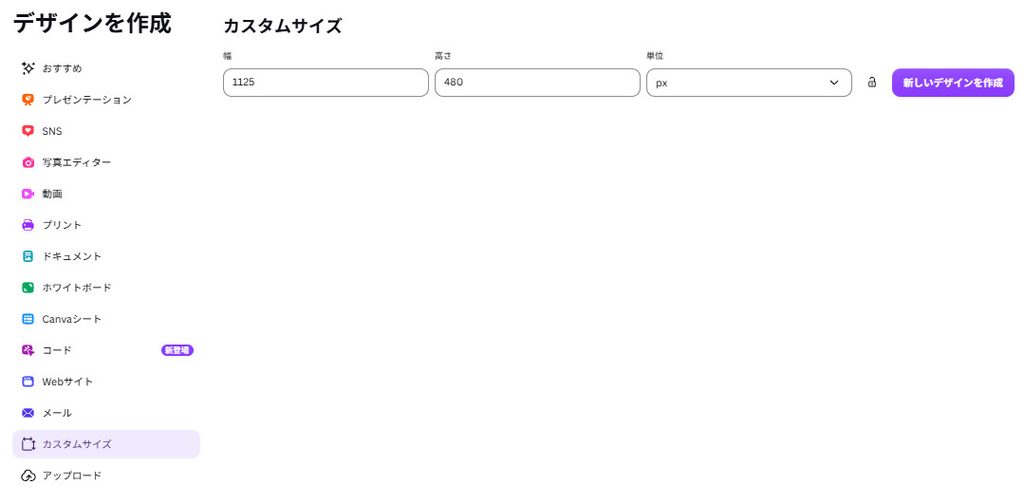
First, select “Custom size” on the Canva home screen, set the unit to px, and enter a width of 1,125 and a height of 480. IRIAM’s official FAQ lists the recommended header size as 480 px tall by 1,125 px wide.
The button label may differ depending on your device or Canva’s current interface. Just look for the screen where you can type in the width and height in px.
Source: IRIAM “About Your Profile” (Japanese)
Step 2. Overlay the Official Template to Check the Icon Position
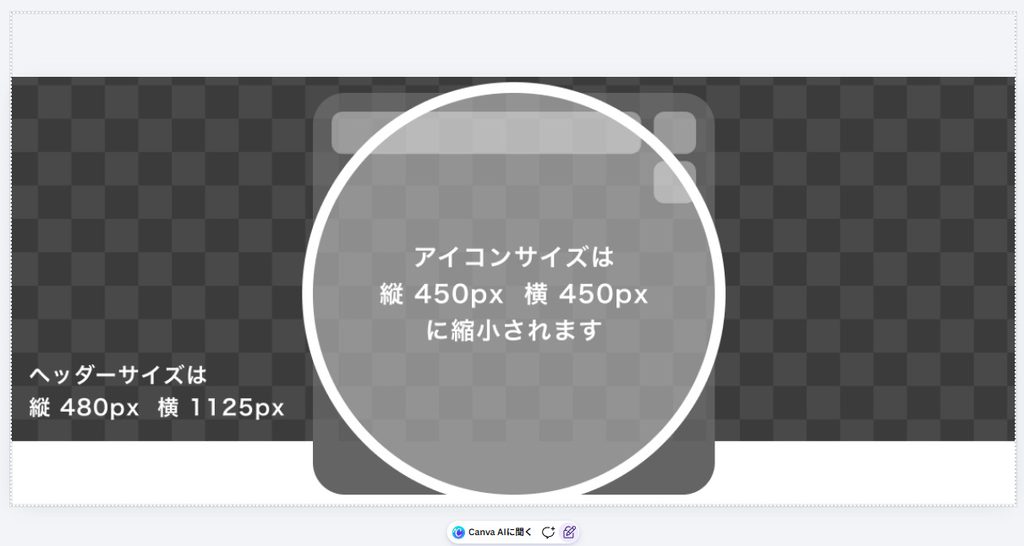
To see where your icon will sit, overlay the header template provided in IRIAM’s official FAQ. Save the template to your device, import it via “Uploads,” and place it on the canvas at its full 1,125 px width with the top edges aligned. The template is 552 px tall, so its bottom will extend past the canvas. The 450 × 450 px circle near the center shows the area your icon will cover.
Lock the template in place with the “Lock” feature. Plan your layout on the assumption that everything inside the circle will be hidden.
Step 3. Place Your Background, Character Art, and Streamer Name
The basic layout is a full background with your elements placed on the left and right, away from the center circle. Outside the circle, you only need elements that show who you are and what you stream, such as your character art, streamer name, name logo, and stream genre.
Keep the text to one or two key pieces of information. The goal is for new viewers who open your profile to understand what you do at a glance.
Step 4. Remove the Template and Save as a PNG
Before exporting, hide or delete the official template you used as a guide. If you leave it in, the circle outline will show up in your final image.
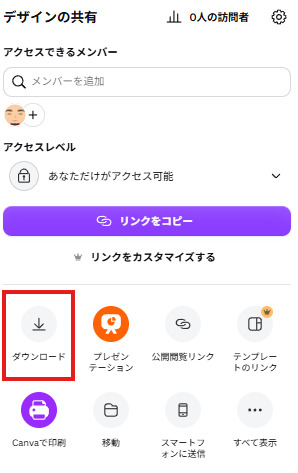
To save, select “Share,” then “Download,” and choose “PNG” as the file type. PNG keeps designs with text and graphics sharp, and Canva’s help center describes it as ideal for illustrations. IRIAM’s official FAQ doesn’t specify a file format, so PNG is our recommended choice.
Source: Canva “Choose the right download file type for your Canva design“
For the full process of getting started on IRIAM, check out this guide:
>>How to Start Streaming on IRIAM: A 6-Step Beginner’s Guide to V-Liver Live Streaming
Design Tips to Keep Your Text Visible and Clear to New Viewers
A header that works for new viewers meets four conditions:
- The text isn’t hidden
- The information is focused
- It’s easy to read
- The colors are consistent
Here’s how to adjust your design in Canva to meet each one.
Use the Official Template to Avoid the Icon Area
Keep your streamer name, your character’s face, and your name logo out of the center circle. On IRIAM’s profile screen, your icon overlaps the center of the header, so anything inside the circle is almost invisible to viewers. Your streamer name can easily end up hidden behind your icon.
The fix is simple: temporarily overlay the official FAQ template on your design and check that nothing important falls inside the circle. Once you’re done, hide or delete the template before exporting.
Prioritize Your Information and Don’t Overcrowd It
Limit your header to one or two high-priority items, such as your streamer name and stream genre. If you also add your regular stream schedule and social media handles, the limited 1,125 px width makes it hard to tell what the image is trying to say. The text also shrinks to a size that’s unreadable on a smartphone.
Move lower-priority information to your bio so each part of your profile has a clear role. Keep elements away from the center icon area and spread them across the open space on the left and right.
Use a Readable Text Size and Strong Contrast
The key to readable text is enough difference in brightness between the text and background colors. White text on a pale background blends in on a small smartphone screen.
A useful benchmark is the accessibility guideline in the Digital Agency of Japan’s design system, which states that text and images of text need a contrast ratio of at least 4.5:1 against the background. Applying the same idea to the text in your header keeps it consistently readable. Adding an outline or a band behind the text also works well.
Source: Digital Agency Design System “Color: Accessibility” (Japanese)
Match Colors with Your Character Art and Icon
Base your header’s color scheme on the theme color of your character art, icon, and icon ring (a circular decorative frame around your icon). Since your icon sits over the center of the header, mismatched colors make the whole profile look cluttered.
The easiest way to match colors is to use a set that includes both a header and a matching icon ring. Some sites offer sets made specifically for IRIAM.
If you commission a header, you may be asked for your theme color, so decide on your color direction ahead of time.
How to Set Your Header on IRIAM
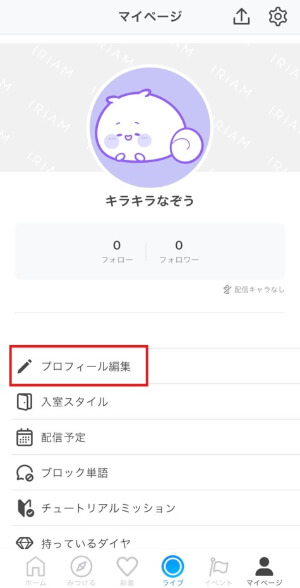
To set your header, open profile editing from My Page in the IRIAM app, then select the PNG you saved in the header image field.
After setting it, always open your actual profile screen to check two things: that your streamer name isn’t hidden behind your icon, and that the text is large enough to read on a smartphone.
Note that, according to IRIAM’s official FAQ, once you change your header, you can’t restore it to the default. If you want to undo it, you’ll have to replace it with a different image, so review your design one more time before setting it.
Source: IRIAM “About Your Profile” (Japanese)
2 Free Apps Besides Canva for Making an IRIAM Header
If Canva doesn’t feel right, try ibisPaint or Phonto. The best choice depends on whether you want to draw extra artwork or fine-tune your text, so pick the one that fits what you need. Both are free to use, with optional in-app purchases.
ibisPaint: Add Your Own Illustrations
ibisPaint is a free drawing app that lets you create a canvas at any size and resolution and draw directly on it with brushes.
To make an IRIAM header, enter a width of 1,125 and a height of 480 when creating a new canvas, then draw decorations over your background. Being able to add small items that match your character art is an advantage that template-based Canva doesn’t offer.
ibisPaint’s official drawing tutorials explain how to create a canvas. If you get stuck, check the tutorials.
Source: ibisPaint “67. Creating a Canvas with a Specified Resolution (dpi)” (Japanese)
Phonto: Fine-Tune Your Text
Phonto is a free app built for adding text to images, with support for Japanese fonts and vertical text. You can adjust the size, color, tilt, shadow, stroke (outline), line spacing, and position of your text individually, giving you finer control than Canva’s text tools.
It works best when you want to add text to a background made in another app. It can handle requests like placing your streamer name vertically on the left edge or adding a double outline. There are in-app purchases, such as removing ads, but the core text features are free.
Source: App Store / Google Play
2 Places to Find IRIAM Header Materials
For IRIAM header materials, BOOTH and Melland Design Lab cover everything from free to paid options. Both offer materials made at the recommended size, so there’s little need to resize.
BOOTH: A Wide Range of Free and Paid Materials
Searching “IRIAMヘッダー” (IRIAM header) on BOOTH brings up over 3,000 header materials, both free and paid (as of September 2026). Most are made at IRIAM’s recommended size, and many come as sets with a matching icon ring.
However, whether you can redistribute, recolor, or use a material as a gift is set on each product page. Some materials explicitly ask you not to change the colors, so read the terms before downloading, even for free items.
Melland Design Lab: Free Materials Made for IRIAM
Melland Design Lab (メランドデザイン研究所) is a site offering free materials for VTubers and V-Livers, including a page of header materials at IRIAM’s recommended size. It also has sets with a matching header and icon ring, which makes it easy to keep your whole profile color-coordinated.
Even though they’re free, the terms explicitly prohibit redistribution, claiming the work as your own, and using them for commissions from third parties. Using them for your own profile is fine, but read the terms before you start.
Source: Melland Design Lab “IRIAM Header Materials” (Japanese)
Images You Can’t Use in Your IRIAM Header and Material Usage Rules
You can’t use real photos of people, swimsuit illustrations, copyrighted works used without permission, or images containing personal information in your IRIAM header. These are listed as prohibited in IRIAM’s Terms of Membership and official FAQ, so make sure you know these four rules before you start.
Real Photos of People Are Not Allowed
IRIAM prohibits using real photos of people in your icon or header. This is listed as prohibited in the official FAQ “Images You Must Not Use” (Japanese), and the same rule appears in the prohibited acts section of the Terms of Membership. This applies not only to photos of yourself but also to using family photos as a background.
Real photos without people are a different story. Photos of landscapes, the sky, or sweets that don’t include any people are considered acceptable for icons and headers.
Swimsuit Illustrations Can’t Be Used in Headers, Even During the Swimsuit Period
Swimsuit illustrations can’t be used in icons, thumbnails, or headers, even during the limited period when they’re allowed. According to IRIAM’s official FAQ, swimsuit illustrations may only be used for streaming illustrations and mini characters.
If you want to use swimsuit character art for a summer header, you’ll need to crop out the swimsuit or fully cover it with text or decorations. The rules and the allowed period may change each year, so check the official FAQ for the latest conditions when you make your header.
Source: IRIAM “About Swimsuit Content” (Japanese)
Check Copyright, Commercial Use, and Editing Terms
Using illustrations created by others without the copyright holder’s permission is prohibited on IRIAM. The official FAQ also lists using works that require credit without providing it as a prohibited example. Using an illustration you found on social media as-is is an easy violation to commit without realizing it.
When using distributed materials, whether you can recolor, crop, redistribute, or use them as gifts varies by material. Read the terms on the distribution page, and ask the creator if you want to use a material in a way that isn’t covered.
Source: IRIAM “About Using Other People’s Works” (Japanese)
Don’t Include Your Real Name or Other Personal Information
Never put your real name, school name, or anything that could reveal your address in your header. IRIAM lists sharing personal information as a prohibited act, and the official FAQ clearly states that images containing personal information can’t be used as icons or headers.
Even without writing it out, a nameplate, school uniform, or nearby station sign in a photo could reveal where you live. If you use a photo in your header, check everything in the background.
Source: IRIAM “Prohibited Acts and Precautions” (Japanese)
For more on protecting your identity, see this article:
>>How to Protect VTuber Identity: Tips and Strategies Explained!
Tips for Making IRIAM Headers as Thank-You Gifts
When making a header as a thank-you gift for a listener, focus on two things: personalizing it for them and checking the material’s usage terms. IRIAM has an “orei-hin” (thank-you gift) culture, where livers give goods and other gifts to listeners to thank them for their support.
Personalize It with the Listener’s Name and Color
Simply adding the listener’s name and theme color gives a gift header a special touch that ready-made materials can’t match. The basic process is the same as making your own; the only difference is that the listener is the star. For your longest-standing listeners, adding something like how long they’ve supported you shows your relationship and is sure to be appreciated.
Note that IRIAM leaves the decision to prepare gifts up to each liver, and officially encourages keeping it within reasonable limits so it doesn’t strain your streaming activities.
Source: IRIAM “About the Thank-You Gift Culture” (Japanese)
Check Whether Materials Can Be Used for Gifts or Redistributed
Before using distributed materials for gifts, check each material’s rules on gift use and redistribution. Even among IRIAM header materials, the conditions vary completely from creator to creator.
For example, some materials only allow distribution after you’ve decorated them with your own logo, some allow distribution as event gifts but not free distribution on social media, and some prohibit redistributing the material as-is. Before handing them out, also make sure you’re not giving them to an unspecified number of people.
If you’re making a gift set with an icon ring, this article may also help:
>>IRIAM Icon Ring Size Guide: How to Create, Apply, and Set Up Your Ring with ibisPaint
Summary
This article explained how to make an IRIAM header, focusing on four steps to create one in Canva at the recommended size of 1,125 × 480 px.
- Overlay the official template to check the center icon area, and remove it before exporting
- Limit the text to one or two items, and make sure it contrasts with the background
- Real photos of people, swimsuit illustrations, unauthorized copyrighted works, and personal information can’t be used
- Check each material’s rules on gift use and redistribution
Your header is the signboard new viewers see the moment they open your profile. Start by making a simple one with just your streamer name and stream genre. Then keep refining it as you stream, and grow it into a profile that feels like you.