


Share


YoloCam S3 Review: Testing 4K and Full HD Webcam Quality for Streaming
When you shop for a streaming webcam, do you pick one just because the box says “4K”?
In a real stream, running at 4K can make your video stutter or bog down your PC. That’s why plenty of streamers end up dropping to Full HD (1080p) anyway.
If that’s the case, the number on the spec sheet matters less than a simpler question: how good does a “4K” camera actually look when you run it at Full HD? What really decides it is how the camera holds up in everyday streaming situations — using the zoom, or sharing the feed with other apps at the same time.
For this review, we built the YoloLiv YoloCam S3 into a real streaming setup and put it through its paces.

Key takeaways
- From plugging it in to OBS recognizing it took less than 5 seconds.
- 4K keeps more detail in dark areas, but in a well-lit room Full HD looks clean enough.
- The 4x digital zoom looks sharper than simply enlarging a 1x image.
- Sharing the camera across multiple apps caps resolution at Full HD, but 60fps holds.

Key specs
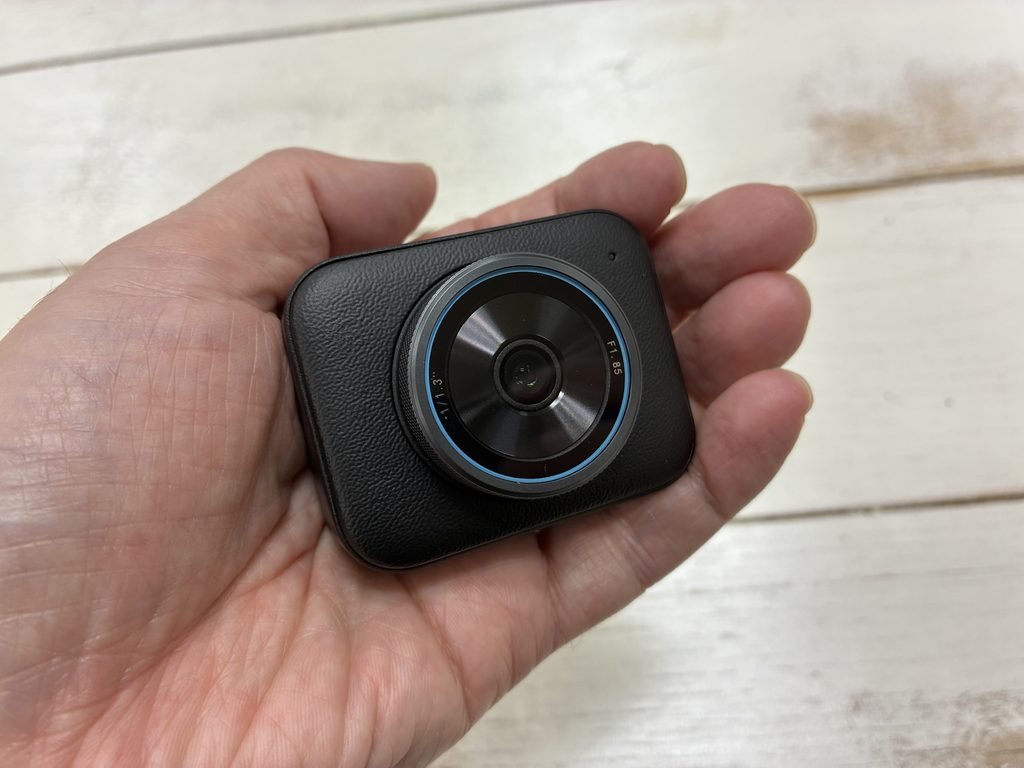
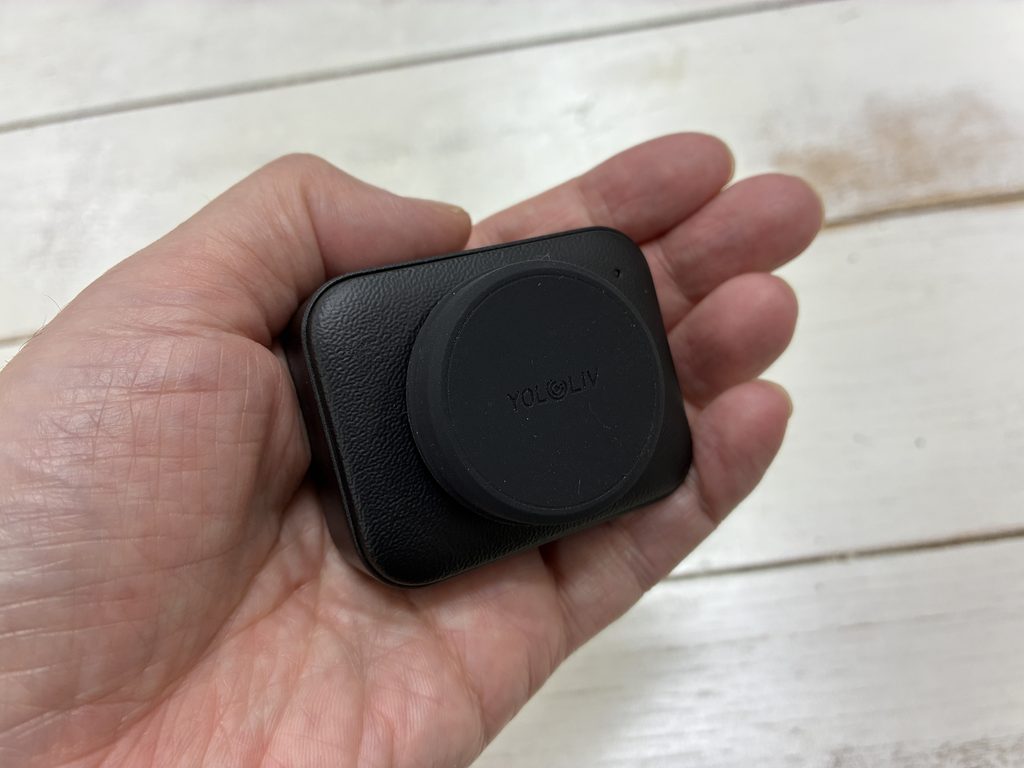
The YoloCam S3 pairs a 1/1.28-inch CMOS sensor — large for a webcam — with 50 effective megapixels and a bright f/1.85 lens.
It has an 82-degree field of view and outputs 4K at 30fps or Full HD at 60fps. There’s also a 4x digital zoom, which YoloLiv says maintains Full HD quality even when zoomed in. Focus uses phase detection, and through the companion app you can manually set ISO from 100 to 12800 and shutter speed from 1/25 to 1/6400 sec. The body is aluminum and weighs 115 g. The included magnetic mount has a 1/4-inch screw thread on the bottom, so it also fits on a tripod.
Test conditions | Common setup
Test unit: YoloLiv YoloCam S3 (firmware 1.0.0)
Companion app: YoloLiv Compose 1.1.1
Streaming software: OBS Studio
Test PC: Windows PC (the lighting comparison and D-R tests only were done on a MacBook Pro)
Image settings: Sharpness changed from the default 50 to 5 and kept fixed for all conditions
*We lowered sharpness to minimize the camera’s built-in edge enhancement, so every condition could be compared on equal footing.
How it fits different streaming styles
| Streaming style | Fit |
|---|---|
| Just chatting / talk streams | In a bright room, image roughness is hard to spot at either 4K or Full HD |
| Gaming (facecam overlay) | Light on system resources and easy to slot in, even for long sessions |
| Singing streams / playing and singing | The 4x zoom lets you get in close on your hands or sheet music |
| VTuber (with an avatar) | Run tracking on a separate camera and the two coexist with low overhead |
| Collabs / multi-person streams | No built-in mic, so you’ll need a separate audio setup |
| Streaming in dim lighting | D-R offers room to adjust, but you’ll have to switch exposure to manual |
It has no major weak spots for any streaming style, but it really shines when you run it at Full HD. The frame rate doesn’t drop even when several apps use the camera at once, and the 4x zoom is there whenever you want to get closer to your hands or sheet music.
On the other hand, you’ll need a bit of prep if you want to fine-tune your look in a dark room, or if you want one device to handle audio too. There are reasons for both, which we’ll walk through in the tests below.
What’s in the box and first connection
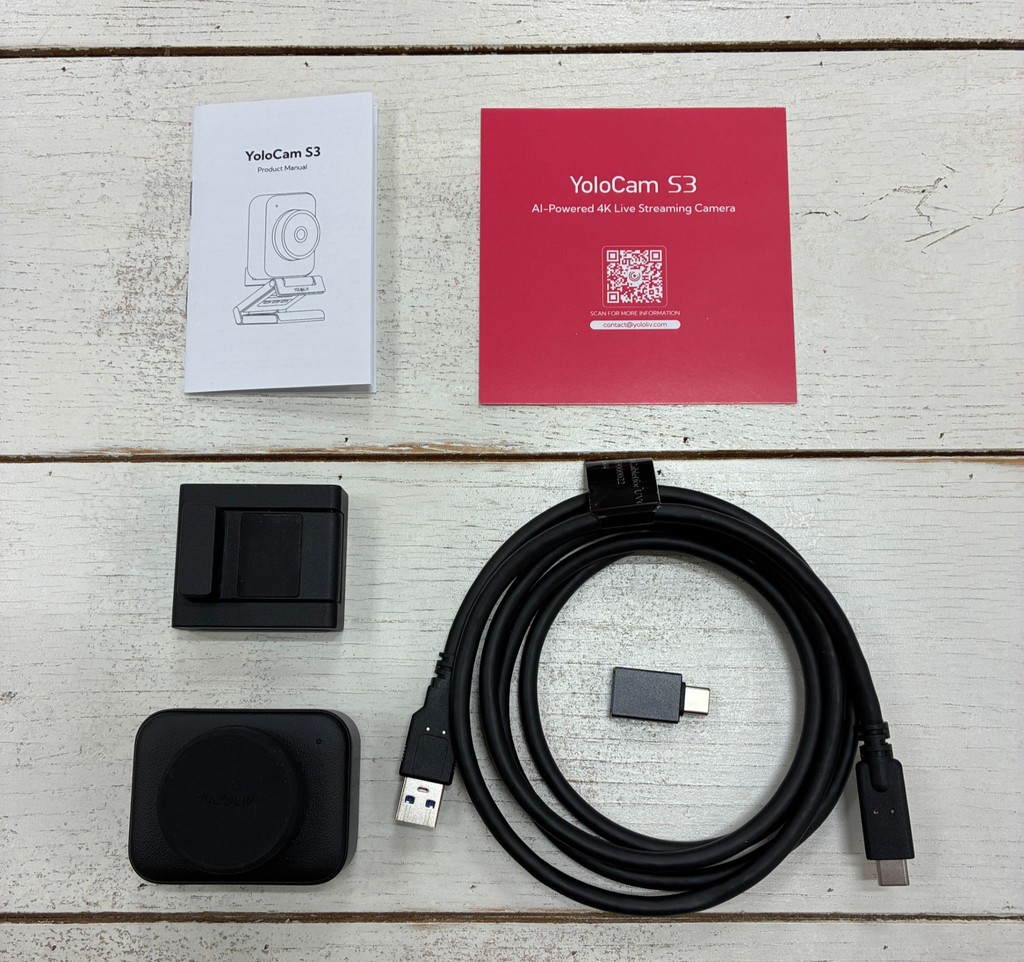
The YoloCam S3 ships with four items: the camera, a magnetic mount, a USB-C cable, and a USB-C to USB-A adapter. YoloLiv bills it as “Plug & Play” — just connect it and go. To see whether that holds up, we plugged it straight into a PC without any prep.
After connecting over USB-C, OBS recognized the camera in less than 5 seconds. There was no prompt to install extra drivers. Because it supports the standard webcam protocol (UVC), it works out of the box on both Windows and macOS.
Right after adding it to OBS as a Video Capture Device, the picture looked fine on auto exposure and auto white balance, with no wild color shifts. Without touching a single setting, it was ready to go on stream.
The official app, YoloLiv Compose, also detects the YoloCam S3 automatically on launch and even walks you through checking for firmware updates. We hardly hit any points of confusion here.
The LED on the camera blinks right after you connect it and turns solid once YoloLiv Compose is running. If you don’t open the app, it blinks a few times and then goes dark — so a glance at the camera tells you whether it’s connected to the app.
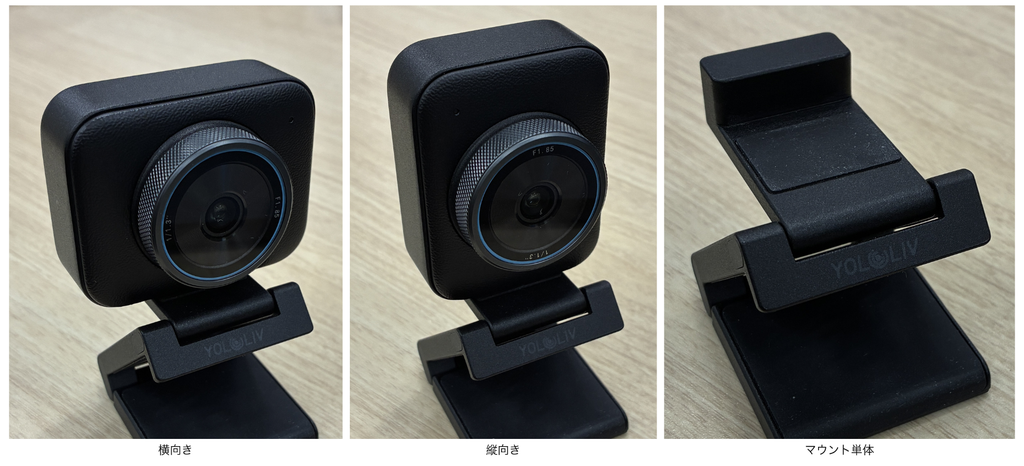
The camera attaches to the mount magnetically. We rotated it 90 degrees while still on the mount to switch between portrait and landscape, and it turned smoothly. No screws or levers — you just twist it by hand to change orientation.
💡 How it shows up in OBS
In OBS’s device list, the camera appears as “S3” followed by a string of digits that looks like a serial number. If you have several cameras connected, remembering this pattern keeps you from picking the wrong one.
Image quality and D-R settings, measured
On the image quality front, the YoloCam S3’s selling point is a camera-like look thanks to its large sensor and bright lens. We started by checking how the picture changes with resolution.
4K vs. Full HD image quality
Shooting the same framing at 4K (3840×2160, 30fps) and Full HD (1920×1080, 60fps), 4K did a better job with skin texture and deep blacks. The difference was clearest with a dark bag in the background: at Full HD it crushed into black and you couldn’t tell what it was, while at 4K its outline stayed clearly visible.
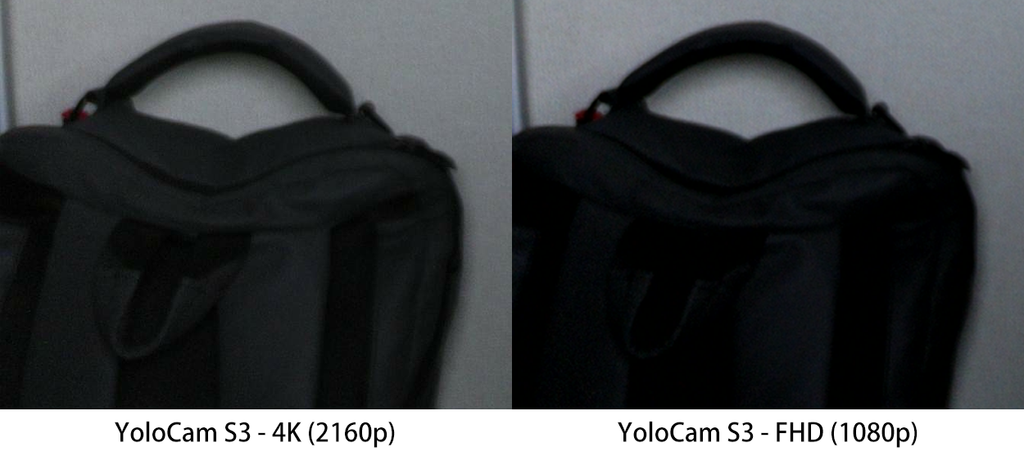
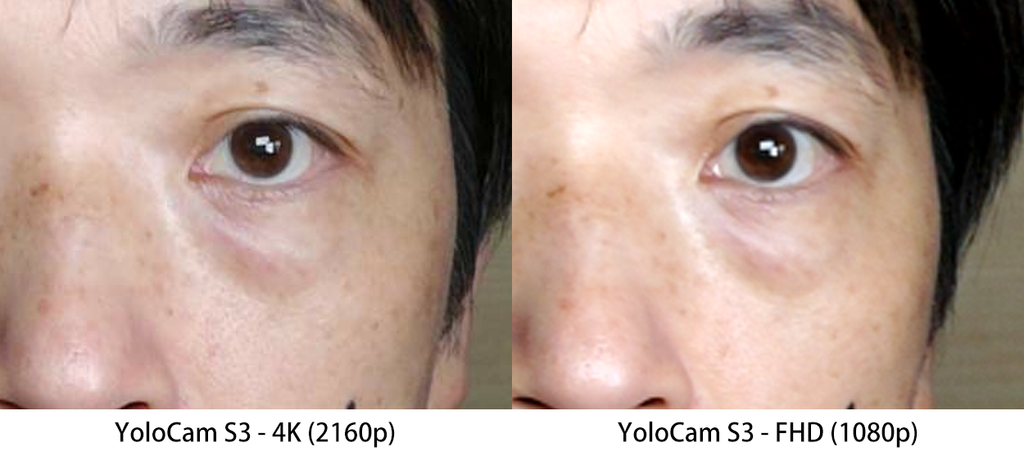
4K has the edge on detail in dark areas. That said, in a typical streaming setup with plenty of light, we found Full HD’s roughness hard to notice.
Brightness under different lighting
Next, we shot under three conditions — natural light, indoor lighting and a dark room with the lights dimmed — and compared the brightness of the face numerically. On a scale where pure black is 0 and pure white is 255, the averages were 178.3 in natural light, 175.9 under indoor lighting and 90.4 in the dark room.
Natural light and indoor lighting produced nearly identical numbers, and we couldn’t see a difference by eye either. Dimming the lights, however, cut brightness roughly in half, and auto exposure couldn’t fully make up for it. This is the kind of gap that adding a single light source, like a ring light, would close.
What the D-R slider actually does
YoloLiv Compose’s image settings include a slider labeled “D-R.” It defaults to 50 and ranges from 0 to 100. The name suggests it corrects for contrast between light and dark areas, so we measured what it really changes.
⚠️ D-R only works with exposure set to manual. On auto exposure, moving the slider does nothing to the picture, which is easy to miss. Lock in your ISO and shutter speed first, then adjust it.
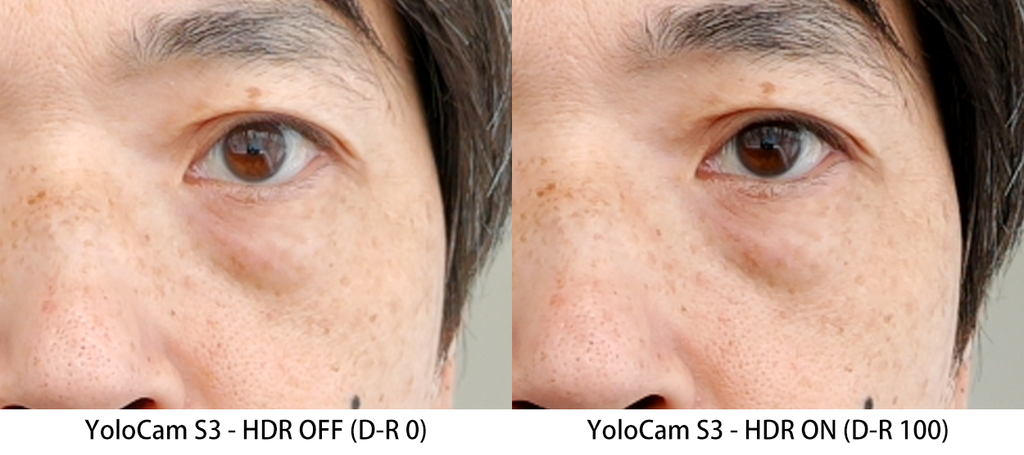
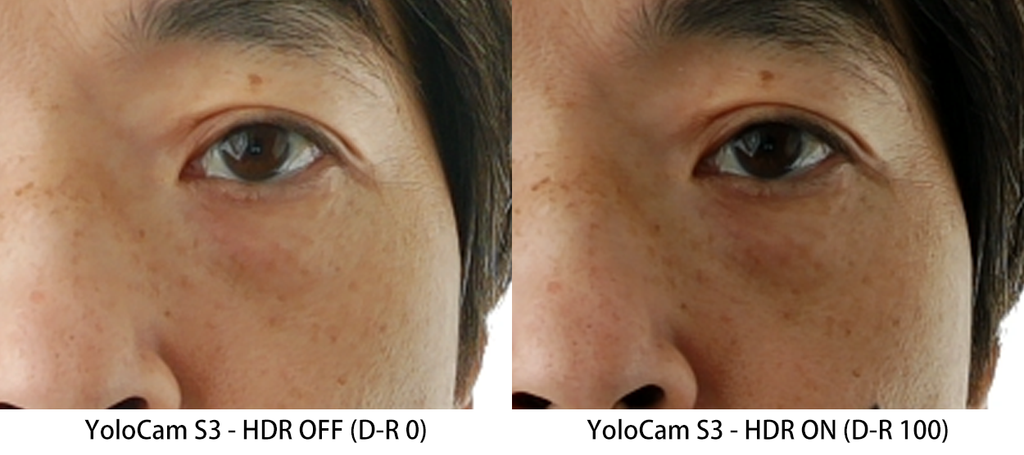
With exposure on manual, we compared D-R at 0 and 100 in a backlit shot. Raising D-R barely changed the brightness outside the window; only the shadowed face got darker. Average brightness across the frame dropped from 82.3 to 57.0 — roughly 30%. The shadows fell from 26 to 16 and the highlights from 155 to 130, while the single brightest point stayed at 235.
To see whether it only kicks in with high-contrast scenes, we also measured D-R at 0, 50 and 100 in an ordinary room with no window. Here too, overall brightness stepped down — 126.0, 112.9 and 101.2 — and the shadows moved a lot, from 62 to 43 to 30. The highlights barely budged at 185, 183 and 181.
In other words, D-R isn’t an HDR-style setting that tames blown-out highlights. It raises or lowers the shadows and midtones regardless of how contrasty the scene is. Lower it and the shadows lift for a flatter image; raise it and the shadows sink for more contrast.
📘 Glossary | HDR (high dynamic range)
A technique that prevents blown-out highlights and crushed shadows in scenes with a big gap between bright and dark areas. Dynamic range refers to the span of brightness a picture can represent.
Autofocus and 4x digital zoom
Next, we checked autofocus (AF) tracking and the digital zoom.
The AF uses phase detection and tracks without hesitation when someone moves back and forth in front of the camera. After focusing on a sheet of paper held close and then pulling it away, focus snapped back to the face in about two seconds by feel. That’s plenty fast for real-world use.
The real standout here is the 4x digital zoom, which we tested with the output set to Full HD. Comparing a 1x shot enlarged to the same magnification against a shot taken with the 4x zoom, the zoomed image kept far more fine detail. Enlarging the 1x image smeared out the texture of the hair and background, but with the 4x zoom you could make out individual strands of hair and skin texture.
YoloLiv says the camera maintains Full HD quality at 4x zoom, and our comparison lined up with that claim. The high-resolution 50-megapixel sensor is likely what makes the difference.
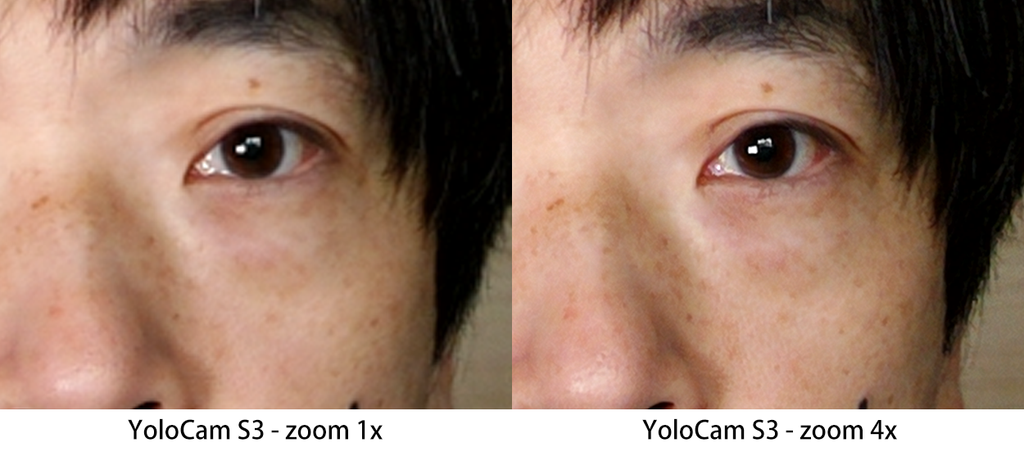
Full HD captures less detail in dark areas than 4K, but when you want to zoom in on your hands or sheet music, this zoom more than makes up the difference.
Setting it up in streaming software and running multiple apps
Finally, we built the camera into an actual streaming setup to see how it performs.
The first snag: the video would only show up in either YoloLiv Compose or OBS, never both. By default, Windows lets only one app use a camera at a time. So while we were tweaking the image in YoloLiv Compose, the OBS feed froze, and we had to close YoloLiv Compose every time we changed a setting.
The fix is to turn on “Allow multiple apps to use the camera at the same time” under Windows’ advanced camera options. With that enabled, both YoloLiv Compose and OBS received the video simultaneously.
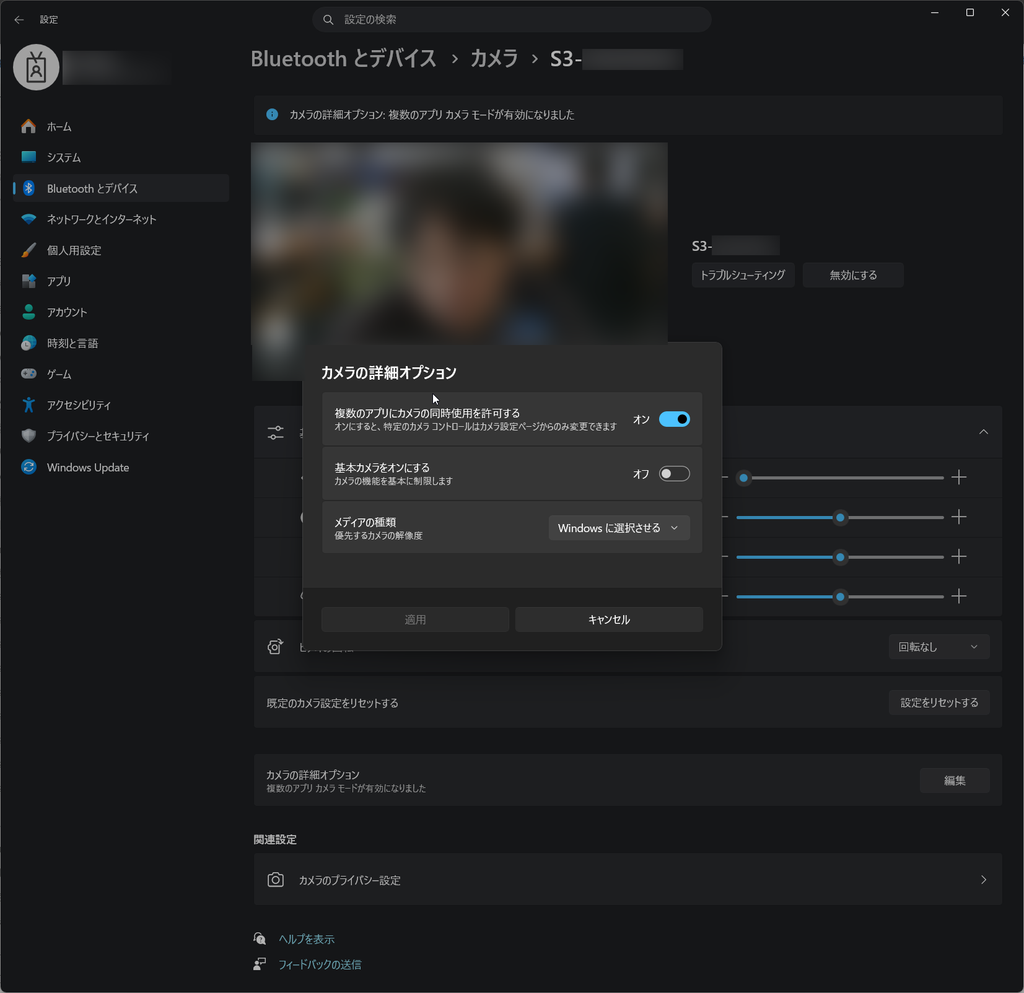
💡 This isn’t a limitation of the camera
Restricting a camera to one app at a time is how Windows works — it isn’t specific to the YoloCam S3. Switch to a different camera and you’ll hit the same wall.
With this setting on, the only resolution available in OBS is 1920×1080. Sharing one camera’s feed across multiple apps adds an extra processing step, so both 4K and 720p disappear from the list. The frame rate, however, stayed at 60fps. You lose resolution, but not smoothness. And since the 4x zoom still works, being capped at Full HD isn’t purely a compromise on image quality.
Now for YoloLiv Compose’s settings. There are seven categories alone: display, image, focus, zoom, exposure, white balance and color adjustment. The image settings include sharpness, D-R and vignetting correction, so you can handle all the basic tuning within this one app. Changes showed up in the video with almost no lag.
Besides a slider for setting the zoom range, the zoom section lets you save four presets (A–D) and assign hotkeys. Turn on color adjustment and you can tune eight colors — red, orange, yellow, green, cyan, blue, purple and magenta — each by hue, saturation and brightness. That’s a surprisingly deep feature set for a webcam’s companion app.
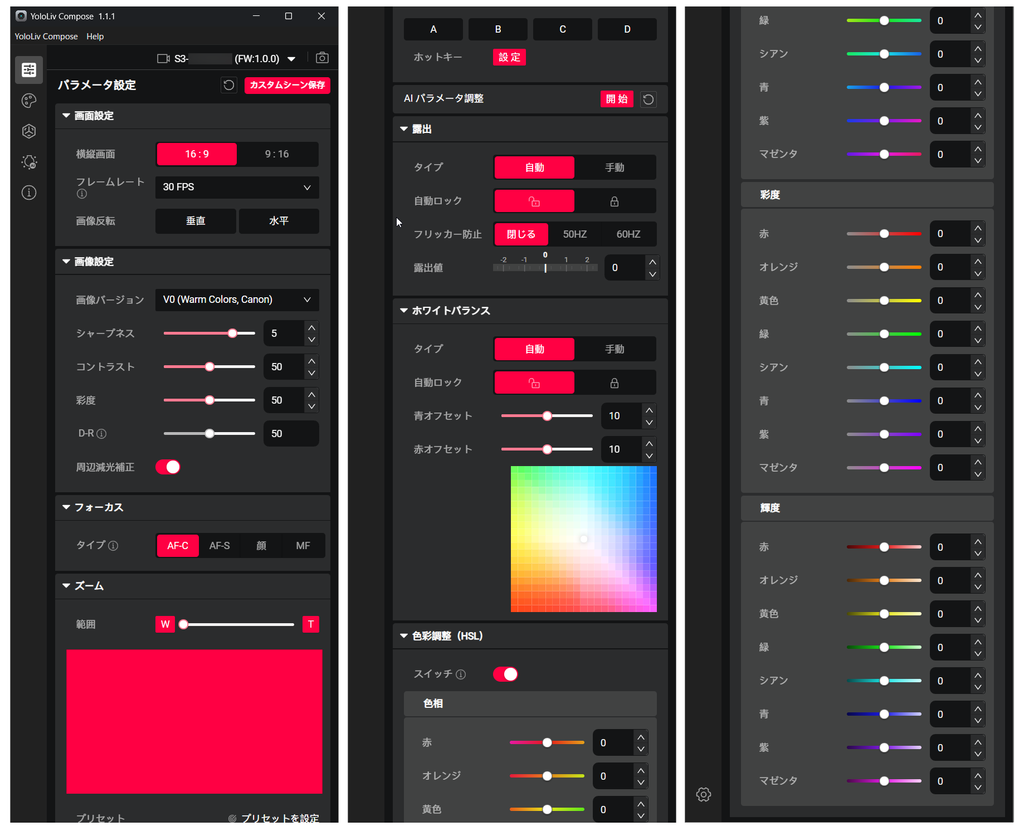
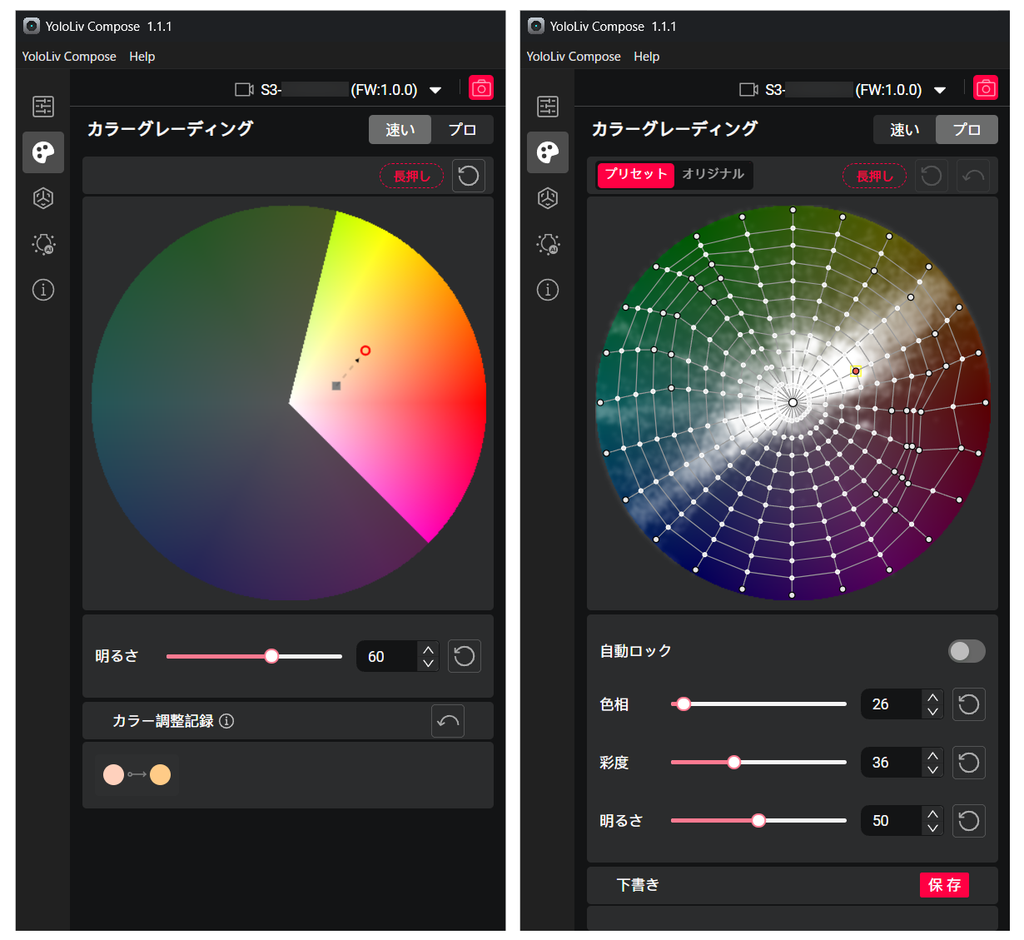
The sidebar has more feature tabs, too. One is Picasso Resolve, a real-time color grading tool that lets you add a color look to your live video on the fly. It comes in two modes: a “quick” mode with just a color wheel and a brightness slider, and a “pro” mode with presets plus hue, saturation and brightness controls. The screen does carry a note recommending that you check the effect by watching the live stream on a smartphone, though, and it’s hard to judge colors accurately from the PC preview alone.
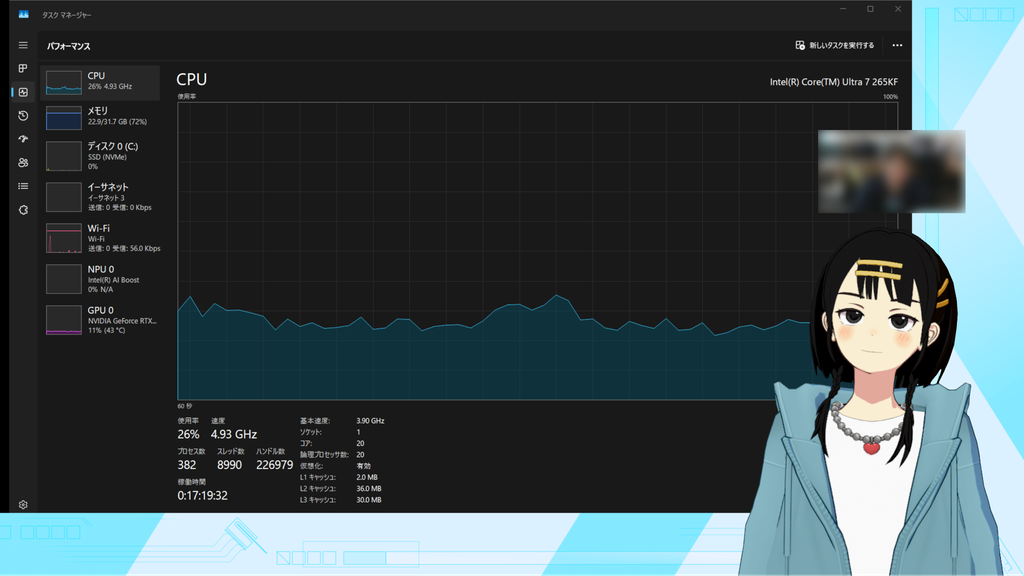
We also tried it alongside VTuber software. We launched VSeeFace to display an avatar and assigned a separate camera for tracking. With the YoloCam S3 handling the stream video and both running at once, Task Manager showed 26% CPU usage, 11% GPU usage and a GPU temperature of 43°C. Both feeds were stable, and load wasn’t an issue in our setup.
The camera has no built-in microphone. To complete your streaming setup, you’ll need a separate mic.
A quick note on heat, too. When we pushed it — stacking multiple filters and repeatedly switching scenes — the body got hot enough to feel warm to the touch. The housing is aluminum and designed to dissipate heat across the whole body. Throughout testing we saw no dropped frames, stuttering or freezes, and performance wasn’t affected.
Verdict
Who it’s for
- Streamers who want to get set up as fast as possible
- Anyone who wants to run YoloLiv Compose and OBS side by side
- Streamers who want to zoom in on their hands, objects or sheet music
- Anyone who wants to fine-tune their look even in dim lighting
- Streamers who’d rather pick a mic that suits their own setup
On the flip side, if you want 4K output and multi-app use at the same time, for now you’ll have to choose one or the other.
Choosing it as a Full HD camera
The YoloCam S3 isn’t a webcam that sells on 4K sharpness alone. Connect it over USB-C and OBS recognizes it right away, and YoloLiv Compose lets you dial in your look. Add the magnetic mount that makes reorienting easy, and it’s a camera that slots neatly into a streaming setup.
Once you assume you’ll run it at Full HD, the picture changes. About the only thing you get exclusively from 4K is extra detail in dark areas, and in a bright room even that gap is barely noticeable. At Full HD you still get the 4x zoom, and close-ups of your hands or sheet music look cleaner than an enlarged 1x image. It holds 60fps even while shared with multiple apps. Rather than chasing higher resolution, we felt this camera shows its true strengths when you make the most of it at Full HD.
Credits
Interested in the gear we tested? Check out the official website below.
>>YoloLiv YoloCam S3 official website
Equipment provided by: YoloLiv
Photography assistance: Staff U
Review: Umazura