

Share


Elgato 4K X vs. 4K S vs. Cam Link 4K: Which Capture Card Do You Actually Need? We Measured the Differences
You want to start streaming games from your Switch 2 or PS5, but there are so many capture cards out there that you have no idea which one to pick. The official sites just throw spec terms at you like “4K144” and “HDR10,” and you still can’t tell which one is right for you. Sound familiar?
A capture card takes the HDMI video output from a game console or camera, brings it into your PC, and feeds it to streaming software like OBS. With one, you can stream or record your Switch 2 or PS5 gameplay directly, and you can even turn a mirrorless camera or camcorder into a webcam for streaming.
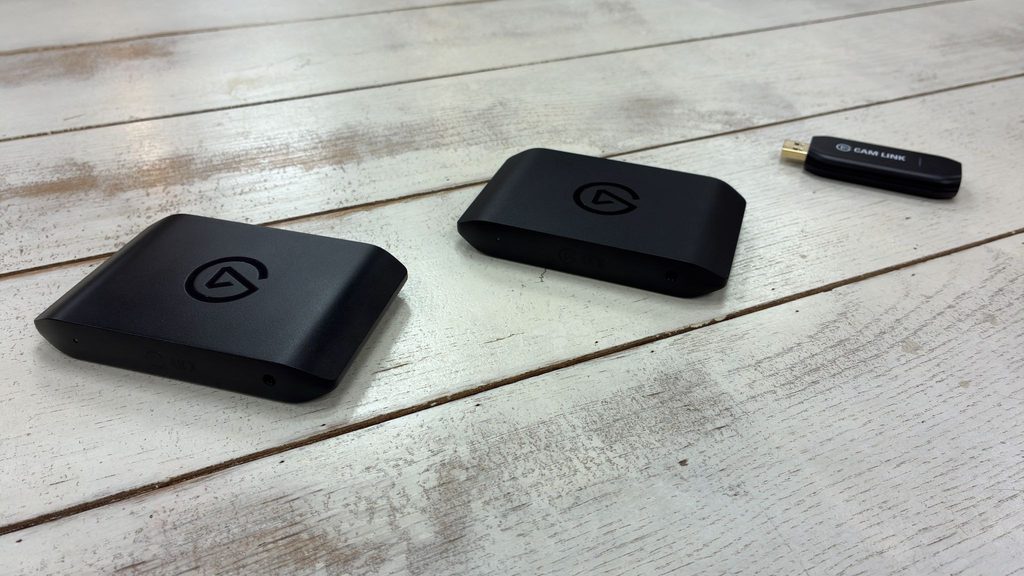
At first glance, capture cards all seem alike, but each one has its own strengths. In this review, we tested three Elgato capture devices, the 4K X, the 4K S, and the Cam Link 4K, and measured how the price differences actually show up in image quality, latency, and everyday usability.

Key Takeaways
- Even comparing the same footage at 100% zoom, we couldn’t see any difference in image quality between the 4K X and 4K S.
- The 15,000 yen price gap shows up in USB bandwidth, the HDR recording ceiling, and smaller recording files.
- All three had latency in the tens of milliseconds, nowhere near enough to affect streaming or gameplay.
- The Cam Link 4K plays a different role entirely: it turns a mirrorless camera or camcorder into a streaming webcam.
📘 Quick Glossary | Common Spec-Sheet Terms
“4K144” means the device can handle 4K video at a smooth 144 frames per second. “HDR10” means it supports a high-quality video standard with a wider range of brightness and color.
Test Conditions | Common Setup
PC: gaming laptop (Windows)
Streaming software: OBS Studio (recording set to CQP 14)
Video sources: Switch 2 console, test footage (Big Buck Bunny), Canon XF405
Monitors: two passthrough monitors, one 60Hz and one HDR-capable
Connection: the USB cable included with each device
Figures like CPU usage depend on the performance of the PC used for testing. Treat the numbers as a rough guide.

The Short Answer: Quick Comparison
Let’s start with the conclusion in table form.
| Use Case | Recommended Device | Why |
|---|---|---|
| Starting to stream from a Switch 2 or PS5 | 4K S | Nearly identical image quality to the higher-end model, for 15,000 yen less |
| PC gamers who care about top image quality and high refresh rates | 4K X | A step ahead in HDR recording, image fidelity, and bandwidth |
| Using a mirrorless camera or camcorder for streaming | Cam Link 4K | No extra processing, so your camera’s full quality comes through |
Put simply, the 4K X and 4K S are for capturing game console footage, while the Cam Link 4K is for using a camera on stream.
The 4K X and 4K S are both built for game streaming, yet there’s a 15,000 yen difference between them. Spec sheets alone won’t tell you how that gap affects real-world image quality or latency, so let’s look at each in turn.
The Spec Gap: USB Bandwidth and HDR Support
First, let’s compare the baseline specs.
| Spec | 4K X | 4K S | Cam Link 4K |
|---|---|---|---|
| Price (official, tax incl.) | 37,980 yen | 22,980 yen | 17,880 yen |
| Max capture | 4K/144fps | 4K/60fps / Full HD/120fps | 4K/30fps (4K/60fps with the latest model and a compatible camera) |
| HDR10 | Supported | Supported (up to Full HD/60fps) | Not supported |
| USB | 3.2 Gen 2 (10Gbps) | 3.2 Gen 1 (5Gbps) | 3.0 |
All prices are as listed on Elgato’s official Japanese store as of September 2026.
📘 Quick Glossary | Gbps
The maximum amount of data that can be sent at once (bandwidth). The higher the number, the more information can be transferred at a time. Higher-resolution, higher-frame-rate video needs more bandwidth.
We tested the three current models: the 4K X, 4K S, and Cam Link 4K. The HD60 X, once a go-to choice, has been discontinued, so if you’re buying new, its successor, the 4K S, is a safe pick.
The first thing most people wonder about is how much hassle it takes to get video showing up in OBS after plugging in the USB cable.
In our testing, all three were recognized in about five seconds. No extra drivers were needed, and we hit almost no snags. The one thing to watch out for: the 4K X’s HDMI in and out ports are flipped top to bottom compared to the other models. We actually plugged it in wrong during testing, so double-check before you connect.
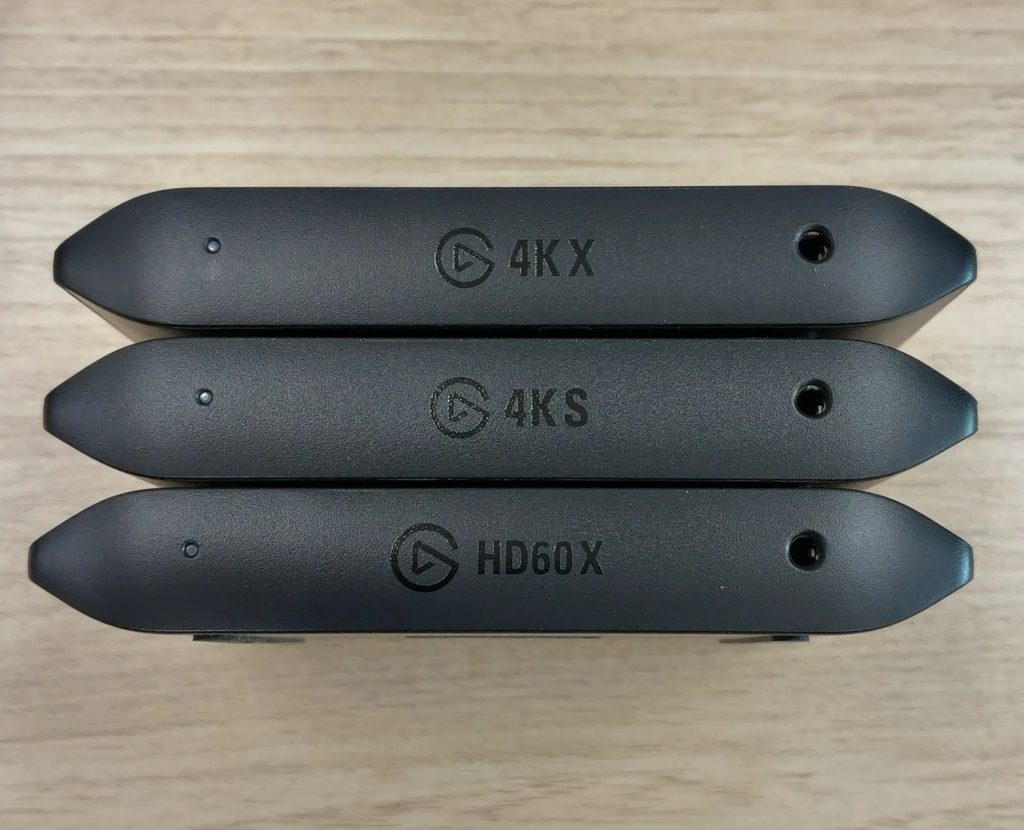
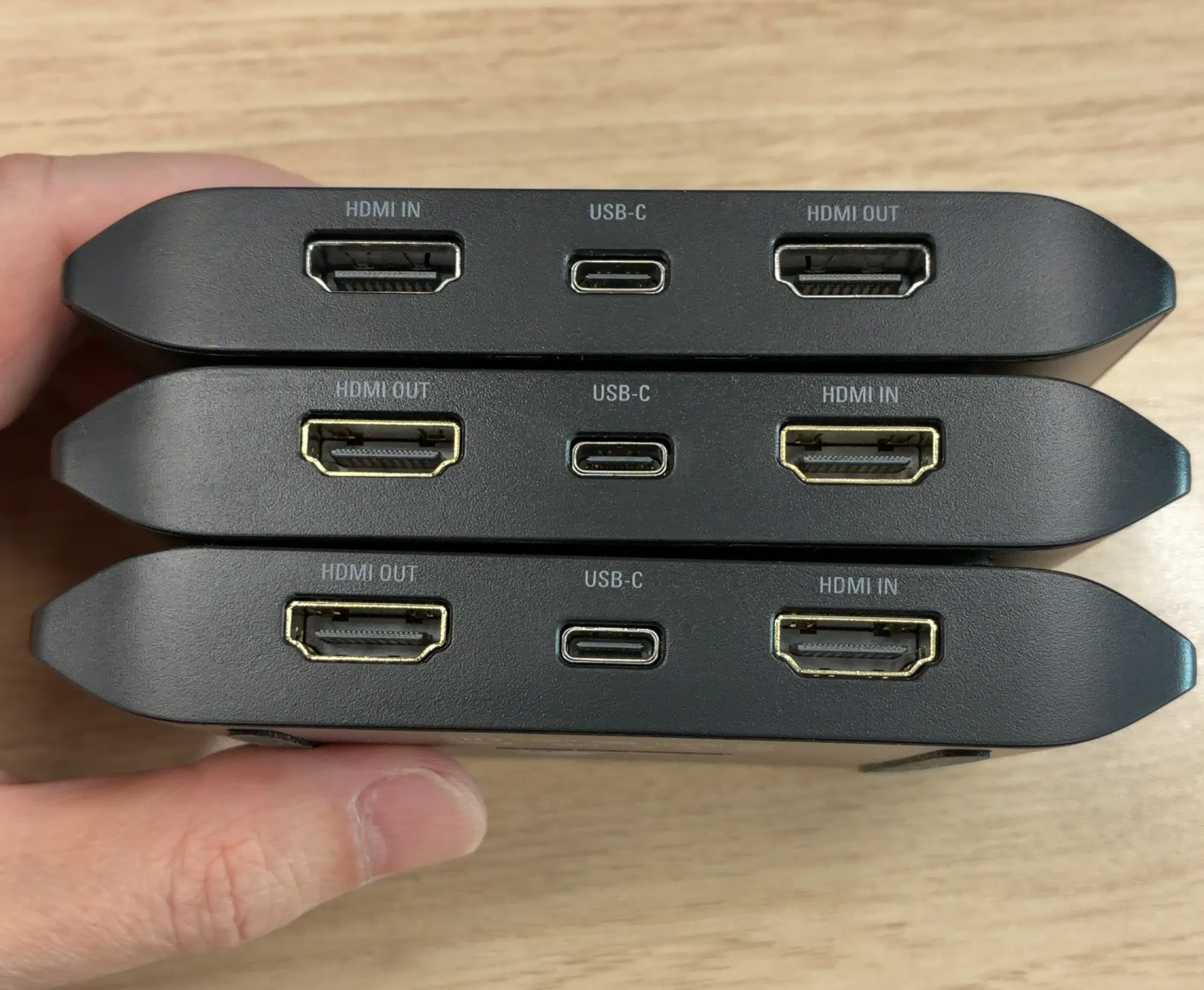
The HD60 X wasn’t part of this test, but we included it as a reference for size and port layout.
Only the 4K X has its in/out ports reversed.
4K X vs. 4K S: You Can’t Tell Them Apart by Image Quality
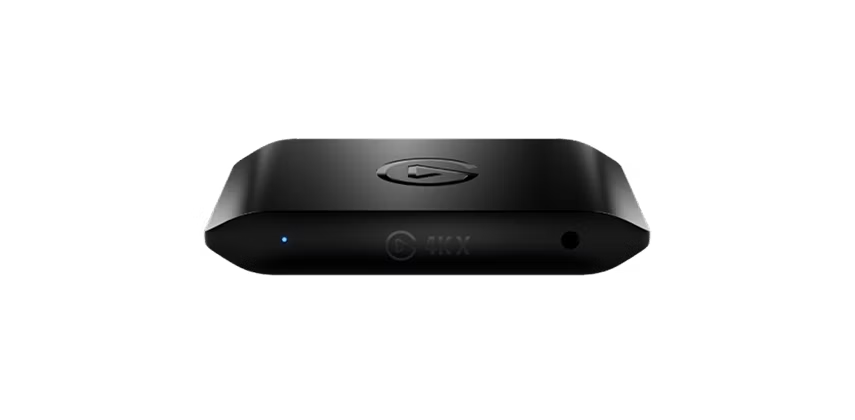
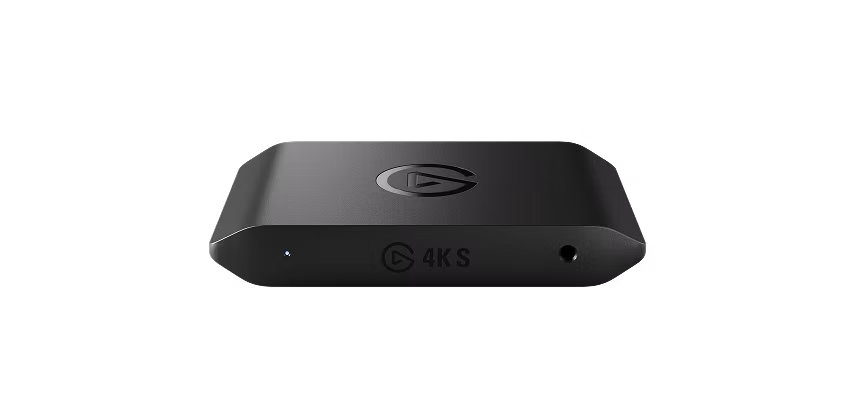
This is where we spent the most time. We recorded the same footage on the 4K X and 4K S at the same time, then pulled out identical frames and compared them side by side.
No Visible Difference, Even at 100% Zoom
Bottom line: at both Full HD and 4K, we couldn’t spot any difference at 100% zoom. Fast-moving scenes, title screens with fine text — neither looked any different between the two.
First up, Full HD/60fps. The 4K X is on the left, the 4K S on the right. We compared two scenes: the title text and a grassy field.


Next, 4K/60fps. Again, the 4K X is on the left and the 4K S on the right. We compared three scenes: title text, a stream, and a grassy field. These match the SSIM table below.



📢 Source: Big Buck Bunny (c) 2008 Blender Foundation / www.bigbuckbunny.org (CC BY 3.0; frames extracted and edited for comparison)
SSIM Shows the 4K X Is Slightly More Faithful
The numbers tell a slightly different story, though.
Using SSIM, a metric that measures how faithful an image is to the original source, we compared the three 4K/60fps scenes. The 4K X came out more faithful every time.
Still, the margins are tiny and well within what the eye can’t detect, so image quality isn’t a reason to choose one over the other.
| Scene | 4K X | 4K S |
|---|---|---|
| Title text | 0.9877 | 0.9819 |
| Grassy field | 0.9783 | 0.9633 |
| Stream | 0.9730 | 0.9654 |
📘 Quick Glossary | SSIM
A metric that measures how similar an image is to the original. The closer to 1, the more faithful it is to the source.
The 4K X Produces Lighter Recording Files
Where we did see a big difference was recording file size. Comparing files recorded at 4K/60fps, there was roughly a 1.8x difference in bitrate.
| Spec | 4K X | 4K S |
|---|---|---|
| Bitrate when recording 4K/60fps | 126Mbps | 230Mbps |
| Video transfer method | Uncompressed (NV12) | MJPEG compression |
| USB bandwidth | 10Gbps | 5Gbps |
📘 Quick Glossary | Bitrate
The amount of data in video or audio. Higher bitrates help image quality, but they also make files larger.
Digging into why, we found that the 4K S only has 5Gbps of USB bandwidth, so it can only reach 4K/30fps when sending uncompressed data. To hit 4K/60fps, it has to use a compression format called MJPEG, and the nature of that format inflates the bitrate. The 4K X has bandwidth to spare, so it can keep sending uncompressed video.
In other words, even if you can’t see it, there’s a real difference in file size. If you keep long recordings or edit and build up an archive, those lighter files make a difference.
For HDR Recording, the 4K X Has More Headroom
Both the 4K X and 4K S support HDR10 (a video standard used in TVs and monitors with a wider range of brightness and color). But HDR passthrough to your monitor and recording in HDR are two different things. HDR recording only works on Windows PCs; on a Mac, passthrough works, but recordings come out in SDR (standard video). On top of that, the 4K S can display HDR on your monitor at 4K/60fps, but for recording, it tops out at Full HD/60fps.
| Max HDR Recording | 4K X | 4K S |
|---|---|---|
| Resolution and frame rate | 1440p/60fps (30fps at 4K) | Full HD/60fps |
We checked the recorded files with an analysis tool, and both were recording true HDR10 (10-bit color). Since HDR carries more color information, it also takes more data, which is why the 4K X, with more USB bandwidth, has the higher ceiling. If you want to record and keep footage in HDR, go with the 4K X. If you mostly stream in Full HD, the 4K S is enough.
You Can Record HDR with OBS Alone
As it turns out, OBS can capture and record in HDR on its own. It won’t work out of the box, though; you need to change these three settings yourself.
| Setting | What to Change |
|---|---|
| Source “FPS” | Set it to “Highest FPS” instead of a fixed value (e.g., 60) |
| Color space | Change it to “Rec. 2100 (PQ)” (the color standard for HDR) |
| Recording encoder | Switch to “HEVC” or “AV1” |
You need to change the recording encoder because OBS’s H.264 only handles 8-bit color, not the 10-bit color HDR requires. It takes a bit of effort, but changing these three settings lets you record HDR in OBS alone. If you’d rather not mess with settings, Elgato’s official software, Elgato Studio, is the easier route.
The color space is the setting people most often miss. If you leave it unchanged and feed OBS an HDR signal, the preview will look like this.
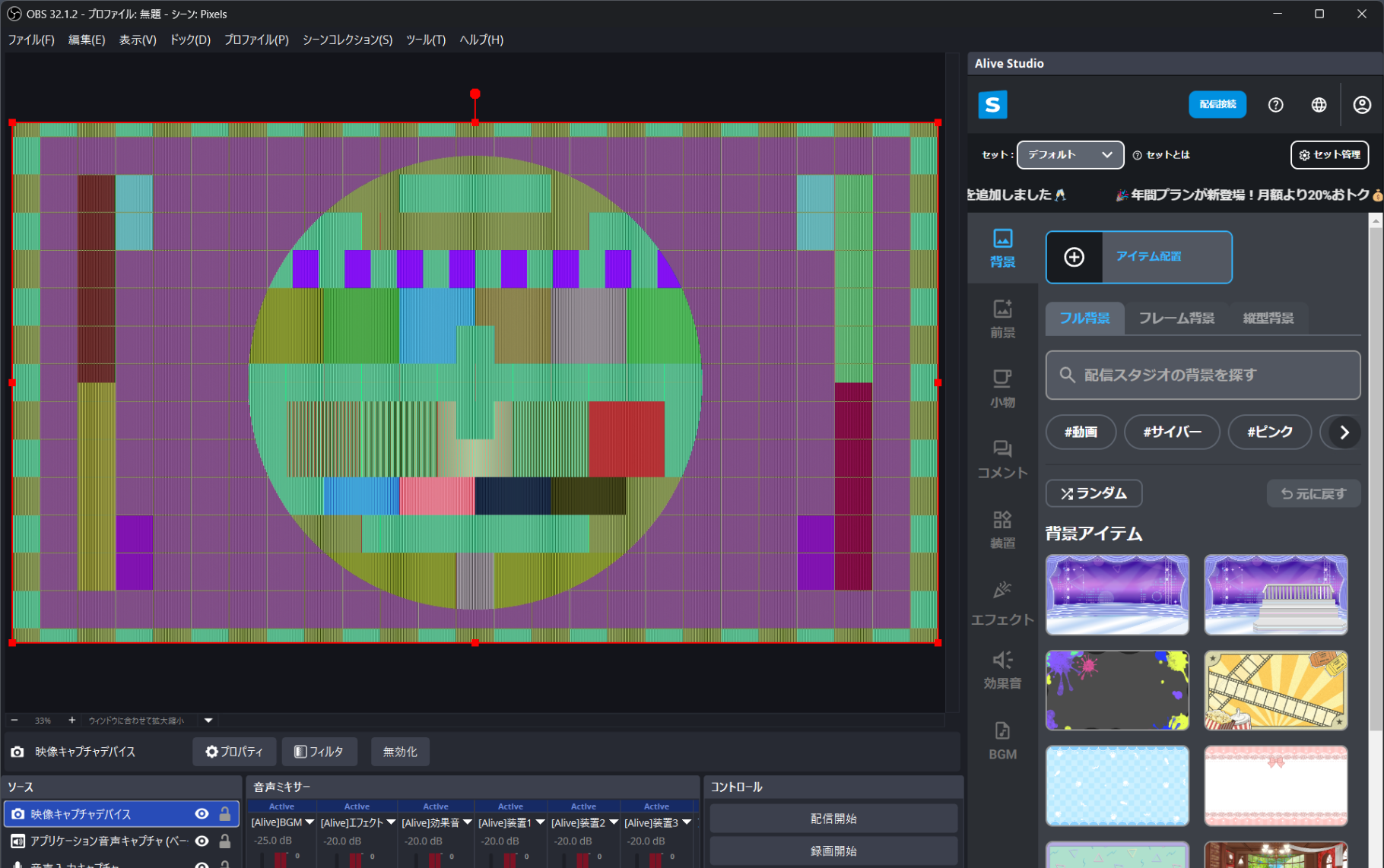
The color bars shift toward green and magenta.
To sum up this section: if you’re choosing on image quality alone, there’s no real difference between the 4K X and 4K S. The differences were in the HDR recording ceiling and file size. If you want to record in HDR or keep your recording files light, get the 4K X. Otherwise, the 4K S should be plenty.
Test Conditions | Image Quality Comparison
Recording: simultaneous recording in OBS Studio (CQP 14)
Method: extracted the same frames for visual comparison at 100% zoom, plus SSIM measurement
Measured scenes: three 4K/60fps scenes (title text, grassy field, stream), once each
Full HD/60fps: visual comparison on two scenes (SSIM not measured)
Latency: All Three Are Fine for Streaming
Next is the delay between your input and what shows up on screen. We checked it in two directions: passthrough (sending the console’s video straight to a monitor) and the captured video.
Passthrough Smoothness Also Depends on Your Monitor
In a direct connection with no monitor involved, the 4K X reached 144fps at 144Hz. However, the actual monitor we used only supported up to 60Hz, so on the real screen, both the 4K X and 4K S topped out at 60fps.
📘 Quick Glossary | Hz (Refresh Rate)
How many times per second a monitor can redraw the screen. A 60Hz monitor redraws 60 times per second, and that’s its ceiling. fps is how many frames the video source sends per second, while Hz is the limit on the receiving end. You need both to line up for motion to look smooth.
Elgato’s headline 144Hz and 240Hz figures only matter when your console or PC is outputting at a high frame rate and your passthrough monitor supports that refresh rate. If either one is capped at 60Hz, you’ll be stuck at 60fps no matter how high the capture card’s ceiling is.
How Does 144fps Carry Over to Recordings and Viewers?
The natural next question is whether a high frame rate actually makes it into your recording. The frame rate of the video your PC captures is determined by the signal your console or PC is actually outputting. In our case, the passthrough monitor maxed out at 60Hz, so the output itself was 60fps, and the recording was 60fps too. If you want to record at 144fps, your passthrough monitor also needs to support 144Hz.
The same logic applies to what your viewers see. Video can’t look smoother than the frame rate it was recorded or streamed at. Twitch and YouTube Live cap streams at 60fps, so it’s easiest to think of 144fps and 240fps as a way to keep your own gameplay smooth while you stream.
Capture Latency Was in the Tens of Milliseconds
We measured the time gap between the source screen and the OBS preview (capture latency) using a stopwatch. The 4K X came in at about 60ms and the 4K S at about 43ms.
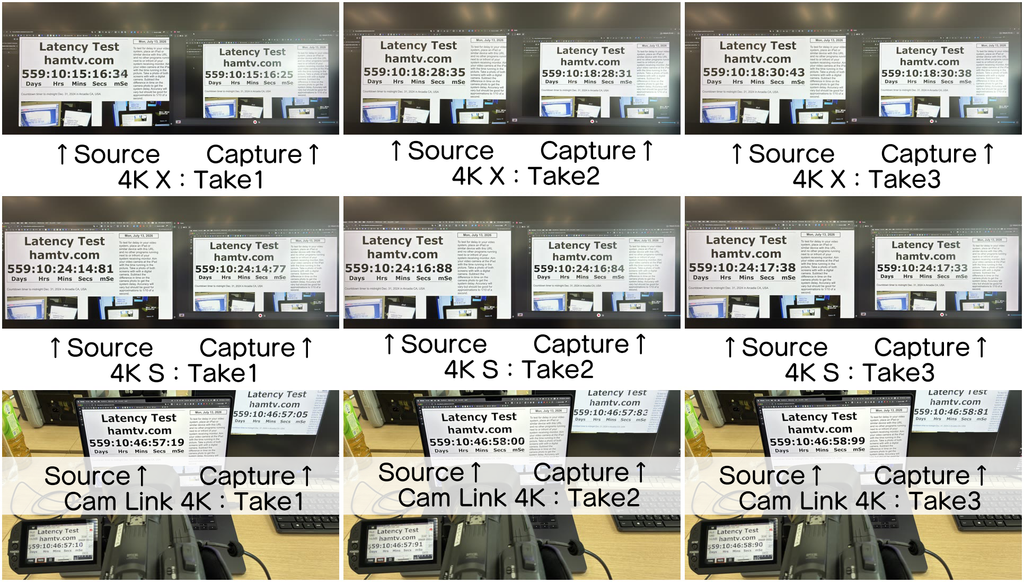
Each of the three devices was measured three times.
It might seem odd that the higher-end 4K X was slower. But this test relies on taking photos and reading the difference by eye, so allow for a margin of error of around 0.1 seconds. Both stayed in the tens of milliseconds, and we couldn’t feel any difference while playing.
The Cam Link 4K, on the other hand, averaged about 167ms, a clearly larger delay. This likely isn’t the Cam Link 4K’s fault; it’s the processing delay of the connected camera (Canon XF405) stacking on top. It’s not just the capture card: the camera you plug in affects latency too.
📘 Quick Glossary | Latency
The delay between an input and the resulting sound or image. The lower it is, the more responsive things feel.
Note that we couldn’t test VRR (a feature that matches the monitor’s refresh rate to the video) because our monitor didn’t support it. On paper, both the 4K X and 4K S support VRR.
Test Conditions | Latency Measurement
Method: photographed the source screen and OBS preview simultaneously and read the difference
Runs: 3 devices x 3 runs each
Results: 4K X approx. 60ms / 4K S approx. 43ms / Cam Link 4K approx. 167ms (with Canon XF405)
Because the readings were taken visually from photos, allow for a margin of error of around 0.1 seconds.
Using a Mirrorless Camera or Camcorder? Go with the Cam Link 4K
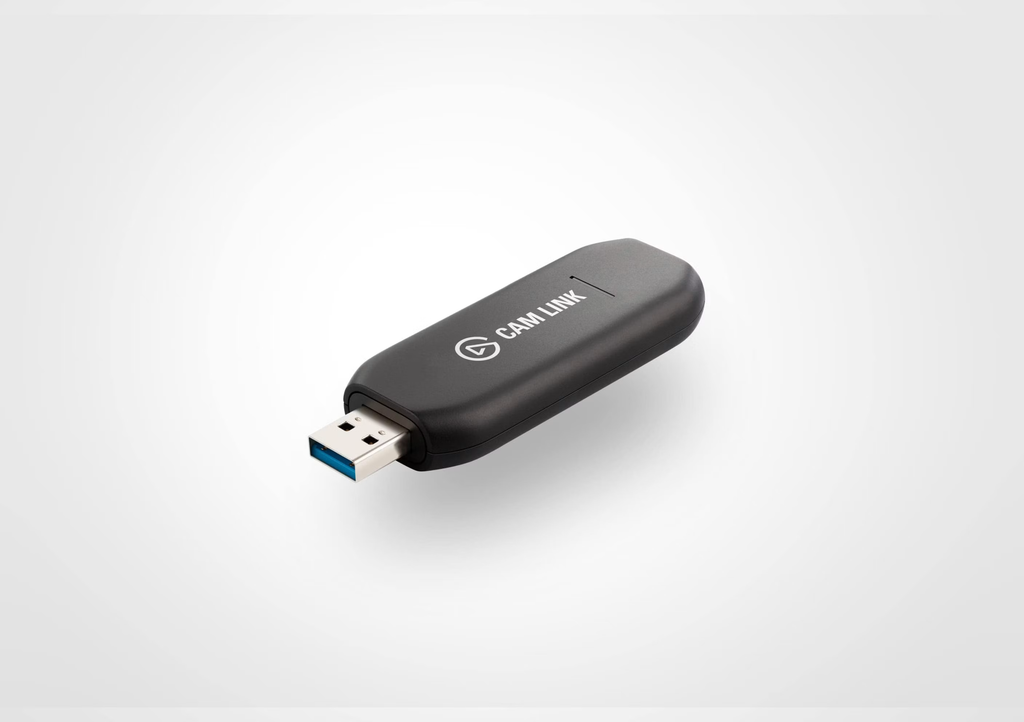
The Cam Link 4K plays a different role from the other two. Instead of capturing console footage, it turns a mirrorless camera or camcorder into a webcam for streaming. Paired with a Canon XF405, it was recognized without issues in both OBS and Zoom (video conferencing software), and it output up to 4K/60fps right after connecting.
We got 4K/60fps because our Cam Link 4K and XF405 are both 4K/60fps-capable. With a camera that doesn’t support it, you’ll be capped at 4K/30fps.
What’s interesting is that the Cam Link 4K doesn’t do any image processing itself. Image quality (color rendering, background blur) is almost 100% determined by the connected camera’s performance and settings. Dial in your colors on the camera, and that look carries straight through to your stream.
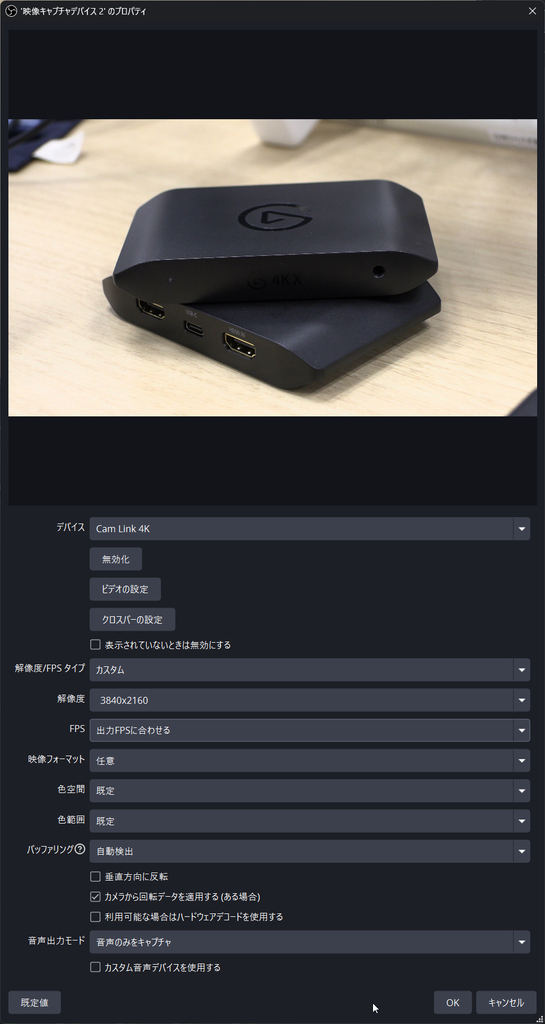
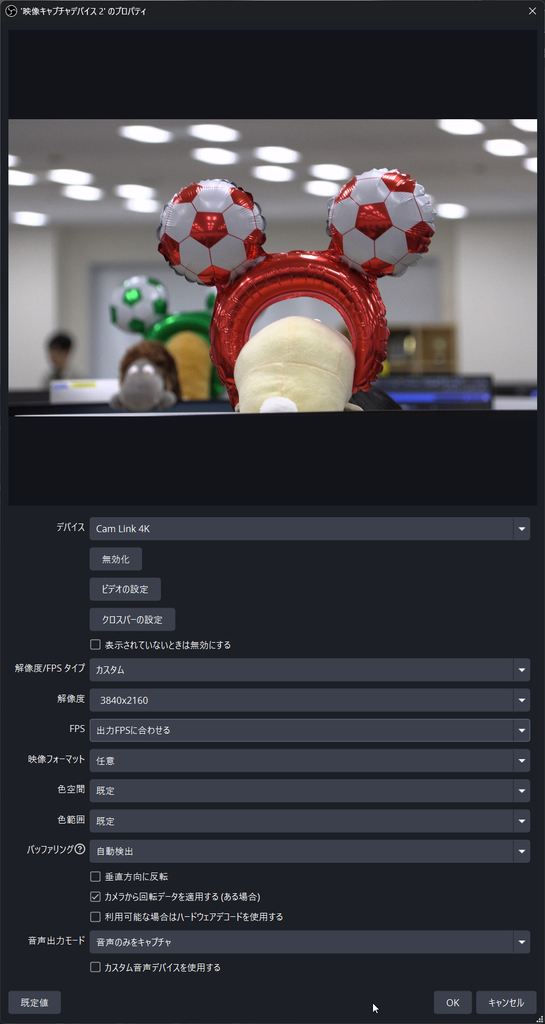
One more thing: going through Elgato Camera Hub (Elgato’s official camera software) lets you apply LUTs (color presets that adjust the whole look at once). The catch is that resolution is limited to Full HD. You’ll have to choose between keeping 4K or fine-tuning your colors with a LUT.
Low Heat and Light PC Load, Stable Even on Long Streams
We set up the 4K S in a realistic streaming configuration and ran it continuously for 30 minutes. CPU usage was 1.1% at the 15-minute mark and 0.82% at 30 minutes, holding steady around 1% the whole time. There were zero dropped frames, and the unit didn’t get very hot to the touch either, which is reassuring.
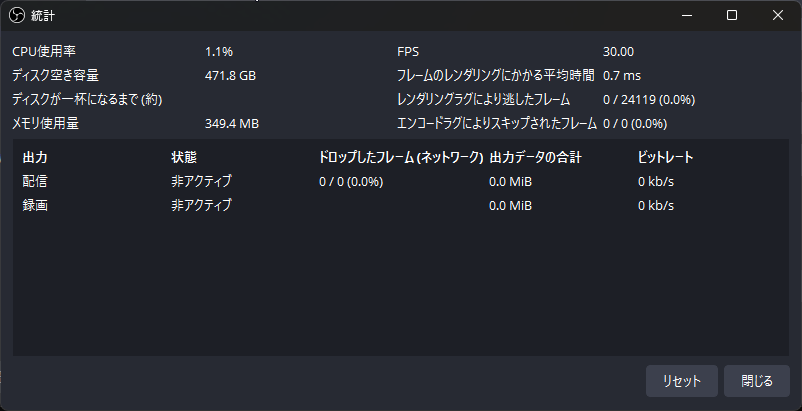
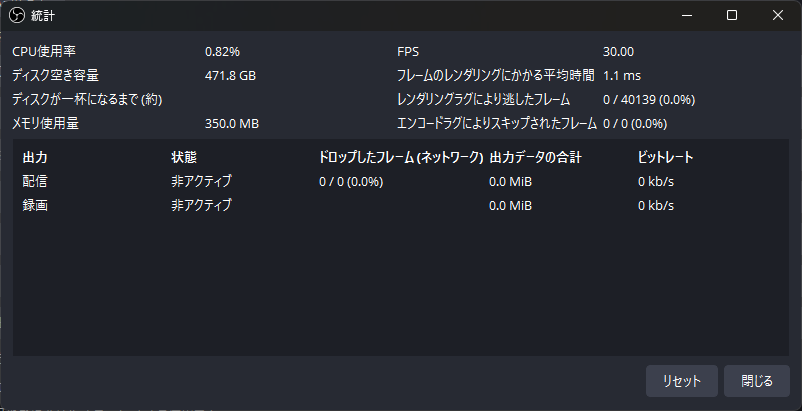
CPU usage went from 1.1% to 0.82%, with zero dropped frames and zero rendering lag.
📘 Quick Glossary | Dropped Frames
When the PC is overloaded and frames of video get skipped. This causes choppy playback on the viewer’s end.
💡 A Light Capture Card Doesn’t Mean a Light Stream Overall
Video encoding (compressing data for streaming or recording) happens on your PC, not on the capture card. It’s handled either by your CPU or by a dedicated encoder built into your GPU (like NVIDIA’s NVENC), which you can choose in streaming software like OBS. The “around 1% CPU usage” figure here shows how light the capture card itself is; the encoding load comes on top of that. It’s a good idea to check the official system requirements before you buy.
The capture card itself barely adds any load. Whether a long stream gets heavy depends far more on your PC’s specs than on the capture card.
Test Conditions | Load Test
Device: 4K S
Duration: 30 minutes of continuous operation
Video source: Switch 2 console
OBS output: 30fps
Results: CPU usage 1.1% to 0.82%, zero dropped frames
We did not run VTuber avatar tracking software at the same time. If you use an avatar or stream at 60fps, expect somewhat more load than these figures.
Works Smoothly with the Switch 2
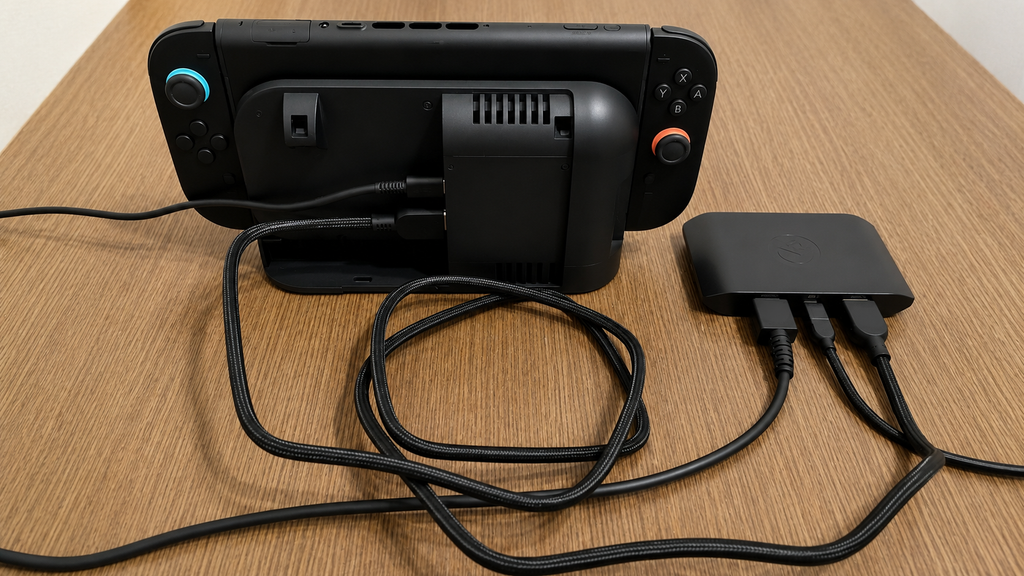
We connected a Switch 2 through its dock, and both the 4K X and 4K S recognized it without issues. Switching the output resolution between 4K, 1440p, Full HD, and HD, everything displayed correctly. Elgato’s “perfect for Switch 2” claim doesn’t seem to be an exaggeration.
For HDR, we used an HDR-capable monitor as the passthrough display and checked the Switch 2’s HDR output. Passthrough displayed correctly in HDR on both the 4K X and 4K S. However, the captured video on the PC side sometimes looked washed out and pale. This isn’t a defect; it’s what happens when the capture card passes the HDR signal to OBS without converting it to SDR (tone mapping).
It tends to happen when you use OBS alone on a PC without Elgato Studio installed, and you can fix it by enabling tone mapping in Elgato Studio’s device settings. When we retested under matched conditions with tone mapping on, captured colors on the 4K X and 4K S were identical.
💡 Switch 2 Audio Acting Up? Check Windows’ “Audio Enhancements”
Right after connecting the Switch 2, the audio played with noise, then went silent or switched to left-channel-only mono. The cable, capture card, and Switch 2 were all fine. The culprit was a Windows setting called “Audio enhancements.” Turning it off in the capture card’s recording device properties fixed it instantly, so if you see the same symptoms, check there first.
Wrap-Up: Which One Should You Buy?
Who Each One Is For
Based on our testing, here’s who each device suits best.
4K S
- Anyone about to start streaming from a Switch 2 or PS5
- Anyone who wants to start streaming on a tight budget
4K X
- PC gamers who care about HDR recording and high refresh rates
- Anyone who keeps long recordings and wants smaller files
Cam Link 4K
- Anyone who wants to use a mirrorless camera or camcorder as a streaming webcam
On the flip side, if you only ever stream at Full HD/60fps, the 4K X may be more than you need.
The 15,000 Yen Difference Hides in the Numbers
Putting the 4K X and 4K S side by side, we found almost no visible difference in image quality. Even so, the 15,000 yen gap is real: it lives in places you only see in the numbers, like bandwidth, the HDR recording ceiling, and recording file size.
The Cam Link 4K serves a different purpose altogether, and its image quality depends on the camera you connect. Think of it as a separate category from the two console capture cards: gear for people who want to turn a mirrorless camera into a streaming webcam.
There’s no single right answer. Pick the one that fits your streaming style and budget.
Credits
Interested in the gear we tested? Check out the official product pages below.
>> Elgato Game Capture 4K X Official Site
>> Elgato Game Capture 4K S Official Site
>> Elgato Cam Link 4K Official Site
Equipment provided by: Corsair Gaming, Inc. (Elgato)
Review: Umazura