


Share


How to Do a Singing Stream on IRIAM: Setup Steps, Song Reporting, and Backing Track Rules
“I want to try a singing stream on IRIAM, but I don’t really understand the setup or the rules around songs…” Plenty of livers stall at exactly that point.
Singing streams on IRIAM ask a lot of a beginner: on top of getting your gear ready, you have to report the songs you use and check the rights on your backing tracks.
This article explains how to run an IRIAM singing stream, with separate walkthroughs for the two-smartphone method and the mixer method. It also covers how to report the songs you sing, the rules for using recorded tracks, and how to fix the problems that come up most often.
Use it to get your first singing stream on air with confidence.

Common Setups for Singing Streams on IRIAM
There are three streaming setups you can use for singing on IRIAM: a cappella, two smartphones, or a mixer. Since IRIAM is an app you can stream from with nothing but the phone in your hand, an a cappella stream needs no equipment at all and you can try it today.
A mixer is a device that combines and balances several sound sources — your voice and your backing track, for example — into a single output.
Here is how the three compare.
| Item | A cappella | Two smartphones | Mixer |
|---|---|---|---|
| Equipment needed | Streaming smartphone only (no gear) | Streaming smartphone + a device to play the track | Mixer, microphone and more (details below) |
| How the backing track plays | No backing track | Played through a second device’s speaker and picked up by the streaming phone’s mic | Fed into the mixer and blended with your voice |
| Ease of balancing levels | No balancing needed | Adjusted by device volume and distance (mostly by feel) | Fine control with the knobs |
| Best for | Anyone who just wants to sing, casually | Anyone who wants a backing track on a budget | Anyone who cares about sound quality |
| Watch out for | With no accompaniment, your singing is fully exposed | Household noise gets picked up easily | Upfront cost and fiddly connections |
A sensible path for singing with accompaniment is to start with the two-smartphone method, then add gear and move to a mixer once the sound quality starts to feel limiting.
How to Run an IRIAM Singing Stream With Two Smartphones (5 Steps)
The two-smartphone method splits the job between devices: one streams, the other plays the track. The streaming phone running the IRIAM app picks up both your voice and the accompaniment, so there is no complicated wiring involved.
You need three things.
| Equipment | Purpose | Required / optional |
|---|---|---|
| Streaming smartphone | Streams via the IRIAM app and picks up your voice and the track | Required |
| Playback device | Plays the backing track (an old phone, a tablet, a music player) | Required |
| Device stand | Holds both devices in place, keeping distance from your mouth and the speaker consistent | Optional |
Once you are set up, work through these five steps from picking songs to going live.
Step 1: Choose Your Songs
Start by listing the songs you want to sing, then look up how their rights are managed in the JASRAC or NexTone works database. Whether a song is cleared for you to sing on IRIAM is decided by what the database shows, not by gut feeling.
Even songs that are staples on IRIAM can be confused with a different work of the same name. Do not go by title alone — match the artist, the lyricist and the composer to pin down the right entry. How to read the database screens is covered in the song reporting section later in this article.
Step 2: Check the Usage Terms for Your Backing Track
Wherever your backing track came from, check the distributor’s terms of use to confirm it is licensed for streaming. The copyright in a song and the neighbouring rights in a specific recording (the rights protecting the singers, record labels and others involved in that recording) are two separate things. Reporting a song to IRIAM does not, on its own, let you play a commercial recording or a karaoke track behind you.
Terms differ by source — karaoke track stores aimed at singing streams, official distribution pages for Vocaloid songs, and so on. Confirm that streaming use is explicitly permitted, and check for conditions such as required credit lines, before you use anything.
Step 3: Position the Playback Device
Place the playback device where the streaming phone’s microphone can pick up the track naturally. It is the easy way to play music on IRIAM, but how you position the device changes what your listeners hear more than you might expect.
The basic arrangement is to point the speaker toward the streaming phone’s microphone and set it a little away from your mouth. If the track is drowning out your voice, move it further away; if the track is getting buried, bring it closer.
If vibration through the desk bothers you, laying down a single towel can settle the sound.
Step 4: Balance Your Voice Against the Track
Before going live, sing at your actual performance volume with the track playing and adjust until the lyrics come through clearly. If you test quietly, the accompaniment will swallow you the moment you hit the chorus for real.
With the two-smartphone method there are only two things you can adjust:
- The playback volume on the device playing the track
- Its distance from the streaming phone and the direction the speaker faces
Recording a short rehearsal and listening back will catch anything that sounds off before you are live. For choosing a microphone and the rest of your gear, this article is a good reference.
>>IRIAM Streaming Equipment Guide: Must-Have Gear and Budget-Based Setup Recommendations
Step 5: Start Streaming on IRIAM
When everything is ready, open the stream setup screen, check your title and settings, and go live.
IRIAM offers two stream formats — illustration streams and radio streams — and you can hold a singing stream in either. Putting “singing stream” in the title makes it obvious to listeners who are in the mood for a karaoke session.
Right after you go live, ask your listeners how the balance sounds. If they say the track is too loud, turn down the playback device; if they say your voice sounds distant, rework the positioning.
Rights checks apply to background music on IRIAM too, so pay attention to every sound you play, not only the songs you sing.
If you have just debuted, a singing stream also works well as your format for banaibe, the event for new livers.
>>IRIAM Banaibe (Top Banner Challenge) Explained: When You Can Join, Requirements, and How to Prepare
How to Run an IRIAM Singing Stream With a Mixer (5 Steps)
With a mixer (or audio interface), your voice and the backing track are blended in the hardware before being sent to the streaming phone. Because the microphone signal reaches your listeners directly, you can aim for the quality of a full-scale VTuber singing stream.
Here is the equipment you need and what to check on each item.
| Equipment | Purpose | Required / recommended | What to check |
|---|---|---|---|
| Streaming smartphone | Streams via the IRIAM app | Required | Whether its port supports a mixer connection |
| Playback device | Plays the backing track | Required | The shape of its audio output port |
| Smartphone-compatible mixer | Mixes your voice and the track and sends them out | Required | Smartphone support (e.g. YAMAHA AG03MK2, audio-technica AT-UMX3) |
| Microphone | Captures your voice | Required | Dynamic or condenser |
| Wired earphones / headphones | Monitors the stream audio | Recommended | Whether the plug fits the mixer’s headphone jack |
| Cables | Connect the devices | Required | Connector standards (XLR, stereo mini, USB, etc.) |
| Adapters | Convert the smartphone’s port | Required on some devices | USB Type-C / Lightning support |
| Power supply | Powers the mixer | Required on some models | Whether a USB adapter or power bank can be used |
Connecting things in the wrong order is a common reason for getting no sound at all, so follow these five steps.
Step 1: Connect the Microphone to the Mixer
Start by plugging your microphone into the mixer’s mic input. On the popular YAMAHA AG03MK2, for instance, the mic/line input accepts both XLR and phone plugs. Check that your cable matches the port before you plug anything in.
If you are using a condenser microphone (a high-sensitivity mic that needs external power), switch on phantom power after connecting. On the AG03MK2, the rule is to turn the level knob all the way down before flipping the +48V switch.
The procedure differs by model, so always follow your product’s manual.
Step 2: Connect the Playback Device
Next, connect the device playing your backing track to the mixer’s input with the appropriate cable. On the AG03MK2, the track goes into the smartphone input/output jack (AUX, which takes a 4-pole stereo mini plug). If your model has a line input, you can also connect via a phone plug.
Watch out for where the volume is actually controlled, because it depends on the port. On the AG03MK2’s AUX jack, playback volume is adjusted on the connected device, not on the mixer. Do not assume the mixer handles it — check the manual for your specific model.
Step 3: Connect the Streaming Smartphone
Connect the mixer to your streaming smartphone with a cable suited to both the product and the device. The connection method varies with the combination:
- USB cable
- 4-pole stereo mini cable
- Via an adapter
iPhone/iPad and Android differ not only in the ports they accept but in how power is handled. Some mixers need external power when a smartphone is connected, so check the compatibility list and the manual in advance.
Choosing first-party adapters helps you avoid flaky connections.
Step 4: Set What Audio Is Sent to the Stream
Once everything is connected, use the mixer to decide which audio goes out to the stream. On the AG03MK2, the STREAMING OUT switch lets you pick from three options: “DRY CH1-2G,” “INPUT MIX” and “LOOPBACK.”
Similar names do not mean identical behaviour — what a setting does depends on the model and how you have things wired. On the AT-UMX3, for example, loopback mixes the audio playing on the smartphone with the audio coming into the unit and sends it back.
If your backing track comes in from a separate device via line input, do not enable loopback as a matter of course — follow the connection examples in your manual.
Step 5: Balance Your Voice Against the Track
Finally, sing at your real performance volume and set the microphone’s input gain (how much the mic signal is amplified). On the AG03MK2, the guideline is that the PEAK indicator should flash briefly when you sing hard. A peak light that comes on constantly is a sign of clipping.
Once the gain is set, balance your voice and the track with their respective level knobs. Do the final check on wired earphones or headphones — over speakers, it is hard to notice when your voice is buried under the accompaniment.
Check Before You Sing: Song Rights and Recording Rights
Alongside the mechanics of running a singing stream, music rights are the other thing to get straight. The copyright that protects lyrics and melody and the neighbouring rights that protect a recorded performance are separate rights. Music rights come in two layers.
On IRIAM, works managed by JASRAC or NexTone may be used — after you report them in the app — only for singing a cappella, playing them, or performing them yourself with an instrument. Using a recording from a commercial CD, a music streaming service, a video app or a karaoke provider as your backing track without the rights holder’s permission is not allowed. Clearance for the song and clearance for the recording have to be checked separately.
Source: IRIAM, “On using other people’s copyrighted works” (Japanese)
The same logic applies when you post a cover video to X (formerly Twitter): there is no guarantee that the platform you post to has cleared the rights for you. As you expand beyond IRIAM, check the rules of each destination.
This article goes into detail on playing music, including background music, on your streams.
>>How to Play BGM and Music on IRIAM Streams: No-Equipment Methods and Where to Find Tracks
How to Report the Songs You Use on IRIAM
Reporting the songs you use takes a few minutes through a form inside the IRIAM app. Here is the process in five steps, from searching the database to hitting send.
Step 1: Search for the Song on JASRAC or NexTone
Open the JASRAC or NexTone works database and look up the song you plan to sing. Enter either the title or the artist name in the search box.
When several works share a title, open each entry and check it individually. Matching the lyricist, composer and artist will keep you from picking the wrong one.
If you are singing a cover, the registered writers are usually those of the original, so do not let differences in credits throw you off when identifying the work.
Step 2: Check That “Streaming” Is Managed
Once you have the right work, look at whether the streaming category is under management. In J-WID that is the “management status (usage categories)” section of the work detail page; in NexTone it appears on the search results screen. If streaming is marked with a circle, you can report the song to IRIAM and sing it.
Songs that do not appear in a search, or that have an ✕ against streaming, are outside JASRAC and NexTone management. For those, whether you can sing a cappella, play or perform them comes down to whether you have permission from the rights holder — not to the song report. Unless it is your own composition, do not sing anything you have no permission for.
Step 3: Open IRIAM’s Song Report Form
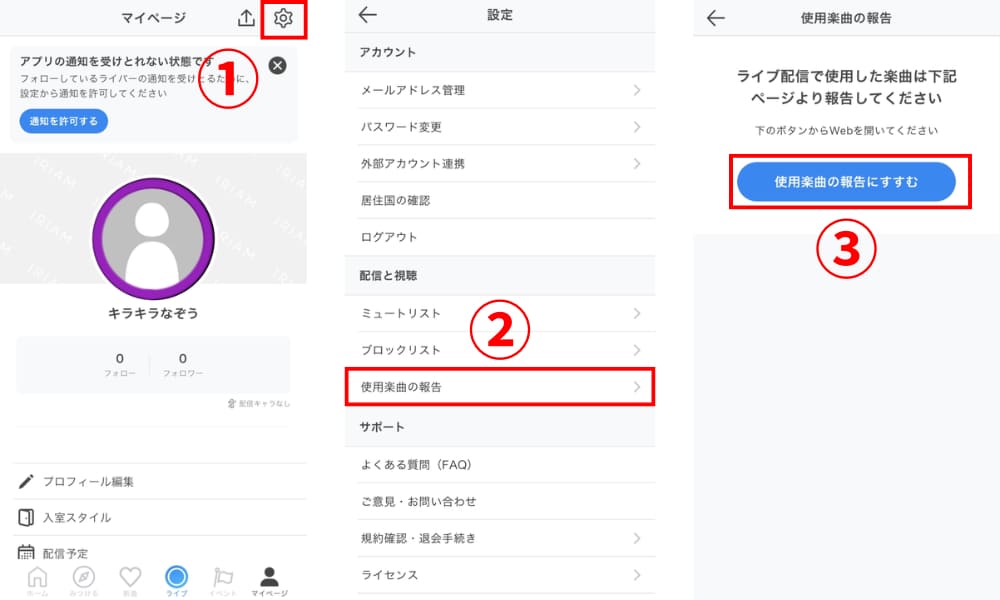
The report form lives under “My Page” in the IRIAM app. Tap the gear icon at the top right, then “Report songs used” and “Proceed to song report,” and you land on a page where you choose between the JASRAC and NexTone forms.
Pick the organization that manages the song you are singing.
Step 4: Enter the Song Details
Fill in the required fields, checking each against your database search result. The main fields are:
- Work code
- Work title (song name)
- Artist name
- Lyricist
- Composer
Picking the wrong management organization or the wrong work are the most common mistakes at this stage. If you do report the wrong song, simply submit a new report with the correct details.
Step 5: Submit a Report Every Time You Sing
Do not batch up several performances into one report — submit through the in-app form each time you use a song. Before or after the stream is equally fine, and even humming or a single phrase counts.
This works differently from services like YouTube, where the platform handles blanket licensing, so remember it as “one performance, one report.” For songs you have reported before, the “report from past song history” feature lets you resubmit without retyping everything.
5 Problems That Come Up in IRIAM Singing Streams and How to Fix Them

Many audio problems in a singing stream can be solved live if you know how to isolate the cause. So that a wall of “the sound is weird” comments right after you go live does not throw you, here are the five most common symptoms and the order to work through them.
Distortion: Lower the Input Level
If the sound breaks up on the parts you sing hardest, turn down the mixer’s mic input gain. A peak indicator that lights up constantly is telling you the input is too hot.
Sing at your real volume and back the knob off until the light only flashes momentarily. If only the chorus distorts, reset your levels using the chorus as the reference.
Quiet Vocals: Adjust Your Mic Distance
If listeners say your voice is too quiet, first aim your mouth at the front of the microphone and close the distance. The right distance depends on the mic type: dynamic mics want you close, condenser mics a little further back.
If fixing the distance does not help, raise the input gain and the mic level gradually, staying below the point where it distorts.
Quiet Backing Track: Reposition the Device
On the two-smartphone method, move the playback device closer to the streaming phone or turn up its volume.
With a mixer, check the playback device’s output volume and the level of the channel the track comes in on, in that order.
Maxing out just one of them tends to make the sound harsh, so the trick is to balance both around the middle.
No External Audio: Check the Connections
When your microphone audio is not reaching IRIAM, work through the connection chain in order. There are five things to check:
- Whether cables are fully seated
- Connector standards
- Adapters
- The mixer’s output setting
- Microphone permissions for the IRIAM app
Unplugging every external device and testing whether your voice gets through on the phone’s built-in mic tells you whether the problem is the phone or the gear.
Audio Lag: Avoid Wireless Connections
If the backing track and your own voice sound delayed, stop using Bluetooth earphones and wireless speakers and switch to wired earphones.
By the nature of the wireless technology, Bluetooth audio arrives at the receiving end slightly later than it left the transmitter. When you are singing, even a fraction of a second wrecks your timing, so monitor directly from the mixer’s headphone jack.
With a path that involves no wireless transmission, you can forget about latency and concentrate on singing.
Widening Your Singing Streams Beyond IRIAM With “Alive Studio”

Once you are comfortable with singing streams on IRIAM, expanding into PC streaming on YouTube or Twitch is a natural next move.
One option worth considering is “Alive Studio” from GMO Pepabo. It is not a feature inside the IRIAM app — it works with the streaming software OBS Studio to build your stream layout.
You can drop backgrounds, stream assets, BGM, sound effects, on-screen text and topic roulettes onto your layout intuitively, and commercial use is supported.
There are two tiers: a free plan with over 400 assets, and a paid Premium plan with unlimited use of more than 1,700.
When you want to bring the voice you have honed in singing streams to a fully produced PC stream, take a look below.
Summary
This article covered how to run a singing stream on IRIAM, from choosing your setup through to song reporting and the rules on recorded tracks.
There are three points to take away:
- Pick the setup that suits you from three options: a cappella, two smartphones, or a mixer
- Works managed by JASRAC or NexTone can be sung a cappella, played or performed live, and must be reported in the app every time you use them
- Using a commercial or karaoke recording as your backing track requires separate clearance of the neighbouring rights
With the rights rules understood, sing one song a cappella or with the two-smartphone setup first, and add gear and production once you find your feet.
If you want to climb the ranks while you keep singing, it pays to understand the Daily Rank Score too.
>>How to Raise Your IRIAM Rank: The Daily Rank Score System Explained
For ideas you can build around a singing stream, this article is worth a read.
>>V-Liver Stream Content Ideas: A Beginner-Friendly Guide by Purpose to Try Tonight