

Share


How to Make IRIAM Character Art: 7 Steps, Specs, Fixes, and Where to Commission
“I want to start streaming on IRIAM, but I don’t know what size or requirements my character art needs…” If that sounds like you, you’re not alone.
IRIAM’s big appeal is that you can stream with just one illustration, so it’s only natural to get stuck on that very first image.
This guide explains how to make IRIAM character art in 7 steps, then covers how to get it moving in the app, the official specs, and what to do when it doesn’t move properly. We also compare where to commission art (SKIMA, Coconala, Skeb, and X) and go over the rights and review rules.
If you’re getting ready to debut on IRIAM, read on.

How to Make IRIAM Character Art: 7 Steps
You’ll run into fewer problems with IRIAM character art if you build the official guide’s recognition requirements in from the character design stage. The drawing process itself is the same as usual; the only differences are a few tips for the eyes, mouth, and coloring.
Here’s how to go from character design to export in 7 steps.
Step 1. Decide on Your Character Design and Color Scheme
When creating a character for IRIAM, decide on a color scheme that’s easy for auto-recognition to read at the same time as your character’s personality and world.
The official guide lists these four requirements:
- Make the eyeliner and eyelashes close to black
- Use colors that clearly separate the whites of the eyes from the irises
- Don’t place the eyebrows too close to the eyes
- Use simple anime-style cel shading
Prioritize recognition around the eyes, and express your character’s personality through hair color and outfit instead.
Source: IRIAM “Illustrator’s Guidebook Ver.3“
Step 2. Prepare Your Canvas and Export Streaming Data Within the Size Limits
If you’ll only use the art for streaming, prepare a canvas no larger than 2,000 px wide by 4,000 px tall. Think of this as your standard template size for IRIAM character art.
If the art might be printed, for example as an event prize, save a separate high-resolution file at about 5,000–7,000 px tall and 2,500–3,500 px wide. Then duplicate it and scale the copy down to streaming size for export.
If you shrink the original directly, you won’t have any print-quality data left.
Step 3. Sketch a Front-Facing Full Body at 5–8 Heads Tall
Start your sketch so it meets the four conditions the official guide lists as easy to recognize: “5–8 heads tall,” “face basically facing forward,” “full body,” and “human-shaped.” Poses are fairly flexible, as long as no hands or props cover the face.
On the other hand, chibi characters at 2–3 heads tall, animal-type characters, and side or angled views are described as unrecognizable or hard to recognize.
Step 4. Draw Clear Borders Between the Whites, Irises, and Lashes
The basic rule for eyes is to draw them wide open with a clear border between the irises and the whites. The official guide gives these four examples as hard to recognize:
- Narrow eyes
- Irises that are too small for the eye
- Very long eyelashes or heavy makeup
- Eyebrows placed too close to the eyes
Half-lidded or squinting eyes can be tempting, but use “standard open eyes” that avoid the four points above as your baseline.
Source: IRIAM “Illustrator’s Guidebook Ver.3“
Step 5. Draw a Simple Mouth with Upturned Corners
Mouths are easier to recognize when drawn simply, either as a wide-open smile with upturned corners or a closed smile. Here’s what to aim for and what to avoid in IRIAM illustrations:
| Easy to Recognize | Avoid |
|---|---|
| Open smile or closed smile | Mouths made of wavy lines |
| No teeth, or only subtle teeth | Shadows, heavy makeup, or faint outlines |
Detailed teeth get stretched and look unnatural when the mouth opens and closes, so it’s best to leave them out.
Step 6. Line and Color Without Hair or Accessories Covering the Face
When inking and coloring, check two things: that your bangs don’t cover the eyes too much, and that no accessories like glasses overlap the eyes or mouth. IRIAM’s official support explains that art may not load properly if many facial features are hidden or if there’s a lot of gradation.
Simple anime-style cel shading is easier to recognize, while painterly styles and heavy gradients tend to fail to load.
Source: IRIAM “My Character Won’t Move Properly” (Japanese)
Step 7. Export as a Transparent PNG
Export your finished character art as a PNG with a transparent background. Here’s how to do it in the illustration software CLIP STUDIO PAINT:
- Hide the paper layer
- Select “Export (Single Layer)” (画像を統合して書き出し) → “.png”
- Check the option to export transparency (透過情報を書き出す)
- Make sure the output size is within the limits
If your background exports as white, it’s almost always because you missed the checkbox in step 3.
For what to do after exporting, check out this guide:
>>How to Start Streaming on IRIAM: A 6-Step Beginner’s Guide to V-Liver Live Streaming
How to Upload Your Character Art to IRIAM and Make It Move
Once your character art is ready, just upload it in the IRIAM app and choose a recognition version, and it starts moving. No modeling in special software is needed. Here are 4 steps covering the upload, choosing a version, and fine-tuning expressions.
Step 1. Select and Upload Your Character Art
Uploading takes just a few taps from the home screen.
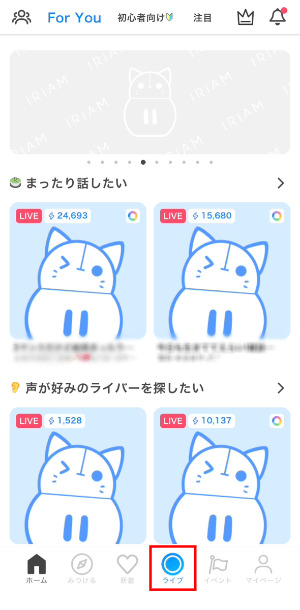
- Tap the “Live” (ライブ) button on the home screen
- Choose your image from “Upload Illustration” (イラストをアップロードする)
- Select a recognition version and confirm
There’s no limit on uploads, so you can try as many times as you like. Use “Preview” in the top right to check how it moves without going live.
Step 2. Test It First with Ver.4.1
Load your art with the latest recognition version, Ver.4.1, first. IRIAM officially recommends starting with the newest version.
Ver.4.1 is relatively stable and tends to produce crisp eye and mouth shapes. It’s also the only version that lets you choose between two ways of closing the eyes. Keep in mind, though, that symmetrical, front-facing illustrations tend to work more reliably.
*Specifications are subject to change. Check the official help pages for the latest information.
Source: IRIAM “Illustration Streaming Setup Guide” (Japanese)
Step 3. Try Ver.4 or Ver.3 If It Doesn’t Work Well
If Ver.4.1 gives you uneven results or unstable shapes, try Ver.4. If you want to keep everything other than the eyes and mouth looking clean, try Ver.3.
| Version | Best For | Watch Out For |
|---|---|---|
| Ver.4 | Angled illustrations move relatively well | Eye and mouth shapes tend to blur |
| Ver.3 | Keeping areas other than the eyes and mouth clean | You can’t choose how the eyes close |
Ver.4 also doesn’t let you choose how the eyes close. Note that Ver.1 was discontinued in the January 21, 2025 update, and Ver.2 in the April 14, 2026 update.
Source: IRIAM “My Character Won’t Move Properly” (Japanese)
Step 4. Fine-Tune Facial Movements
After uploading, use the expression adjustment feature to fine-tune how the pupils and mouth move and where the closed and open mouth sit. The expression adjustment feature was fully switched to a new version in the July 14, 2026 update.
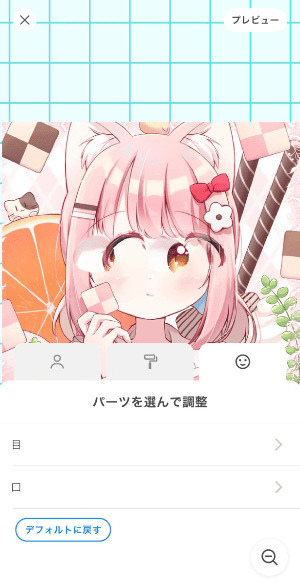
- Open the stream start screen
- Select the part you want to adjust, and it will be zoomed in
- Adjust how the eyes and mouth open and close directly on screen
Settings from the old version have been reset, so readjust any character art you were already using.
IRIAM Character Art Specs to Check Before You Start
IRIAM’s official “Illustration Streaming Setup Guide” sets the following specs for streaming illustrations:
| Item | Spec |
|---|---|
| Image size | Up to 2,000 px wide × 4,000 px tall |
| Format | PNG with a transparent background showing only the character |
| File size | 20 MB or less |
| Resolution | 350 dpi recommended |
A common mistake is drawing on a square canvas because you weren’t sure of the size. Knowing that IRIAM expects a tall, full-body illustration prevents this. IRIAM loads a single image as-is, so you don’t need to split it into parts like with Live2D.
Preparing a separate high-resolution file at about 5,000–7,000 px tall and 2,500–3,500 px wide lets you handle large prints like posters if you win an event.
5 Ways to Get IRIAM Character Art [Comparison Table]
There are five ways to get character art for IRIAM:
| Method | Cost | Turnaround | Flexibility | Rights | Use on IRIAM |
|---|---|---|---|---|---|
| Draw it yourself | Free | Up to you | High | You’re the creator | Yes |
| SKIMA / Coconala | Several thousand to tens of thousands of yen | A few days to a few weeks | High | Depends on the listing | Yes (check first) |
| Skeb | Your set price | Depends on the creator | Low | Generally limited to icons and personal viewing | Permission required |
| Buy a finished character | Listing price | Same day | Low | Can buy with copyright | Yes |
| AI / character makers | Free and up | Same day | Medium | Depends on each tool’s terms | Check first |
IRIAM’s official FAQ mentions SKIMA and Coconala by name, and SKIMA has a category for illustrations tested to work on IRIAM. If you’re making a full-body avatar with a free character maker or AI, first check whether the terms allow use in streams where you receive tips.
Source: IRIAM “How to Stream with an Illustration” (Japanese)
What to Do When Your IRIAM Character Art Won’t Move Properly
When character art won’t move properly on IRIAM, the cause usually falls into one of six categories:
- Size errors
- Eyes or eyelashes not recognized
- Distortion when the eyes close
- Mouth distortion
- Sub-characters misrecognized as the face
- Movement that just feels off
Here are the fixes the official guide recommends for each symptom.
Source: IRIAM “Illustrator’s Guidebook Ver.3“
Can’t Upload Because of Size, Format, or File Size Errors
If you see a message saying the image couldn’t be uploaded because it exceeds 2,000 px wide or 4,000 px tall, resize it to fit within the limits. Keep the aspect ratio locked and scale it down to 4,000 px tall or less.
Also check that it’s a transparent PNG and that the file is 20 MB or less. JPEG can’t store transparency, so it won’t work.
Both Eyes or Eyelashes Aren’t Recognized Correctly
Errors like “Please open both of your character’s eyes” or “One of the eyelashes can’t be found” can be fixed by adjusting the contrast and placement around the eyes. The official guide gives these seven fixes:
- Darken the eyelashes
- Lighten the shadows around the eyes
- Leave space between the eyes and bangs or accessories
- Make the borders between the whites and irises, and between the irises and lashes, clear
- Enlarge the whites of the eyes
- Leave space between the eyelashes and eyebrows
- Draw the character at 5–8 heads tall, facing forward
Designs with one eye hidden behind the bangs often trigger the “one eyelash can’t be found” error, so be careful.
Lines or Shapes Break When the Eyes Close
The fix for distortion when the eyes close depends on the symptom.
| Symptom | Fix |
|---|---|
| One eye disappears | Change the recognition version. Remove or move hair accessories near the eyes |
| Lines break partway through closing | Make the eyes taller. Make the irises smaller and the whites larger. Make the irises closer to round |
| Tips of the lower lashes disappear | Connect the upper and lower lashes with a line |
| Tips of the outer lashes disappear | Make the lash tips blunter |
Thin, sharply flicked outer lashes can sometimes be fixed just by rounding the tips slightly. Try small edits before redrawing.
The Mouth Distorts When It Opens
If the mouth distorts when it opens, try these five fixes, starting with the easiest:
- Change the recognition version setting
- Make the gradient inside the mouth symmetrical
- Reduce details like teeth
- Leave space between the mouth and nearby hair
- Use a closed mouth instead of an open one
Fix 1 doesn’t require touching the illustration, and fixes 2–4 only need partial edits. Character art with detailed teeth often improves with fix 3.
Sub-Characters or Accessories Are Mistaken for the Face
If there’s a sub-character like a plushie or pet in the image, recognition may lock onto its face and fail. If you get “Please open both eyes” even though the eyes are open, suspect a misrecognition.
Try one of the following:
- Remove the sub-character
- Move it
- Change whether its eyes are open or closed
- Remove hair accessories or horns near the eyes, or change their size or position
Overall Movement or Expressions Feel Off
If there’s no error but the movement still feels off, take a two-step approach: fine-tune with expression adjustment, then re-upload with a different version.
That’s because IRIAM’s official support explains that art may not load properly if many facial features are hidden or if there’s a lot of gradation.
First, adjust the pupils and mouth with “Fine-tune character expressions” (キャラの表情の微調整をする). If that doesn’t help, re-upload with Ver.4 or Ver.3.
4 Services for Commissioning IRIAM Character Art
The four most common options for commissioning IRIAM character art are SKIMA, Coconala, Skeb, and X. The route you choose affects whether you can discuss details with the artist, how safe your payment is, and what rights you get to the finished art. Here’s how to search on each and what to watch out for.
Find an Artist on SKIMA
SKIMA has an “IRIAM category” where artists can list illustrations tested to work in the IRIAM app. It was added to opt sales (a system for selling finished, one-of-a-kind pieces) in November 2024, and you can use the art for streaming right after purchase.
There are two ways to search: commissions, where an artist creates a custom piece for you, and opt sales, where you can buy a finished character along with its copyright. Choose based on how soon you need it.
IRIAM’s official FAQ also lists SKIMA as a commission service, so it should be easy to use even for your first commission.
Source: IRIAM “How to Stream with an Illustration” (Japanese)
Find an Artist on Coconala
On Coconala, filtering the character creation category with the keyword “IRIAM” brings up a large number of listings. Each listing shows the price, ratings, track record, and options, making it easy to compare several artists side by side.
Because Coconala handles the payment, you’re less exposed to payment risks such as paying and never receiving the art than you would be with a direct deal. Decide on your budget and deadline before searching to make comparisons easier.
Send a Request on Skeb
Skeb is a one-shot request service with no back-and-forth discussions or revisions. You send a request, the creator starts work if they accept, and it’s complete once delivered.
Be careful with rights. Under Skeb’s terms, copyright belongs to the creator, and clients can generally only use the art as a social media profile image or for personal viewing.
If you plan to use it on IRIAM, where you can receive tips, state that use clearly in your request and get permission before proceeding.
Commission an Artist Directly on X
You can also find an artist whose style you like on X and commission them directly by DM or through a form. Searching hashtags like “#イリアム” (#IRIAM) or looking for “commissions open” (依頼受付中) in profiles is the usual approach.
Since there’s no middleman, you’ll need to put the price, deadline, number of revisions, and scope of use in writing yourself. If you’re unsure about negotiating terms, it’s safer to use a commission service, as IRIAM’s official FAQ suggests.
For tips on nailing down your character design before commissioning, check out this article:
>>VTuber Character Design Tips: Steps, Strategies, and Pre-Request Prep!
Rights and Review Rules for IRIAM Character Art
On IRIAM, you can only use character art that you own the copyright to or that the creator has licensed you to use, and the content is also reviewed against the official guidelines. To keep your art from being removed, here are the rights and content rules, split into four parts.
Check the Terms for Character Makers, AI, and Free Assets
If you’re making character art with a character maker, AI generation, or free assets, check each tool’s terms to see whether “use in streams with tipping” is allowed. IRIAM states that you can only use illustrations you own the copyright to, or that the creator has licensed for use on IRIAM.
For example, the image maker Picrew clearly states that using images on sites or apps where you can receive tips counts as commercial use, so check whether IRIAM falls within the permitted scope.
As for AI-generated art, IRIAM doesn’t ban it just because of how it was made. However, it notes that art judged to infringe third-party rights or violate public decency may be removed.
Source: IRIAM “Illustration Streaming Setup Guide” (Japanese)
Source: Picrew “Can I use images made with an image maker in videos or live streams?” (Japanese)
Source: IRIAM “About Using AI-Generated Illustrations” (Japanese)
Don’t Include Third-Party Rights, Personal Information, or Real Photos
Illustrations that infringe third-party rights, contain personal information like your real name, or include real photos of people, animals, and so on are prohibited. Tracing existing characters or pasting cut-out photos into your art are typical examples that get removed in review.
Reviews aren’t limited to streaming illustrations. Icons, headers, nicknames, bios, and stream titles are all explicitly covered, so check your whole profile in advance, not just your character art.
Source: IRIAM “Prohibited Acts and Precautions” (Japanese)
Avoid Excessive Exposure or Sexually Suggestive Content
IRIAM officially lists revealing outfits like swimsuits, excessive exposure around the chest, and sexually suggestive expressions or poses as examples of content subject to removal. Reviews don’t judge individual elements in isolation; they look at the overall impression of the expression, pose, and outfit together. Even a modest outfit can be flagged depending on the pose.
Examples of designs considered swimsuits are covered in a separate FAQ, so if you’re planning a summer swimsuit outfit change, check it in advance.
Source: IRIAM “About Swimsuit Content” (Japanese)
Avoid Depictions That Could Be Seen as Age 15 or Younger
“Posting content that suggests children aged 15 or younger” is explicitly listed as a prohibited act, and depictions that are clearly of children will be removed. Even if your character’s official age is older, the art will be flagged if it’s judged to depict a child.
IRIAM explains that because livers are fictional characters who are also perceived as living people, the standards tend to be stricter than for pure fiction.
Source: IRIAM “About Posting Content That Suggests Children Aged 15 or Younger” (Japanese)
For more on IRIAM’s age restrictions, see this article:
>>IRIAM Age Restrictions: How Old You Must Be to Stream, Watch, and Buy Points
Want to Use Your Character Art Beyond IRIAM? Try Alive Studio
Illustration streaming on IRIAM happens entirely within the app, but streaming on YouTube, Twitch, or other platforms with OBS (streaming software) requires a separate stream layout. “Alive Studio by GMO Pepabo” is a service that works with OBS Studio and lets you change backgrounds and props in real time.
| Item | Details |
|---|---|
| Price | Free Plan: free Premium Plan: 980 yen/month (tax included) |
| Assets | Commercially usable backgrounds, props, BGM, and sound effects |
*Prices are subject to change. Check the official website for the latest information.
A comfortable way to start is to try the Free Plan, then consider the Premium Plan once you need to upload your own assets.
If you’d like to bring the character you’ve grown on IRIAM to other platforms, check it out below.
Summary
This article explained how to make IRIAM character art, from the 7 creation steps to uploading, specs, troubleshooting, where to commission art, and the rights and review rules.
Here are the key points:
- Specs: up to 2,000 px wide × 4,000 px tall, transparent PNG, 20 MB or less
- For reliable recognition: a front-facing full body at 5–8 heads tall, clear eyes, a simple mouth, and anime-style cel shading
- After uploading, start with Ver.4.1, and switch to Ver.4 or Ver.3 if it doesn’t fit
- SKIMA and Coconala are the safest for commissions; with Skeb or direct requests on X, state your intended use in writing
Once you have one image that meets the requirements, you can re-upload as many times as you need. Decide whether to draw it yourself or commission it, get your character art ready, and enjoy your streaming debut on IRIAM.