Share


OBS Game Audio Not Working: Fixes for PC, Switch & PS5
OBS is a must-have tool for game streaming and recording, but plenty of streamers run into the same headache: “There’s no game audio coming through” or “I’ve checked the settings and still can’t figure out what’s wrong.”
OBS packs a ton of features for streaming, but the trade-off is a deep menu of audio options—making it tough to pinpoint where things have gone sideways.
This guide breaks down the reasons OBS isn’t picking up your game audio, sorted into four buckets: OBS settings, PC settings, in-game settings, and capture card settings.
You’ll find environment-specific fixes for PC games (Steam), Switch, Switch 2, PS5, PS4, and Mac, plus solutions for issues that pop up when running Discord alongside OBS. Work through it in order and you’ll have your audio sorted out.

4 Reasons OBS Isn’t Picking Up Your Game Audio
When OBS won’t capture game audio, the cause isn’t always inside OBS itself—the problem can also live on the game side, the PC side, or the capture card side.
To apply the right fix, you first need to narrow down which layer is the source of the trouble.
OBS settings gone wrong
Misconfigured OBS settings are one of the most common culprits. OBS is feature-rich, which also means there are plenty of places where a single wrong toggle can break your audio chain. Here are the OBS-side settings worth checking.
| Setting | What to check |
|---|---|
| Wrong video capture device selected | Make sure the device matches the capture card you’re actually using. |
| Wrong audio output mode | Confirm that an appropriate option like “Capture audio only” is selected. |
| Desktop audio output not set | Verify that the output device where your game audio is actually playing is selected. |
| “Capture audio only” not enabled | If this checkbox is off, audio may not be picked up. Toggle it on if needed. |
| Custom audio device misconfigured | When pulling audio from a capture card, open the video capture device’s properties, enable “Use custom audio device,” and pick the right input. |
| Wrong desktop audio device | In Settings → Audio, confirm that “Desktop Audio” isn’t pointing at an unintended device—or accidentally set to “Disabled.” |
This is just a starting point—exact steps will vary depending on your OBS version and setup.
PC-side settings gone wrong
Even with OBS dialed in correctly, your PC’s audio settings can still keep game sound out of your stream. The classic example: Windows is sending audio to the wrong output device.
Say you’re using a USB headset or speakers. Windows might still default to your built-in speakers, which means your game audio comes out of the laptop—not your headset—and never reaches OBS, no matter what OBS is set to.
To avoid this, double-check your Windows volume mixer and confirm game audio is routed through the correct output.
Here’s how:
- Right-click the volume icon in the taskbar
- Click “Open Sound settings”
- In the Sound window, look at the Output section under “Choose your output device”
- Confirm your intended output (USB headset, speakers, etc.) is selected
- If a different device is selected, switch to the correct one
If that doesn’t fix it, head into Sound → “Advanced sound options” → “All sound devices” and look for any device that’s been disabled. Re-enable it and try again.
In-game settings gone wrong
Sometimes the game itself is muted or has its volume turned way down. Launch the title and walk through its in-game audio menu.
| Item | What to check |
|---|---|
| In-game volume settings | Make sure master volume, BGM, sound effects, and voice levels are all set to reasonable values. |
| Specific audio output device | If the game lets you pick an output device, confirm it matches your active device—and that OBS supports it. |
Capture card settings gone wrong (when using a capture card)
A capture card sits between your console and your PC, passing both video and audio into OBS. If something’s misconfigured on the capture card side, OBS won’t see your game audio—so it never makes it into your stream or recording.
There are three common capture-card-side issues:
| Case | Description |
|---|---|
| Connection and detection | Make sure the capture card, console, and PC are all connected properly and the system recognizes the device. Loose connections or detection issues will block the signal entirely. |
| Capture card driver installation | A working driver is required. If it’s missing or out of date, grab the latest version from the manufacturer’s site and install it. |
| Audio settings inside OBS | OBS needs to be told to use the capture card as an audio source. If the wrong audio input is selected, OBS won’t see the signal. |
Working through these three checks fixes most capture-card-related audio issues.
The Basics: First Things to Try When OBS Isn’t Capturing Game Audio
Before getting into anything advanced, run through these basic fixes.
Restart OBS, your game, and your PC
The first move whenever OBS loses game audio: restart everything.
If a software glitch or OS hiccup is causing the issue, a restart often clears it.
Restart in this order:
- Close OBS
- Close the game that’s having the issue
- Restart your PC
After the PC reboots, launch the game first, then OBS, and check whether audio is now coming through.
The OBS → game → PC order is a good default, but it’s not always the best one. If audio drops out mid-game, for instance, restarting just the game first can be more effective.
Still no luck? It’s time to dig into OBS and PC settings.
Check OBS’s version and update if needed
Updating OBS is a surprisingly common fix. New versions roll out regularly with bug fixes and improvements, and running an old build can introduce all sorts of unexpected issues—including audio dropping out.
To check your OBS version:
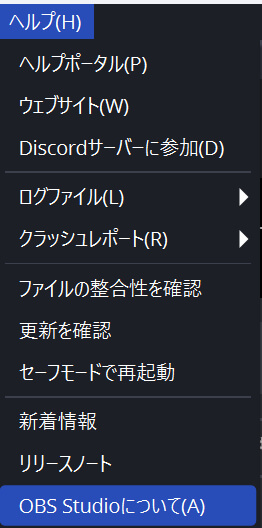
- Open OBS
- Click “Help” in the top-left of the screen
- Click “About OBS Studio”
- The window that appears will show your current version
If you’re not on the latest release, grab it from the official OBS site and install it. There’s a good chance your audio issue clears up afterward.
Check your volume mixer settings
If OBS still isn’t picking up game audio, confirm that volumes are set correctly in both OBS and Windows.
1. The OBS volume mixer
OBS lets you adjust the volume of each audio source individually. Make sure the source carrying your game audio isn’t muted or pulled all the way down.
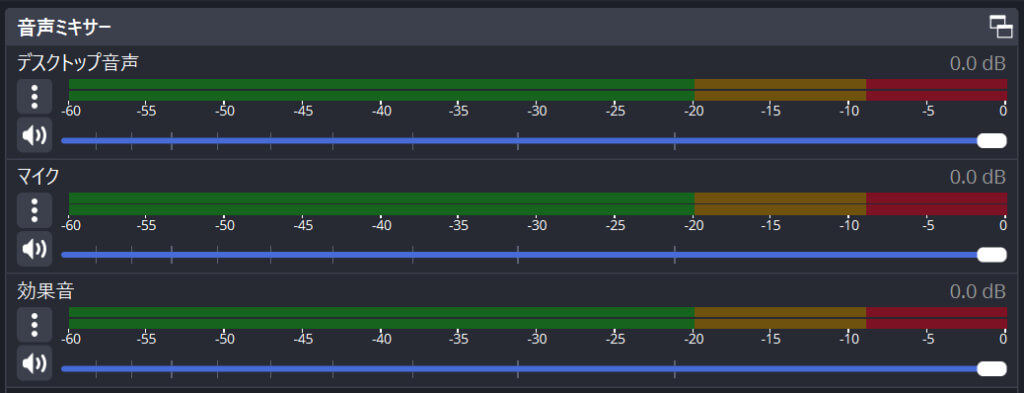
- Open OBS
- Look at the “Mixer” section at the bottom of the window
- Confirm the game audio slider is in a reasonable position—if it’s pulled to the far left, the volume drops.
- Make sure the mute icon on the audio source isn’t toggled on—if it is, click to unmute.
2. The Windows volume mixer
Windows also lets you adjust per-app volumes. Confirm that OBS and your game aren’t muted or set extremely low.
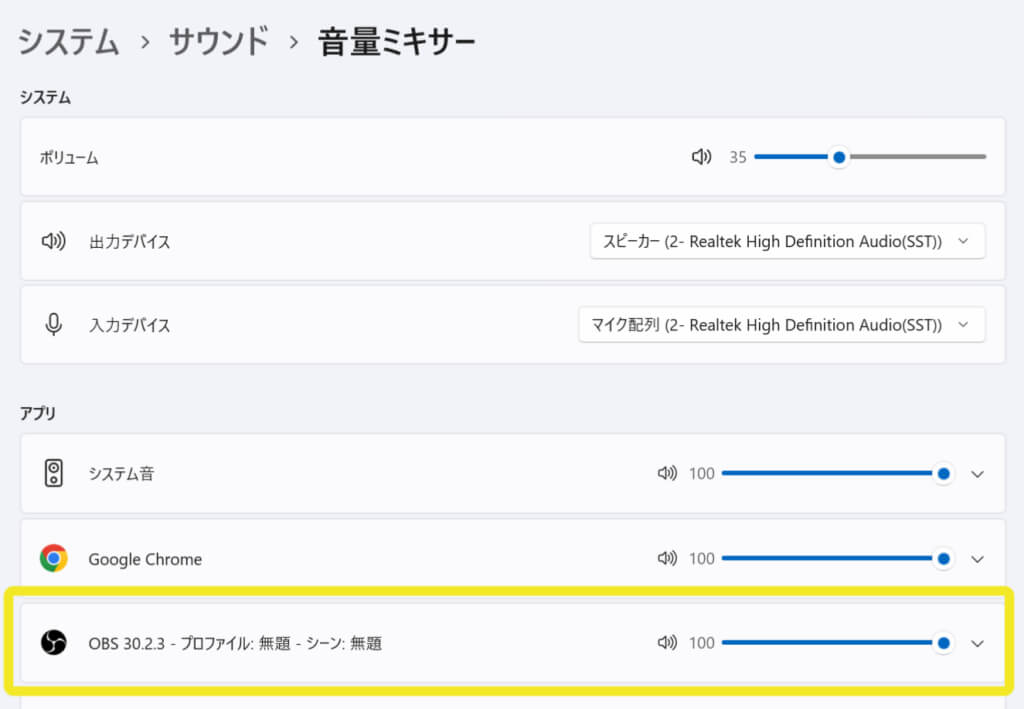
- Right-click the volume icon in the taskbar
- Select “Open Volume Mixer”
- Check that the OBS and game volume sliders are in reasonable positions—if they’re at the bottom, audio gets quiet.
- Make sure neither is muted—click any active mute icons to turn them off.
If your audio still won’t behave, move on to the next section.
For more on dialing in OBS audio settings, this guide goes deeper:
>>How to Set Up Audio in OBS: Recommended Settings for High-Quality Streams
Check Your OBS Game Audio Settings
If the basics didn’t fix it, open OBS Settings, go to the “Audio” tab, and walk through the following.
Set “Desktop Audio” to “Default”
If OBS isn’t recording game audio, the desktop audio setting may be misconfigured. OBS can capture every sound playing on your desktop—but only if this option is set up correctly.
To check it:
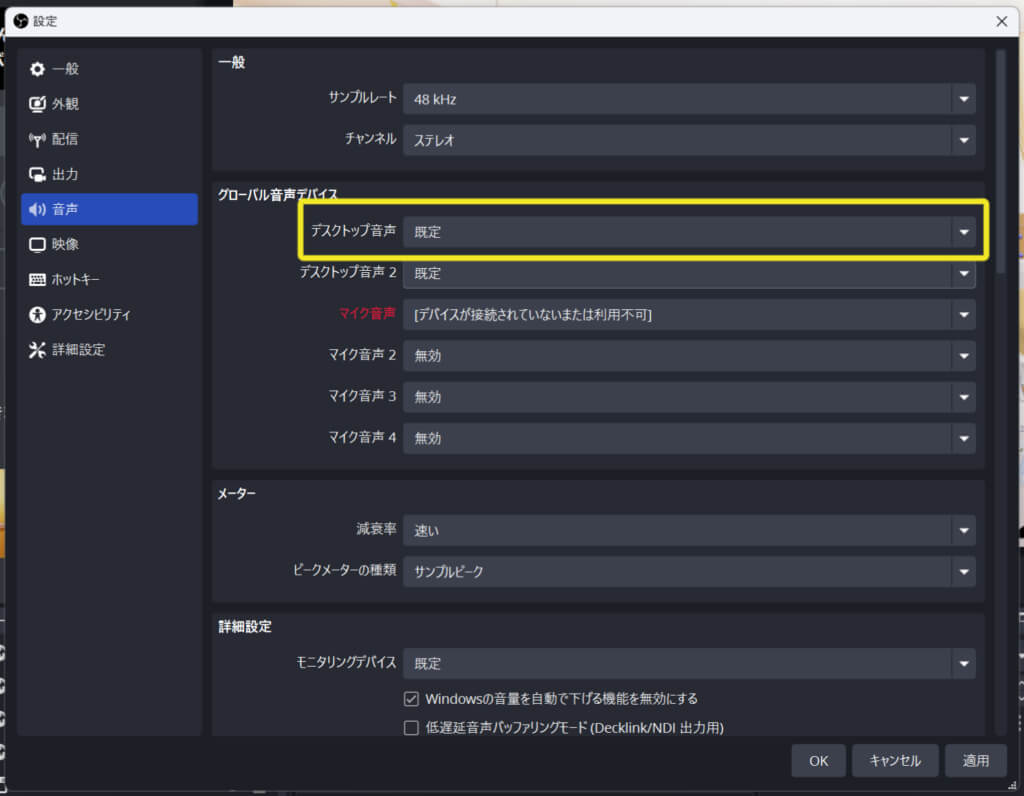
- Open OBS Studio and click “Settings”
- Select the “Audio” tab
- Under “Global Audio Devices,” confirm “Desktop Audio” is set to “Default”
- If it’s set to anything else, open the dropdown and select “Default”
- Click “OK” to save
If that doesn’t solve it, also check:
- Whether your PC volume is muted
- Whether your game’s volume is muted
- Whether OBS is up to date
Set up Application Audio Capture
OBS includes an “Application Audio” feature that captures audio from individual apps. Properly configuring it is key for clean game audio in your stream or recording.
Start by adding either “Audio Output Capture” or “Application Audio Output Capture (Beta)” as a source in OBS, depending on which fits your situation.
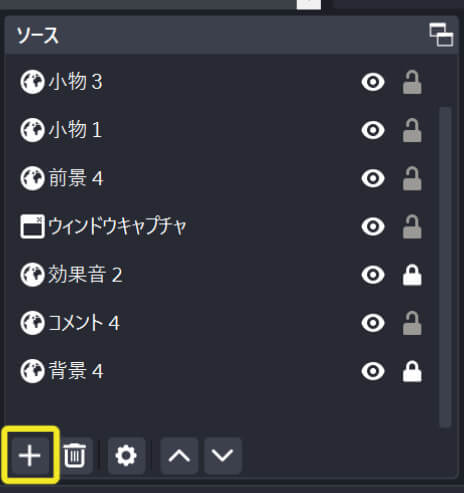
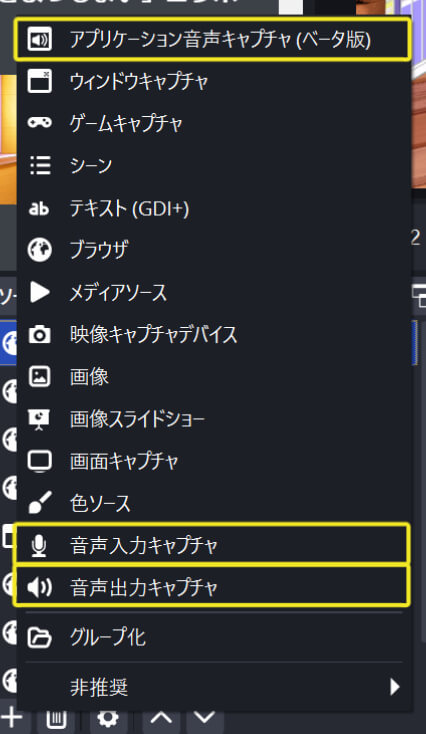
| Source | When to use it |
|---|---|
| Audio Output Capture | Pick this when you want to grab everything playing through a specific output device, such as your speakers. |
| Application Audio Output Capture (Beta) | Pick this when you only want to capture a specific app’s audio. Great for isolating game sound on your stream. |
Open the source’s properties, choose the device or app where your game audio is playing, and leave Output Mode on “Capture default” unless you have a reason to change it.
If audio still isn’t recording or streaming, also check:
- Whether OBS is running with administrator privileges
- Whether your game’s audio output is set correctly
- Whether your audio device drivers are up to date
Still stuck? The OBS official site and community forums are good places to dig deeper.
Pick the right microphone audio device
Your mic is what lets you talk to your audience, so it’s worth getting it set up properly in OBS Studio.
Open OBS Studio, head into Settings, and select the “Audio” tab. Look for the “Mic/Auxiliary Audio” entry.
If it’s set to “Disabled,” your mic isn’t recognized—even if it’s plugged in. Open the dropdown and pick the mic you want to use, then click “Apply” → “OK” to save.
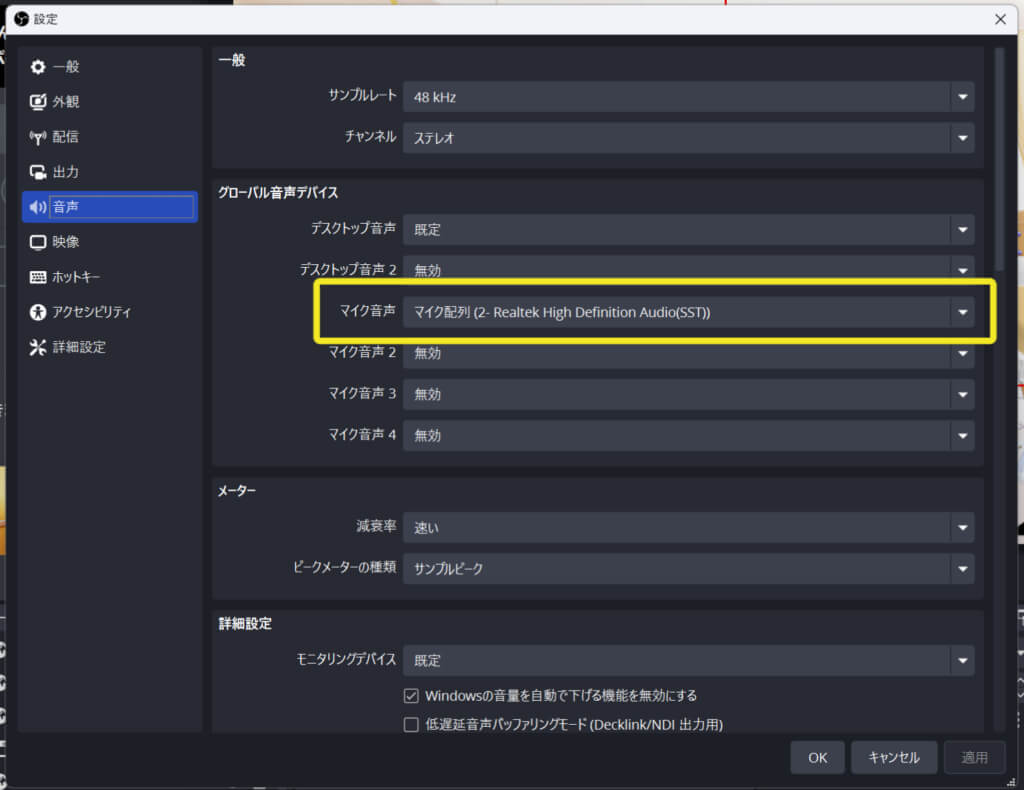
Back on the main screen, confirm the mic now appears in the audio mixer. Speak into it—if the level meter responds, you’re set.
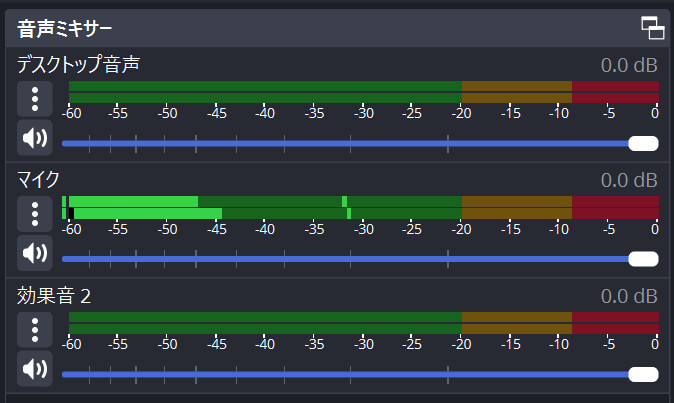
If the meter stays flat, you’ve either picked the wrong mic or it’s not connected properly. Double-check the physical connection and the mic selected in your Windows sound settings.
Once your audio is sorted, why not give your stream’s visuals the same attention? Alive Studio, our stream-design service, lets you build polished, distinctive stream layouts with simple, intuitive controls. It’s a great fit for streamers who want their game broadcasts to feel uniquely theirs.
Environment-Specific Fixes for OBS Game Audio Issues
The cause—and the fix—varies depending on whether you’re streaming a PC game, a Switch, or a PS5. Jump to the section that matches your setup.
PC games (Steam, etc.)
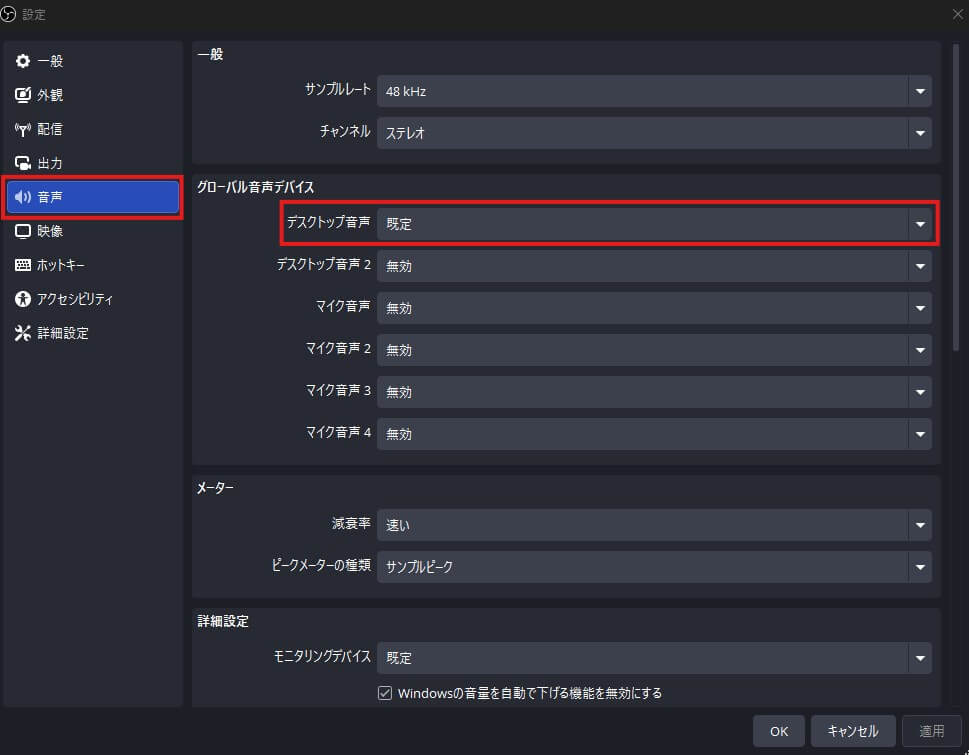
For PC games like Steam titles, the first thing to check is whether OBS’s “Desktop Audio” is set to “Default.” If it’s “Disabled,” none of the audio playing on your PC will reach OBS.
Whether you’re using Game Capture, Window Capture, or Display Capture in OBS, game audio almost always comes through Desktop Audio (unless you’re routing it via Application Audio Capture or a capture card). Switching your video capture method doesn’t affect audio routing—so check Desktop Audio first.
If audio is missing for one specific game, exclusive mode—a feature that lets a single app take exclusive control of an audio device—may be enabled in Windows or in the app itself. With exclusive mode on, OBS often can’t grab the game’s audio. Turn it off and try again.
If the problem persists after changing settings, restart both OBS and the game.
Switch and Switch 2
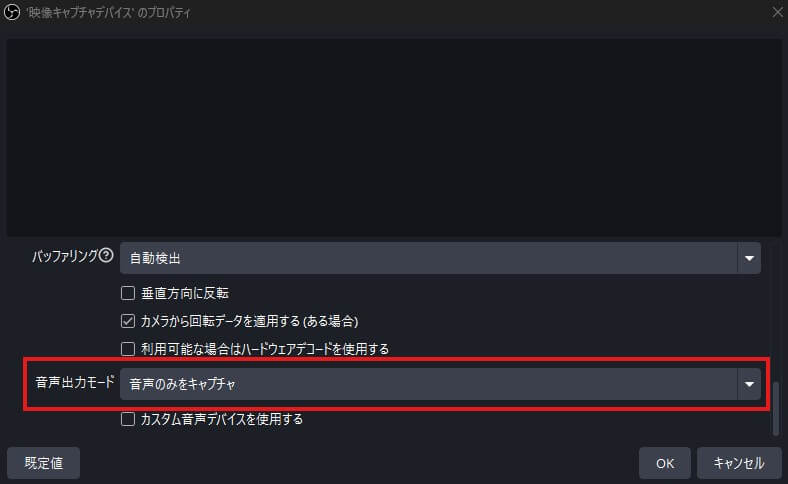
Switch and Switch 2 audio reaches OBS through a capture card. Double-click your “Video Capture Device” in OBS to open its properties, and set “Audio Output Mode” to “Capture audio only.”
If the level meter still doesn’t move, enable “Use custom audio device” and select your capture card.
Also confirm that no headset or earphones are plugged into the Switch itself. By design, plugging audio gear into the Switch typically cuts the audio feed to the capture card. For Switch 2, in the system settings, lock HDMI audio output to “Stereo” and cap HDMI resolution at 1080p.
PS5 and PS4
If you stream PS5 or PS4 through a capture card and OBS shows “Copy Protected Contents”—or no video and audio at all—HDCP (the copyright-protection protocol) is the issue.
On PS5, disable it via:
- Settings
- System
- HDMI
- Enable HDCP (uncheck this)
On PS4, disable it via:
- Settings
- System
- Enable HDCP (uncheck this)
While HDCP is on, no audio or video gets through the capture card to OBS.
If audio still doesn’t come through after disabling HDCP, open the “Video Capture Device” properties in OBS and set “Audio Output Mode” to “Output desktop audio (WaveOut).” That option lets you hear the game audio yourself while streaming it.
Mac
On macOS, OBS’s “Desktop Audio” only shows “Disabled”—you can’t capture desktop audio out of the box. This is a macOS limitation, not an OBS bug.
The fix is a virtual audio device. On Apple Silicon Macs (M1/M2/M3/M4), BlackHole is the go-to free option. After installing it, set OBS’s “Desktop Audio” to BlackHole 2ch and you’re capturing game sound.
After installing BlackHole, open macOS’s “Audio MIDI Setup” and create a “Multi-Output Device” that bundles your built-in speakers and BlackHole together.
Then go to System Settings → Sound → Output and switch to that “Multi-Output Device.” That way you can monitor audio yourself while it’s also being captured by OBS.
Symptom-Based Checklist for OBS Game Audio Issues
From here on, we’ll get more specific—diagnosing and solving issues by exact symptom. Find the one that matches your situation.
Only one specific game has no audio
If a single game refuses to send audio to OBS, focus on these checks:
- The game’s volume settings: Open the game’s options menu and confirm volumes aren’t at zero or muted.
- OBS’s audio mixer: Find the source carrying that game’s audio and verify the level isn’t muted or pulled too low.
- Windows volume mixer: Right-click the volume icon and choose “Open Volume Mixer”—make sure the game isn’t muted there either.
- Exclusive mode: Some games take exclusive control of an audio device, which blocks other apps from accessing it. Disable exclusive mode in the game’s audio settings.
Still stuck? Try restarting OBS and the game—or reinstalling them.
Mic audio works but game audio doesn’t
If your mic is coming through but game audio isn’t, the issue is on the OBS output side. OBS handles each audio source separately, so a working mic just means the mic input is fine. Game audio is either not reaching OBS or not configured to be output by OBS.
Start streaming and watch the desktop audio bar in the mixer. If it’s flat, OBS isn’t seeing your game audio at all. Open Settings → Audio and check the desktop audio configuration.
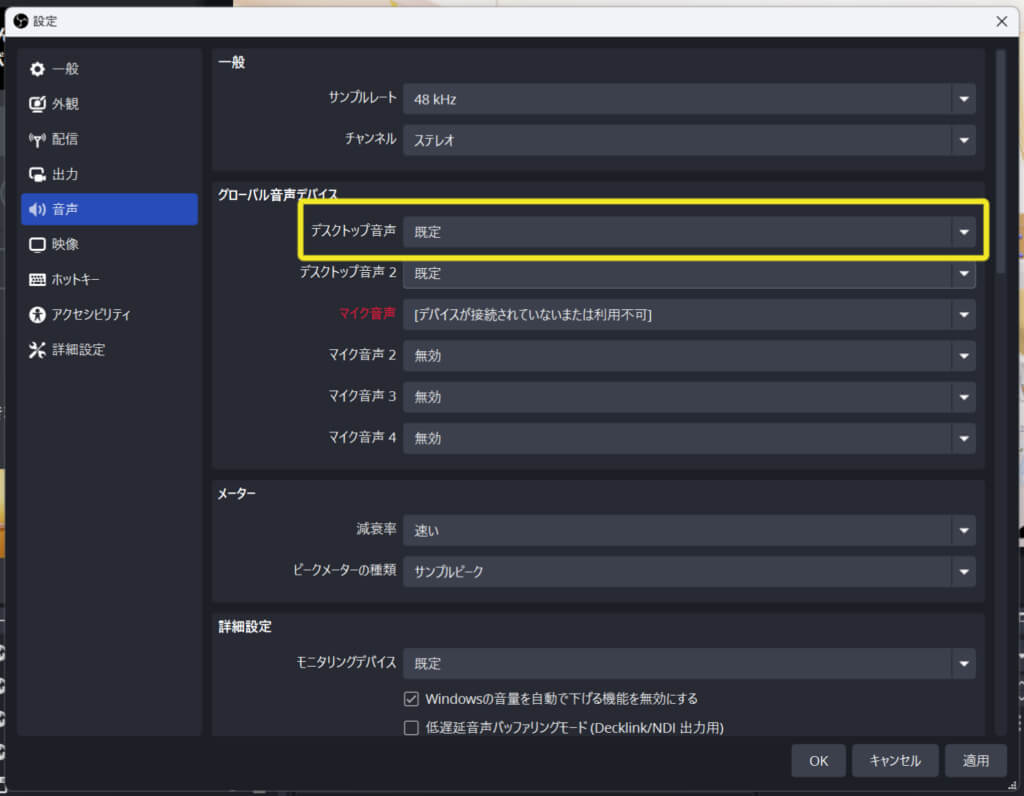
Some OBS versions label this as “Speakers” instead of “Desktop Audio.” Either way, setting it to “Default” usually does the trick.
| Setting | Description |
|---|---|
| Device | Choose where audio is sent. |
| Desktop Audio | Pick the device OBS treats as desktop audio. “Default” follows whatever you’ve set in Windows. |
| Sample Rate | Sampling frequency for streams and recordings. 48 kHz is a safe default. |
| Channels | Audio channel count for streams and recordings. Stereo is the safe default unless you’re using surround speakers. |
If that doesn’t help, look at the game’s audio settings. Some titles output through a specific audio device, so check the game’s manual or support docs to confirm.
The game video has no audio when you play it back
You record a session, watch it back, and the game audio is missing—frustrating, but fixable.
Start basic: restart your PC. If it’s a temporary glitch, that often clears it.
If not, your OBS version may be the issue. Certain releases have shipped with bugs that affect audio recording. Try uninstalling OBS and installing a different version.
If a clean reinstall and version swap don’t help, try a different recording app. If a different app records audio without issue, the problem was OBS-specific—either a setting or a compatibility quirk.
| Fix | Description |
|---|---|
| Restart your PC | Often resolves temporary issues. |
| Switch OBS versions | A specific OBS build may be buggy. Try another version. |
| Try a different recording app | If another app works, the issue was on OBS’s side—likely a setting or a compatibility issue. |
Capture Card Audio Issues in OBS
If you’re on a capture card and audio isn’t coming through, check the items below.
Verify connections and Device Manager
With a capture card, the first checks are physical: is everything plugged in correctly, and does Windows actually see the device?
| Step | What to do |
|---|---|
| 1. Check connections | Confirm the capture card is properly connected to your console, monitor, and PC. |
| 2. Check Device Manager | Open Device Manager and look for the capture card under “Sound, video and game controllers.” |
| 3. Look for errors | If the device shows an error icon, it’s not being recognized cleanly. Try reinstalling the driver. |
USB capture cards in particular can be flaky depending on the port. If detection is unstable, try another USB port or a self-powered USB hub.
Update your capture card drivers
Capture cards need a working driver to talk to your PC properly.
To install one:
| Step | What to do |
|---|---|
| 1. Visit the manufacturer’s website | Search for the maker of your capture card. |
| 2. Find the support page | Look for a downloads or drivers section. |
| 3. Search by model name or number | Make sure you’re getting the right driver for your exact card. |
| 4. Choose your OS | Pick Windows or macOS, depending on your system. |
| 5. Extract the file | Unzip or otherwise unpack the download. |
| 6. Run the installer | Launch the .exe or .dmg and follow the prompts. |
Reboot when you’re done. After the restart, your capture card should be properly recognized—and your game audio should come through.
For more on choosing and configuring a capture card with OBS, see this guide:
>>[OBS] How to Stream Console Games Using a Capture Card: A Complete Walkthrough
Configure audio for the video capture device in OBS
When you’re using a capture card, OBS needs the right audio settings to pick up game sound.
The “Audio Mixer” lets you adjust the input level coming from the capture card.
From Settings → Audio → Audio Monitoring, you can pick where the capture card’s audio is monitored.
| Setting | Description |
|---|---|
| Audio Input Capture | Select your capture card. |
| Audio Output Mode | Pick where audio goes (headphones, speakers, etc.). |
| Audio Monitoring | Choose your monitoring method—useful for spotting delay. |
| Sync Offset | Correct any audio/video desync. |
| Audio Filters | Apply noise suppression, gain, and other filters. |
Tuning these gets your capture card’s audio properly into OBS for streaming or recording.
When Discord and OBS Conflict on Game Audio
Running Discord alongside OBS sometimes leads to audio conflicts—where game audio simply stops reaching your stream.
If Discord is the source of your trouble, focus on these two areas.
Discord’s audio output device clashes with OBS
In Discord, open User Settings → Voice & Video → Output Device and confirm it’s set to “Default.”
If it’s pointed at a specific headset or speaker, OBS’s desktop audio and Discord can end up on different output paths—and your game audio may stop reaching the stream.
Setting the output back to “Default” routes everything through your PC’s main playback device, which usually lets OBS pick up game audio cleanly. After changing it, restart both Discord and OBS, then verify.
Discord’s volume management is interfering with the Windows mixer
Check the Windows volume mixer to see if Discord is automatically lowering other apps’ volumes. Right-click the speaker icon in the bottom right of your screen and select “Open Volume Mixer” to see per-app levels.
Windows’s “Communication activity” feature can also kick in while you’re on Discord, automatically lowering the volume of other apps—including your game. Open Sound settings → Communications and select “Do nothing” to stop Windows from auto-ducking your game audio during Discord calls.
Last-Resort Fixes for OBS Audio Issues
If nothing above has worked, try a clean reinstall of OBS, dig into the log files, or reach out on the official forums.
Uninstall and reinstall OBS
To fully uninstall OBS, remove it from Windows Settings → Apps, then manually delete the folders that hold its config files.
Leftover config files can carry the same problem into a fresh install. Wiping those folders gives you a truly clean slate—and often clears stubborn audio issues.
After uninstalling, grab the latest version from the official OBS site and install. Walk through the audio setup from scratch.
Use OBS log files to track down the cause
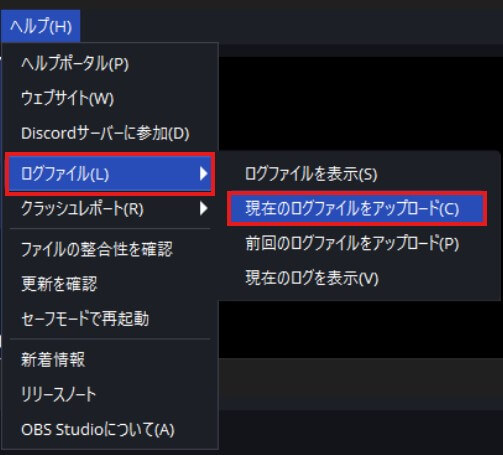
From OBS’s top menu, click Help → Log Files → “Upload Current Log File” to push the log to OBS’s servers. The URL that pops up lets you view the log in your browser.
Scan it for errors and warnings. OBS also offers a built-in “Log Analyzer” that auto-diagnoses common issues from an uploaded log.
It often catches audio device detection errors and inconsistent settings, so use it as a starting point for narrowing down the cause.
Ask the OBS forums or help docs
The OBS official help site hosts FAQs and troubleshooting guides, including pages dedicated to audio. Check them for anything close to your situation.
You can also post on the OBS forums. Attach your log file URL when you do—pairing the log with a clear environment description gives the community what they need to actually help you.
Frequently Asked Questions: OBS Game Audio
Quick answers to common questions about OBS game audio issues.
How do I confirm OBS is actually picking up game audio?
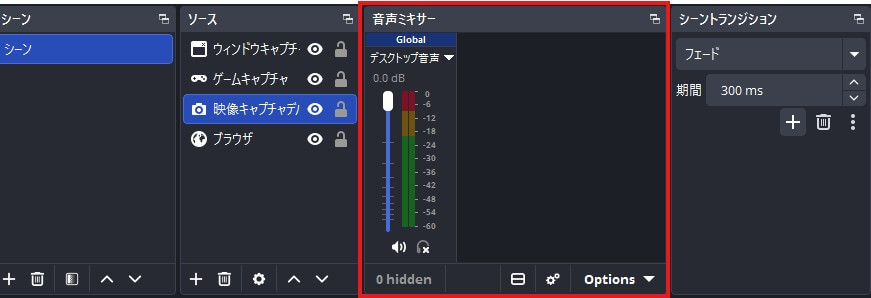
Watch the level meters in OBS’s audio mixer at the bottom of the window. If they move along with your game’s audio, OBS is receiving it. If they’re flat, OBS isn’t picking it up.
What if OBS’s “Desktop Audio” is set to “Disabled”?
If Desktop Audio is showing “Disabled,” set it as follows:
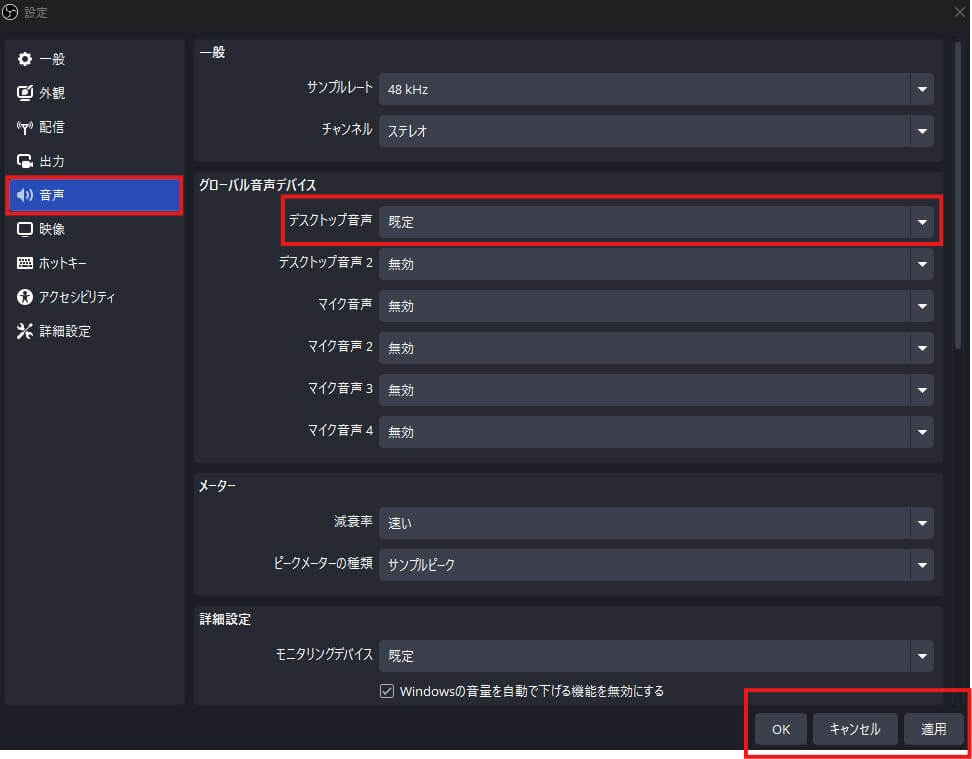
- Open “Settings”
- Go to “Audio”
- Change “Desktop Audio” to “Default”
- Click “Apply”
- Click “OK”
“Default” follows your Windows default playback device, which routes your PC’s audio into OBS.
What if I can’t hear game audio myself?
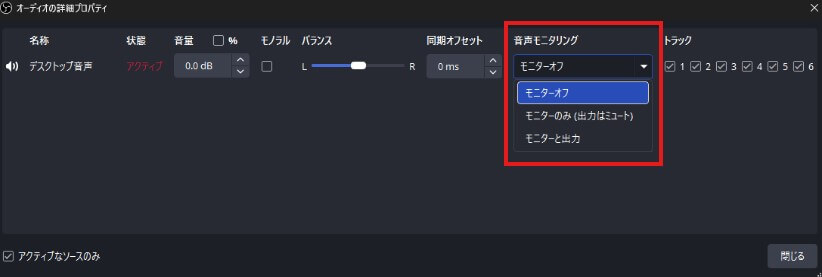
Click the gear (settings) icon next to the audio source in the mixer and open “Advanced Audio Properties.” Change the source’s “Audio Monitoring” to either “Monitor Only (mute output)” or “Monitor and Output.”
If audio still isn’t reaching your headphones, also check Settings → Audio → Monitoring Device and make sure it’s set to “Default.”
Why is my game audio doubled?
Doubled audio usually means desktop audio and Application Audio Capture are both grabbing the same game audio. Mute one of the two in the mixer, or revisit the audio monitoring settings in Advanced Audio Properties.
For more on how audio monitoring works, check this guide:
>>OBS Audio Monitoring Explained: Setup Tips and Common Pitfalls
What if my game audio is too quiet?

Push the “Desktop Audio” slider in the OBS mixer to the right.
If maxing the slider still isn’t enough, right-click the source → “Filters” → add a “Gain” filter and dial up the dB value. Aim to keep level meters out of the red (clipping zone).
Wrapping Up
This guide covered the reasons OBS doesn’t pick up game audio—and how to fix them. The causes break down into four buckets: OBS settings, PC settings, in-game settings, and capture card settings.
What you need to check changes depending on your environment—PC games (Steam), Switch, Switch 2, PS5, PS4, Mac, or Discord running alongside—so jump to the section that matches your setup.
If nothing else works, fall back on a clean OBS reinstall, log file analysis, or the official forums. Step through the checks one at a time and you’ll get your game audio back. Here’s to a smoother streaming setup.